
This article shows the starting options for the touchscreen calibration tool in IGEL OS.
Menu path: User Interface > Input > Touchscreen > Touchscreen Calibration
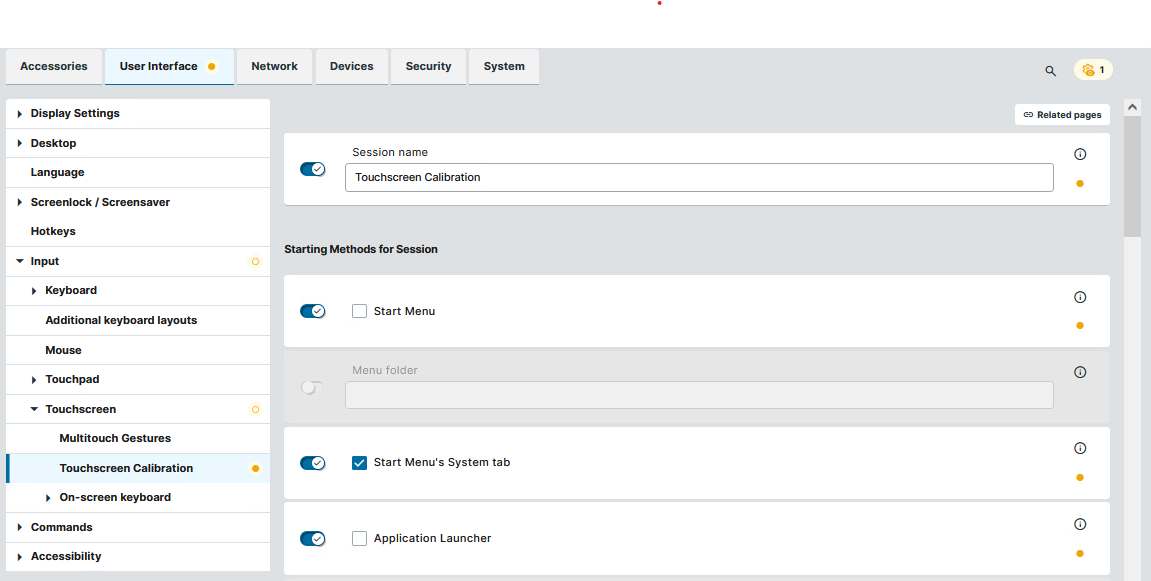
The starting methods parameters are described under Starting Methods for Apps.
Setting up the Calibration Tool
-
Activate Enable touchscreen and configure the rest of the settings according to your needs.
-
In the Touchscreen monitor dropdown, select Automatic as the recommended setting.
If you must select a specific port, ensure it matches the physical connection (e.g., DisplayPort, HDMI).
-
Save the settings and run the calibration. The calibration starts automatically if enabled, or can be started manually based on the Starting Methods for Session settings.
Troubleshooting
If you selected a specific port under Touchscreen monitor and the calibration does not start, this can be due to a mismatch with the physical connection.
-
Check if you see the
Calibrated touchscreen port not foundin the logs.
-
Verify that the selected port is physically connected.
-
Use the command
get_drm connectors x11 connectedto list connected ports.
-
Change the settings inline with the connected ports.
-
Try the calibration again.
If the calibration still does not work and you are unsure why:
→ Switch back to Automatic in the Touchscreen monitor dropdown, and try the automatic calibration.