
This article shows how to configure the touchscreen connected to your endpoint device in IGEL OS. To ensure that you can open the setup and navigate within it, the initial configuration should take place with a mouse and keyboard connected.
Further information about touchscreen configuration can be found under:
Menu path: User Interface > Input > Touchscreen
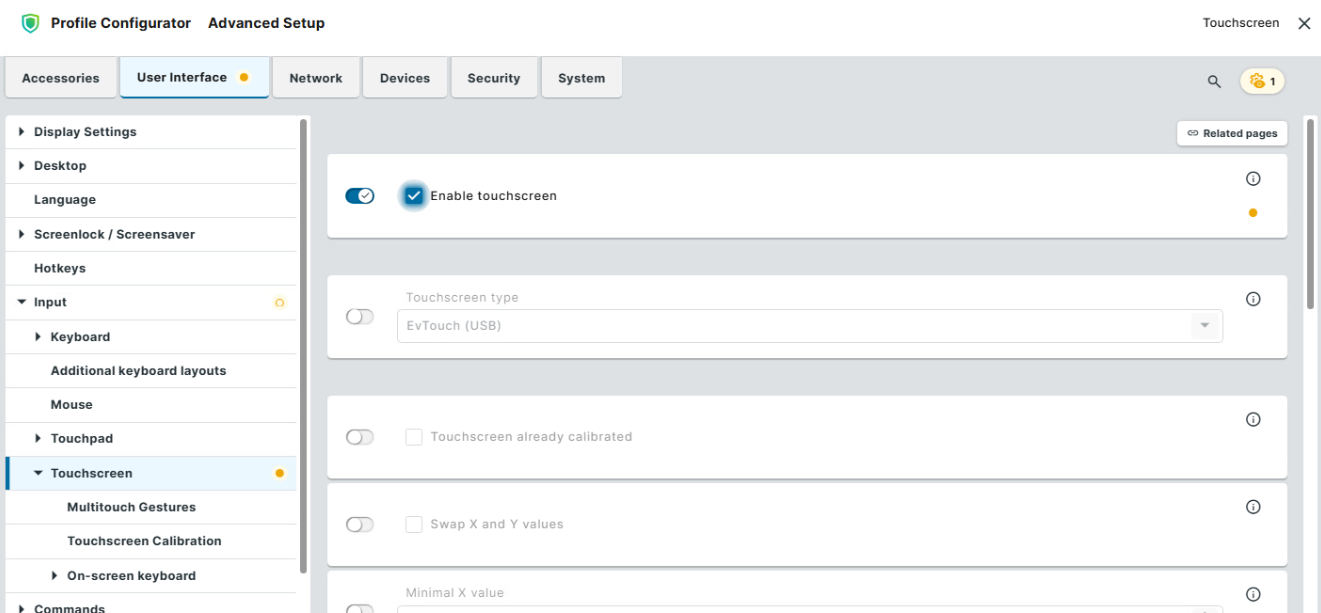
Enable touchscreen
☑ The touchscreen is enabled.
☐ The touchscreen is disabled. (Default)
Touchscreen type
Selects the touchscreen driver which is to be used.
Possible options:
-
EvTouch (USB) (Default)
-
eGalax
-
Elo Multitouch (USB)
-
Elo Singletouch (USB)
Touchscreen already calibrated
If you enable the touchscreen function, the touchscreen must be calibrated before use.
☑ Calibration starts automatically after each system boot. (Default)
☐ Calibration does not start automatically after each system boot. You can start the calibration session as configured under Touchscreen Calibration.
Swap X and Y values
☑ X values are interpreted as Y values and Y values as X values. Enable this option if the mouse pointer moves vertically when you move your finger in a horizontal direction. Enable if the touchscreen is used rotated by 90°.
☐ X and Y values are not swapped. (Default)
Minimal X value / Minimal Y value
These values are determined by the calibration tool. However, you can also change them manually. (Default: 0)
Maximal X value / Maximal Y value
These values are determined by the calibration tool. However, you can also change them manually. (Default: 4000)
Emulate right button
☑ A right-click is generated by touching the screen for the period of time defined under Right button timeout.
☐ Touching the screen for a long time does not generate a right-click. (Default)
Right button timeout
Time (in milliseconds) after which a right-click is generated. (Default: 1000)
Multimonitor
Graphic card
Graphics card assigned to the selected touchscreen. A graphics card can have more outputs than are actually used. In order to ensure transparency, you may need to assign the graphics cards manually.
If Automatic is set for the Touchscreen monitor and no configurable monitor is found for the selected graphics card, the next available monitor will be used by another graphics card.
Touchscreen monitor
Assigns a monitor connection to the touchscreen. Example: DisplayPort. (Default: Automatic)
For most setups, it is recommended to keep the monitor assignment on Automatic, unless you need to bind the touchscreen to a specific monitor. In manual configurations, the touchscreen calibration only works if the selected monitor port is physically connected. If the port is not in use, calibration cannot be started, and a corresponding warning appears in the system log. For troubleshooting, see Touchscreen Calibration.
When configuring this setting manually, you can use fix_touchscreen_matrix show to check available touchscreens and their assignments. With this you can ensure that the selected connection matches the actual port used by the touchscreen monitor.