
This article shows how to configure presets for the audio system in IGEL OS. The settings can also be changed using the Sound Tray App. For details, seeTray Applications in IGEL OS 12 .
Menu path: Devices > Audio > Options
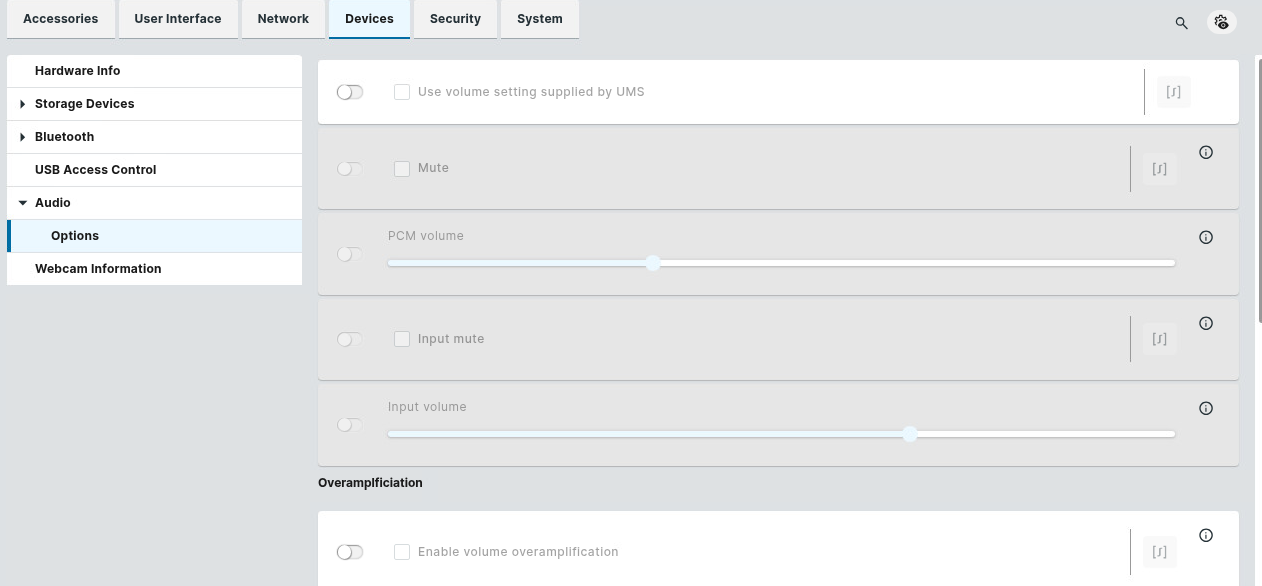
Use volume setting supplied by UMS
☑ The settings for the below parameters Mute, PCM volume, Input mute, and Input volume are restored after each system restart. The settings set in Sound Preferences or in the taskbar will only remain until system restart.
☐ The settings set in Sound Preferences or in the taskbar will be restored after system restart. (Default)
Mute
☑ Audio playback is muted.
☐ Audio playback is on. (Default)
PCM volume
Preset volume in percent. (Default: 50)
Input mute
☑ The audio input is muted. Sounds from a microphone that are recorded are not transferred to the endpoint device.
☐ The audio input is switched on. Sounds from a microphone that are recorded can be transferred to the endpoint device. (Default)
Input volume
Volume of recorded sounds at the audio input device in percent. (Default: 100)
Enable volume overamplification
☑ Allows setting the volume up to 150%.
☐ The volume cannot be overamplified. (Default)
Enable input volume overamplification
☑ Allows setting the input volume up to 150%.
☐ The input volume cannot be overamplified. (Default)
Managing Default Output Device Rules
With a default output device rule, you define which device will be selected as the default output device. This is done by assigning priorities to device classes or to specific devices.
You can manage default output device rules using the following icons:
-

-

-

-

How to Create a Default Output Device Rule for a Device Class
-
Click
-
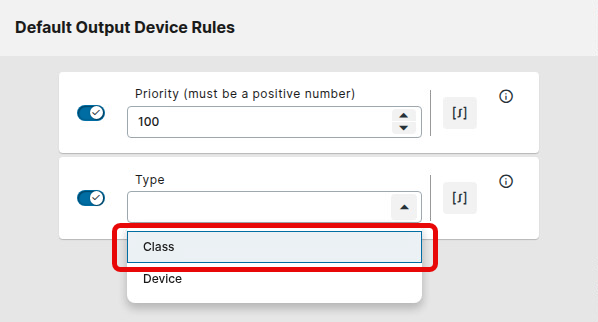
Set the Type to Class.
-
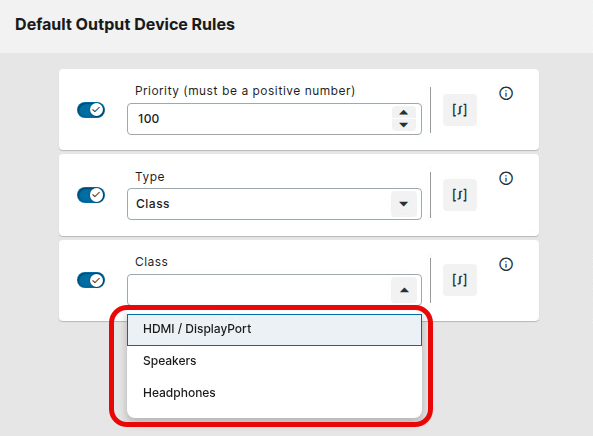
Select the Class of devices to which you want to assign a priority. The following classes are available:
-
HDMI / DisplayPort
-
Speakers
-
Headphones
-
-
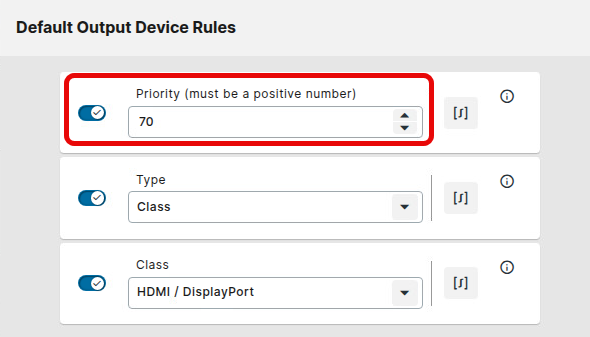
Set the Priority for the selected class using a positive number. The higher the number, the higher the priority.
-
Confirm your settings.

How to Create a Default Output Device Rule for a Specific Device
-
To determine the relevant data to identify your device, open a terminal on the device and type:
igel-default-sound-setter -l
The currently connected audio devices are printed in JSON format.
Example snippet:
    {
      "name":"Family 17h/19h/1ah HD Audio Controller (Speaker)",
      "card":"alsa_card.pci-0000_04_00.6",
      "port":"[Out] Speaker",
      "profile":"HiFi (Mic1, Mic2, Speaker)",
      "output_class":"Speakers"
    },
    {
      "name":"Blackwire C5220 headset (remote control and 3.5mm audio adapter) (Headphones)",
      "card":"alsa_card.usb-Plantronics_Plantronics_Blackwire_5220_Series-00",
      "port":"analog-output-headphones",
      "profile":"output:analog-stereo",
      "output_class":"Headphones"
    },
-
Click
-
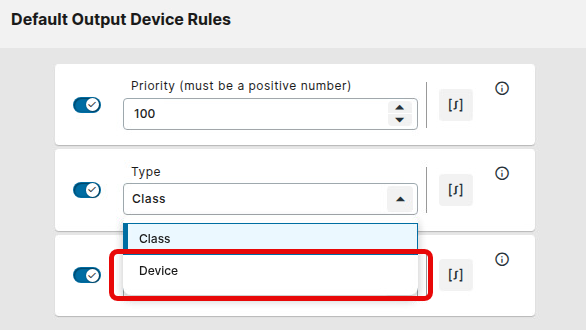
Set the Type to Device.
-
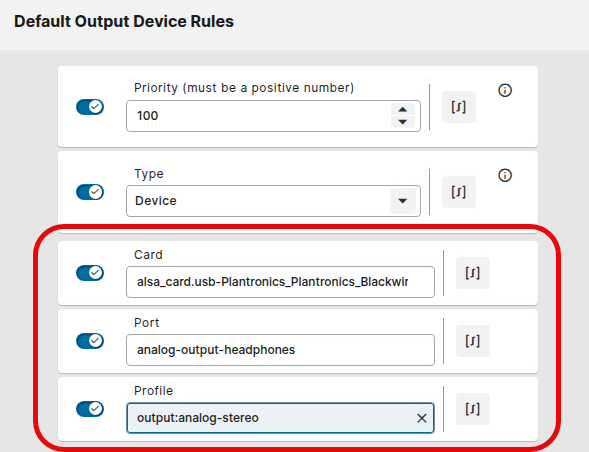
To specify a device, provide at least one of the following data:
-
Card: The value of
"card"in the JSON file -
Port: The value of
"port"in the JSON file -
Profile: The value of
"profile"in the JSON file
-
-
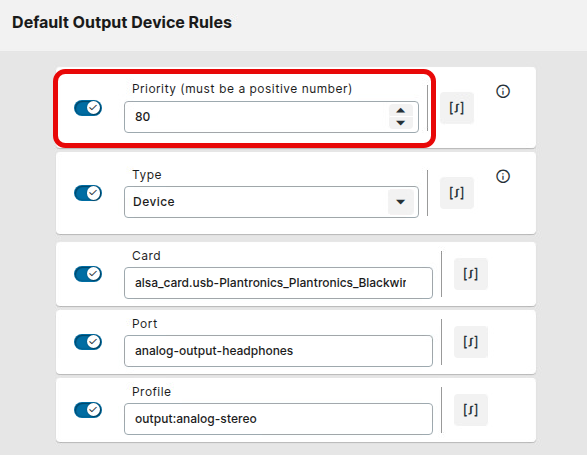
Set the Priority for the selected device using a positive number. The higher the number, the higher the priority.
-
Confirm your settings.
Managing Default Input Device Rules
With a default input device rule, you define which device will be selected as the default input device. This is done by assigning priorities to device classes or to specific devices.
You can manage default input device rules using the following icons:
-
-
-
-
How to Create a Default Input Device Rule for a Device Class
-
Click
-
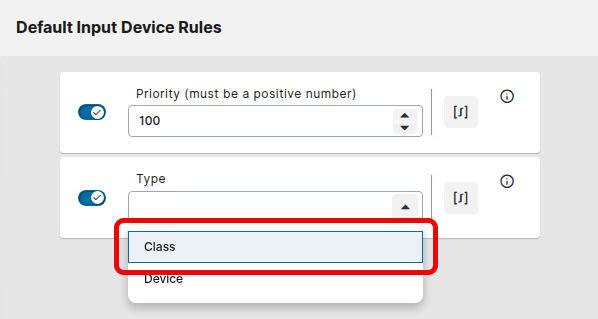
Set the Type to Class.
-
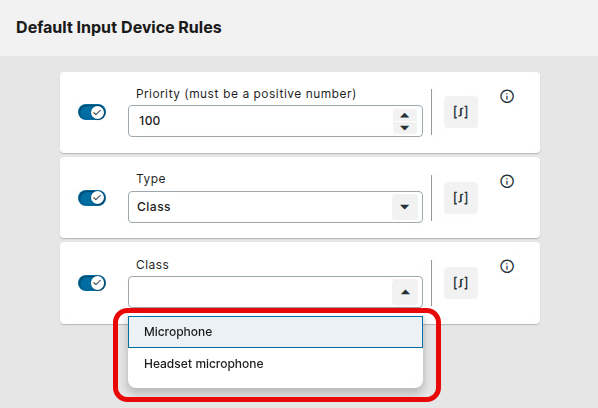
Select the Class of devices to which you want to assign a priority. The following classes are available:
-
Microphone
-
Headset microphone
-
-
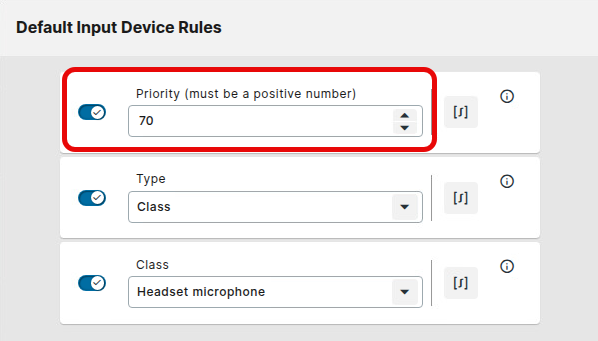
Set the Priority for the selected class using a positive number. The higher the number, the higher the priority.
-
Confirm your settings.
How to Create a Default Input Device Rule for a Specific Device
-
To determine the relevant data to identify your device, open a terminal on the device and type:
igel-default-sound-setter -l
The currently connected audio devices are printed in JSON format.
Example snippet:
     {
      "name":"USB Audio (Microphone)",
      "card":"alsa_card.usb-Generic_USB_Audio_201604140001-00",
      "port":"analog-input-mic",
      "profile":"input:analog-stereo",
      "input_class":"Microphone"
    },
    {
      "name":"Blackwire C5220 headset (remote control and 3.5mm audio adapter) (Headset Microphone)",
      "card":"alsa_card.usb-Plantronics_Plantronics_Blackwire_5220_Series-00",
      "port":"analog-input-headset-mic",
      "profile":"input:mono-fallback",
      "input_class":"HeadsetMicrophone"
    },
-
Click
-
Set the Type to Device.
-
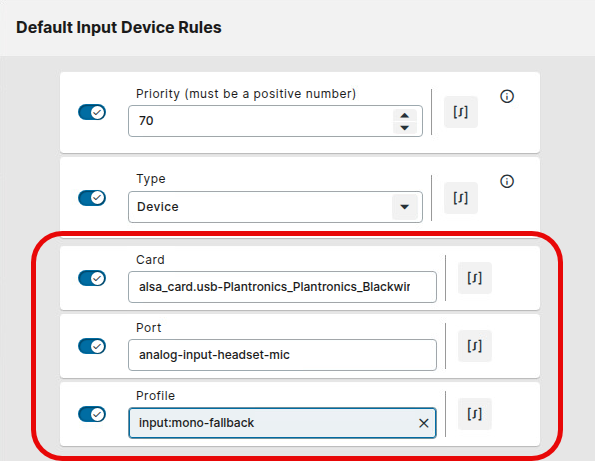
To specify a device, provide at least one of the following data:
-
Card: The value of
"card"in the JSON file -
Port: The value of
"port"in the JSON file -
Profile: The value of
"profile"in the JSON file
-
-
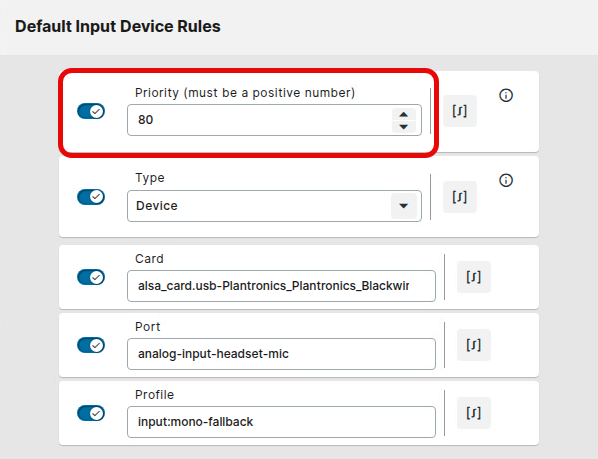
Set the Priority for the selected device using a positive number. The higher the number, the higher the priority.
-
Confirm your settings.