
The IGEL UMS Web App offers different ways to search for objects and devices. Use Quick Search to quickly find and navigate to objects of a selected type, such as devices, profiles, or folders. To search for devices based on specific properties and search criteria, use Advanced Search. Alternatively, use Filter objects to narrow down the objects displayed in the currently selected area or directory.
This article provides an overview of the available search options and explains when and how to use them.
Search Options in the IGEL UMS Web App
Quick Search
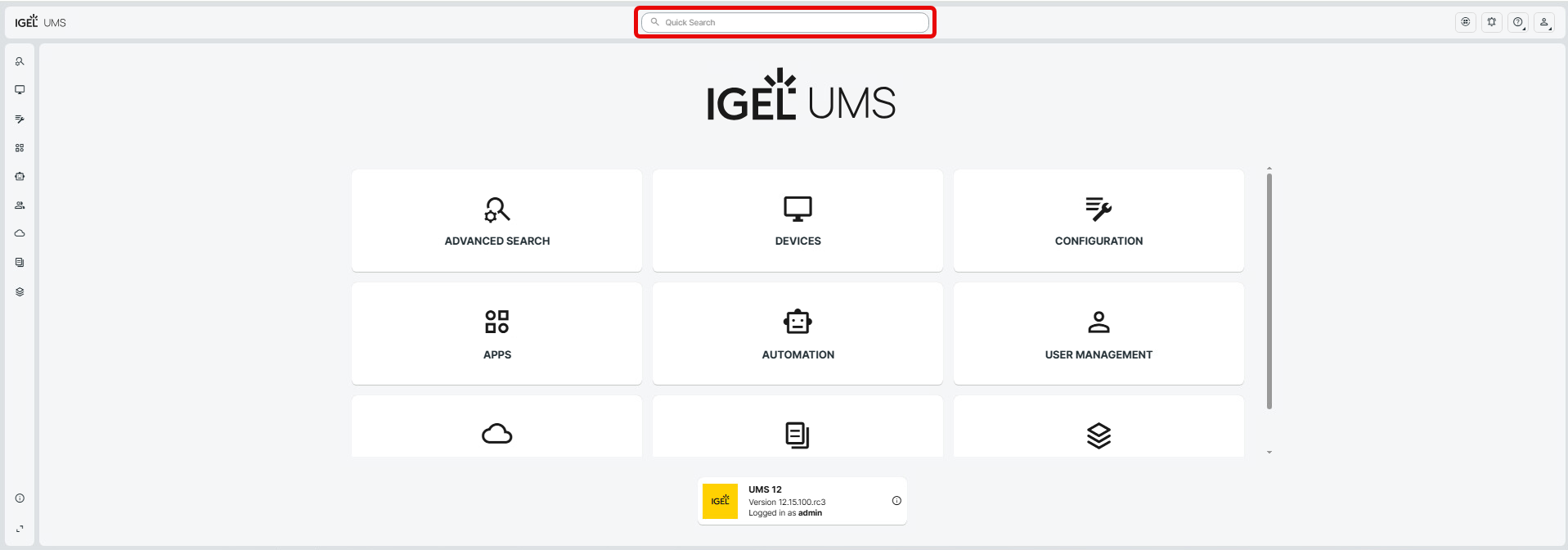
Quick Search is a global search field in the top toolbar of the UMS Web App. It helps you quickly locate and navigate to a known UMS object.
Only objects for which the logged-in user has read permission are included in the search results.
Quick Search displays a maximum of 10 results. The results are ranked by relevance: exact matches are given the highest priority, followed by results that start with the search term and then results that contain the search term.
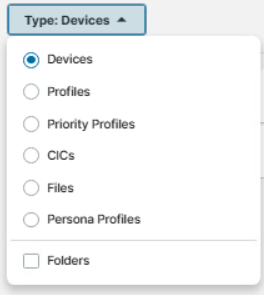
Quick Search supports the following object types:
-
Devices
-
Profiles
-
Priority Profiles
-
Corporate Identity Customizations (CIC's)
-
Files
-
Persona Profiles
You can search all supported object types by Name.
For devices, you can additionally search by Unit ID and the last known IP address.
The search is case-insensitive.
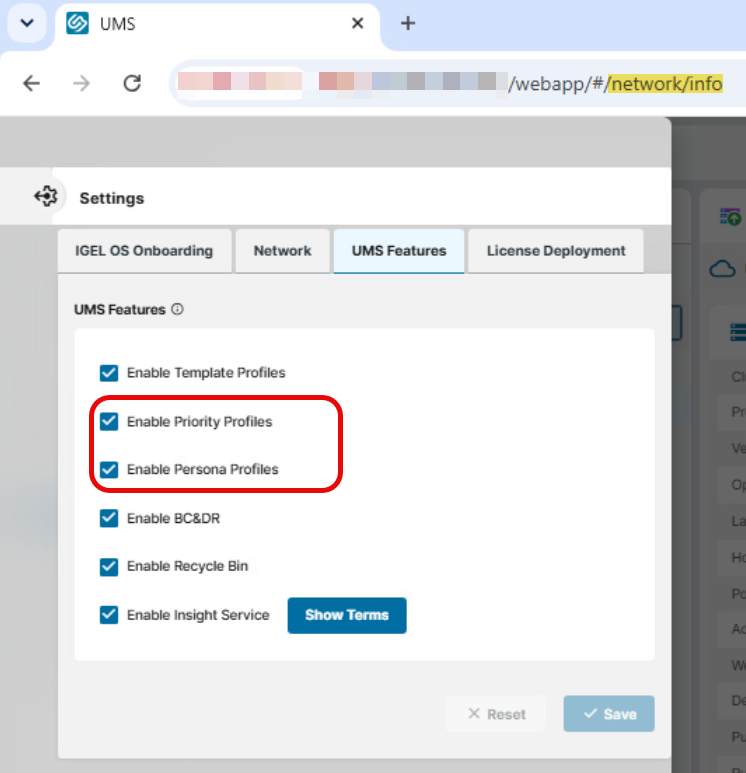
The availability of Priority Profiles and Persona Profiles in the Object Type dropdown depends on the UMS configuration. To enable these object types, go to System > Infrastructure > Settings > UMS Features in the UMS Web App and select the corresponding checkboxes.
Folders only
Select the Folders only checkbox to restrict the search to folders. You can then select the folder type and search for folders by name.
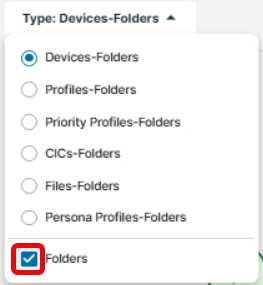
Folders only limits the results to folders, while Type determines which kind of folder you want to find (for example, Device-Folder or Profile-Folder).
Using Quick Search
To use Quick Search:
-
Enter a search term in the Quick Search field in the top toolbar.

-
Press Enter or select the search icon.

The Quick Search sidebar opens on the right.
-
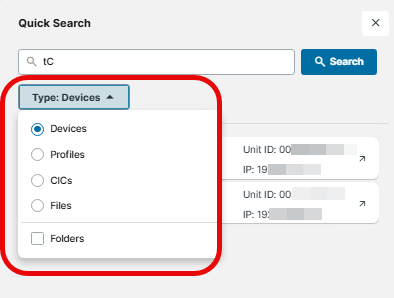
In the Object Type dropdown, select the type of object you want to find. Quick Search searches one object type at a time.
-
Review the search results.
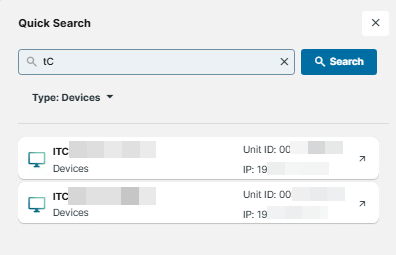
Up to 10 results are displayed. For each result, the object icon, object name, and directory path are shown. For devices, the Unit ID and IP address are also displayed.
-
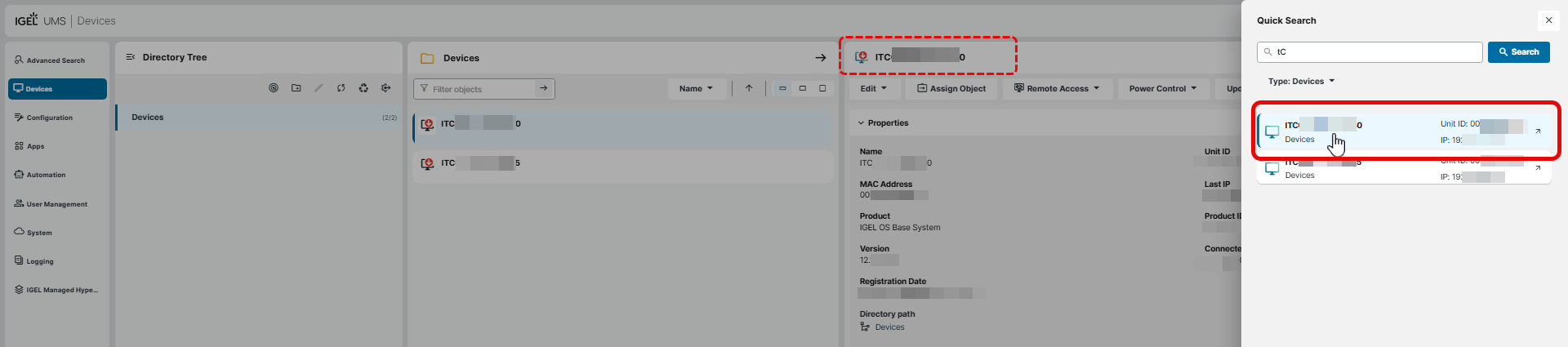
Select a result to open the object in the current browser tab.
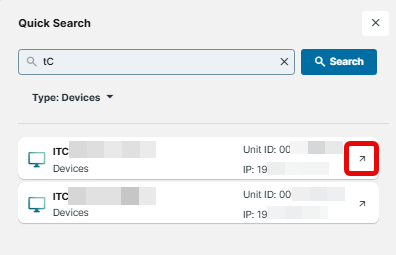
Alternatively, use the separate icon for the result to open the object in another browser tab.
-
To clear Quick Search, delete the search term manually or click the X icon on the right side of the search field.
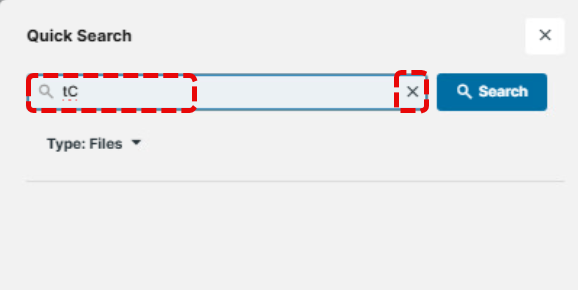
The active object type resets to the default for the current page (e.g., Devices).
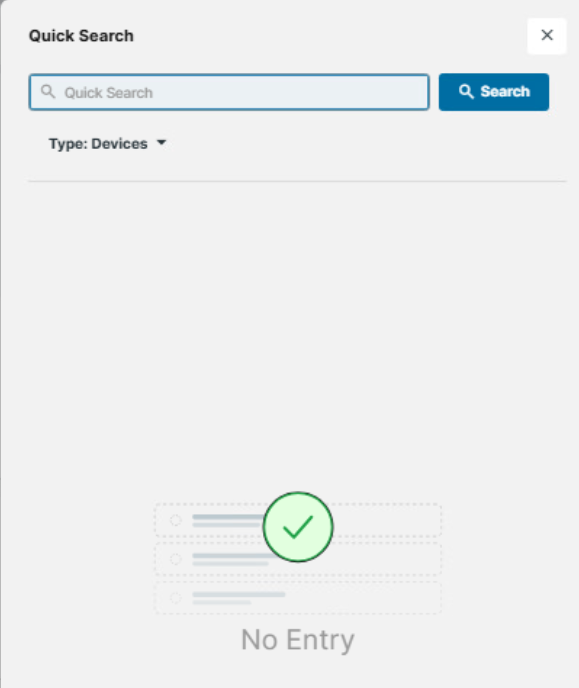
The Quick Search sidebar remains open until you close it manually, click outside it, or refresh the page.
-
The initially selected object type depends on the current page and your previous selection. Quick Search remembers your selected object type for subsequent searches until you clear the search field in the top toolbar. If no previous selection is available, the object type associated with the current page is selected. On other pages, Devices is the default.
-
If no matching objects are found, Quick Search displays an empty result state.
-
When searching for Devices, if the object is not included in the Quick Search results, refer to the information box below the results, which includes an Advanced Search button for a more detailed search:
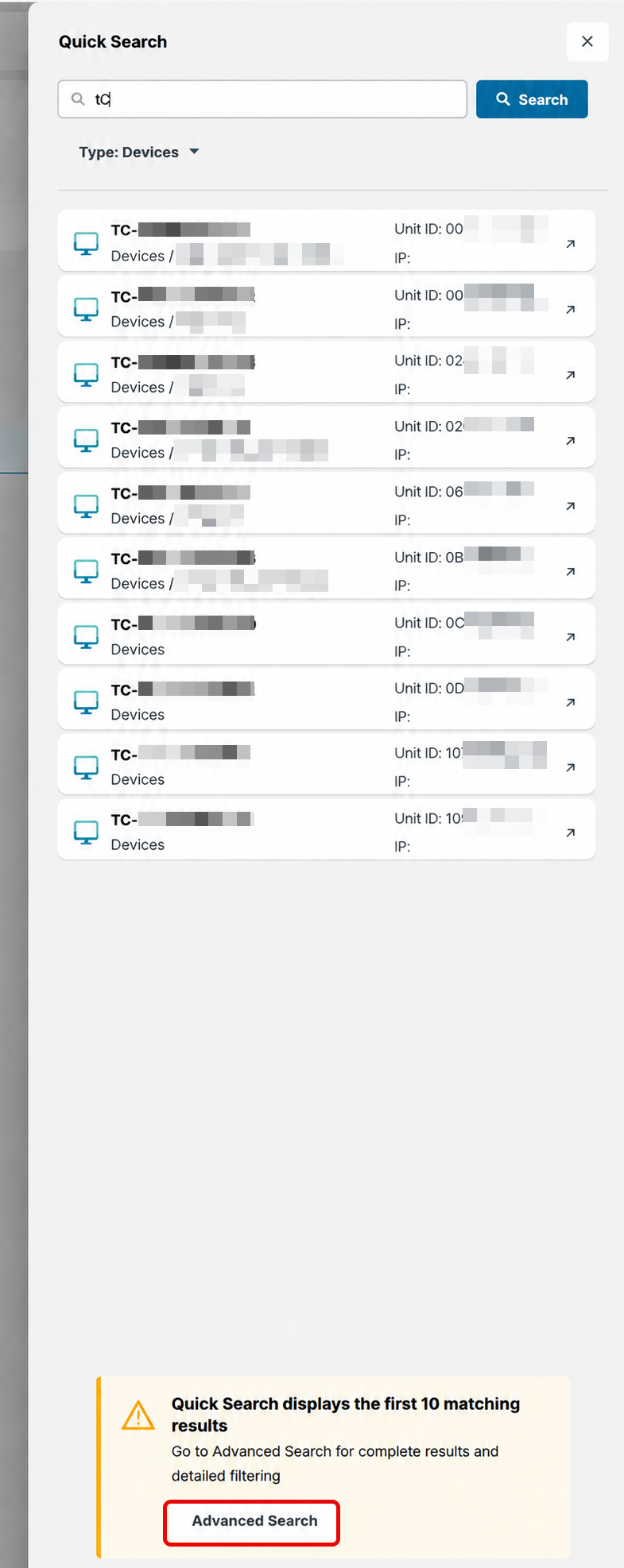
Selecting it opens Advanced Search with the current search term automatically entered in the Contains Text field:
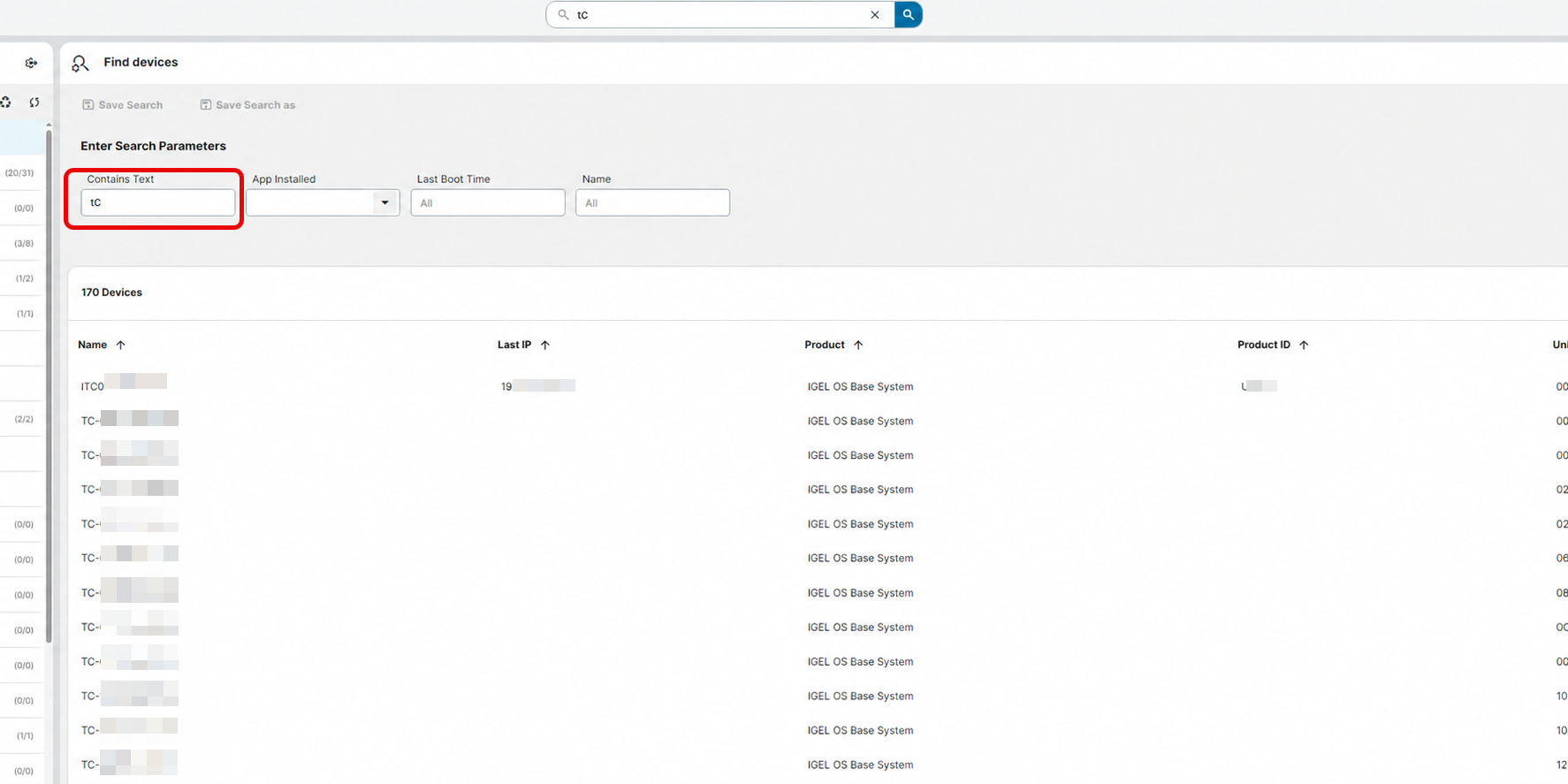
Advanced Search
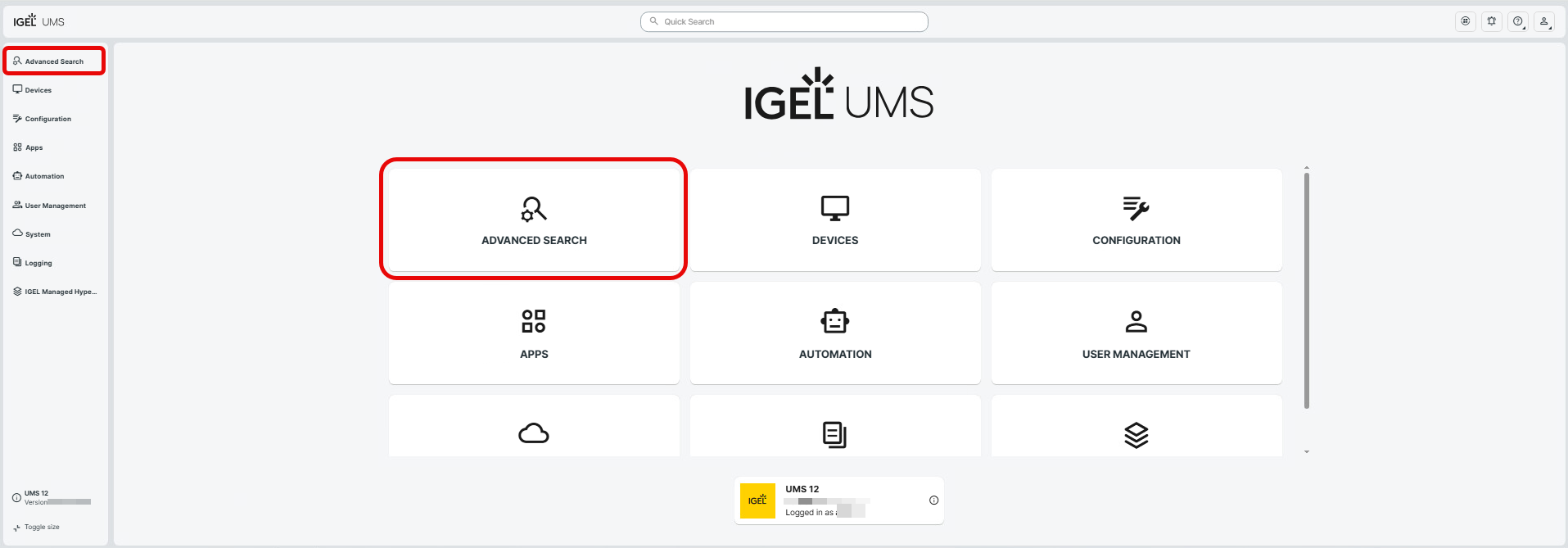
You can access Advanced Search from the left-hand navigation menu or by selecting the Advanced Search tile on the UMS Web App home page. Use it to find devices based on specific properties and search criteria, particularly when you need more than a quick lookup.
You can narrow down the results using filters or create more complex searches using the Query field. Searches can also be saved and reused.
For detailed information, see Advanced Search - Search for Devices in the IGEL UMS Web App and Save the Results for Later.
Filter Objects
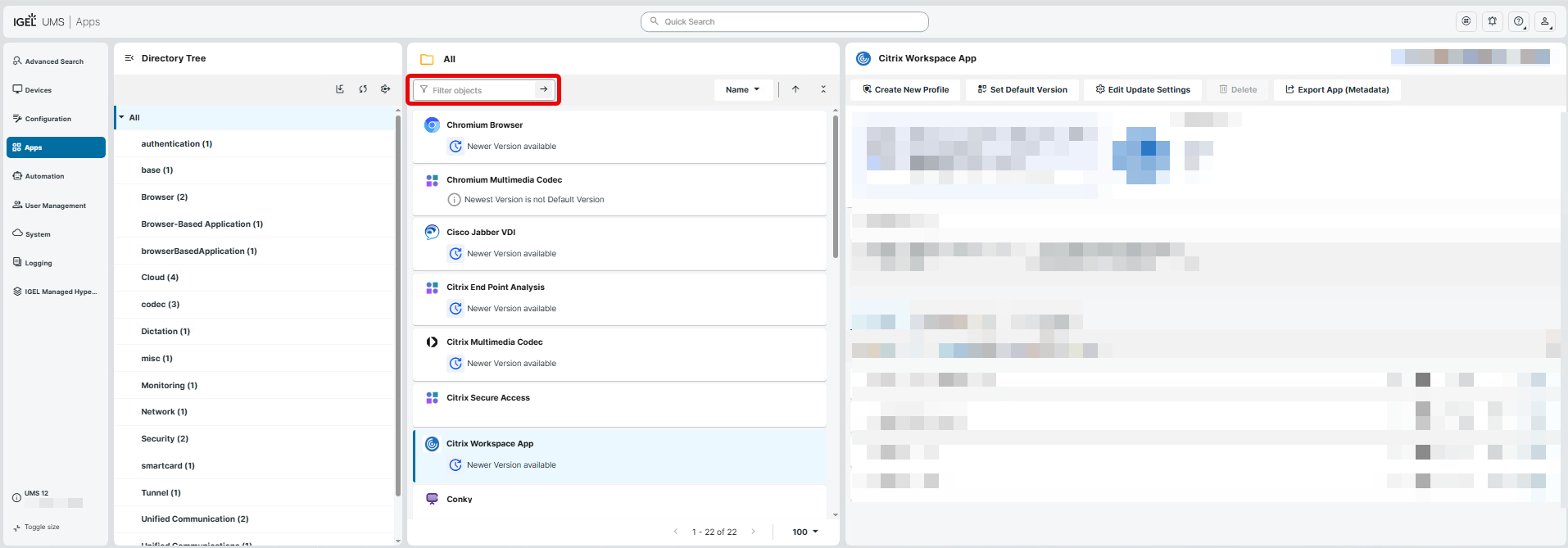
The Filter Objects field is located above the object list in supported areas of the UMS Web App. Depending on the area, it can also be found in the Management Panel, for example, under Profiles > [Profile Name] > Activated Settings or Apps. It filters the objects in the area or directory you are currently viewing.
Unlike Quick Search, which searches for objects across the UMS Web App, this filter narrows the objects displayed in the selected area or directory.
For example, to find a specific app, open Apps, select All in the Directory Tree, and enter the app name in Filter objects. Press Enter or click the arrow icon on the right side of the field to apply the filter. You can also sort the app list by Name.