
The following article describes the user interface of the IGEL Universal Management Suite (UMS) Web App.
If you would like to see how this area of the UMS Web App works in a demo, check out the video walkthrough.
Home Page
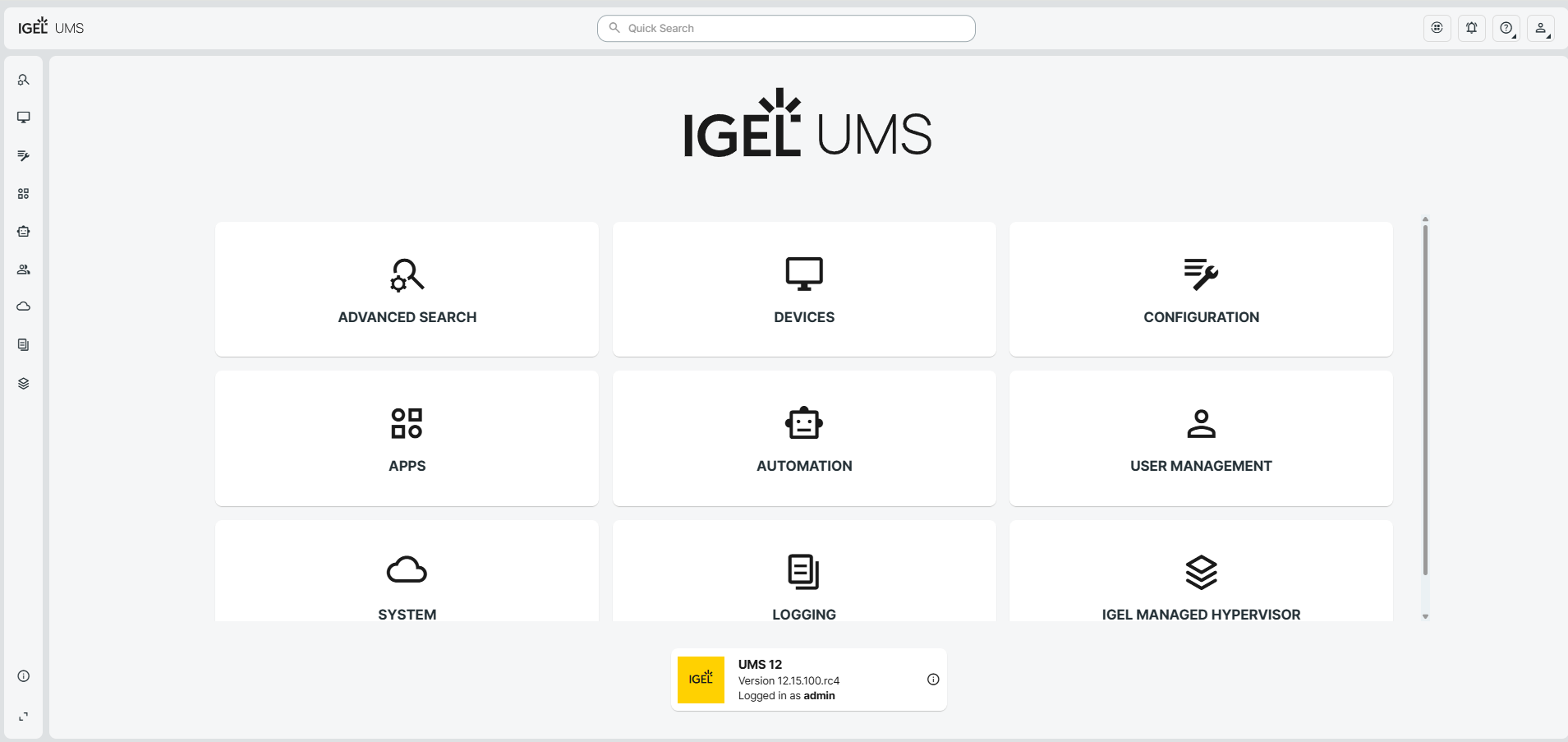
→ Click the tiles or the corresponding sidebar buttons to go to an area. For more information on each area, see:
-
Advanced Search - Search for Devices in the IGEL UMS Web App and Save the Results for Later
-
Devices - View and Manage Your Endpoint Devices in the IGEL UMS Web App
-
Configuration - Centralized Management of Device Settings in the IGEL UMS Web App
-
Apps - Import and Configure Apps for IGEL OS 12 Devices via the UMS Web App
→ To expand the sidebar, click the Toggle size button at the bottom of the sidebar.
System Info Box
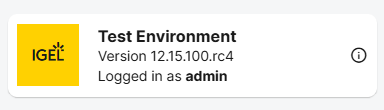
The info box at the bottom of the home page shows version information on your IGEL UMS and the username of the currently logged-in user. If specified, the nickname of your UMS is also displayed here; see System Settings in the IGEL UMS Web App.
The same info box is also displayed on most of the areas.
→ Click 
Top Toolbar Buttons and Functions
|
Takes you back to the home page. |

|
Using Quick Search, you can quickly locate and open a known UMS object. For more details, see Search Options in the IGEL UMS Web App. |

|
Direct link to the IGEL App Portal. The link opens in a new browser tab. |

|
Under Messages, you can view the current state and the results of the device commands and of other actions such as the import of IGEL OS Apps, etc. The messages are automatically deleted at the reloading of the UMS Web App page in the browser. → Click a message to view details.
|

|
Under Help, you can
|

|
Under Preferences, you can
|


Layout
In the Advanced Search, Devices, Configuration, Apps, System, and Automation areas, the interface is organized into a horizontal layout where the window is divided into several panels.
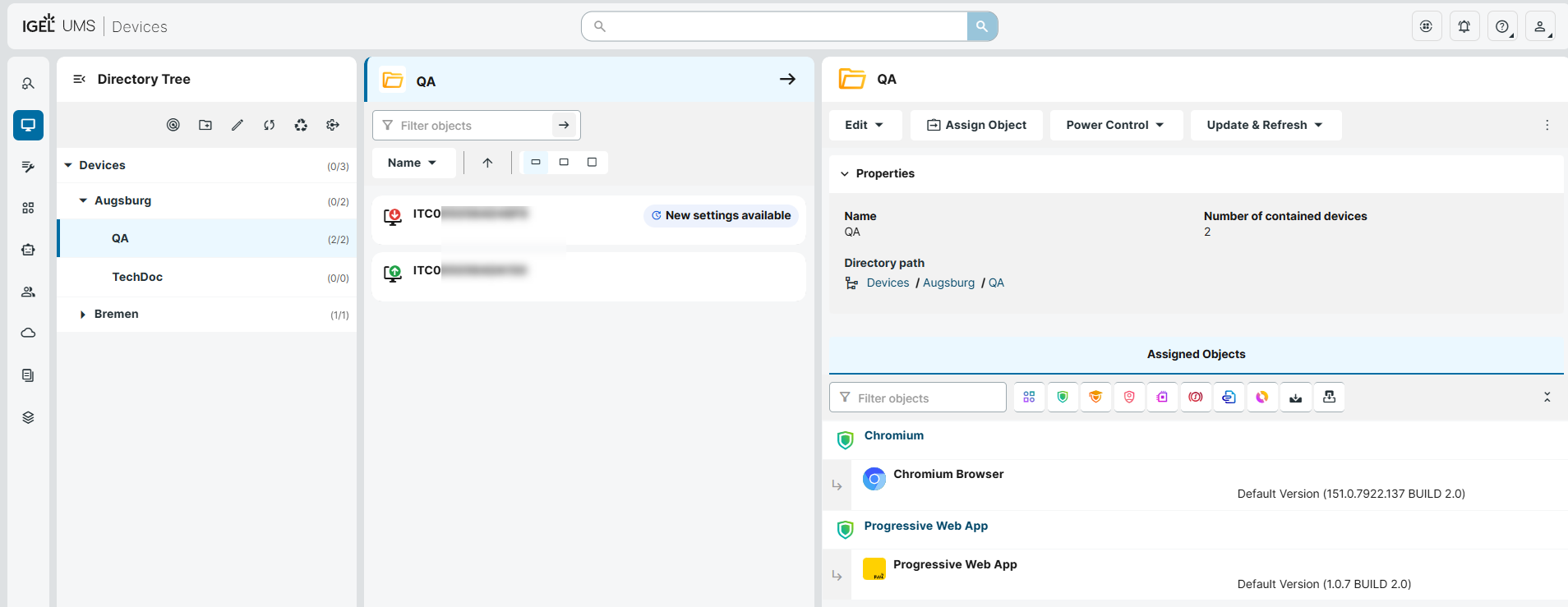
Generally, the information displayed on the panels and the functions follow a left to right logic. That means, you will find:
-
structuring on the left
-
list of items to be managed in the middle
-
detailed information and item management on the right
Changing the Layout
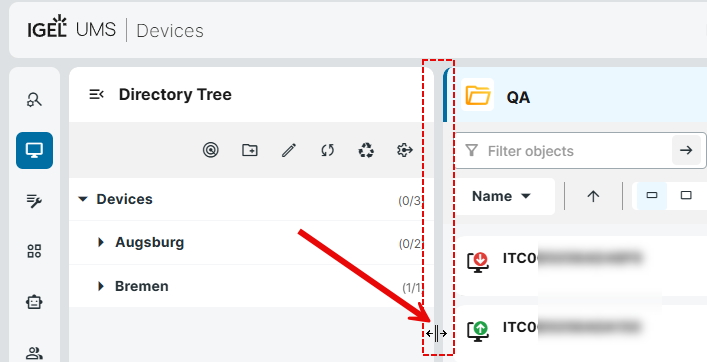
You can change the width of the panels by clicking and holding in between the panels as you resize the panel:
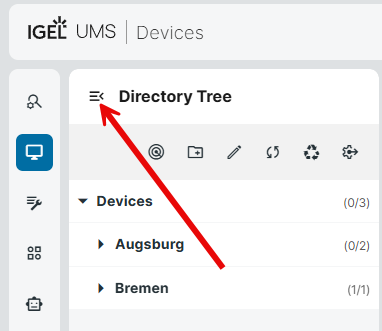
You can collapse and expand the left panel by clicking the icon in the top corner:
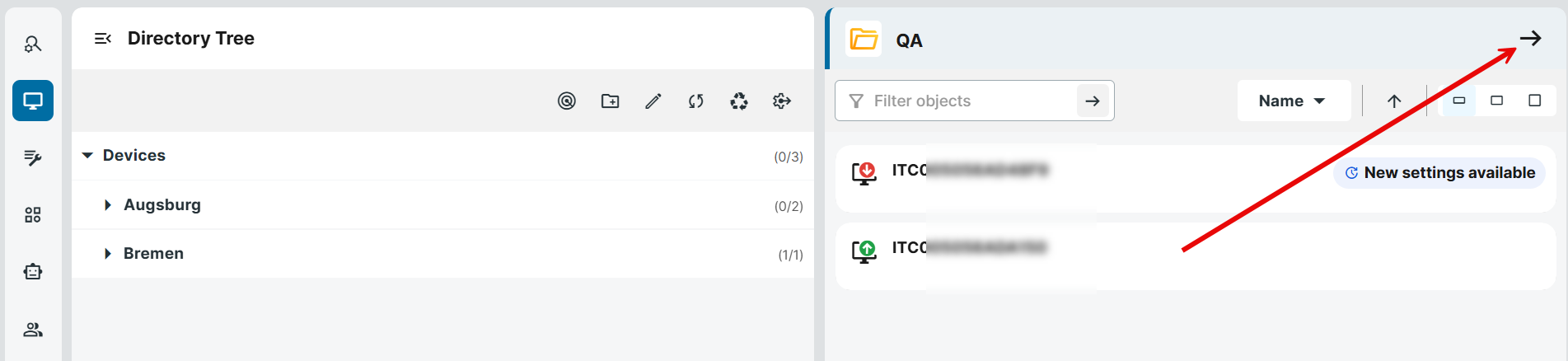
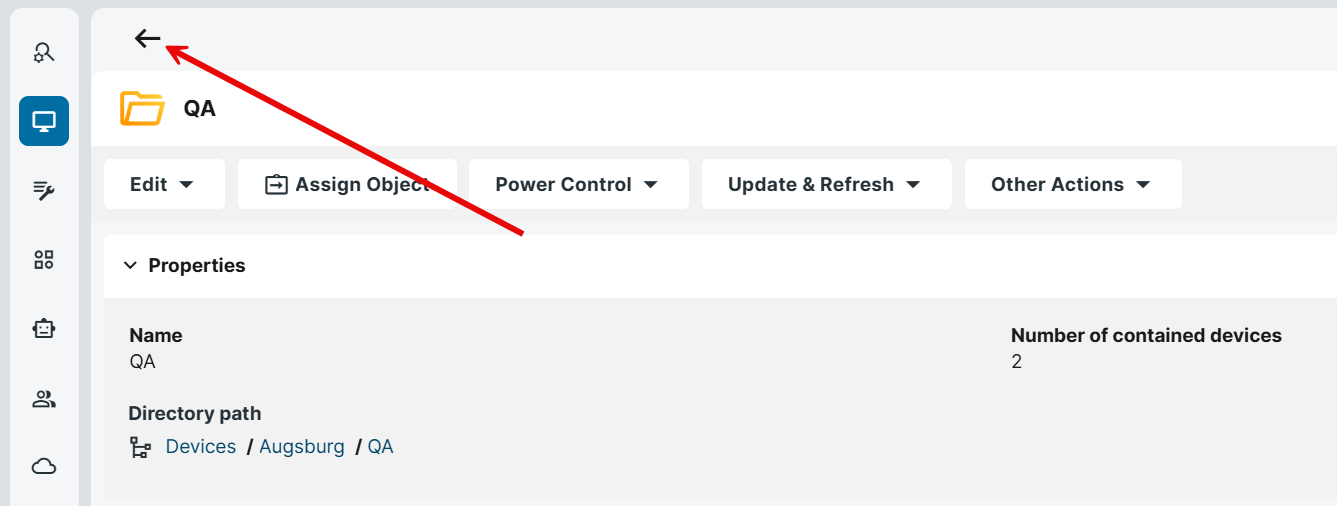
When the browser window gets resized, and there is not enough space to display all the panels next to each other, you can use arrows to switch between the panel:
Video Walkthrough
This demo video gives you an overview of the UMS Web App landing page.