System Settings in the IGEL UMS Web App

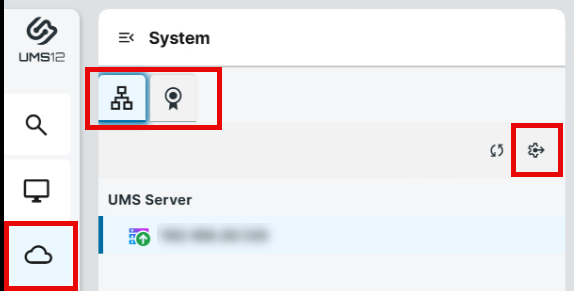
In the System area of the IGEL Universal Management Suite (UMS) Web App (called “Network” before UMS 12.10.100), you can find information regarding your UMS system.

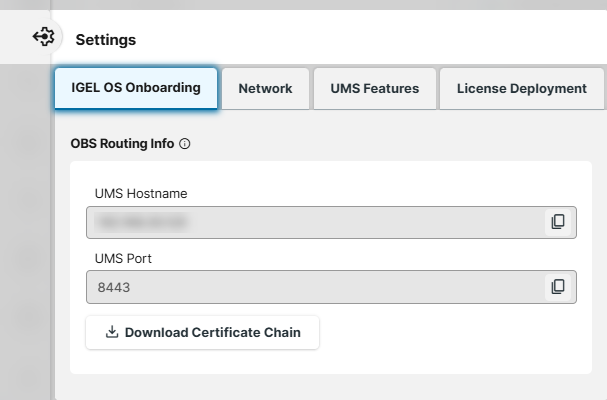
  • Settings area image-20240614-060453.png allows you to specify the nickname for your UMS, activate specific UMS features, find the OBS Routing details for IGEL Onboarding Service, etc.

  • Infrastructure tab provides details on all connected UMS Servers, UMS Load Balancers, and IGEL Cloud Gateways.

  • Licenses tab provides details on UMS and device licenses. For more information, see License Deployment in the UMS Web App .
System area in the IGEL UMS Web App

If you would like to see how this area of the UMS Web App works in a demo, check out the video walkthrough.


Infrastructure / Network Details in the IGEL UMS Web App

Menu path: UMS Web App > System > Infrastructure tab
Infrastructure Tab_Network_IGEL UMS Web App


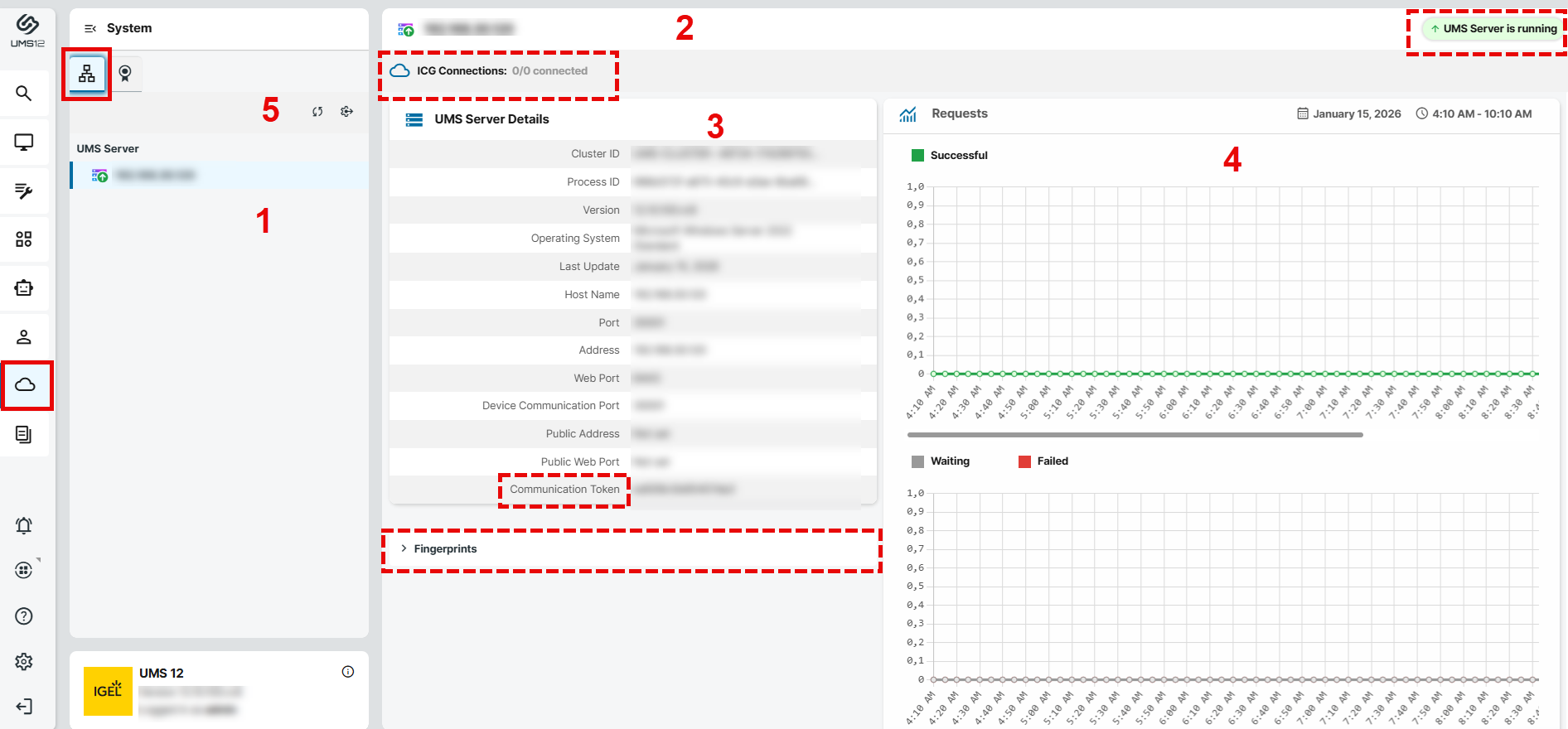
1

List of all available UMS Servers / UMS Load Balancers / IGEL Cloud Gateways (ICG)

2

In the header, you can find the following:

  • Status of the selected UMS Server / UMS Load Balancer / IGEL Cloud Gateway, see "Status Displays" below.

  • Status of UMS Server / ICG connections (connected, disconnected, unknown)

  • Number of currently connected devices (only for the ICG)

3

Details for the selected UMS Server / UMS Load Balancer / IGEL Cloud Gateway

You can find the communication token here. The communication token can be used during the onboarding process. For more information, see Onboarding IGEL OS 12 Devices.

4

Statistics for the device requests

5

  • Refresh network information.

  • Open the Settings area. See details below.

Status Displays

UMS Server

The following icons show the status of the installed UMS Servers.

221024_server_online_multicolor.png

The UMS Server is running.

221024_server_offline_multicolor.png

The UMS Server is not running.

221024_server_standard_multicolor.png

The status of the UMS Server is unknown (e.g. when a new server is being propagated in the network) or has not yet been processed.

221024_server_blocked_multicolor.png

The user is not authorized to view details for the UMS Server.

221024_server_update_multicolor.png

The UMS Server is being updated.


UMS Load Balancer

The following icons show the status of the installed UMS Load Balancers.

221024_loadbalancer_online_multicolor.png

The Load Balancer is running.

221024_loadbalancer_offline_multicolor.png

The Load Balancer is not running.

221024_loadbalancer_standard_multicolor.png

The status of the UMS Load Balancer is unknown (e.g. when a new load balancer is being propagated in the network) or has not yet been processed.

221024_loadbalancer_blocked_multicolor.png

The user is not authorized to view details for the Load Balancer.

221024_loadbalancer_update_multicolor.png

The Load Balancer is being updated.


IGEL Cloud Gateway

The following icons show the status of the installed IGEL Cloud Gateways.

221024_icg_online_multicolor.png

The IGEL Cloud Gateway is running.

221024_icg_offline_multicolor.png

The IGEL Cloud Gateway is not running.

221024_icg_standard_multicolor.png

The status of the IGEL Cloud Gateway is unknown or has not yet been processed.

221024_icg_blocked_multicolor.png

The user is not authorized to view details for the IGEL Cloud Gateway.

221024_icg_update_multicolor.png

The IGEL Cloud Gateway is being updated.

Settings

Menu path: UMS Web App > System > Settings image-20240614-060453.png
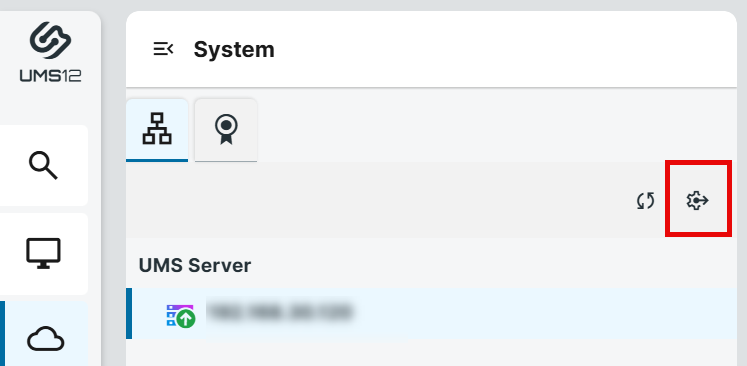
image-20260115-095132.png
System_Settings_IGEL UMS Web App


IGEL OS Onboarding

Here, you can find OBS Routing information which is required if you use IGEL Onboarding Service. For details, see Initial Configuration of the IGEL Onboarding Service (OBS).

→ To copy the data, click image-20240614-060440.png .


UMS Hostname

Hostname (Fully Qualified Domain Name) or IP address of the UMS Server.

If configured, the Server Network Settings in the IGEL UMS or the Server - View Your IGEL UMS Server Information is used here (in the order given).


UMS Port

Port under which the UMS can be reached. The default port of the UMS web server is 8443. For details on the ports used by the UMS, see IGEL UMS Communication Ports

If configured, the Server Network Settings in the IGEL UMS or the Server - View Your IGEL UMS Server Information is used here (in the order given).


Download Certificate Chain

Downloads the UMS root certificate with .crt file extension.


Network

Nickname

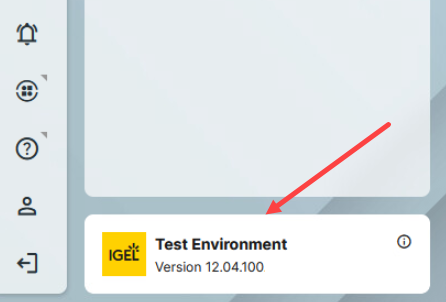
A name specified here is displayed in the info box of the UMS Web App as well as in the browser tab and helps to distinguish one UMS instance from another.
UMS 12.4 -New Logo.png

To change the value, permission for the node Server Network Settings under UMS Console > UMS Administration > Global Configuration is required.

For how to set rights, see Access Rights in the Administration Area .


Allowed Redirect URIs

If you use a URL to login to your UMS, which is not detected automatically, you can add additional redirect URIs here.

For details, see UMS Login Requirements.


UMS Features

Permission for the node UMS Features under UMS Console > UMS Administration > Global Configuration is required.

For how to set rights, see Access Rights in the Administration Area .

Enable Template Profiles

image-20240606-144015.png Template profiles are enabled. For information on template profiles, see Template Profiles in the IGEL UMS .


Enable Priority Profiles

image-20240606-144020.png Priority profiles are enabled. For information on priority profiles, see Priority Profiles in the IGEL UMS .


Enable Persona Profiles

image-20240606-144020.png Persona Profiles can be used as configuration objects. For information on persona profiles, see How to Configure Persona Profiles for IGEL Contextual Access.


Enable BC&DR

image-20240606-144020.png The IGEL Business Continuity & Disaster Recovery (BC&DR) Emergency Mode can be used to centrally control at-risk endpoints. For details, see IGEL BC&DR Emergency Mode in the IGEL UMS Web App.

The feature can only be enabled if the corresponding BC&DR license is present. The feature can only be disabled if no device is in emergency mode.


Enable Recycle Bin

image-20240606-144020.png The recycle bin is enabled. Deleted items are moved to the recycle bin first. For information on the recycle bin, see How to Use the Recycle Bin in the IGEL UMS Web App.

image-20240606-144029.png If the recycle bin is disabled, the items are deleted permanently straight away. The Recycle Bin button is not visible.

The recycle bin is enabled or disabled globally for all UMS users.


Enable Insight Service

image-20240606-144022.png Enables IGEL Insight Service if you accept the privacy policy in the consent dialog by clicking OK. When you activate the IGEL Insight Service, IGEL collects specific analytical and usage data listed under Data collected by Insight Service.

image-20240606-144029.png Disables IGEL Insight Service. 

IGEL Insigth Service

IGEL is working on a new version of the feature. To learn more about what is coming, see IGEL Insights to Deliver Unified Endpoint Telemetry & Management Data.

IGEL Insight Service is activated by default after a Universal Management Suite (UMS) installation. After the installation, at the first start of the IGEL UMS Console or the UMS Web App, you are presented with a dialog with information on the IGEL Insight Service. If you want to deactivate the IGEL Insight Service, click Go to Settings and disable it under Disable Insight Service. If you close the dialog, IGEL Insight Service remains activated.

IGEL Insight Service can be activated or deactivated anytime under UMS Console > UMS Administration > Global Configuration > UMS Features or under UMS Web App > Network > Settings > UMS Features. The configuration of the IGEL Insight Service is preserved in case of an update installation.


IGEL Insight Service collects analytical and usage data from all users to 

  • improve IGEL products and services and the user experience

  • inform you about available software and security updates

  • provide recommendations for system optimization (software and hardware)

  • identify potential performance issues regarding apps in your setup

  • improve customer support and consulting

  • provide you with direct access to software and hardware insights, e.g. reports, based on your data

Legal basis for the data processing is IGEL’s legitimate interest in accordance with Art. 6 (1) (f) General Data Protection Regulation (GDPR). It is IGEL's legitimate interest to pursue the above detailed purposes to improve its products and services, and to provide its customers with more secure, up-to-date, and optimized software as well as optimal customer support.

We do not share your data with third parties outside the IGEL group. Your data is stored on servers in the EU.

The identity of the individual IGEL OS device will only be stored pseudonymously. The data will be deleted after five years.

You can object to the processing by disabling the Insight Service functionality in your settings. By objecting you will not receive further recommendation based on your setup and you cannot be provided with access to software and hardware insights based on your data.

Data Collected by the IGEL Insight Service

  • Company identifier

  • UMS identifier

  • Pseudonymized device identifier

  • Name of the application

  • Version of the application

  • Manufacturer of the device

  • Model of the device

  • CPU of the device

  • RAM of the device

  • Mainboard of the device

  • GPU of the device

  • Storage hardware of the device

  • Network / Wi-Fi hardware information of the device

  • Peripheral hardware information of the device

  • Timestamp

  • Client type (Insight Service Data Collector)

  • Client version (Insight Service Data Collector)


License Deployment

For detailed information, see License Deployment in the UMS Web App.

Video Walkthrough

This demo video gives you an overview of the System Settings area.