
IGEL OS 12 includes two accessibility tray apps. The general accessibility tray app 

Information for Administrators
-
The system tray and most of the tray apps are available to the users by default.
-
You can enable and disable the system tray and the tray apps under User Interface > Desktop > Taskbar Items. For details, see Taskbar Items in IGEL OS 12.
-
The access to tray apps on lockscreen is configured separately under User Interface > Desktop > Screenlock / Screensaver > Taskbar. For details, see Taskbar in Locked Screen in IGEL OS 12.
-
The configurations in the tray app might slightly differ from the configurations available in IGEL Setup. IGEL Setup remains the place for administrators to set the framework for their end users (e. g. access to tray apps or starting sessions). The tray apps are designed for end users to make individual adjustments as needed.
Accessibility Tray App
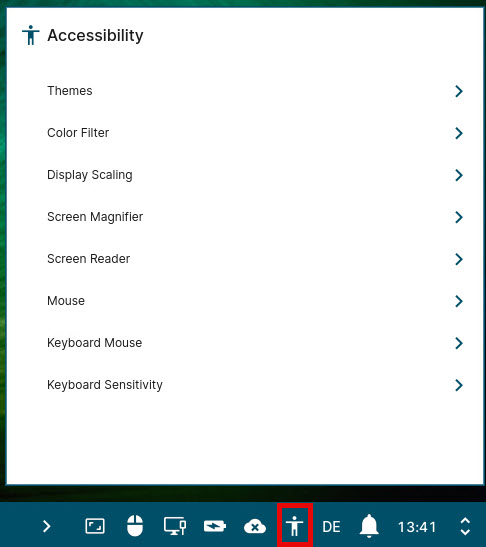
The accessibility tray app provides a central place to adjust IGEL OS 12 for improved readability, visibility, and input control. From here, you can configure themes, color filters, screen magnifier and screen reader, as well as mouse and keyboard behaviour. Each area includes a reset icon 
Themes
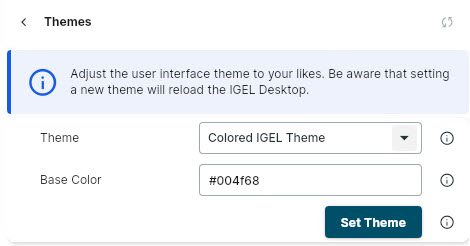
Choose a base theme from the dropdown to adjust the user interface theme. By default, Colored IGEL Theme is selected. Confirm your choice by clicking Set Theme.
In the field Base Color, it is possible to enter a color code in HTML hex format to set a custom base color, e. g. #000000 to display black.
In IGEL Setup, you can use a color picker to design individual base colors. For more information see Themes.
Color Filter
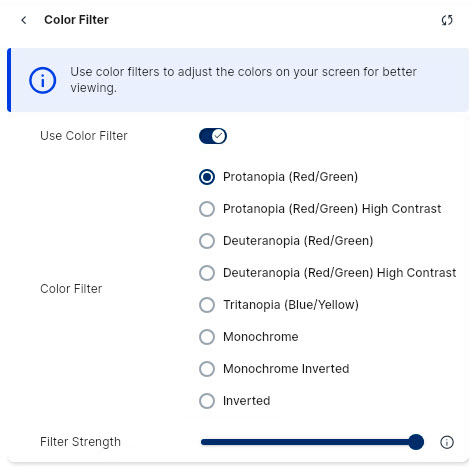
Use the toggle next to Use Color Filter to enable or disable color filters. By default, this option is disabled.
Set the Filter Strength either by dragging or clicking in the bar. (Default filter strength: 100)
Display Scaling
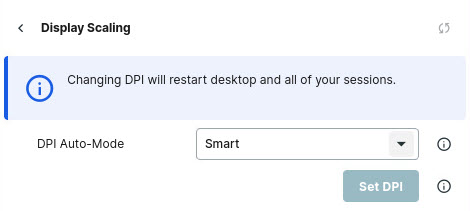
Use the dropdown menu next to DPI Auto-Mode to define how the DPI value should be determined. (Default: Smart)
Available options:
-
Smart
-
Pixel-precise
-
Off
Setting the DPI Auto-Mode to Off will let you manually set the DPI value via the option Current DPI. It is possible to set the DPI value from 96 to 300. (Default: 96)

Confirm your choice by clicking Set DPI.
For more information how to configure the display scaling options, see DPI Options.
Screen Magnifier
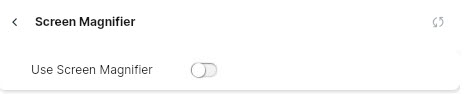
Use the toggle next to Use Screen Magnifier to enable or disable the screen magnifier. By default, the screen magnifier is disabled. Enabling the screen magnifier opens a separate window and tray app where you can configure the screen reader. For more information see Using the Screen Magnifier Tray App.
In IGEL Setup, it is possible to configure the starting methods for sessions, for more information see Screen Magnifier.
Screen Reader

Use the toggle next to Use Screen Reader to enable or disable the screen reader. By default, the screen reader is disabled.
In IGEL Setup, it is possible to configure the starting methods for sessions, for more information see Screen Reader.
Mouse
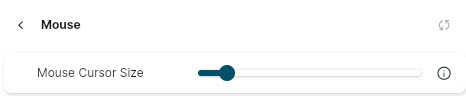
Modify the mouse pointer size from the bar by dragging or by clicking in the bar. The available mouse pointer sizes range from 16 to 94 (Default size: 24).
Keyboard Mouse
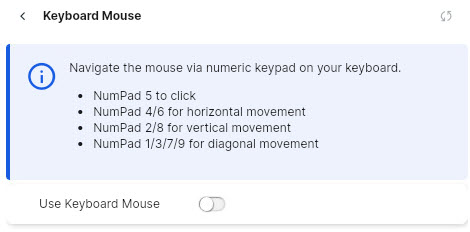
Use the toggle to enable or disable the keyboard mouse. By default, the keyboard mouse is disabled.
Keyboard Sensitivity
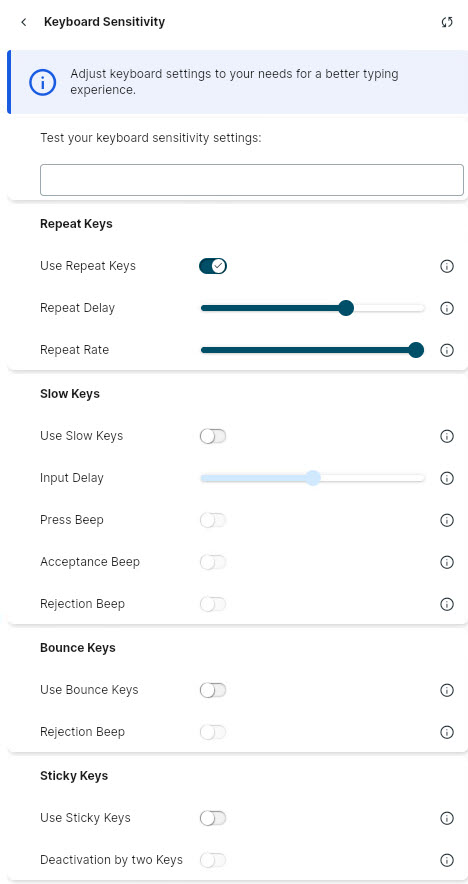
Repeat Keys
Use the toggle next to Use Repeat Keys to enable or disable repeat keys. By default, this option is enabled.
Slow Keys
Use the toggle next to Use Slow Keys to enable or disable slow keys. By default, this option is disabled.
Bounce Keys
Use the toggle next to Use Bounce Keys to enable or disable bounce keys. By default, this option is disabled.
Sticky Keys
Use the toggle next to Use Sticky Keys to enable or disable sticky keys. By default, this option is disabled.
Using the Screen Magnifier Tray App
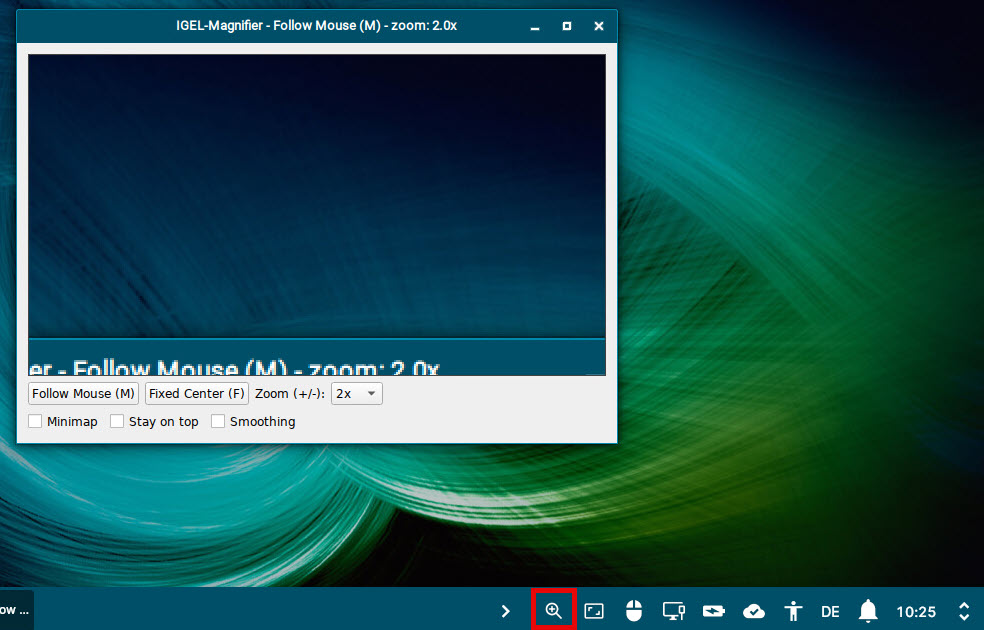
The screen magnifier tray app
Configuration options within the screen magnifier window:
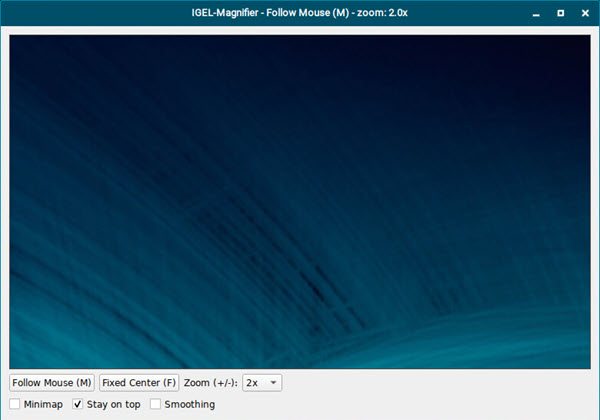
Follow Mouse (M)
This option is enabled by default. The magnified area follows the mouse.
Fixed Center (F)
The magnified area stays at a fixed position on the screen. Dragging the window to a different spot changes the magnified area to be displayed.
Zoom (+/-)
Set the zoom level from 1x to 16x. By default, this value is set to 2x.
Minimap
☑ Enables a minimap at the bottom of the window. It shows the magnified area on the screen.
☐ Minimap is disabled. (Default)
Stay on top
☑ The magnifier window always stays on top of other screens. (Default)
☐ The magnifier window behaves like a normal window. It can be covered by other applications.
Smoothing
☑ Reduces pixelation and jagged edges in the magnified area.
☐ Smoothing is disabled. (Default)