This article describes how you can configure themes in IGEL OS.
The settings in this section are only related to accessibility. By clicking on Related pages in the top right corner, you will be redirected to the regular desktop settings as described in Desktop Settings in IGEL OS 12.
Menu path: User Interface > Accessibility > Themes
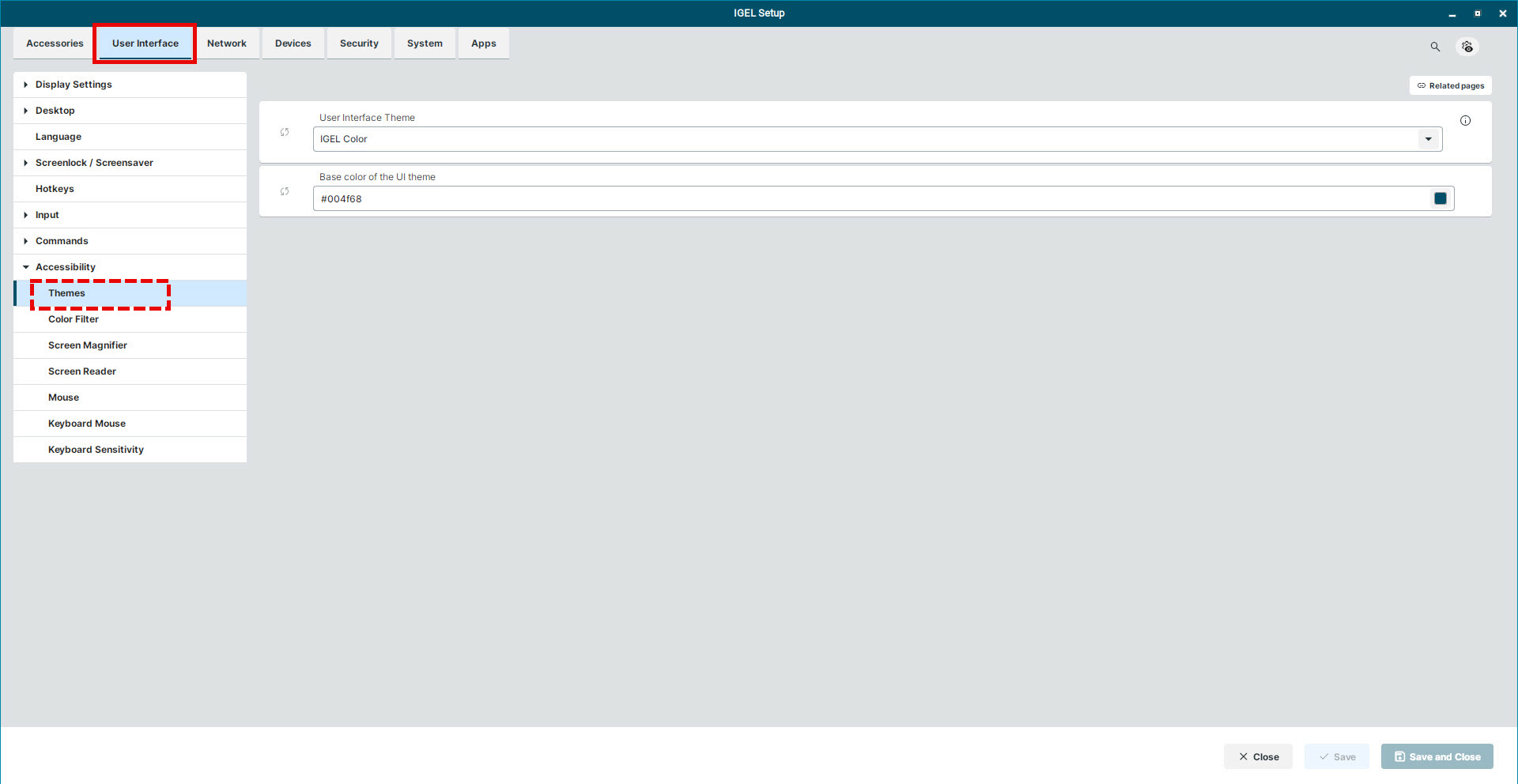
User Interface Theme
You can change the User Interface Theme to one of the following options:
-
IGEL Dark
-
IGEL Light
-
IGEL Color
-
IGEL High Contrast
-
IGEL High Contrast Inverted
-
Custom Colors
Base color of the UI Theme

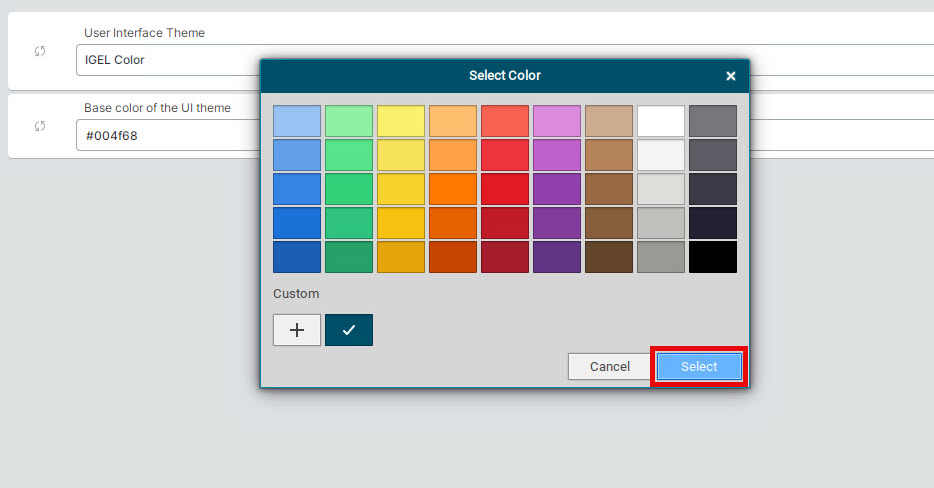
When you change the User Interface Theme, the base color changes as well. You can also manually set the base color of the UI Theme either by manually entering the color code.
You can also click on the color icon to the right to open the Select Color window. Choose your desired color or create a custom color by clicking on