
In the appliance mode, only one specific session is accessible. By default, access to other applications is not possible. Once appliance mode is detected, the following IGEL Setup settings will be applied automatically:
-
Hide taskbar
-
Disable hotkeys
-
Hide desktop icons
-
Disable notifications
-
Disable access to rescue shell
-
Disable right-click context menu on desktop
Once appliance mode is switched off or terminated, these settings will revert back to their default values.
It is possible to modify those changes in IGEL Setup and via profiles. For more information how to set up profiles see Configuration - Centralized Management of Device Settings in the IGEL UMS Web App. The settings defined in profiles will always override the settings defined in User Interface > Appliance Mode.
Click here to see how profiles affect appliance mode configuration:
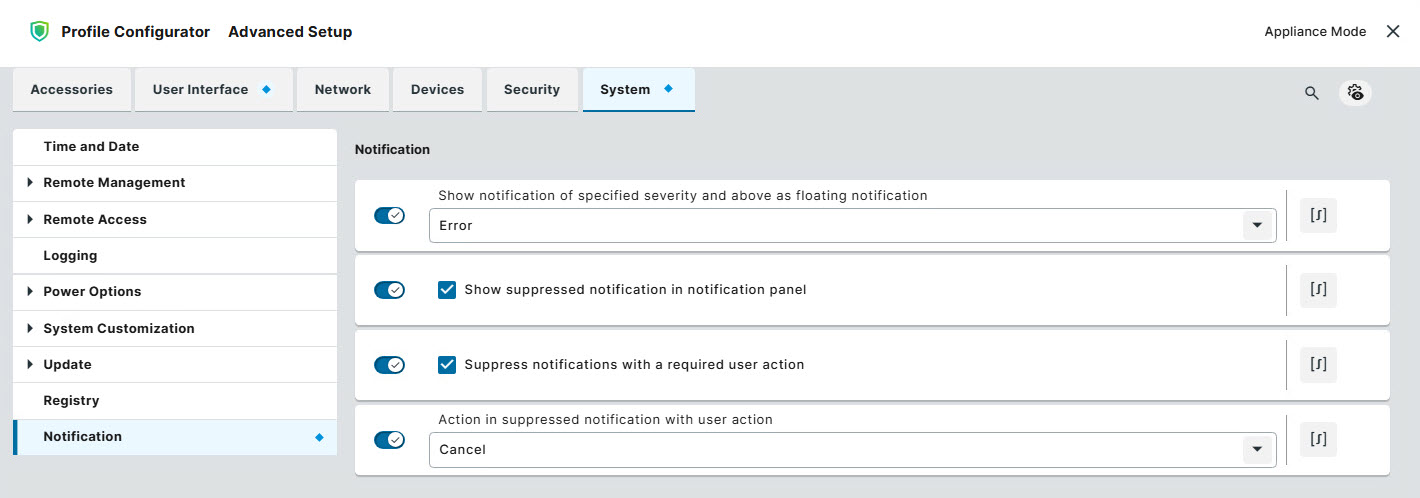
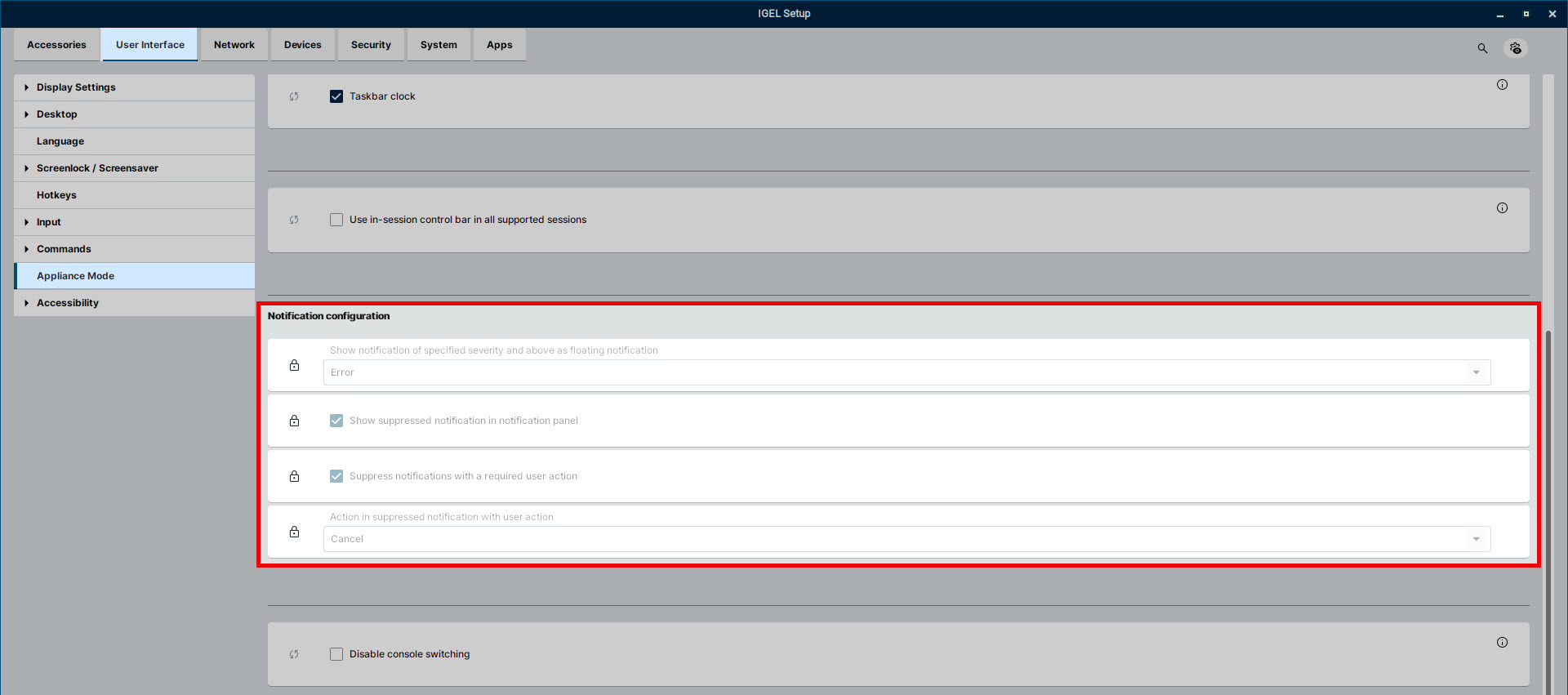
This article shows the available settings you can configure within an appliance mode session. You can enable appliance mode for any specific session (e. g. Omnissa Horizon or Firefox), for more information see Starting Methods for Apps.
Make sure that appliance mode is enabled only for one session. Running two or more appliance mode sessions in parallel is not supported. The user will receive a notification and appliance mode will not start.
Menu path: User Interface > Appliance Mode
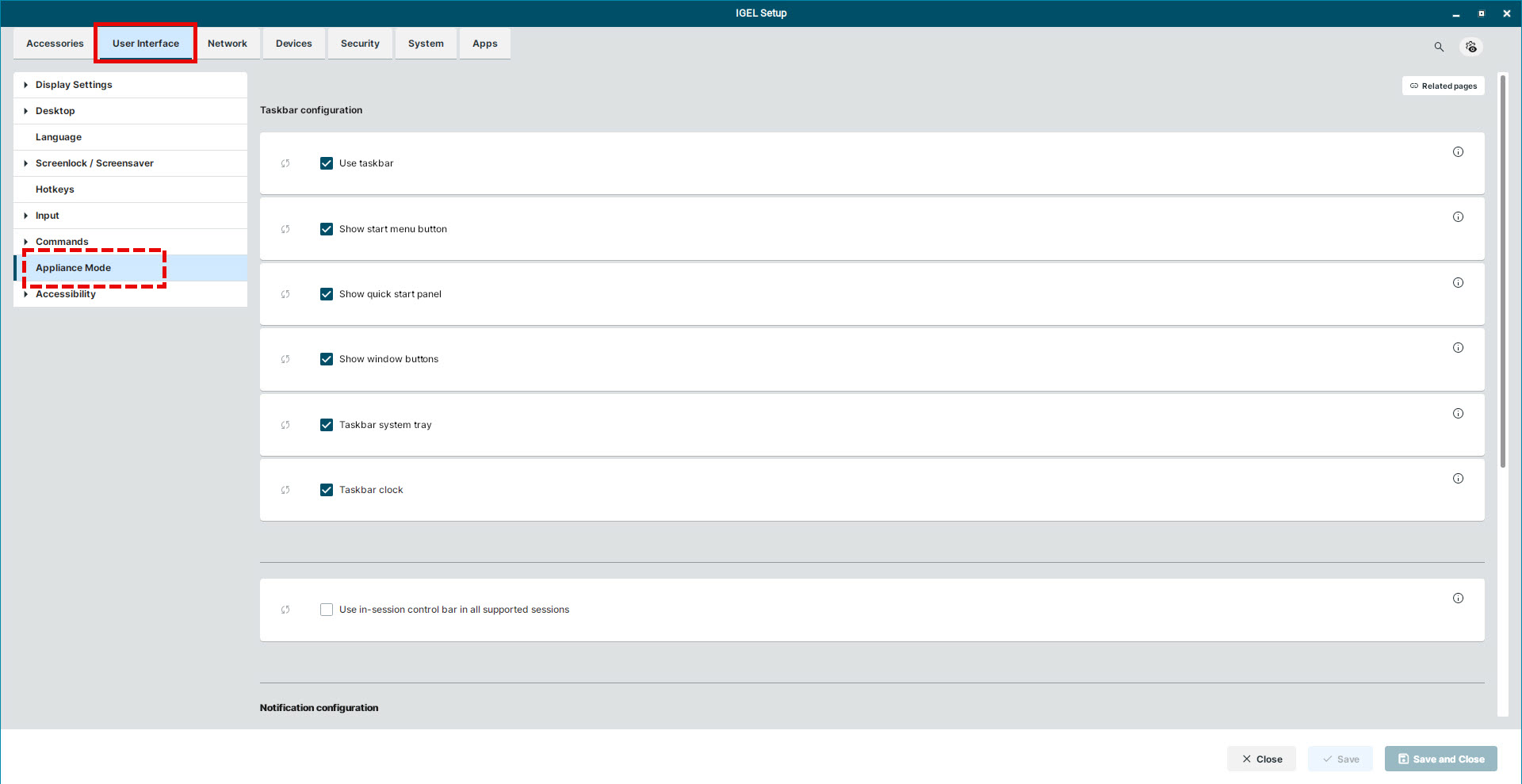
Taskbar configuration
Prerequisite:
Use Taskbar in User Interface > Desktop > Taskbar needs to be enabled. In case this option is disabled, any taskbar configurations on the Appliance Mode page will have no effect.
Use taskbar
☑ Taskbar is visible in appliance mode. (Default)
Show start menu button
☑ Start menu button is visible in appliance mode. (Default)
Show quick start panel
☑ Quick start panel is visible in appliance mode. (Default)
Show window buttons
☑ Window buttons are visible in appliance mode. (Default)
Taskbar system tray
☑ Taskbar system tray is visible in appliance mode. (Default)
Taskbar clock
☑ Taskbar clock is visible in appliance mode. (Default)
Use in-session control bar in all supported sessions
☑ Enable in-session control bar in all supported sessions. For more information how to configure the in-session control bar, see In-Session Control Bar in IGEL OS 12.
☐ In-session control bar is disabled in all supported sessions. (Default)
Notification configuration
Show notifications of specified severity and above as floating notification
Available options:
-
All (Default)
-
Info
-
Warning
-
Error
-
None
Show suppressed notification in notification panel
☑ Suppressed notifications are shown in notification panel. (Default)
This option only becomes available when you select any of the following options in Show notifications of specified severity and above as floating notification:
-
Info
-
Warning
-
Error
-
None
Suppress notifications with a required user action
☑ Notifications requiring user interaction are not displayed.
☐ Notifications requiring user interaction are displayed. (Default)
Action in suppressed notifications with user action
Available options:
-
Default: Performs the default action defined by the notification. (Default)
-
Cancel: Performs the notification’s cancel action.
This option only becomes available when Suppress notification with a required user action is enabled.
Disable console switching
☑ Switch consoles via CTRL+ALT+F11 or CTRL+ALT+F12.
☐ Console switching is disabled. (Default)