
Hotkeys configured for frequently used operations make it easier to use the device. A hotkey is a combination of one or more modifiers and an alphanumeric key. This article shows how to configure hotkeys in IGEL OS.
Menu path: User Interface > Hotkeys
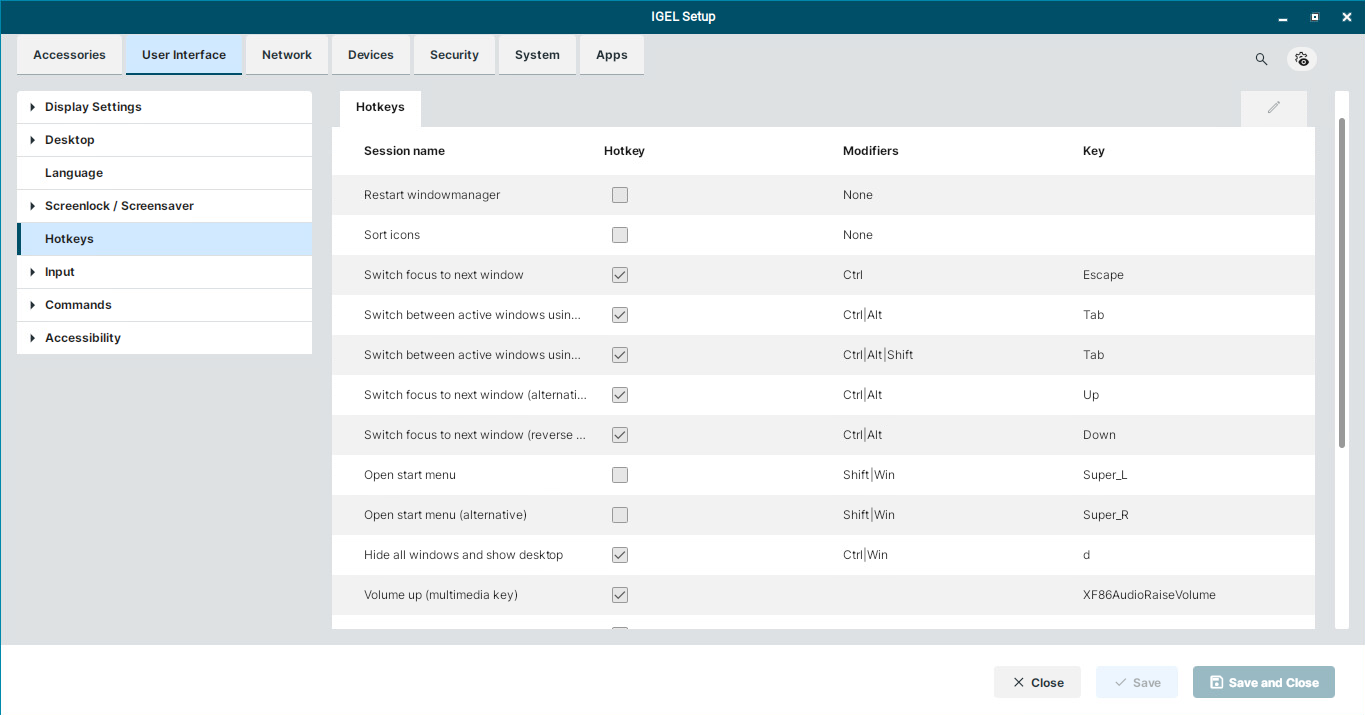
Default Hotkeys
|
Session name |
Hotkey |
Modifiers |
Key |
|---|---|---|---|
|
Restart windowmanager |
☐ |
None |
|
|
Sort icons |
☐ |
None |
|
|
Switch focus to next window |
☑ |
Ctrl |
Escape |
|
Switch between active windows using Task Switcher |
☑ |
Ctrl|Alt |
Tab |
|
Switch between active windows using Task Switcher (backwards) |
☑ |
Ctrl|Alt|Shift |
Tab |
|
Switch focus to next window (alternative) |
☑ |
Ctrl|Alt |
Up |
|
Switch focus to next window (reverse order) |
☑ |
Ctrl|Alt |
Down |
|
Open start menu |
☐ |
Shift|Win |
Super_L |
|
Open start menu (alternative) |
☐ |
Shift|Win |
Super_R |
|
Hide all windows and show desktop |
☑ |
Ctrl|Win |
d |
|
Volume up (multimedia key) |
☑ |
|
XF86AudioRaiseVolume |
|
Volume down (multimedia key) |
☑ |
|
XF86AudioLowerVolume |
|
Volume mute (multimedia key) |
☑ |
|
XF86AudioMute |
|
Screenshot of active window |
☐ |
Ctrl|Alt |
|
|
[locked] Screenshot of entire window |
☑ |
Ctrl |
|
|
Microphone mute (multimedia key) |
☑ |
|
XF86AudioMicMute |
|
Logoff |
☐ |
Ctrl |
I |
-
The Session Name column identifies the function that is executed when the corresponding hotkey combination is pressed.
-
The Hotkey column shows the default hotkey assignments. If a checkbox is unchecked, no hotkey is configured for that function.
-
Supported modifier keys include
[Win],[Ctrl],[Alt], and[Shift]. Supported keys include standard keyboard keys, navigation keys, and multimedia keys. -
Hotkey combinations are configured using separate fields for the modifier keys and the key. Multiple modifier keys are combined with the pipe character (
|) in the Modifier field.
For Ctrl + Alt + Tab, enter[Ctrl]|[Alt]in the Modifier field andTabin the Key field.
Editing Hotkeys
You can enable or disable hotkeys and change the keys used:
-
Click

-
Use the Hotkey option to enable the hotkey.
-
Select a predefined Modifier.
A modifier is a key symbol or key combination. These are the pre-defined modifiers and the associated key symbols:-
None: No modifier is used
-
Shift:

-
Ctrl: [Ctrl]
-
Win:

When this keyboard key is used as a modifier, it is represented as Win; when it is used as a key, it is represented as
Super_L. -
Alt: [Alt]
-
-
Enter a Key that is to be used as the hotkey to start the operation.
To enter a key that does not have a visible character, e. g. the [Tab] key, open a terminal, log on as
userand enterxev -event keyboard. Press the key to be used for the hotkey. The text in brackets that begins withkeysymcontains the key symbol for the Key field. Example:Tabin(keysym 0xff09, Tab)
-
Click Confirm.