
This article shows how to configure LAN interfaces in IGEL OS.
You can use the LAN tray app for quick ethernet network configurations. For details, see Tray Applications in IGEL OS 12.
Menu path: Network > LAN Interfaces > [Interface]
Predictable Network Interface Names (PNINs)
The names of Ethernet and WLAN interfaces are predictable network interface names (PNINs), see Predictable Network Interface Names. This ensures the stability of interface names on reboot and generally improves the reliability of associating configurations with interfaces.
-
As "
eth0", "eth1", and "wlan0" have been replaced by PNINs, configurations or custom scripts that include the old names of Ethernet and WLAN interfaces, e.g.eth0,eth2,wlan0, have to be adjusted.
The following already existing configurations do NOT require manual adjustment since old nameseth0,eth1, etc. will internally be replaced by the correct PNINs automatically:
-
To view the PNINs and the order of the configured interfaces, you can use the following commands. The default interface is always listed first, the second interface is listed second, etc.
Ethernet (LAN):cat /config/net/en-interfaces
WLAN:cat /config/net/wl-interfaces
(Note: Only the first wireless interface (formerwlan0) is supported. All other wireless interfaces will be ignored.) -
If you need to configure more than two Ethernet interfaces, go to System > Registry > network.interfaces.ethernet.device% and add an instance by clicking Add Instance.
To explicitly assign a configuration instance to a certain interface, enter the corresponding PNIN for the registry key network.interfaces.ethernet.device%.ifname.
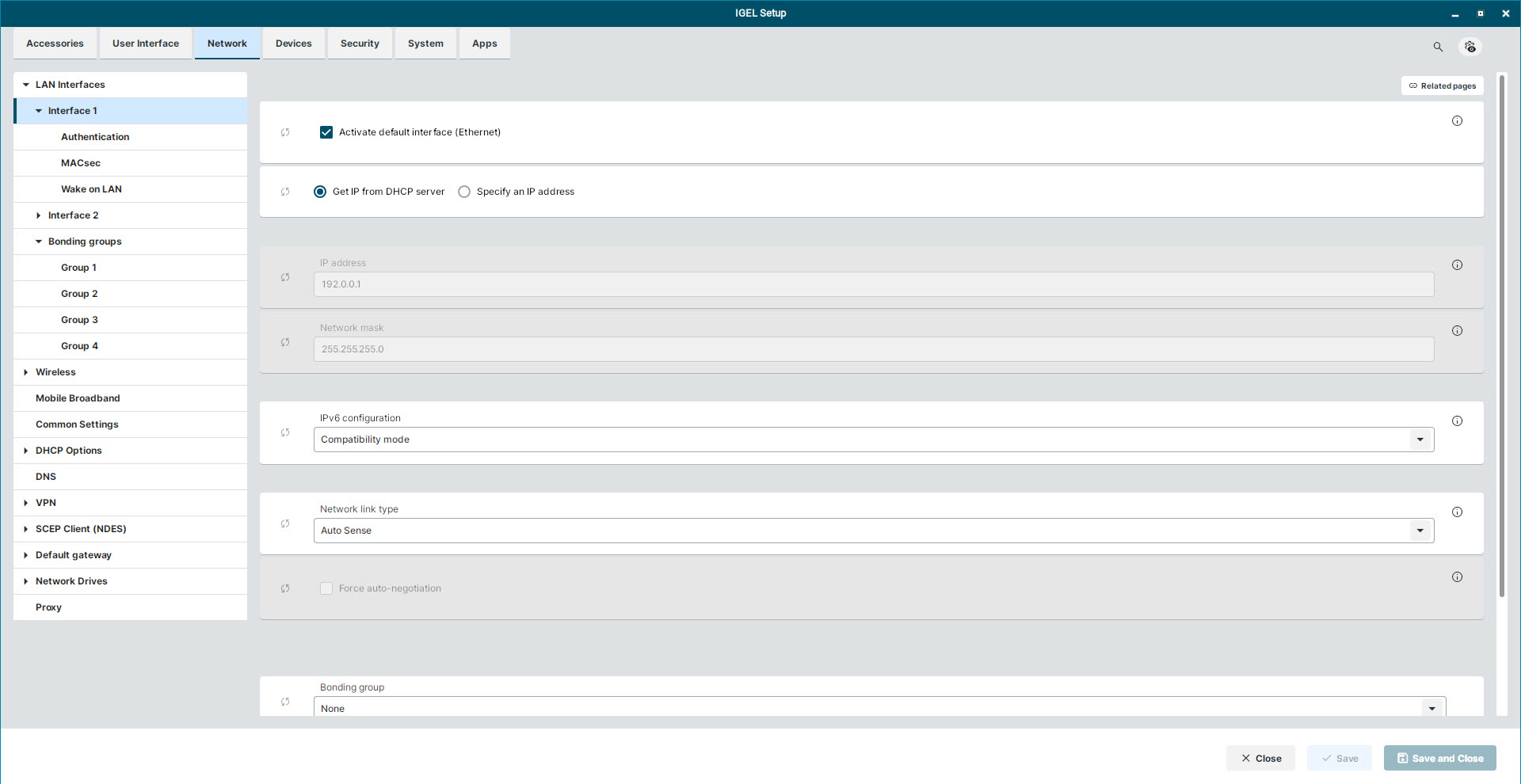
Activate default interface (Ethernet)
☑ The interface is enabled. (Default)
☐ The interface is disabled.
Get IP from DHCP server
☑ The IP address of the client will be obtained automatically using DHCP. (Default)
DHCP options can be specified under Network > DHCP Options > Standard Options. For more information, see DHCP Options in IGEL OS 12 .
Specify an IP address
The IP address and the network mask are entered manually.
IP address
IP address of the device
Network mask
Network mask of the device
IPv6 configuration
-
Compatibility mode: Behavior of earlier firmware versions. (Default)
-
Disabled: IPv6 completely disabled
-
Automatic: IPv6 auto configuration based on router advertisements (can include DHCPv6).
For further information, see RFC 4861. -
DHCPv6: IPv6 configuration using DHCPv6 if router advertisements are not available.
This is mentioned in RFC 4862 Section 5.5.2.
Network link type
-
Auto sense (Default)
-
1000 Mbps Full Duplex
-
100 Mbps Full Duplex
-
100 Mbps Half Duplex
-
10 Mbps Full Duplex
-
10 Mbps Half Duplex
Force auto-negotiation
☑ The half-/full-duplex problems can be avoided for switches that expect the auto-negotiation flag for fixed bandwidths.
☐ Auto-negotiation is not forced. (Default)
Bonding group
If applicable, configure the bonding group of the device.
Available options:
-
None
-
Group 1
-
Group 2
-
Group 3
-
Group 4
This is the primary device of the bond
This option only becomes available when you assigned a bonding group to the device.
☑ Enable this option to set the device as the primary device of the bonding group.
Designating a device as the primary device of a bonding group has the following consequences:
-
The bonding modes Active Backup, ALB, and TLB have a notion of a primary interface.
-
The IP configuration for the bond is taken from the settings of the primary device of the bond configured on this page.
☐ The device is not set as the primary device of the bond. (Default)
For more information on bonding groups, see Bonding Group Settings in IGEL OS 12.