
Symptoms
The device stops during boot, before IGEL OS or the IGEL installer starts. A security violation message may be displayed.
An existing IGEL boot medium may work on one device but fail on another, depending on the SBAT policy stored on each device. Older installation or recovery media can be affected even if they have not been modified.
This issue applies when Secure Boot is enabled, and the IGEL GRUB component being started does not meet the device’s active SBAT requirement.
Cause
SBAT is a generation-based mechanism for revoking boot components that no longer meet the required security baseline. In the Linux Secure Boot chain, the shim bootloader checks the SBAT metadata of boot components such as GRUB. A valid signature alone does not override an SBAT revocation.
For example, when the active policy requires grub,6, a GRUB binary declaring an earlier generation, such as grub,5, is rejected. The upstream policies include the grub,6 requirement.
The SBAT policy is stored persistently in the device’s UEFI non-volatile memory. Windows Update or another operating system’s boot components can raise this policy. Removing the operating system that originally changed it does not automatically clear the policy.
This is therefore a boot-component compatibility issue with the active security policy, rather than Secure Boot simply being disabled or damaged.
The presence of a particular Windows cumulative update is not sufficient by itself to determine whether a device is affected. The active policy and the boot components actually being used must be checked.
Solution
There are several methods to solve the issue:
-
Update IGEL OS Base System to a Version that Includes the Fix
-
Update the Boot Files Only (Requires IGEL OS Dual Boot 2.0.2) (only for issues where
grub,5is required)
Update IGEL OS Base System to a Version that Includes the Fix
IGEL OS offers updated GRUB boot components with SBAT generation 6.
The following IGEL OS releases (and onwards) include the update:
-
12.8.4 LTS PR2
-
12.10.1
-
12.11.0 (planned for November 2026)
The IGEL OS update involves the following steps:
-
Update the affected devices or boot medium.
-
Refresh installation and deployment assets. Replace affected OSC images, recreate boot media where required, and update the IGEL content used by SCCM deployment workflows. Do not assume previously created boot media has changed because a newer image has been downloaded.
-
Validate the actual boot path with Secure Boot enabled. Include the installation, recovery, or Business Continuity medium that will be used operationally.
Update the Boot Files with IGEL OS Dual Boot 2.0.2
IGEL OS Dual Boot 2.0.2 offers updated GRUB boot components with SBAT generation 5. Please note that issues with grub,6 being required cannot be resolved with this version.
Starting with IGEL OS Dual Boot 2.0.2, you can use the Update Boot Files option to replace an outdated GRUB/EFI bootloader without reinstalling Dual Boot or updating the existing IGEL OS installation.
Important Notes
-
The operation updates the bootloader files without reinstalling the existing Dual Boot installation.
-
The installed IGEL OS version remains unchanged.
-
The replacement
igelx64.efimust be compatible with the device's active Secure Boot/SBAT policy. -
The procedure requires Windows to remain accessible.
-
If Windows cannot boot, an alternative recovery method may be required.
-
The operation should be followed by a successful IGEL OS boot validation with Secure Boot enabled.
Compatibility Considerations
-
Dual Boot 2.0.2 and later requires IGEL OS 12.10 or newer for RM Agent/UMS integration and the newer Maintenance Mode and Emergency Mode functionality.
-
Dual Boot 2.0.2 also introduces a separate Offline Mode intended for older IGEL OS versions, but compatibility with IGEL OS 12.8.4 LTS has not yet been fully verified.
There are two methods for updating the boot files:
-
Manual update using the GUI installer: This method can be used for testing the update on one or a small number of devices.
-
Mass Deployment Using MSI: You can run the bootloader update through the MSI installer, allowing you to use enterprise deployment tools such as Microsoft Configuration Manager (SCCM) or Intune.
Manual Update Using the GUI Installer
-
Start Windows on the affected endpoint.
-
Download and run the IGEL OS Dual Boot Installer (
.exe) version 2.0.2 or later.
-
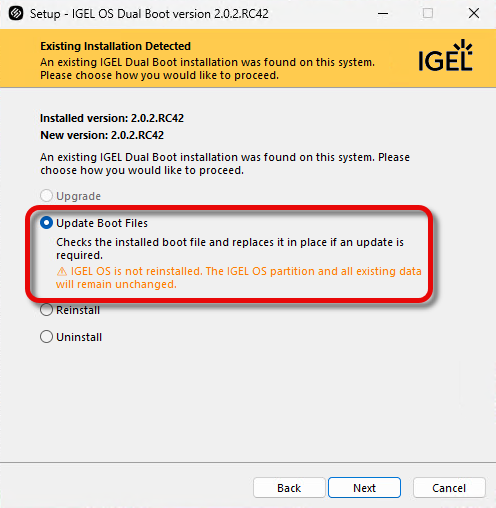
Select Update Boot Files.
-
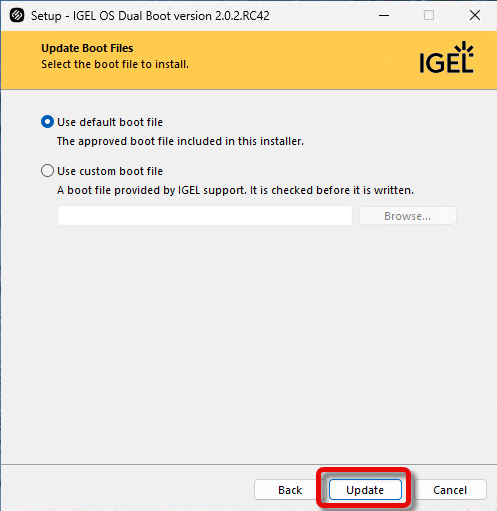
Choose one of the available options and click Update.
-
-
Use default GRUB file: Uses the approved
igelx64.efibundled with the installer. -
Use custom GRUB file: Allows the administrator to select an alternative, approved
igelx64.efifile.
-
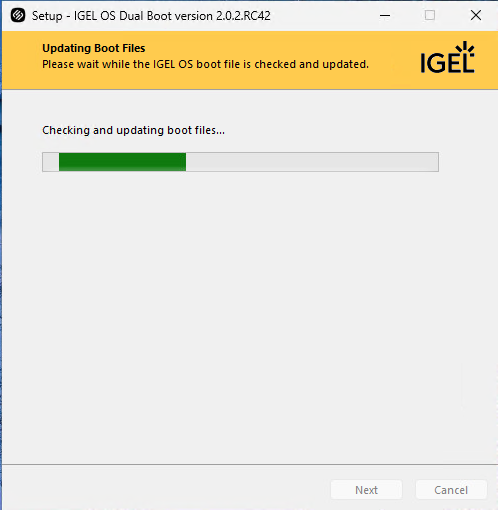
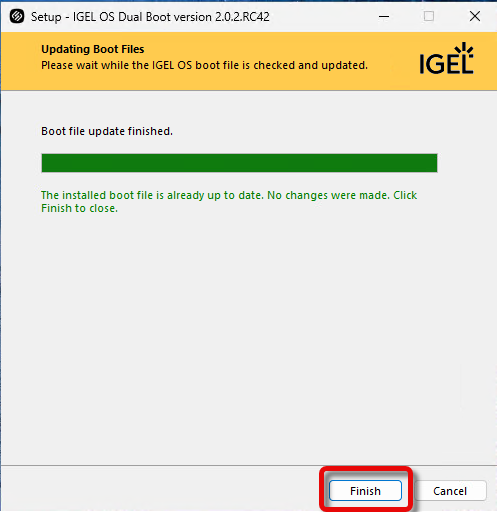
The update is performed.
-
Restart the device and verify that IGEL OS boots successfully with Secure Boot enabled.
Mass Deployment Using MSI
PowerShell example:
$p = Start-Process msiexec -ArgumentList '/i "C:\Path\setup-igel-dual-boot_2.0.2.msi" WRAPPED_ARGUMENTS="/updatebootfiles /accepteula" /log "C:\DualBootUpdate.log" REBOOT=ReallySuppress /qb' -Wait -PassThru
$p.ExitCode
→ To use a custom GRUB boot file, add the /bootfile parameter:
WRAPPED_ARGUMENTS="/updatebootfiles /bootfile=C:\Temp\igelx64.efi /accepteula"
The installer uses the supplied file to update the existing GRUB/EFI bootloader.
Temporary Workarounds
Disabling Secure Boot Temporarily
You can disable Secure Boot temporarily. However, this removes Secure Boot enforcement and should only be considered with approval from the organization’s IT security team. It is not the permanent resolution.
Before changing Secure Boot or related firmware settings on a Windows device, ensure the organization has access to the required BitLocker recovery information. Changes to the boot environment can trigger BitLocker recovery. Restore the approved security configuration and verify normal operation after remediation.
Do not use the deletion of SBAT policies, resetting Secure Boot keys, or uninstalling Windows security updates as a general workaround for this issue. The preferred resolution is to use updated, compatible IGEL boot components.
Preventing Windows from Updating the SBAT Versions
→ To prevent Windows from updating the SBAT Versions, use the following command line to add the relevant registry key:
reg add "HKEY_LOCAL_MACHINE\SYSTEM\CurrentControlSet\Control\SecureBoot\SBAT" /v OptOut /t REG_DWORD /d 1 /f