
The IGEL UD Pocket Updater is a Windows-based application that maintains the GRUB/EFI bootloader on existing IGEL UD Pocket USB devices.
It is particularly relevant for devices affected by Windows Secure Boot/SBAT policy changes, where an outdated bootloader may prevent IGEL OS from starting and cause a security violation during boot. IGEL UD Pocket Updater 1.0.0 includes the updated bootloader (igelx64.efi) with GRUB SBAT generation 6. This article is based on IGEL UD Pocket Updater 1.0.0.
The updater identifies connected IGEL UD Pocket devices, checks their bootloader files, determines whether an update is necessary, performs the update, and verifies the resulting files.
The application is designed to update the relevant EFI bootloader components while preserving the existing IGEL OS installation.
Older UD Pockets
Some older UD Pockets require a complete reimage rather than a bootloader-only update. This includes devices with missing or invalid SBAT metadata, unsupported older generations, or generation 4 bootloaders below the minimum supported build. The updater does not perform the reimage itself.
Possible Issues with Several UD Pockets Connected at the Same Time
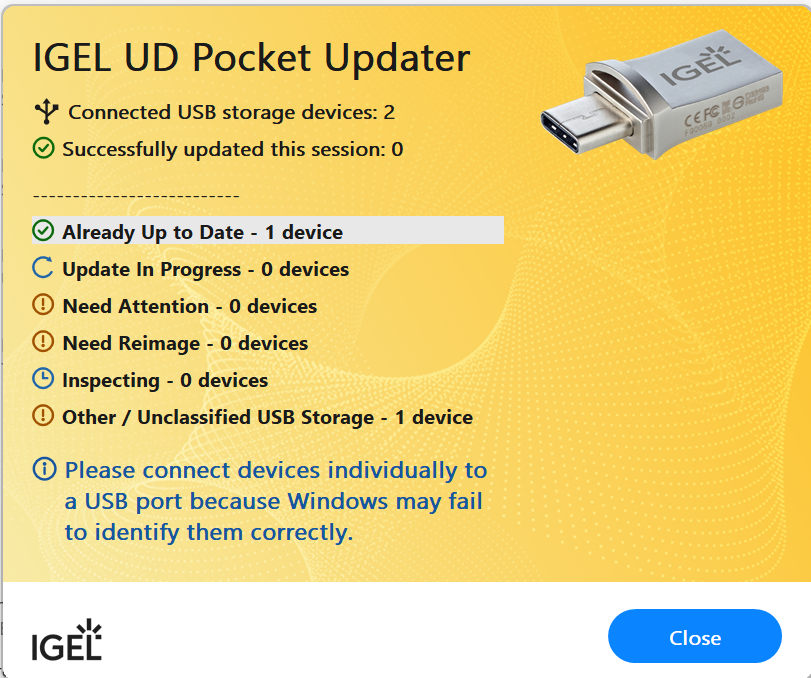
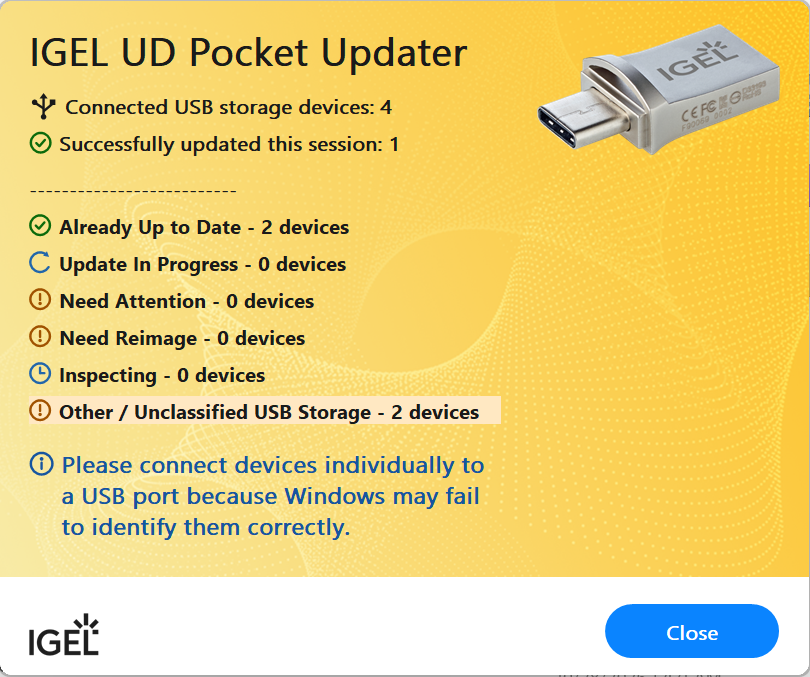
UD Pockets created from the same image may share identical disk signatures. When multiple such devices are connected simultaneously, Windows may take the additional disks offline. The notifier then displays them as “Other / Unclassified USB Storage”. In these cases, connect the affected UD Pockets one after the other.
Getting IGEL UD Pocket Updater
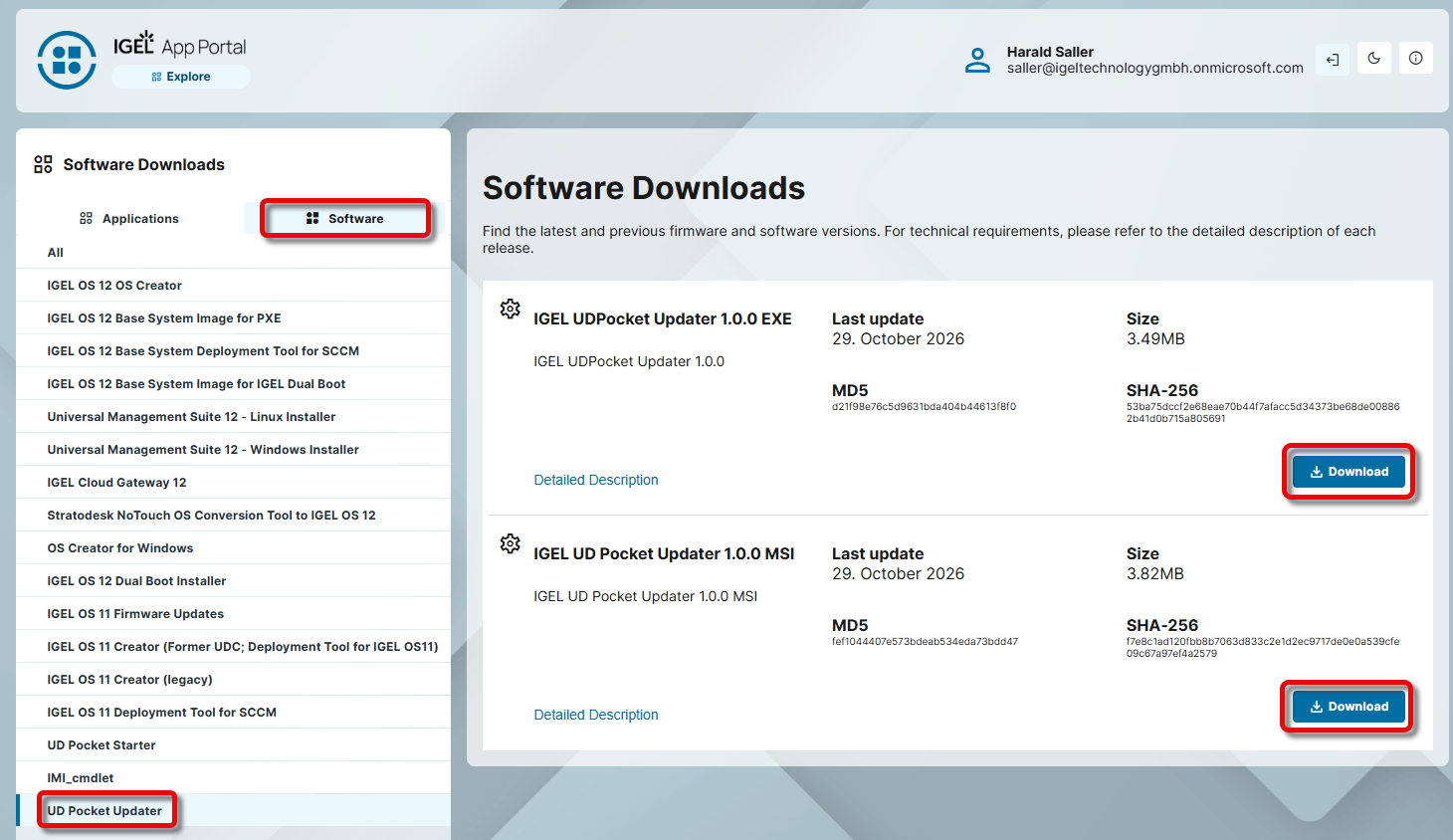
→ Open the IGEL App Portal, go to Software > UD Pocket Updater, and download the EXE package (manual/interactive installation only) and/or the MSI package (mass deployment), according to your requirements.
Installations performed using the EXE file must be repaired and upgraded using the EXE file, while direct MSI installations must be maintained using MSI.
Manual Recovery Procedure Using the GUI Application
Installing the IGEL UD Pocket Updater
-
Start a Windows computer and connect the affected IGEL UD Pockets.
-
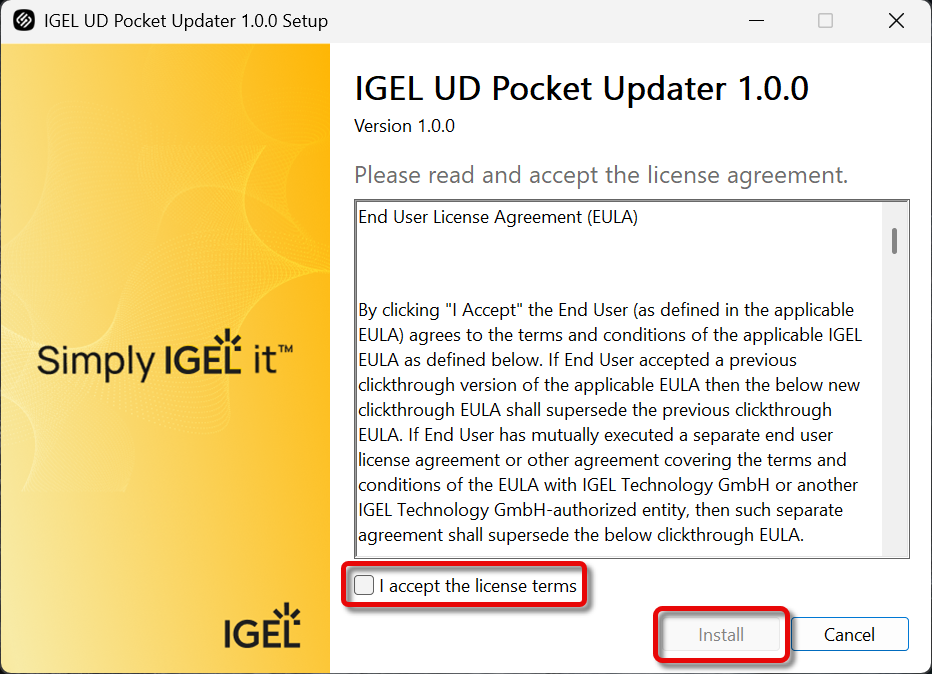
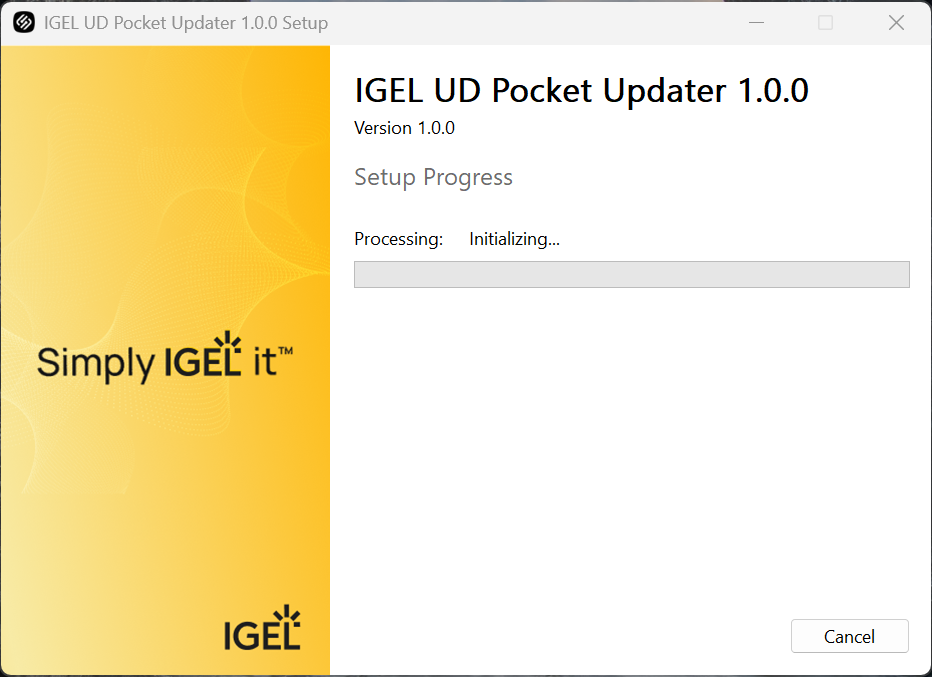
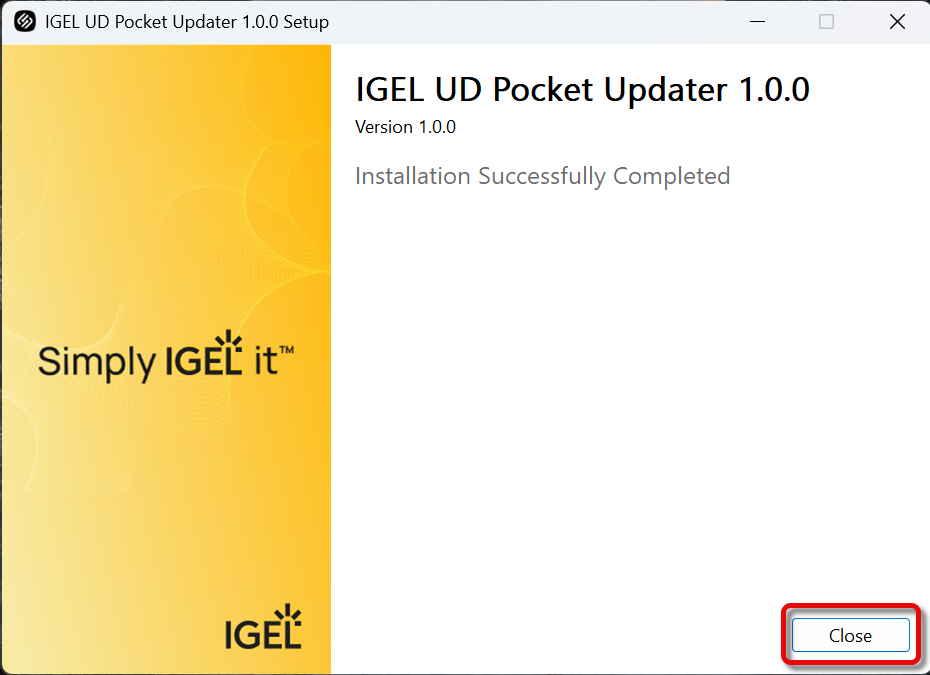
Install the IGEL UD Pocket Updater using the EXE installer.
Using the IGEL Automatic Updater
The application detects connected IGEL UD Pocket devices and checks the installed GRUB/EFI bootloader. Based on this information, it determines whether an update is required.
If the bootloader is outdated, the corresponding status is displayed.
-
Wait until the application has completed the update and verified the resulting files.
-
Once the UD Pocket is successfully updated, safely disconnect it.
-
Verify that the UD Pocket boots successfully with Secure Boot enabled.
Enterprise Deployment Using SCCM or Intune (MSI File Only)
The IGEL UD Pocket Updater includes an MSI installer and CLI functionality, allowing you to deploy the application centrally and monitor connected UD Pocket devices.
MSI installation Example
$p = Start-Process msiexec -ArgumentList '/i "C:\Installers\Igel.UdPocketUpdater.Setup.msi" ACCEPTEULA=1 AUTOREPAIR=1 LOGLEVEL=Info /log "C:\UDPocketInstall.log" REBOOT=ReallySuppress /qb' -Wait -PassThru
$p.ExitCode
The example uses a generic installer path. Administrators should replace it with the location of the approved MSI package.
The installation result can be checked using the exit code returned by msiexec.
For production deployments, administrators should use the approved installer package and validate the installation and update behavior in their own environment.
Automatic Update Behavior
The updater supports an automatic update mode controlled by the AUTOREPAIR MSI property.
The configuration is persistent in the Windows Registry.
When AUTOREPAIR=1 is configured:
-
The Windows Service detects a connected IGEL UD Pocket.
-
The application checks the existing GRUB/EFI bootloader.
-
If the bootloader is outdated, the application automatically starts the update.
-
The required bootloader files are updated.
-
The resulting files are verified.
-
After a successful update, the user should safely remove the UD Pocket from the device.
This allows you to update connected UD Pocket devices with minimal user interaction.
The automatic update workflow is particularly useful for centrally managed Windows endpoints and environments where multiple UD Pocket devices need to be maintained.
When AUTOREPAIR=0, automatic remediation is disabled. The application can still be used for device detection and manual update workflows.
Important: Inform Your Users
Inform your users that enabling automatic updates may result in connected UD Pocket devices being updated automatically. When the update is finished, the users should safely remove their UD Pockets from their devices.
CLI Monitoring and Diagnostics
The updater installs a command-line application that can be used in SCCM scripts and other enterprise management workflows.
CLI Executable Location
C:\Program Files\IGEL\UD Pocket Updater\igel-udpcli.exe
The CLI provides commands for inspecting the application configuration, scanning for connected UD Pocket devices, and listing detected devices.
CLI commands
|
Command |
Description |
|---|---|
|
|
Displays the current updater configuration in JSON format. |
|
|
Performs a scan for connected IGEL UD Pocket devices and reports the results. |
|
|
Lists detected UD Pocket devices in JSON format. |
The JSON output allows you to integrate device information into SCCM scripts, automated diagnostics, and enterprise management workflows.
The CLI is useful for verifying that the updater is installed, checking its configuration, and inspecting connected UD Pocket devices during deployment and troubleshooting.
See Also
For further details, open the IGEL App Portal, go to Software > UD Pocket Updater, and click Detailed Description.