Here, you can view, activate, and deactivate Product Packs, and configure the deployment of device licenses by the IGEL Universal Management Suite (UMS). Licenses can be deployed automatically or manually. Moreover, it is possible to define conditions that determine which device gets a license of a certain type.
Menu path: System > Licenses 
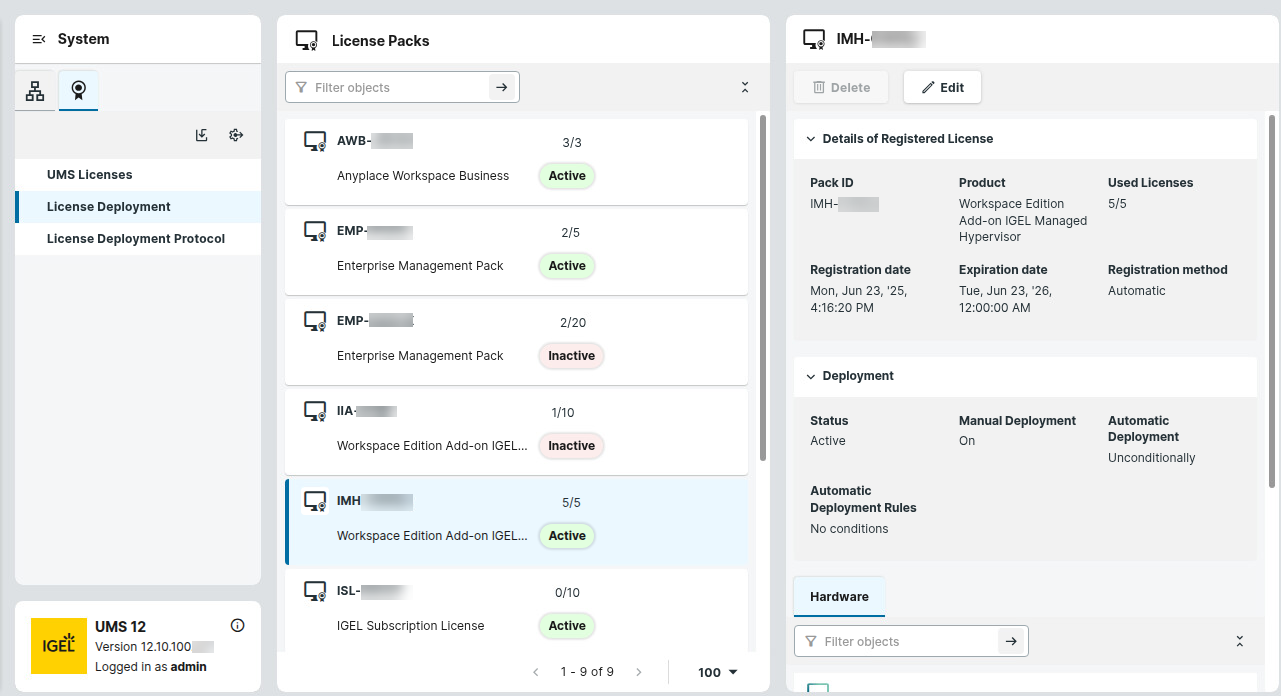
Automatic License Deployment
Demo licenses for IGEL OS 12 devices are also supported by Automatic License Deployment.
Automatic license deployment requires a connection between the UMS and the IGEL license server as well as the IGEL update server. This connection can be established via a proxy.
For details about the process of automatic license deployment, see Setting up Automatic License Deployment.
If a number of Product Packs for which suitable and non-allocated licenses are available, a selection will be made in accordance with the following criteria:
-
The Product Pack with the most allocated licenses will be used first.
-
Product Packs with an earlier registration date will be used before Product Packs with a later registration date.
As soon as a license is registered in the UMS, the UMS stores the license and adds a license download link to the device settings. After that, the UMS sends the settings to the devices. When the devices have received their settings, they download the licenses and reboot. After the reboot, all licensed features are available on the devices.
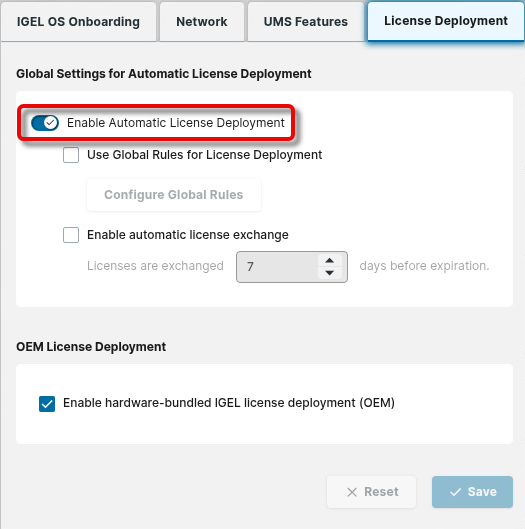
Enabling/Disabling Automatic License Deployment Globally
-
Click

-
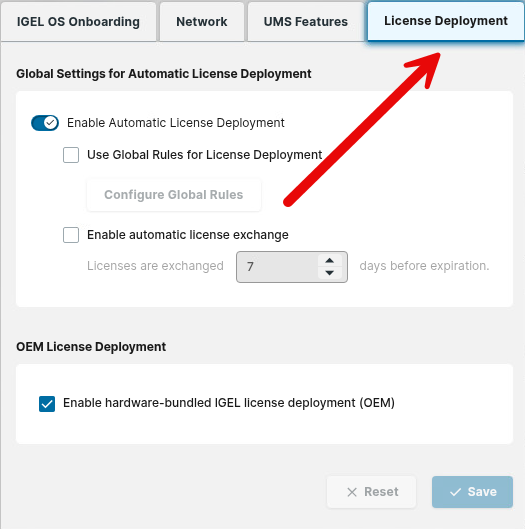
Enable or disable Automatic License Deployment.
Enabling/Disabling Automatic License Deployment for Hardware-Bundled IGEL Licenses (OEM)
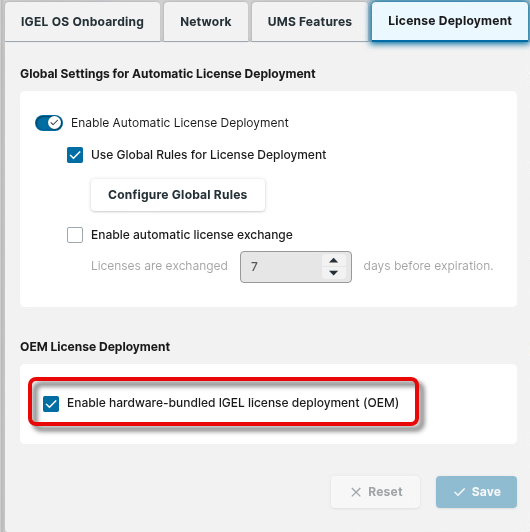
A hardware-bundled IGEL license is purchased together with hardware manufactured by an IGEL Hardware Partner. You can enable or disable automatic license deployment for these licenses. By default, this is enabled. If it is disabled, hardware-bundled IGEL licenses must be deployed manually.
-
Click
-
Set Enable hardware-bundled IGEL license deployment (OEM) appropriately.
Configuring Global Rules for License Deployment
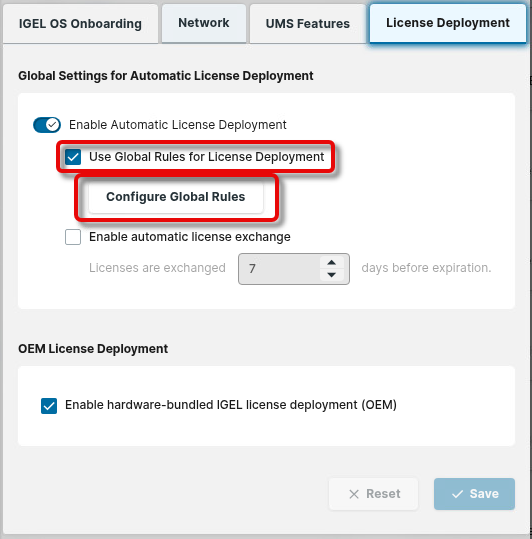
If you define a global rule for license deployment, only devices that comply with this rule are considered for the automatic license deployment. For further refinement, you can configure Product Pack-specific distribution conditions.
-
Click
-
Enable Use Global Rules for License Deployment and click Configure Global Rules.
-
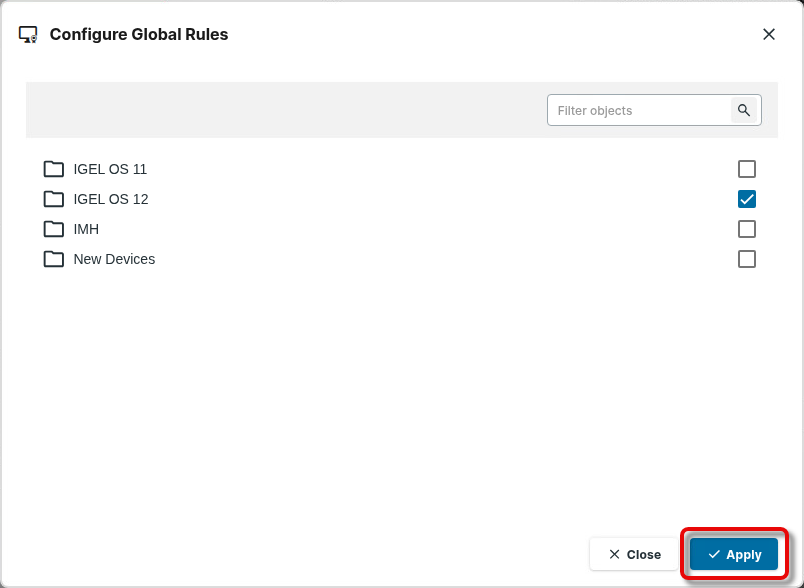
Select a device directory for which the automatic license deployment should be applied.
Configuring Automatic License Exchange for Renewal
If you enable automatic license exchange, a device whose current Product Pack has not been renewed yet will get a license from another Product Pack, if possible. Logically, this is only possible if a Product Pack with a later expiry date and free licenses is registered with the UMS.
Please note that old licenses will not be removed from the devices.
-
Click
-
Activate Enable automatic license exchange.
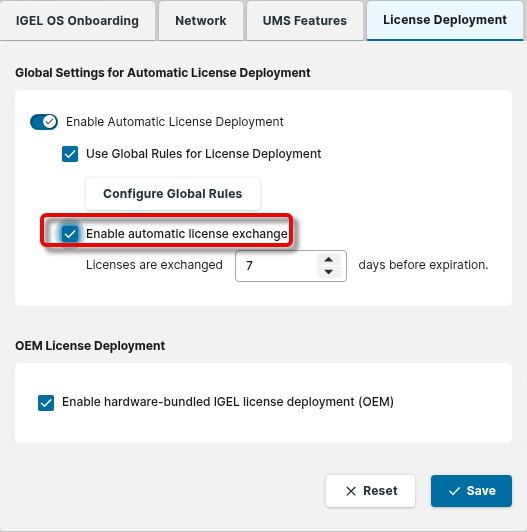
-
Define the number of days before license expiration that will trigger the license exchange.
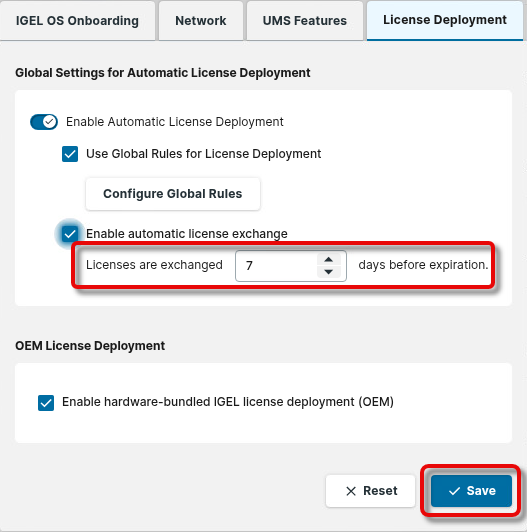
Activating/Deactivating Product Packs for License Deployment
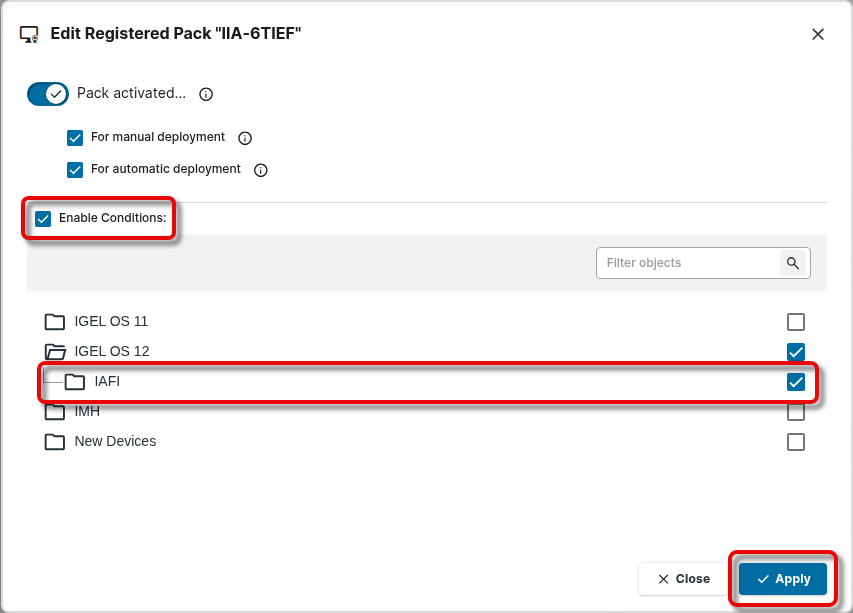
If a Product Pack is activated, its licenses can be deployed to devices. You can activate it for both automatic and manual deployment.
-
Select the relevant Product Pack and click Edit.
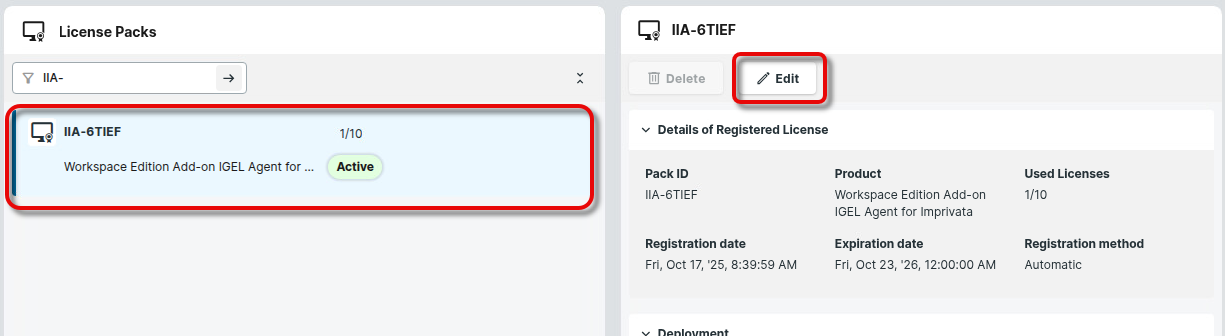
-
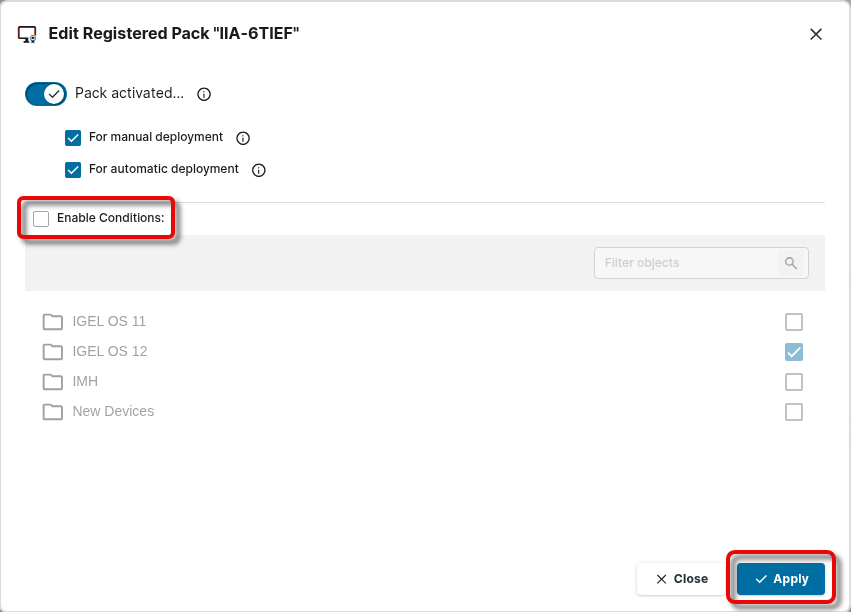
Edit the settings for Pack activated…, For manual deployment, and For automatic deployment appropriately.
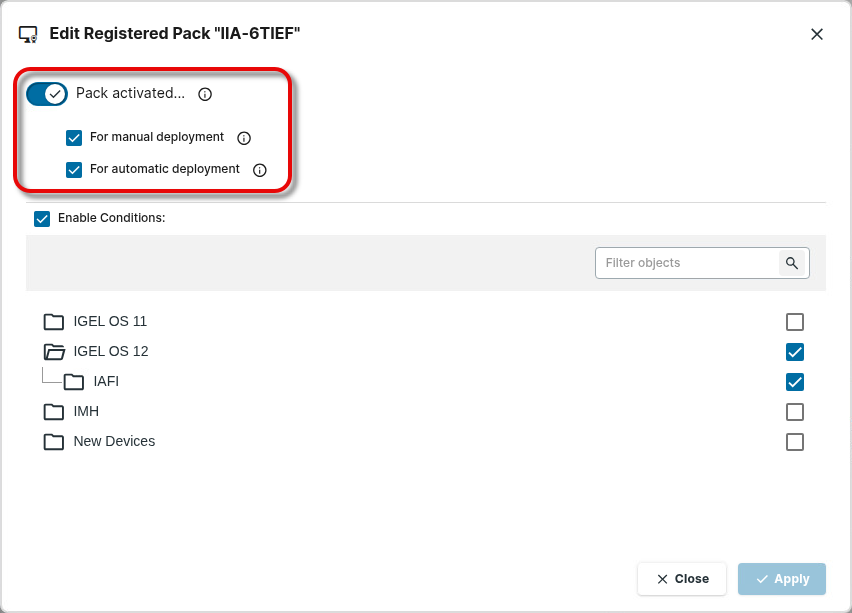
Configuring Product Pack-Specific Distribution Conditions
Distributing Licenses to All Devices
With Workspace Edition (WE) Product Packs, the distribution of licenses to all unlicensed devices is set by default. With all other Product Pack types, the distribution of licenses is set to conditional by default.
-
Select the relevant Product Pack and click Edit.
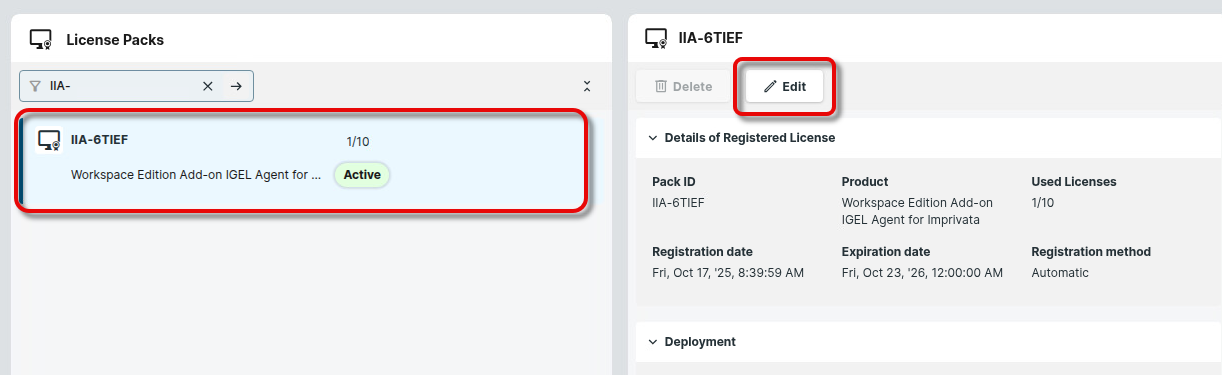
-
Make sure that Enable Conditions is deactivated.
Distributing Licenses to Devices in a Specified Directory
-
Select the relevant Product Pack and click Edit.
-
Make sure that Enable Conditions is deactivated.
Distributing Licenses to Devices in a Specific Directory
-
Create a directory and put the devices that require licenses in it.
-
Select the relevant Product Pack and click Edit
-
Activate Enable Conditions and select the relevant directory.