
You can check the license status both for devices and the IGEL Universal Management Suite (UMS) in the UMS Console.
Check Device Licenses
-
In the UMS Console, go to Devices and select a device.
-
To ensure that the licensing status is up-to-date, open the context menu on the device and select Other commands > Refresh license information.
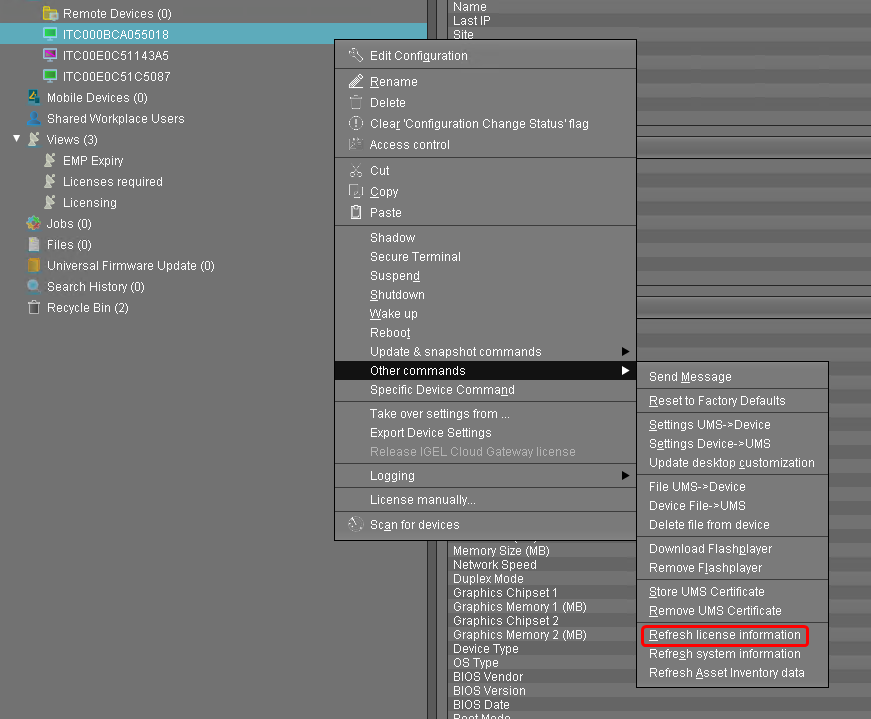
-
Check if all devices have the icon

-
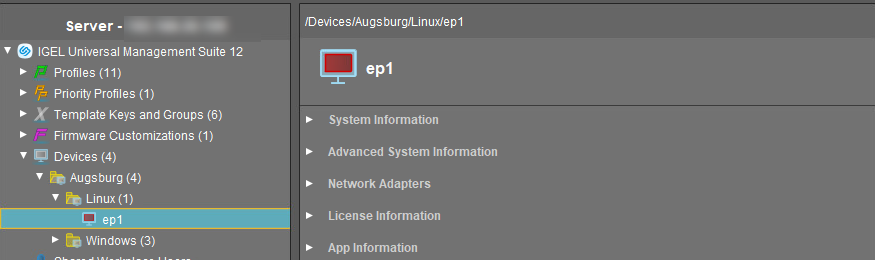
You can check further license information under License Information. For details, see View Device Information in the IGEL UMS.

Check UMS License
-
In the UMS Console, go to UMS Administration > Global Configuration > Licenses > UMS Licenses.
-
Check UMS License information.
For details, see How to License the IGEL UMS.