
You can copy the data source of your IGEL Universal Management Suite (UMS) in the UMS Administrator as described in this article. This function is useful when migrating to a different database.
Example Configuration
To switch your UMS database from an Embedded DB to an external database system, see the detailed instructions in How to Migrate a UMS Database From Embedded DB to Microsoft SQL Server .
Menu path: UMS Administrator > Datasource
Default path to the UMS Administrator:
Linux: /opt/IGEL/RemoteManager/RMAdmin.sh
Windows: C:\Program Files\IGEL\RemoteManager\rmadmin\RMAdmin.exe
The IGEL UMS Administrator application can only be started on the UMS Server.
Known issue when migrating to an Oracle Database
It is not possible to migrate from a non-Oracle Database to an Oracle Database via RMAdmin. The initial use of an Oracle Database is possible and is supported. It is also possible to update an Oracle Database to a higher version.
General Instructions
To copy one data source to another one:
-
Prepare the new database in accordance with the installation instructions for the UMS.
-
Set up a suitable new data source for this database system in the UMS Administrator.
-
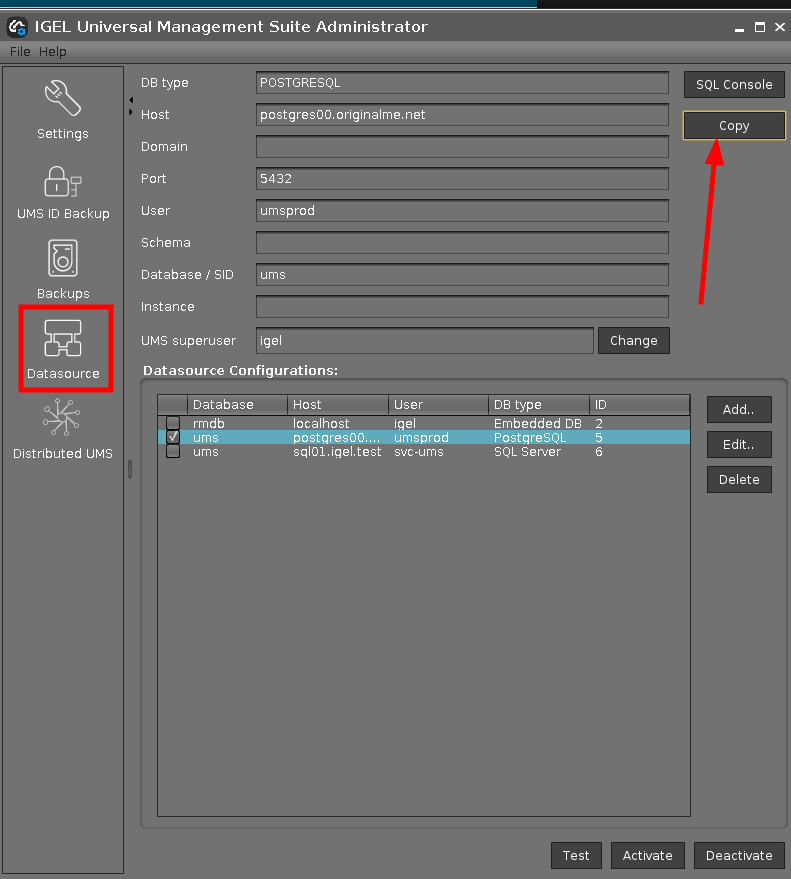
Select the data source which is still active and in use.
-
Click Copy to copy the old data source to the new one.
-
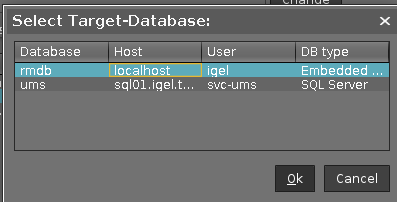
Select the destination data source and click OK.
-
Start the process after entering the login data for the destination data source.
-
Activate the new data source.
-
Wait until the UMS Server fully starts, i.e. the UMS Console can connect with it.