
Depending on the security requirements in your company, it may be necessary to customize the option “Stay logged in for 30 days” displayed by default on the login page of the IGEL Universal Management Suite (UMS) Web App. This article explains how you can configure this option.
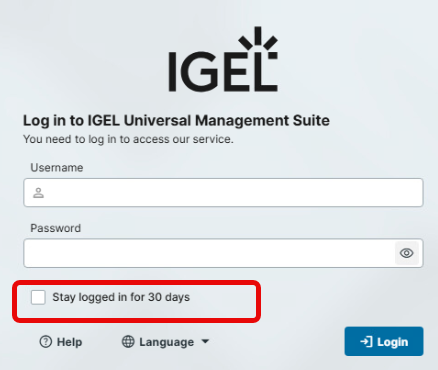
Menu path: UMS Web App > User Management > Settings > Login Options
Read and write permissions for Login Options are required. You can set them in the UMS Web App under User Management > Users / Groups > Change Permissions > Administrative > Login Options.
To customize the option “Stay logged in for 30 days” for the login page of the IGEL UMS Web App, proceed as follows:
-
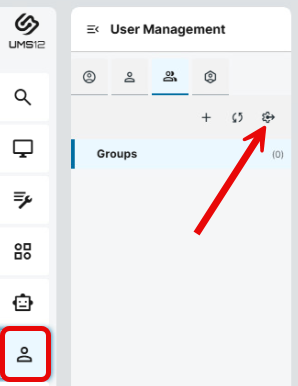
In the UMS Web App, go to User Management > Settings.
-
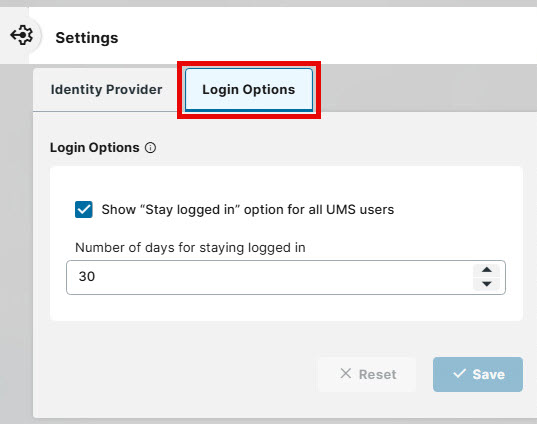
Select the tab Login Options.
-
Configure the following options according to your needs and save the changes:
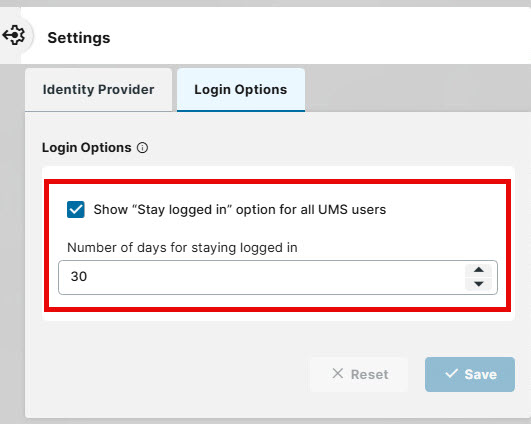
Show “Stay logged in” option for all UMS users
Changes to this setting only apply the next time a user accesses the login page. Users who are already logged in remain unaffected, i.e. there is no effect on the active sessions.
- The checkbox “Stay logged in” will be visible on the login page of the UMS Web App. (Default)
- The checkbox “Stay logged in” will not be visible on the login page of the UMS Web App.
Number of days for staying logged in
Configure the days a user can stay logged in when activating the “Stay logged in” checkbox. You can set 1 to 90 days. (Default: 30)