Rules for default directories are usually used to automatically classify IGEL OS devices into specific directories during registration. These directories can be linked to profiles which are then assigned to the devices contained. As a result, you can automatically configure the devices during onboarding (zero touch deployment). For more information, see Using Structure Tags with IGEL OS Devices and How to Automate the Rollout Process in the IGEL UMS.
Using the default directory rules, you can also “re-register” previously registered devices, so that they are moved to the required target directories.
For information how to create and use default directory rules in the IGEL UMS Console, see Default Directory Rules.
Default directory rules created in the UMS Web App can be viewed in the UMS Console, and vice versa. For the configuration / editing purposes, it is, however, recommended to use either the UMS Web App or the UMS Console.
How to Create a Default Directory Rule
Menu path: UMS Web App > Automation > Default Directory Rules
The user requires the following writes in order to create default directory rules:
-
writerights for User Management > Users > [name of the required user] > Change permissions > Administrative > Default Directory Rules -
at least
readrights for User Management > Users > [name of the required user] > Change permissions > Administrative > Device Attributes -
at least
browserights for the target directories
For more information, see How to Manage Administrative Permissions in the IGEL UMS Web App and How to Manage Object Permissions in the IGEL UMS Web App.
-
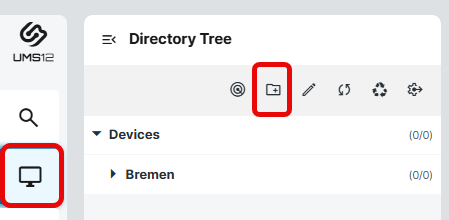
In the IGEL UMS Web App, go to Devices and create the required directories.
-
Go to Automation > Default Directory Rules and click the button +.
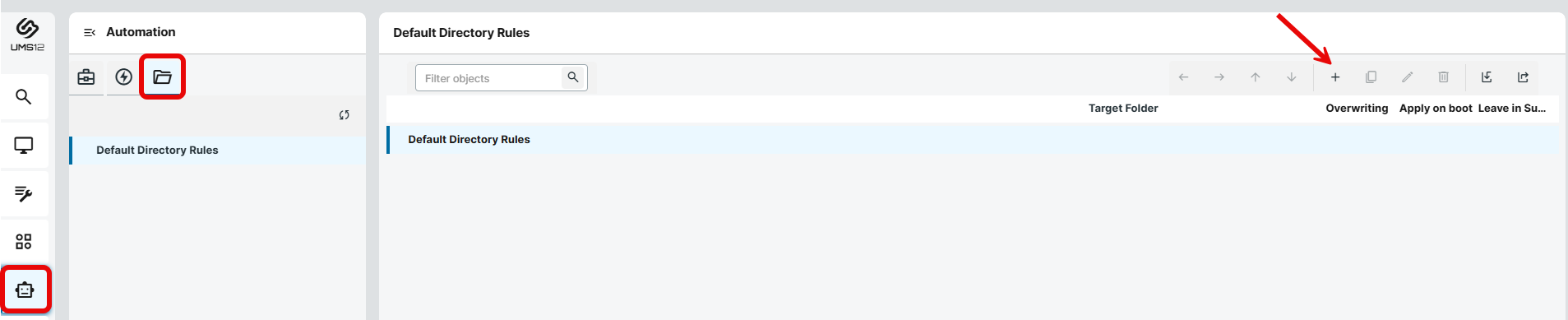
The dialog New Default Directory Rule will open.
-
Select a criterion according to which your devices will automatically be placed in the specific directory.
A filter field helps to narrow down the selection to matching names of criteria.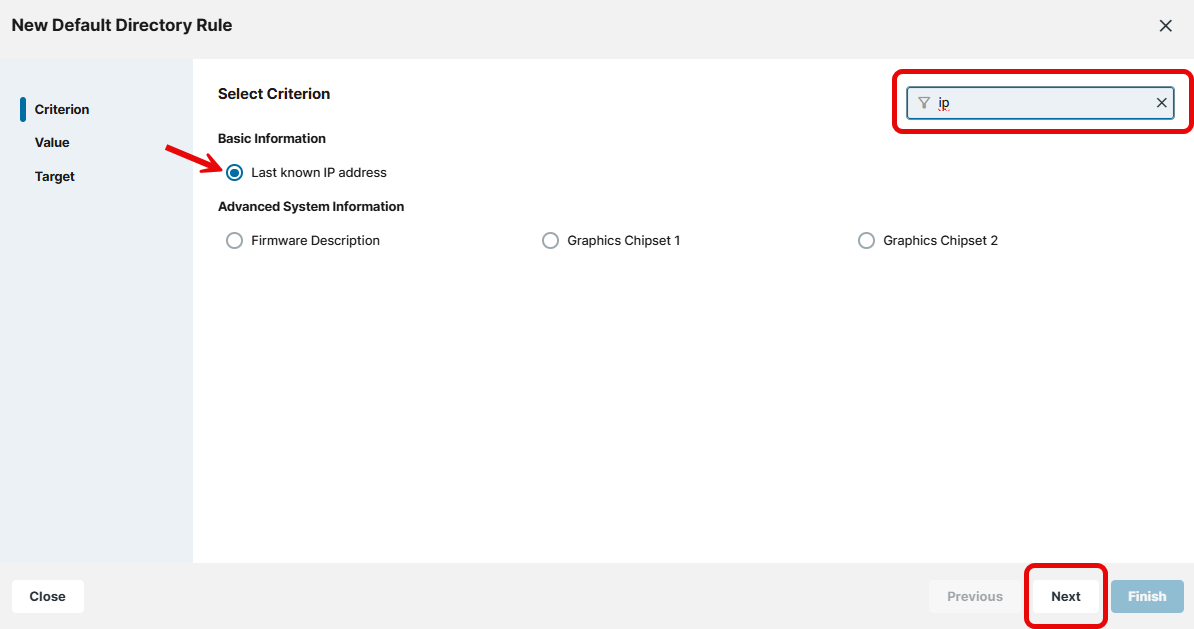
-
Specify the comparative value and comparative operator for the criterion.
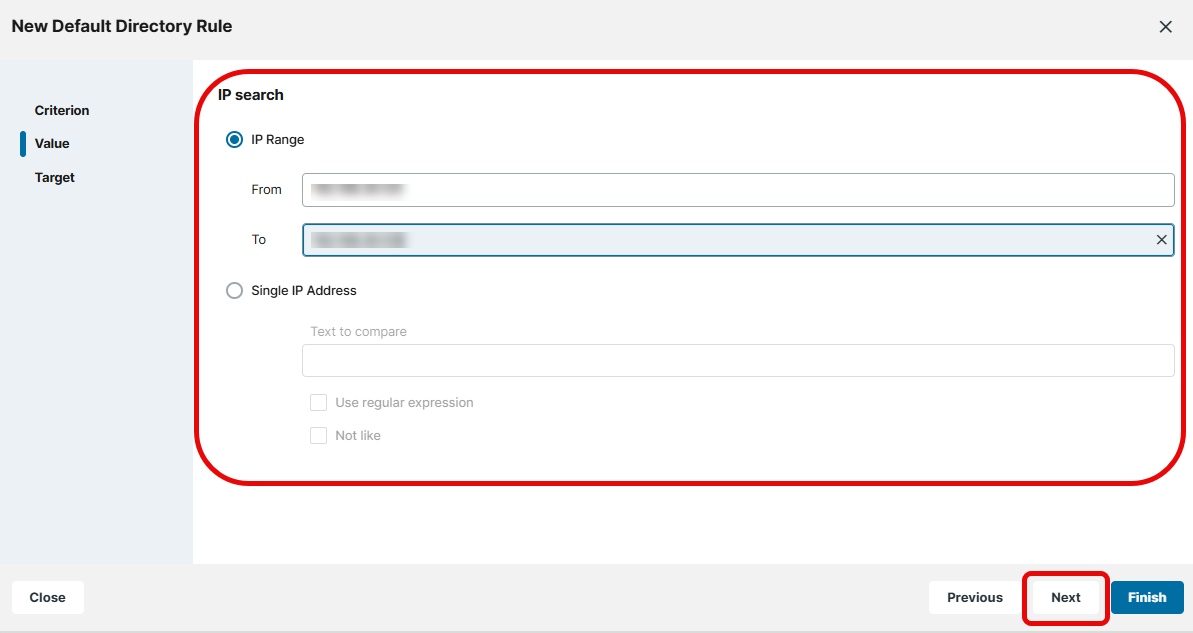
If you create a rule which contains a range (from - to), this will automatically be converted into a pair of rules linked with AND (from AND to). This applies, for example, to date or IP ranges.
If you want the devices to be sorted into automatically created directories according to IP address ranges, see Using the Netmask Criterion for Default Directory Rules .
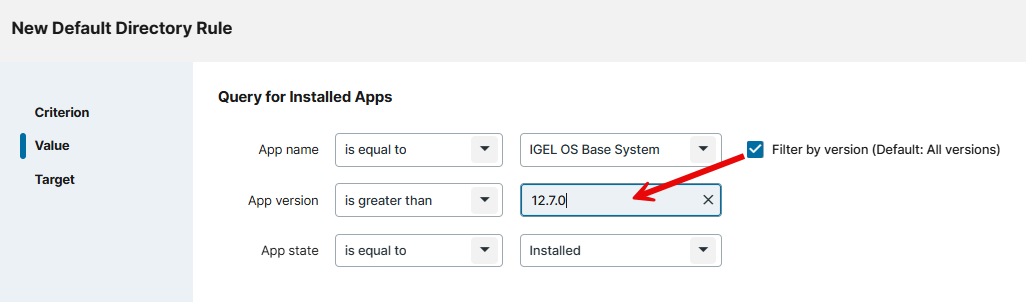
If you use the criterion Installed Apps and activate Filter by version, you need to specify a "technical" version of an app under App version, e.g. 22.12.1-1.rc.2+1 (not 22.12.1 BUILD 1 RC 1). The technical version can be found under UMS Web App > Apps > [name of the app] > Export App (Metadata).
-
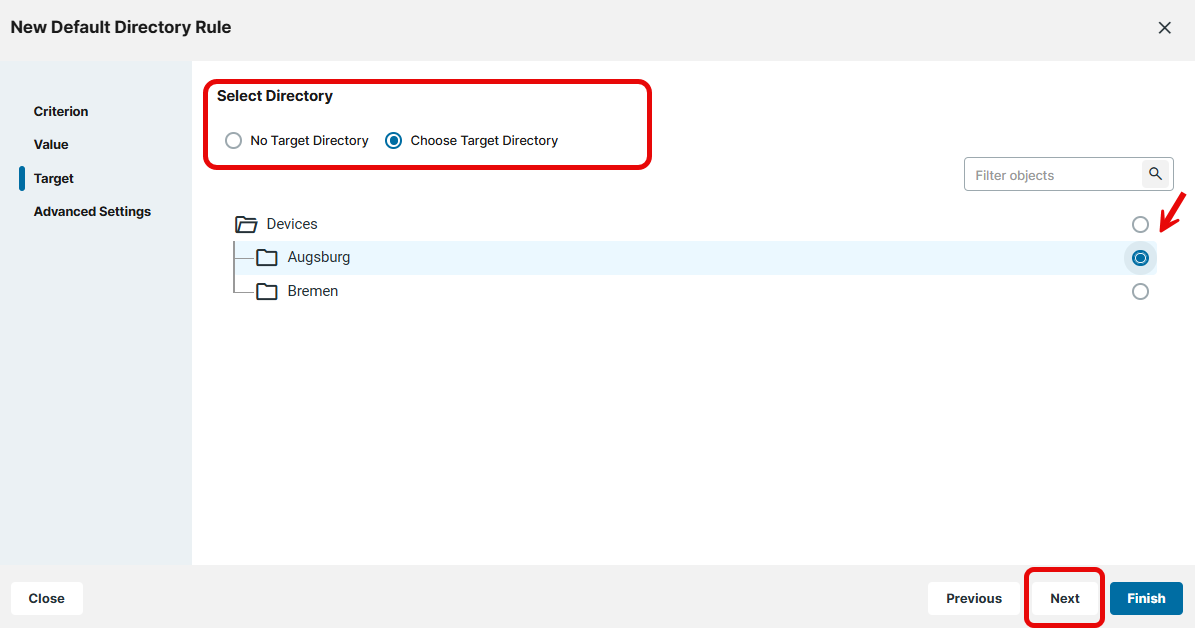
Select a target directory (must already exist) or select the option No Target Directory. Use the option No Target Directory only to combine multiple directory rules, see How to Combine Conditions below.
-
With the Choose Target Directory option, you have the following further options.
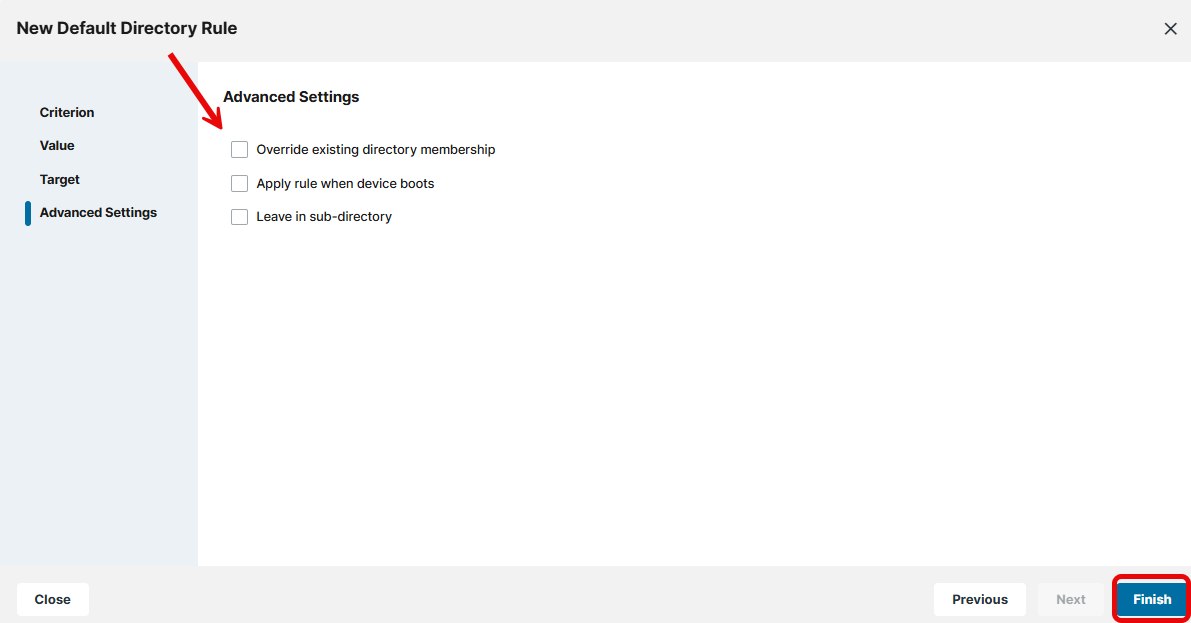
If you want to “re-register” previously registered devices, so that they are moved to the required target directories, activate both Override existing directory membership and Apply rule when device boots.-
Override existing directory membership
- A previously registered device is re-registered in the target directory.
-
Apply rule when device boots
- The rule is applied not only when registering but also each time the devices boot.
-
Leave in subdirectory
- A device will not be moved if it is already in a subdirectory of the target directory.
- A device will not be moved if it is already in a subdirectory of the target directory.
-
-
Click Finish to save the rule.
The order of the rules is important. Generally speaking, the default directory rules tree is worked through from top to bottom for each device. If the criterion of a rule applies and it has a target directory, its children rules will be scrutinized. If none of the children rules apply, the device will be moved to the target directory of the rule above. If however one of the children rules applies and it has a target directory, this child rule will be taken as a new starting rule and the search will begin again. If an applicable rule does not have a target directory, its children rules will be scrutinized.
How to Combine Conditions
You can combine the conditions of directory rules using AND and OR links.
Moving Rules and Groups of Rules
To move a rule (or group of rules), select the required rule (or superordinate rule) and use the arrow buttons in the symbol bar. For copying / pasting rules, you can use the Duplicate button. For more information, see “Action Buttons” below.
→ Indent a rule using 
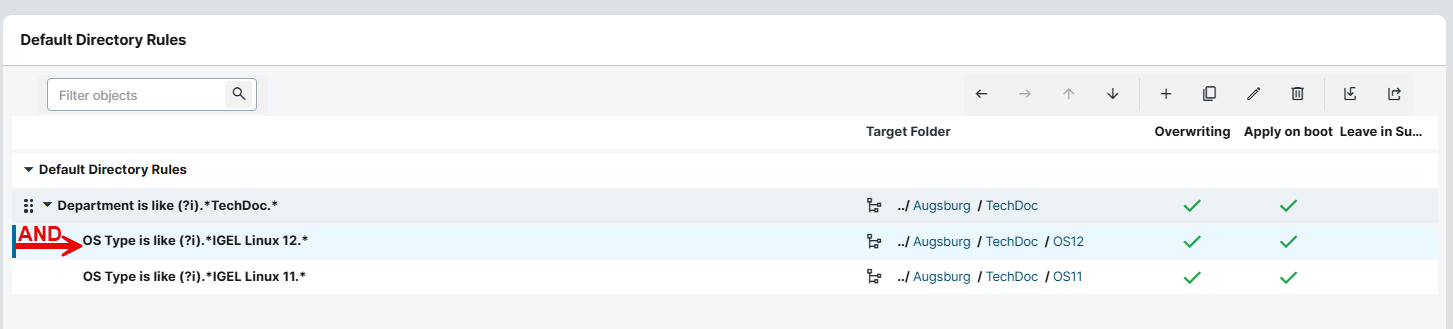
Example: In the illustration, devices whose Department contains TechDoc AND OS Type contains IGEL Linux 12 are moved to the directory /Devices/Augsburg/TechDoc/OS12/.
You can use rules which do not have a target directory (linking rules) to combine conditions.
→ Leave rules equally indented in order to create an OR link for the conditions.
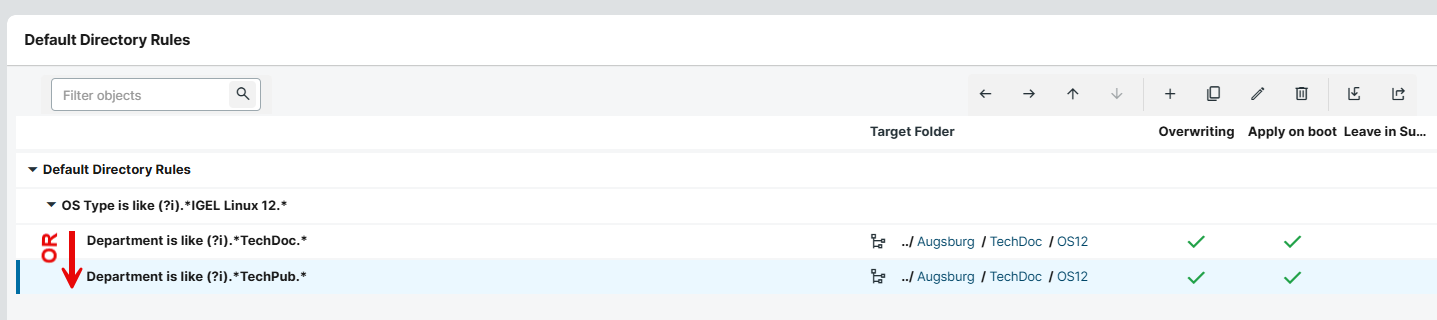
Example: In the illustration, devices whose Department contains TechDoc OR TechPub are moved to the directory /Devices/Augsburg/TechDoc/OS12/.
Action Buttons
In the symbol bar for default directory rules, you can find the following buttons for frequently used commands.


|
Move the selected rule a level up |

|
Move the selected rule a level down |

|
Move the selected rule up in the sequence |

|
Move the selected rule down in the sequence |

|
Add a new rule (as last child of the currently selected rule) |

|
Duplicate, i.e. copy and paste the selected rule (including subordinate rules) |

|
Edit the selected rule |

|
Delete the selected rule (including subordinate rules). The default directory rules are removed permanently straight away, i.e. without being moved to the recycling bin. |

|
Import all default directory rules
|

|
Export the complete structure and content of default directory rules. Export of the selected rule is not possible. |
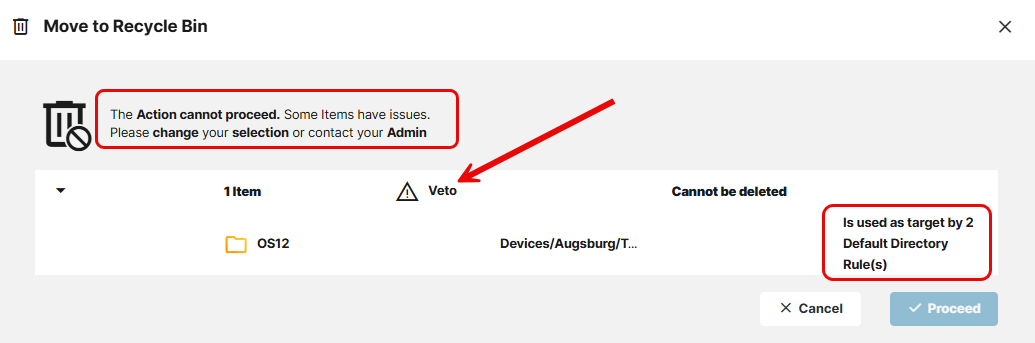
A directory which is the target of a default directory rule cannot be deleted. In order to delete it, you must change or delete the directory rule first.