In the IGEL UMS Web App, you can configure administrative tasks for the IGEL Universal Management Suite (UMS). Administrative tasks allow administrators to define and schedule recurring maintenance tasks in the UMS environment. They are also essential for UMS performance optimization.
An administrative task consists in sending an action automatically at a defined time. Examples of such actions include creating a database backup for an embedded database or deleting logging data. Administrative tasks can be repeated at intervals or on specific days of the week.
For how to create administrative tasks in the IGEL UMS Console, see Administrative Tasks - Configure Scheduled Actions for the IGEL UMS.
-
Administrative tasks created in the UMS Web App can be viewed in the UMS Console, and vice versa. For the configuration / editing purposes, it is, however, recommended to use either the UMS Web App or the UMS Console.
Note the following:-
The configuration of views and/or search history in such administrative tasks as Delete devices, Assign objects to the devices of views / advanced searches, Export view / advanced search result via mail, Save view / advanced search result in the file system, etc. can only be performed in the UMS Console.
-
The administrative tasks Delete logging data (OS11 and Console) and Send notification information via email can only be configured in the UMS Console.
-
-
The user requires write rights for the Administrative Tasks area in order to create and edit administrative tasks. For more information, see How to Manage Administrative Permissions in the IGEL UMS Web App.
To avoid problems with UMS performance and with backup restoring, it is highly recommended to use administrative tasks to automatically clean up logs – logging data, job execution data, execution data of administrative tasks, process events, asset information history.
For details, see the following articles:
How to Create an Administrative Task
Menu path: UMS Web App > Automation > Administrative Tasks
The user requires write rights in order to create administrative tasks. To set the required rights, go to User Management > Users > [name of the required user] > Change permissions > Administrative > Administrative Tasks. For more information, see How to Manage Administrative Permissions in the IGEL UMS Web App.
To create an administrative task, proceed as follows:
-
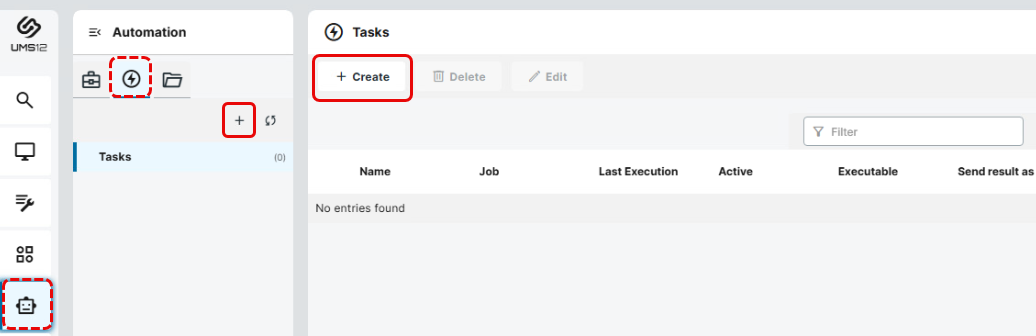
In the UMS Web App, go to Automation > Administrative Tasks and click + or the Create button.
-
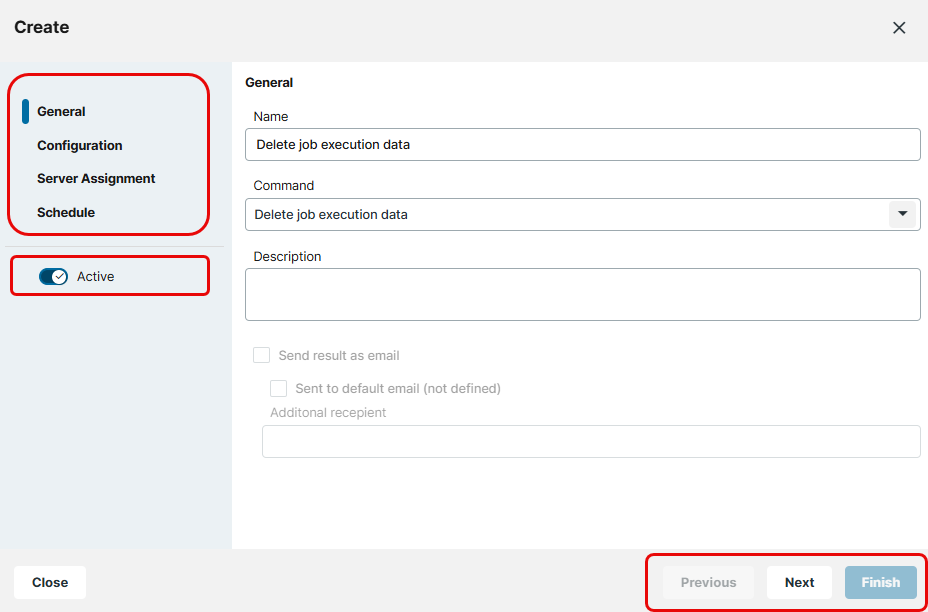
In the Create dialog, configure the necessary settings. The settings are spread over a number of pages. You can switch between them by clicking Next and Previous.
|
General |
The following settings can be configured: Name Name for the administrative task
Command → Select the required command. Depending on the chosen command, various settings are available for configuration. For detailed information, see Commands for Administrative Tasks below.
Description
Send result as email
Send to default email (not defined)
Additional recipient
|
|
Configuration |
What settings are available for configuration depends on the selected command. For detailed information, see Commands for Administrative Tasks below. |
|
Server Assignment |
The Server Assignment settings can only be configured if you deploy Distributed UMS or High Availability environment. For detailed information on these UMS installation types, see IGEL UMS Installation. The following settings can be configured: Assigned server List of servers that are available for this task
Assignment type Possible options:
|
|
Schedule |
The following settings can be configured to schedule task execution: Start date Date of the first execution of the administrative task
Start time
Repeat the task After every [interval value] [interval unit] The task will be repeated at the set time interval.
On the day(s) The task will be executed on the days activated under Day(s) of the week at the point in time specified under Start time.
Monthly
Expire on
|
|
|
|

-
Click Finish.
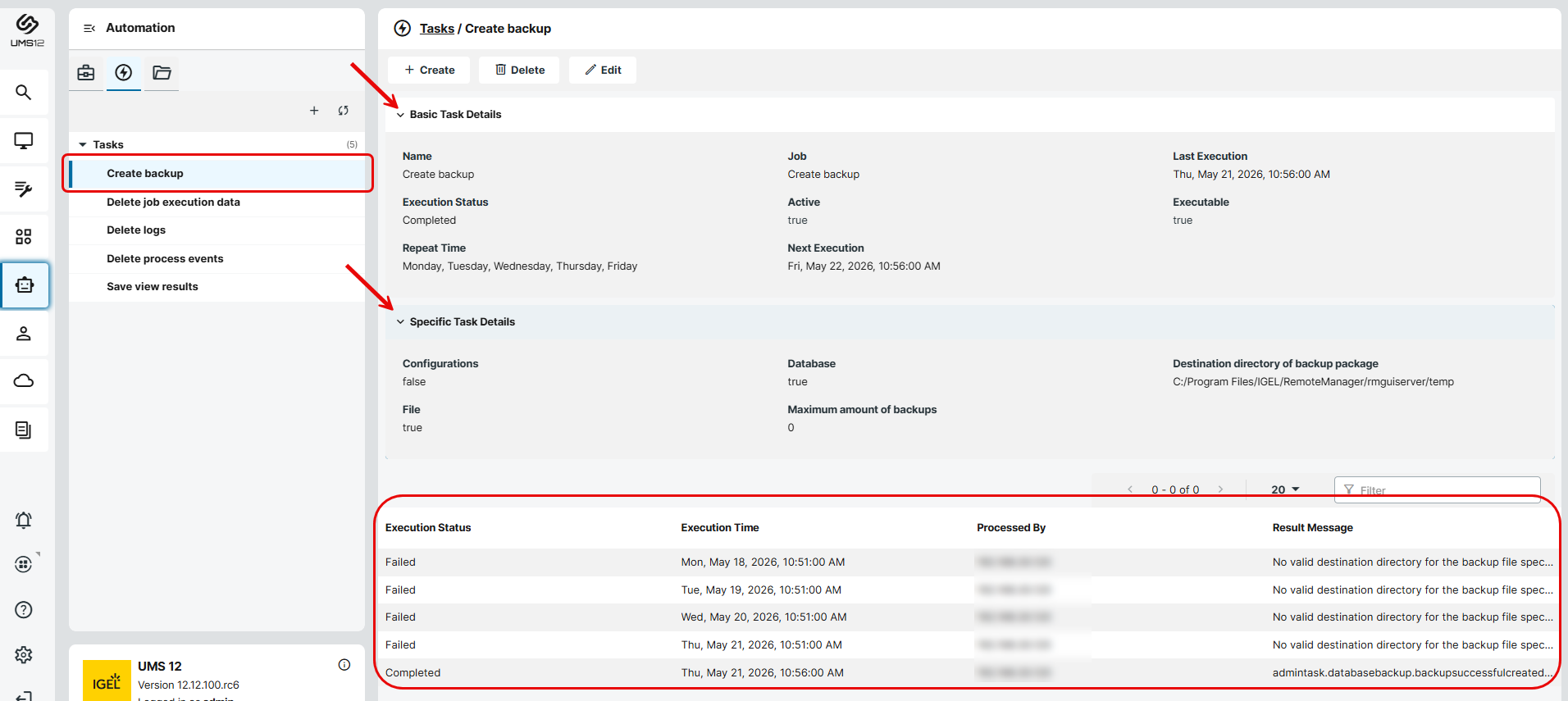
The administrative task is defined and shown in the list of administrative tasks. The Execution Status will show if the administrative task was executed successfully or failed.
If you want to hide any columns in the list of administrative tasks, you can click Select Columns and deactivate the required columns.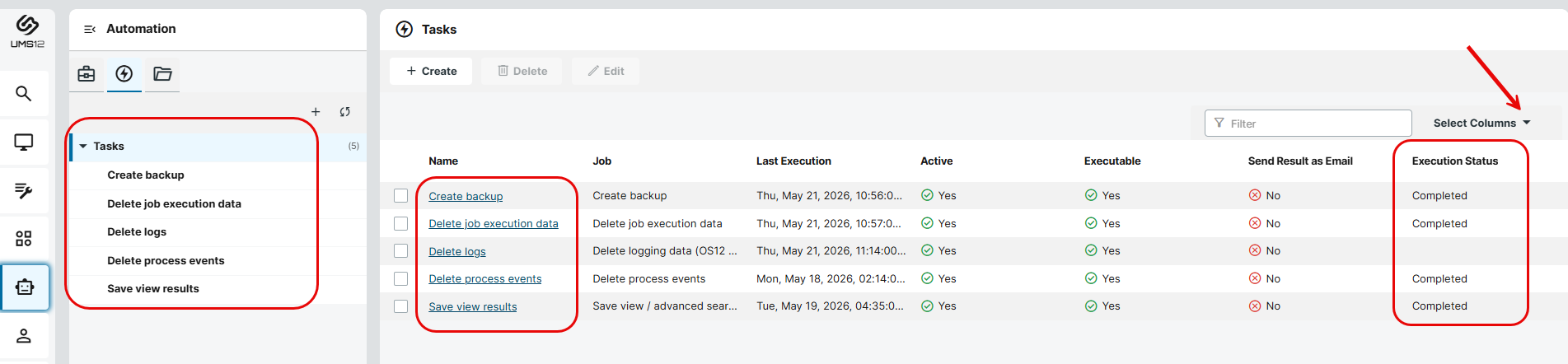
-> To view the details, click on the name of the required administrative task under Tasks or in the Name column.
Commands for Administrative Tasks
Here you can find information on commands available for administrative tasks. Depending on the command, various settings can be configured under Configuration. For some administrative tasks, no settings are available under Configuration.
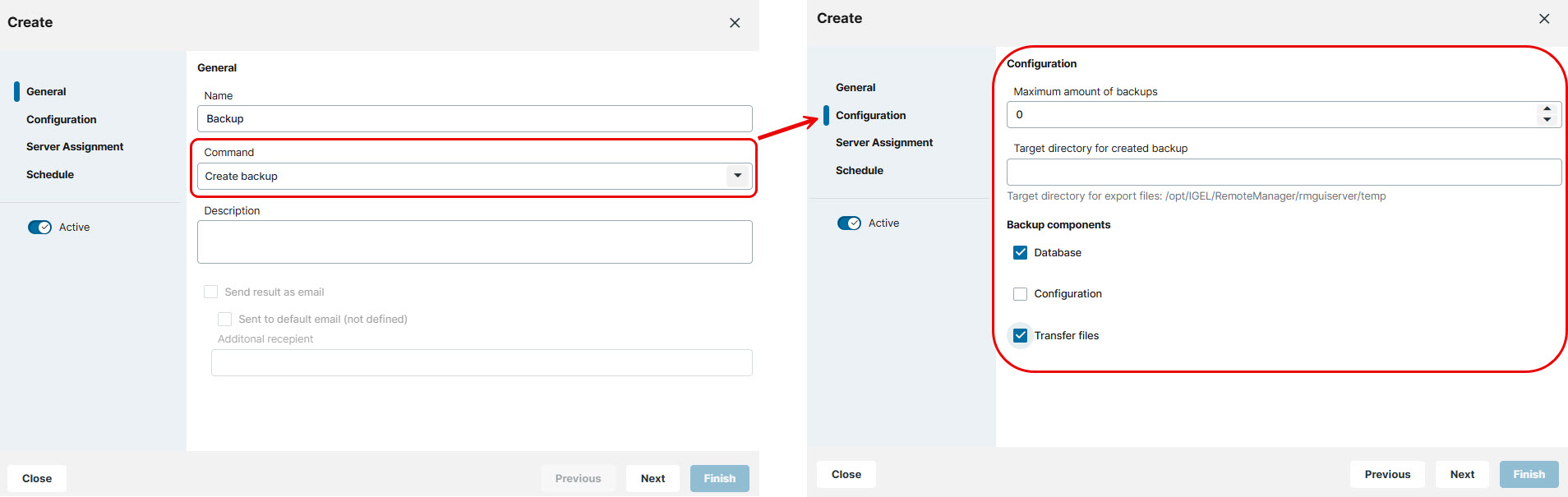
Example:
Create Backup
Using the Create backup command for the administrative task, you can define a scheduled backup of the embedded database, transfer files and server configurations.
The following settings must be configured if the Create backup command is selected for the administrative task:
Maximum amount of backups
If the number of backup files defined in Target directory for created backup is reached, the oldest backup file will be deleted when a new backup is created. The value "0" means that the number of backup files is unlimited.
Target directory for created backup
Local directory path on the UMS Server in which the backup files are saved. If not specified, the default directory will be used. Example: C:/Program Files/IGEL/RemoteManager/rmguiserver/temp
Ensure that the target directory is a valid local directory path on the UMS Server. The UMS Server can be on a different computer, i.e. not on the one where the UMS Console is located.
Backup components
Select at least one of the following components:
-
Database (embedded DB only)
-
Configurations
-
Transfer files (embedded DB only)
Remove Unused Firmware
Using the Remove unused firmware command for the administrative task, you can define a scheduled deletion of unused firmware. This is important for performance optimization.
Note the following:
-
The Remove unused firmware administrative task applies only to IGEL OS 11 firmware packages. It does not remove unused IGEL OS 12 apps from the UMS cache directory:
/opt/IGEL/RemoteManager/rmguiserver/persistent/ums-appproxy/filesFor app cleanup, you can use the Enable automatic cleanup of unused versions option described in Configuring Global Settings for the Update of IGEL OS Apps.
-
The first firmware that was registered in your UMS installation cannot be removed.
Deploy / Exchange Device Licenses
By default, the UMS checks once a day to determine if any devices require a new license, provided that Enable Automatic License Deployment and Enable automatic license exchange are enabled under UMS Web App > System > Licenses > License Deployment, see License Deployment in the UMS Web App.
You can use an administrative task Deploy / Exchange device licenses to perform this check more often. This way, you can ensure that license renewals are carried out on time, even if individual license renewals did not work right away.
Scheduling the Task
When configuring Schedule > Repeat the task > After every parameter, an interval between 1 and 6 hours is recommended. To avoid excessive resource consumption, the interval should be at least 15 minutes.
Note that scheduling parameters On the day(s), Monthly, Expire on are part of the generic administrative task configuration; they are not relevant for deploying/exchanging licenses.
Delete Logging Data (OS12 and Web App)
Using the Delete logging data (OS12 and Web App) command for the administrative task, you can define the scheduled deletion of message logs and event logs contained in the UMS database. Running this administrative task helps with performance optimization.
The task deletes log message and event messages related to the UMS Web App and to OS 12 device management.
The logs for Secure Shadowing as well as performance logs are not deleted as a result of this administrative task.
The deleted logs are exported as a backup file into a selected folder as part of the administrative task.
If you need to delete log message and event messages related to the UMS Console and to OS 11 device management, open the UMS Console and configure the administrative task Delete logging data (OS11 and Console). For details, see Delete Logging Data as an Administrative Task in the IGEL UMS.
The following settings must be configured if the Delete logging data (OS12 and Web App) command is selected for the administrative task:
Target directory for export files
Local directory path on the UMS Server in which the backup files with the logs are saved. If you leave the field empty, the default directory will be used. Example: C:/Program Files/IGEL/RemoteManager/rmguiserver/temp
The file names will be formed as follows: Igel_log_events_.xml, Igel_log_messages_.xml.
Ensure that the target directory is a valid local directory path on the UMS Server. The UMS Server can be on a different computer from the one on which the UMS Console is located.
Logging message deletion settings (OS12 and Web App)
Possible options:
-
Delete entries older than: Log entries that are older than the number of days specified under Days will be deleted. (Default: 5)
-
Keep no more messages than: When this administrative task is executed, the oldest log entries of OS 12 devices and the UMS Web App will be deleted so that the number of log entries set under Messages is retained. (Default: 10,000)
Example: In the UMS, 100 log entries are saved. In the administrative task, Messages is set to 10. When the administrative task is executed, the 90 oldest log entries will be deleted while the 10 newest log entries will be retained.
Delete Job Execution Data
Using the Delete job execution data command for the administrative task, you can define the scheduled deletion of the job results. For more information on jobs, see How to Create and Manage Jobs in the IGEL UMS Web App.
Running this administrative task helps with performance optimization.
The following settings must be configured if the Delete job execution data command is selected for the administrative task:
Target directory for export files
Directory on the UMS Server in which the logging data are to be backed up before they are deleted from the UMS database. The data will only be deleted from the database if the backup was successful. If you leave the field empty, the default directory will be used. Example: C:/Program Files/IGEL/RemoteManager/rmguiserver/temp
The file name for the logging data is structured as follows: Igel_deleted_job_exec_.csv.
Ensure that the target directory is a valid local directory path on the UMS Server. The UMS Server can be on a different computer from the one on which the UMS Console is located.
Deletion settings
You can specify here the criteria according to which job protocols are deleted:
-
Delete entries older than: Protocols that are older than the number of days specified under Days will be deleted. (Default: 5)
-
Keep no more executions per job than: Each job has executions. Each execution can have thousands of results. This task deletes all executions and their results except for the number of the newest executions specified under Executions per jobs. (Default: 10)
Clean Up Device Licenses (Expired Licenses and/or License Duplicates)
Using the Cleanup device licenses (expired licenses and/or license duplicate) command for the administrative task, you can define the scheduled deletion of the expired or duplicated device licenses from your UMS database.
→ Select at least one of the following components to configure the task:
Delete expired licenses
- All expired device licenses are deleted.
- The task will not delete expired licenses. (Default)
Delete license duplicates
- All duplicated device licenses are deleted.
- The task will not delete duplicated licenses. (Default)
Delete Administrative Task Execution Data
Using the Delete administrative task execution data command for the administrative task, you can define the scheduled deletion of the results of administrative tasks. The deletion helps with performance optimization.
The following settings must be configured if the Delete administrative task execution data command is selected for the administrative task:
Target directory for export files
Directory on the UMS Server in which the logging data are to be backed up before they are deleted from the UMS database. The data will only be deleted from the database if the backup was successful. If you leave the field empty, the default directory will be used. Example: C:/Program Files/IGEL/RemoteManager/rmguiserver/temp
The file name for the logging data is structured as follows: Igel_deleted_admin_job_exec_.csv.
Ensure that the target directory is a valid local directory path on the UMS Server. The UMS Server can be on a different computer from the one on which the UMS Console is located.
Deletion settings
Possible options:
-
Delete entries older than: Log entries that are older than the number of days specified under Days will be deleted. (Default: 5)
-
Keep no more executions per administrative task than: Each administrative task has executions. Each execution can have thousands of results. This task deletes all executions and their results except for the number of the newest executions specified under Executions per administrative task. (Default: 10)
Delete Process Events
Using the Delete process events command for the administrative task, you can define the scheduled deletion of the process events. The deletion helps with performance optimization.
The following settings must be configured if the Delete process events command is selected for the administrative task:
Target directory for export files
Directory on the UMS Server in which the logging data are to be backed up before they are deleted from the UMS database. The data will only be deleted from the database if the backup was successful. If you leave the field empty, the default directory will be used. Example: C:/Program Files/IGEL/RemoteManager/rmguiserver/temp
The file name for the logging data is structured as follows: igel_process_events_.xml.
Ensure that the target directory is a valid local directory path on the UMS Server. The UMS Server can be on a different computer from the one on which the UMS Console is located.
Deletion settings
Possible options:
-
Delete entries older than: Log entries that are older than the number of days specified under Days will be deleted. (Default: 5)
-
Keep no more process events than: When this administrative task is executed, the oldest log entries will be deleted so that the number of log entries set under Events is retained. (Default: 1,000)
Example: In the UMS, 100 log entries are saved. In the administrative task, Events is set to “10”. When the administrative task is executed, the 90 oldest log entries will be deleted while the 10 newest log entries will be retained.
Delete Devices
Using the Delete devices command for the administrative task, you can define the scheduled deletion of specific devices from the UMS database. The devices can be specified through the criteria of an advanced search, i.e. a search created and saved in the UMS Web App. For example, you can filter for devices that have not been booted for more than a year and then create an administrative task to delete them. For more information on the advanced search in the UMS Web App, see Search for Devices in the IGEL UMS Web App.
If you need to delete the devices specified through the criteria of a view, you can create the corresponding administrative task only in the UMS Console. See Delete Devices as an Administrative Task in the IGEL UMS.
The following settings must be configured if the Delete devices command is selected for the administrative task:
Delete devices of the following advanced search
→ Select the required advanced search from the list. The devices filtered by this advanced search will be deleted.
Export View / Advanced Search Result via Email
Using the Export view / advanced search result via email command for the administrative task, you can define the scheduled export of the results of advanced search as an email attachment. For more information on the advanced search, see Search for Devices in the IGEL UMS Web App.
If you need to export the results of a view as an email attachment, you can create the corresponding administrative task only in the UMS Console. See Export View or Advanced Search Result via Mail as an Administrative Task in the IGEL UMS.
In order for emails to be sent, the UMS mail settings must be correct. Further information can be found under Mail Settings.
Email recipient
Email addresses of the recipients. If you enter a number of addresses, you must separate them using a semicolon ";".
Columns to export
Data fields which the email will contain
Advanced search
→ Select the required advanced search from the list.
Format
Data format in which the results are sent as an email attachment.
Possible options:
-
HTML
-
CSV. The required delimiter can be selected under Delimiter.
-
XML
Delimiter
Defines the type of the delimiter used in the file for the CSV result format.
Possible values:
-
Comma (,)
-
Pipe (|)
-
Caret (^)
-
Semicolon (;)
Archived
- The email attachment will be compressed as a ZIP archive.
- The email attachment will retain its data format (XML, HTML, or CSV). (Default)
Save View / Advanced Search Result in the File System
In the UMS Web App, you can define an administrative task to save the results of an advanced search in the file system of the UMS Server. For more information on the advanced search, see Search for Devices in the IGEL UMS Web App.
If you need to save the results of a view in the file system of the UMS Server, you can create the corresponding administrative task only in the UMS Console. See Save View or Advanced Search Results in the File System in the IGEL UMS.
The following settings must be configured if the Save view / advanced search result in the file system command is selected for the administrative task:
Target directory for export files
Directory on the UMS Server in which the results of the advanced search are saved. If you leave the field empty, the default directory will be used. Example: C:/Program Files/IGEL/RemoteManager/rmguiserver/temp
If a network drive directory is accepted as a target directory depends on the configuration of the network drive. Example: if authentication is required to access the network drive directory, the execution of the administrative task will fail.
Columns to export
Data fields which the saved file will contain
Advanced search
→ Select the required advanced search from the list.
Format
Data format in which the results are saved.
Possible options:
-
HTML
-
CSV. The required delimiter can be selected under Delimiter.
-
XML
Delimiter
Defines the type of the delimiter used in the file for the CSV result format.
Possible values:
-
Comma (,)
-
Pipe (|)
-
Caret (^)
-
Semicolon (;)
Archived
- The file will be compressed as a ZIP archive.
- The file will retain its data format (XML, HTML, or CSV). (Default)
Delete Asset Information History
When you use Asset Inventory Tracker (AIT), you should periodically delete asset history as a part of performance optimization.
The administrative task Delete asset information history helps you to delete asset history, i.e. a log of events that are sent to the UMS when a peripheral is plugged in to the endpoint or unplugged. This administrative task deletes only asset history, but NOT the current asset information (which is displayed for the selected endpoint in the UMS Web App > Devices > Peripherals or in the UMS Console > Devices > Asset Inventory if the AIT is activated and license requirements are met).
The following settings must be configured if the Delete asset information history command is selected for the administrative task:
Delete only unused assets
- Only unused assets are deleted in the specified time period. (Default)
- All assets are deleted in the specified time period.
Target directory for export files
Directory on the UMS Server in which the asset data are to be backed up. If you leave the field empty, the default directory will be used. Example: C:/Program Files/IGEL/RemoteManager/rmguiserver/temp
Delete asset information history
Asset information history older than the number of days specified here will be deleted. (Default: 5)
Assign Objects to the Devices of Views / Advanced Searches
In the UMS Web App, you can define an administrative task Assign objects to the devices of views / advanced searches to assign objects to devices that you have filtered via an advanced search. You can update this assignment regularly using a schedule.
If you want to assign objects to devices that you have filtered via a view or search history, you can create the corresponding administrative task only in the UMS Console. See Assign Objects to the Devices of Views or Device Searches in the IGEL UMS.
The following settings must be configured if the Assign objects to the devices of views / advanced searches command is selected for the administrative task:
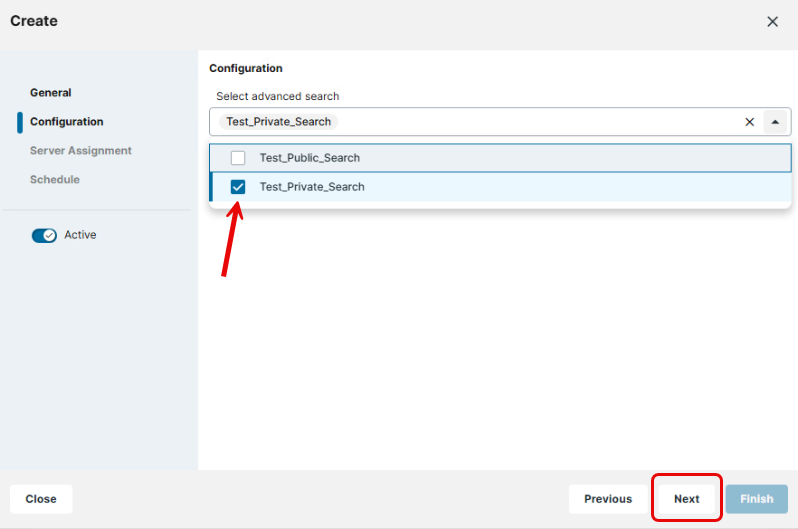
Select advanced search
→ Select the advanced search and click Next to select the objects to which this advanced search must be assigned.
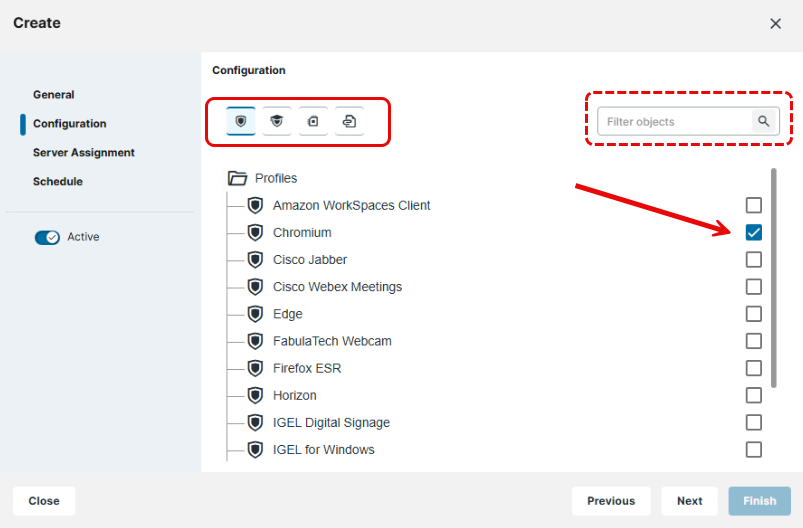
Assignable objects can be
-
profiles
-
priority profiles
-
corporate identity customizations (CICs)
-
files
Detach Assigned Objects from Devices of Views / Advanced Searches
Using an administrative task Detach assigned objects from devices of views / advanced searches in the UMS Web App, you can detach assigned objects from devices that you have filtered via an advanced search.
If you want to detach assigned objects from devices that you have filtered via a view or search history, you can create the corresponding administrative task only in the UMS Console. See Detach Assigned Objects from Devices of Views or Device Searches as an Administrative Task in IGEL UMS.
The following settings must be configured if the Detach assigned objects from devices of views / advanced searches command is selected for the administrative task:
Select advanced search
→ Select the advanced search and click Next to select the objects from which this advanced search must be detached.
You can detach the following objects:
-
profiles
-
priority profiles
-
corporate identity customizations (CICs)
-
files
How to Edit an Administrative Task
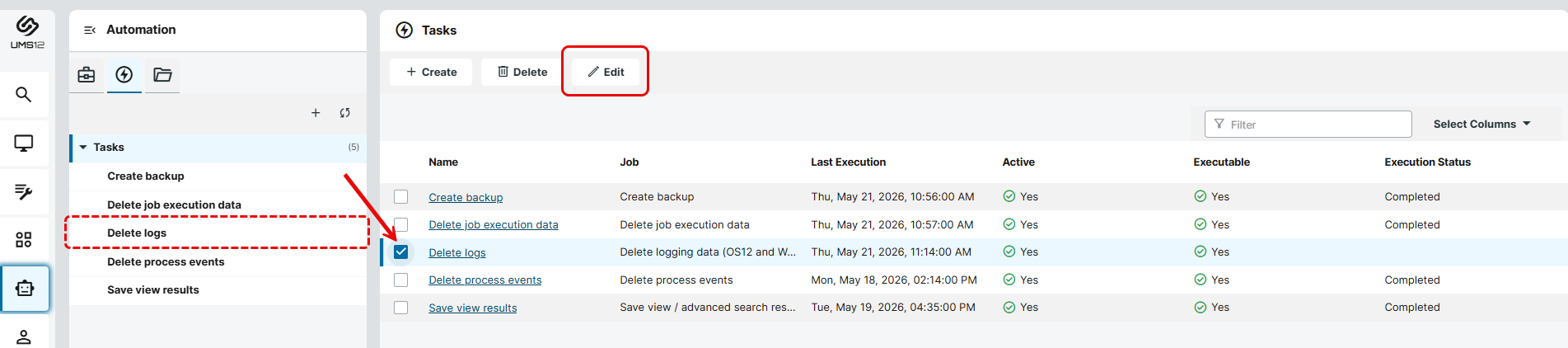
→ To edit an administrative task, select the required task under Tasks or via a check box and click Edit. Note that it is not possible to change the Command when editing an administrative task.
How to Delete an Administrative Task
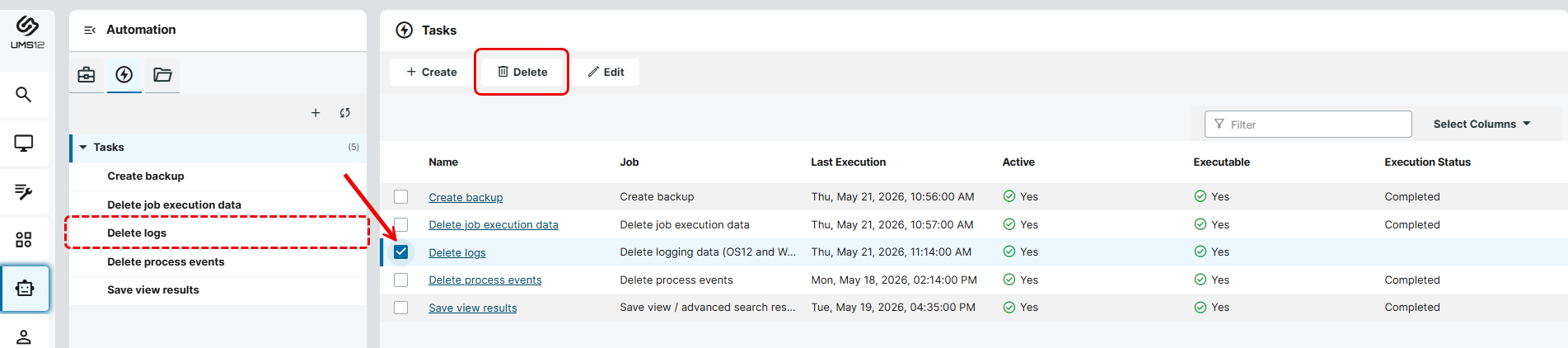
→ To remove an administrative task, select the required task under Tasks or via a check box and click Delete. Note that administrative tasks are deleted permanently straight away, i.e. without being moved to the recycle bin.