
This article shows how to configure keyboard input methods in IGEL OS. This is necessary if the settings under User Interface > Language do not suit your needs and you require, for example, input support for the Chinese or Japanese languages. The feature is currently experimental.
Input Methods
Menu path: User Interface > Input > Keyboard > Input Methods
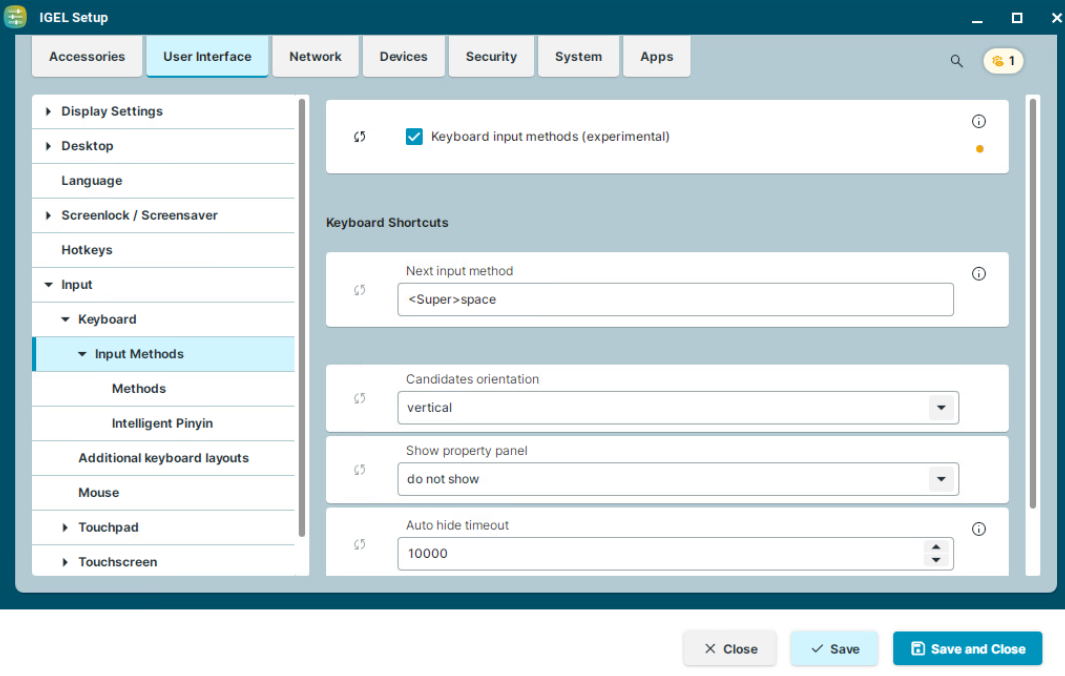
Keyboard input methods (experimental)
☑ Input Method Editor (IME) support is activated. You can select the required input method under Methods and initial states under Intelligent Pinyin.
☐ Input Method Editor (IME) support is disabled. (Default)
Next input method
Defines keyboard shortcuts to toggle between input methods defined under Methods and keyboard layout defined under User Interface > Input > Keyboard. (Default: <Super>space)
Rules for the hotkeys:
-
Use angle brackets
<>for a modifier. -
Type the name of the key right after a modifier, without blanks.
-
Use a blank to separate several hotkeys.
Example:
<Super>space <Shift><Alt>m
Candidates orientation
Specifies how all the possible characters for an input code will be shown.
Possible values:
-
vertical (Default)
-
horizontal
Show property panel
Specifies if the property panel should be displayed. Properties in the panel change depending on the selected input method.
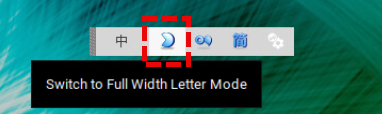
Possible values:
-
do not show (Default)
-
hide automatically
-
always
Auto hide timeout
A period of time in milliseconds during which the property panel will be displayed after focus-in or property change. This setting is relevant if Show property panel is set to “hide automatically”.
Methods
Menu path: User Interface > Input > Keyboard > Input Methods > Methods
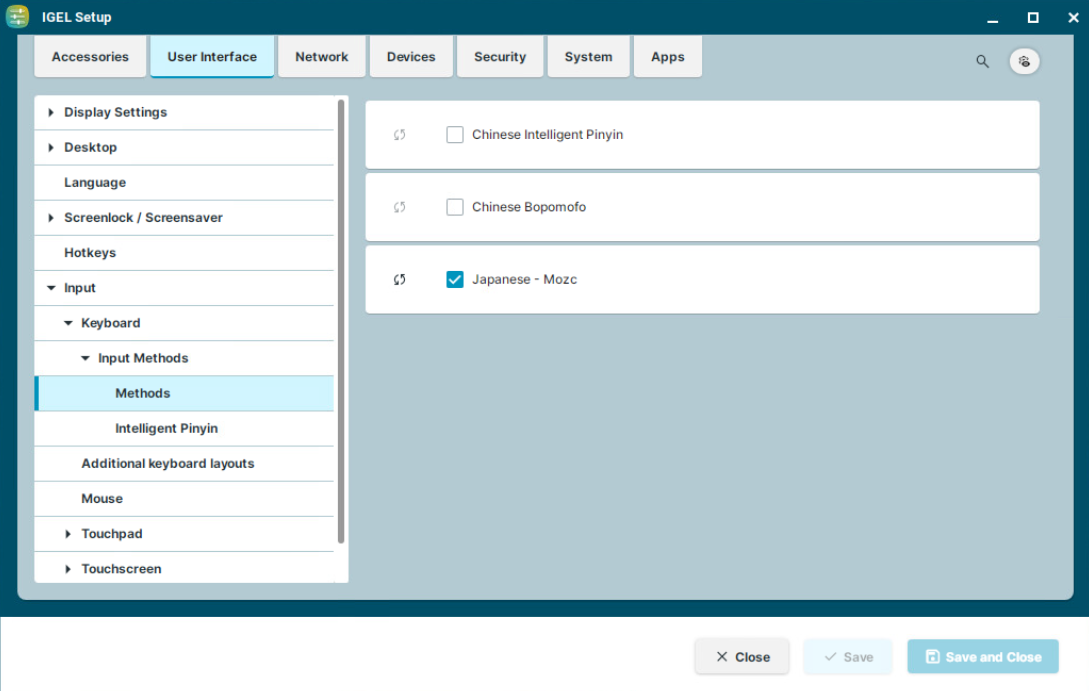
After activating User Interface > Input > Keyboard > Input Methods > Keyboard input methods, you can select the following input methods:
Chinese Intelligent Pinyin
☑ Intelligent Pinyin can be used as an input method for Chinese.
☐ Intelligent Pinyin cannot be used. (Default)
Chinese Bopomofoto
☑ Bopomofoto can be used as an input method for Chinese.
☐ Bopomofoto cannot be used. (Default)
Japanese - Mozc
☑ Mozc can be used as an input method for Japanese.
☐ Mozc cannot be used. (Default)
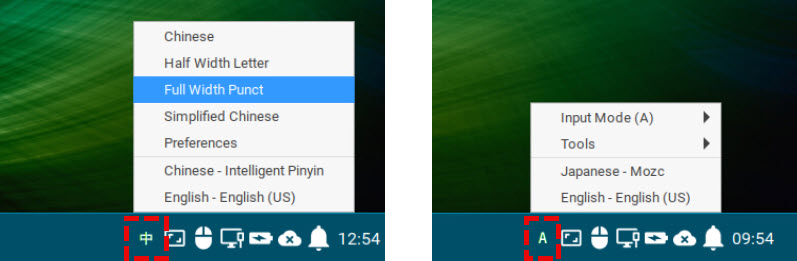
Enabled input methods as well as available IME functions can be selected via the corresponding icon in the system tray.
Examples:
Intelligent Pinyin
Menu path: User Interface > Input > Keyboard > Input Methods > Intelligent Pinyin
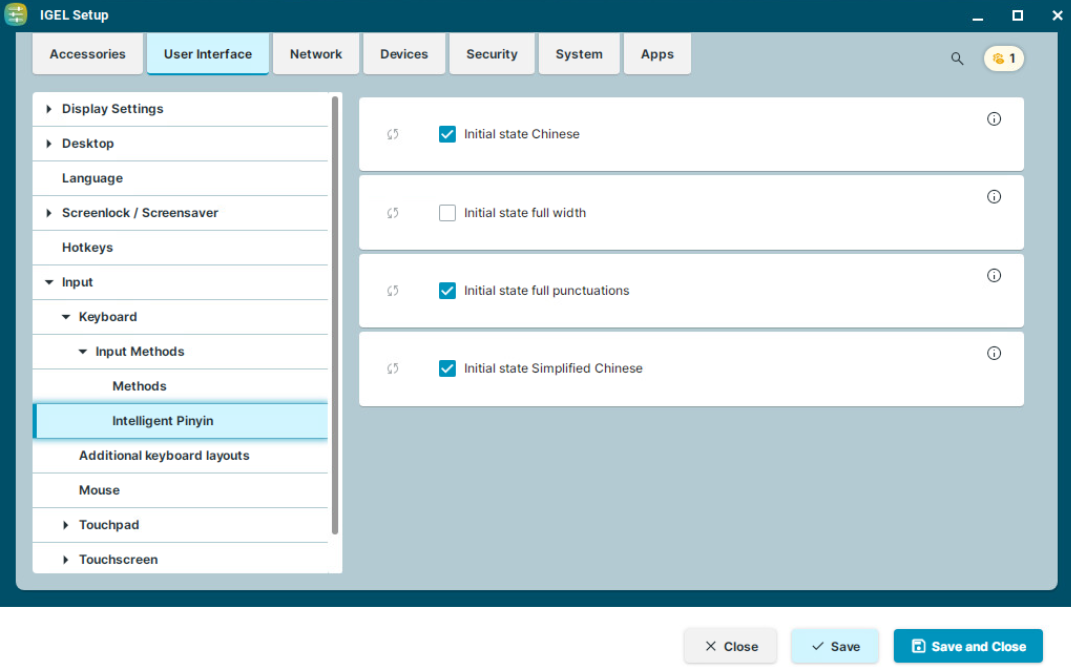
The following settings are relevant if Chinese Intelligent Pinyin is activated as an input method under User Interface > Input > Keyboard > Input Methods > Methods.
Initial state Chinese
☑ The keyboard input is initially set to Chinese. (Default)
☐ The keyboard input is initially set to English.
Initial state full width
☑ Initially, full-width characters are used.
☐ Initially, half-width characters are used. (Default)
Initial state full punctuations
☑ Initially, full-width punctuation is used. (Default)
☐ Initially, half-width punctuation is used.
Initial state Simplified Chinese
☑ The keyboard input is initially set to Simplified Chinese. (Default)
☐ The keyboard input is initially set to Traditional Chinese.