
In the IGEL Universal Management Suite (UMS) Web App, you can assign configuration objects (e.g. file, profile, app, etc.) to a device or device directory. You can assign objects using the Assign Object button in the Devices area or using the Assign device option from the Configuration area.
Objects can be assigned in the following ways:
-
Direct assignment: The object is assigned to the selected device or device directory.
-
Indirect assignment: A device inherits an object assigned to a parent directory.
-
Implicit app assignment: An app is assigned through a profile that configures the app.
-
Explicit app assignment: The app is selected directly in the Assign object dialog.
Assign and Detach Objects from the Devices Area
Menu path: UMS Web App > Devices
Assign Objects
To assign an object, proceed as follows:
-
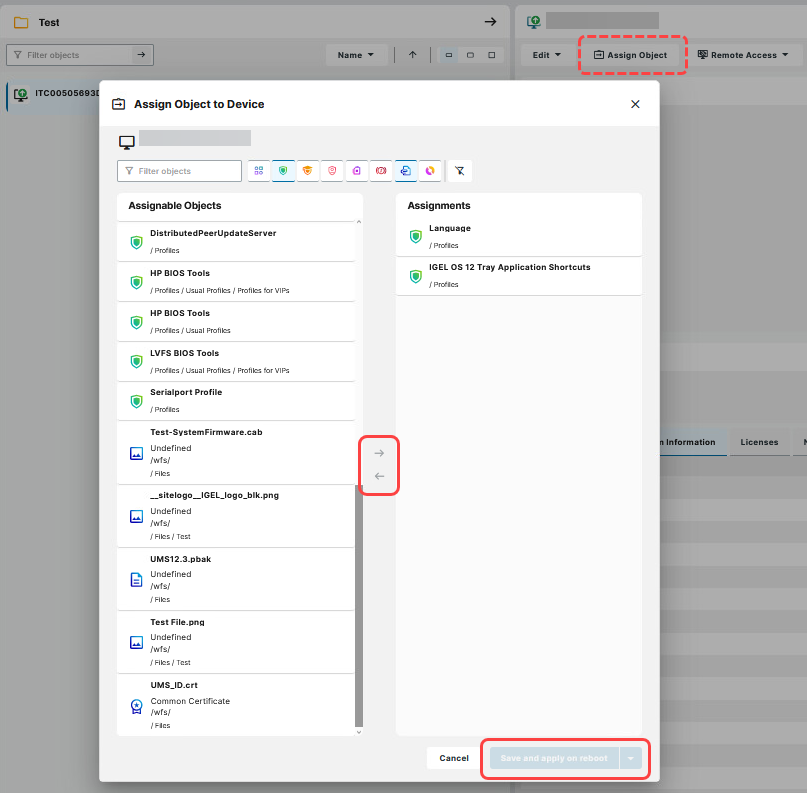
Select the device or device directory to which you want to assign the object and click

It is not possible to assign an object to the root directory Devices.
-
Under Assignable objects, select the required object.
-
Move the object to Assignments by using the arrow button or drag and drop.
-
Save the assignment and select when the changes take effect:
-
-
Save and apply now
-
Save and apply on reboot
-
Detach Objects
To detach and object:
-
In the Assign Object to Device Dialog, select the object you want to detach under Assignments.
-
Move the object to Assignable objects by using the arrow button or drag and drop.
-
Save the change and select when the changes take effect:
-
-
Save and apply now
-
Save and apply on reboot
-
You can detach only directly assigned objects from the selected device or device directory. For an indirectly assigned object, the Assigned Objects tab shows the directory from which the assignment is inherited.
Use the Assign Object to Device Dialog
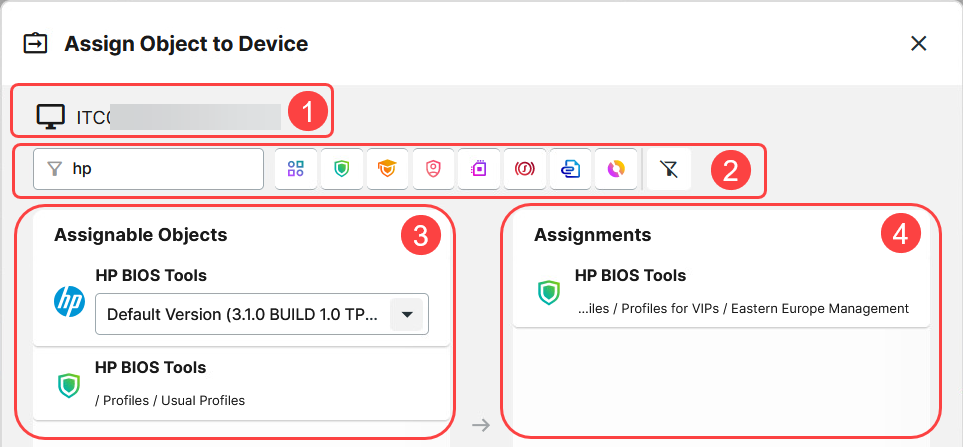
|
Number |
Area |
Description |
|---|---|---|
|
1 |
Name of the directory / device |
Shows the device or device directory to which you are assigning objects. |
|
2 |
Filter |
Filters Assignable objects and Assignments by object type and search text. The filter criteria are combined with the → Click |
|
3 |
Assignable objects |
Shows objects that can be assigned to the selected device or device directory. |
|
4 |
Assignments |
Shows objects directly assigned to the selected device or device directory. |

The object card shows the directory path below the object name for profiles, corporate identity customizations, and other objects. Use the path to distinguish objects that have the same name but are stored in different directories.
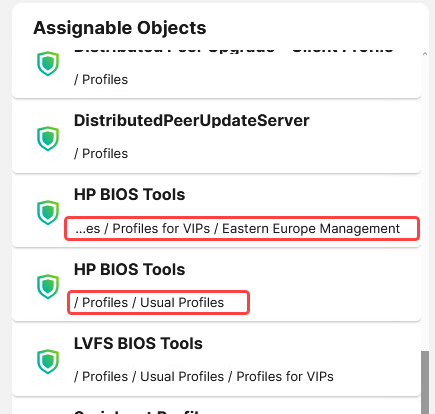
If the complete path does not fit on the card, the beginning of the path is shortened. Move the pointer over the shortened path to view the full path.
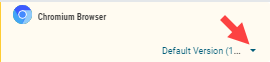
Depending on the selected device and available UMS features, assignable objects can include:
-

-

-

-

-

-

-

Implicit App Assignment via a Profile
An app is automatically assigned via a profile configuring this app. Exception: IGEL OS Base System app
An implicit app assignment is overwritten if you assign an app explicitly, i.e. if you select an app as an object in the Assign object dialog.
For more information, see How to Create and Assign Profiles in the IGEL UMS Web App.
Assign an Object from the Configuration Area through Quick Assign
Use Quick Assign to assign an individual configuration object without opening the Devices area.
-
In the UMS Web App, go to Configuration area.
-
Select the object you want to assign.
-
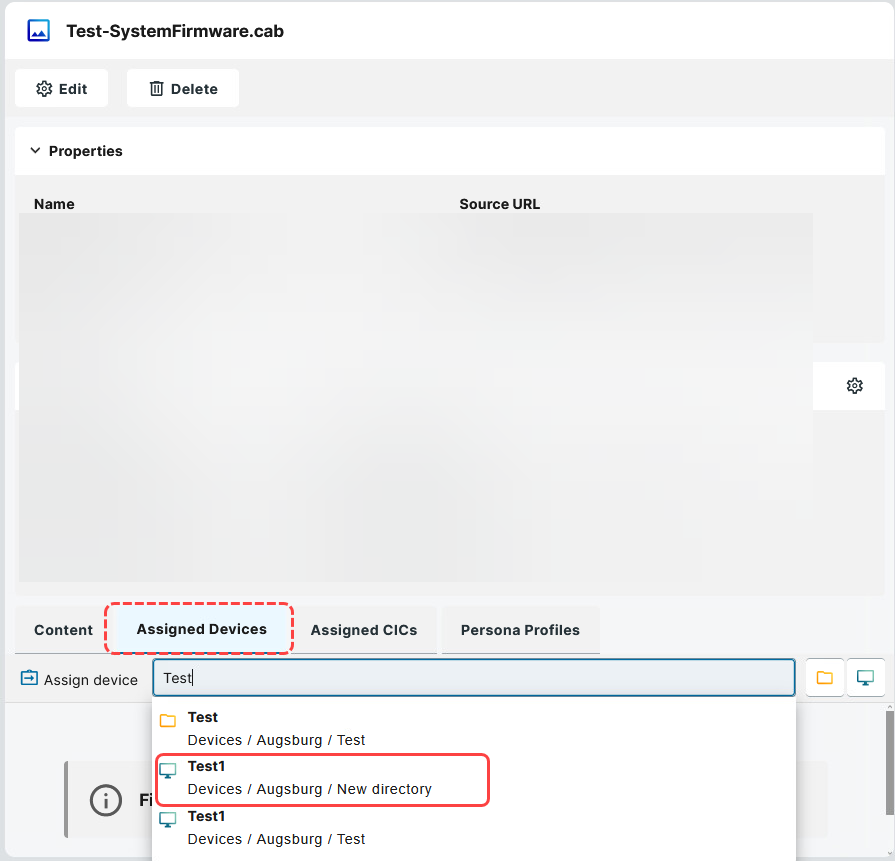
In the information dialog, go to the Assigned Devices tab.
-
Start typing the name of the device or device directory.
Matching device and directory names are listed with their directory path.
-
In the displayed list, click on the device or device directory to assign the object.
-
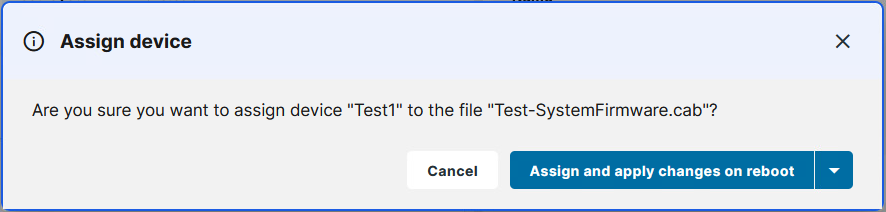
Confirm the assignment.
Check Assigned Objects
To view all assigned objects:
-
In the UMS Web App, go to Devices.
-
Select a device or device directory.
-
Select the Assigned Objects tab.
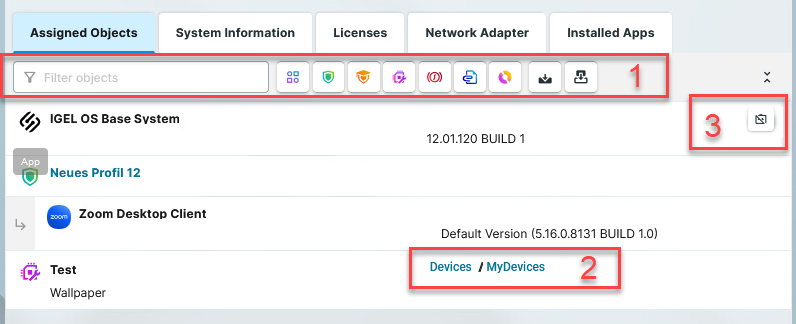
The tab shows directly and indirectly assigned objects. Apps that are implicitly assigned through a profile are shown below the corresponding profile.
|
1 |
Filters objects by object type, search text, and direct or indirect assignment. The criteria are combined with the → Click |
|
2 |
For indirectly assigned objects only: Specifies the path to the directory the object assignment is inherited from. |
|
3 |
For directly assigned objects only: Detaches the object from the directory / device. |
