
In the IGEL Universal Management Suite (UMS) Web App, you can open secure terminal sessions to IGEL OS 12 devices. You can open sessions in a dialog or a separate browser tab and work with multiple devices simultaneously.
Prerequisites
-
The target device runs IGEL OS 12.
-
The secure terminal is enabled globally or for the target device through a profile.
-
Your UMS user has the Remote access object permission for the device.
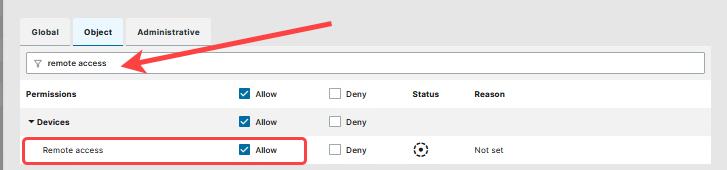
The permission can be set globally or for selected devices and device folders. For more on permissions, see How to Manage Object Permissions in the IGEL UMS Web App.
Enable the Secure Terminal through the UMS Web App
The global secure terminal settings are shared between the UMS Console and the UMS Web App to enable/disable secure terminal sessions for all the devices registered in the UMS.
Secure terminal can be disabled globally and only enable for selected devices through device-specific profile settings. When the global setting is enabled, the individual device setting does not override the global enablement.
Enable Secure Terminal for All Devices of the UMS
To enable the secure terminal globally for all registered devices via the UMS Web App:
-
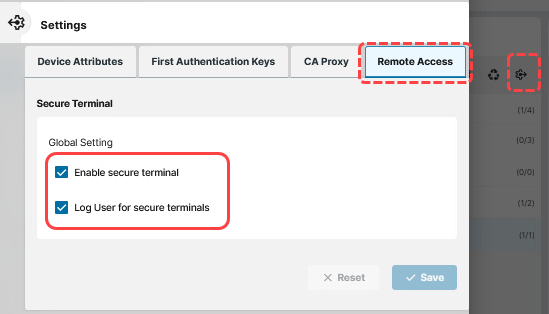
In the UMS Web App, go to Devices > Settings > Remote Access.
-
Enable Enable secure terminal.
-
Optional: Enable Log user for secure terminals to include the UMS user name in the remote-access log.
Secure terminal actions use the same remote-access logging as the UMS Console. To review the recorded sessions, you can filter for the Secure access category in the UMS Web App Logging area or find the logs in the UMS Console, under System > Logging > Remote Access.
-
Save the settings.
Changes to Enable secure terminal and Log user for secure terminals apply to secure terminal sessions started from both the UMS Web App and the UMS Console. You can also configure the settings in the UMS Console under UMS Administration > Global Configuration > Remote Access.
The additional Secure Terminal preferences under Misc > Settings > Remote Access in the UMS Console remain unchanged and are not available in the UMS Web App. For more information, see Configuring the Secure Terminal in IGEL UMS.
Enable Secure Terminal for Selected Devices
To enable the Secure Terminal only for selected devices, configure System > Remote Access > Secure Terminal in a profile assigned to those devices. For more information, see Secure Terminal in IGEL OS 12.
Open a Secure Terminal Session to OS 12 Devices
-
In the UMS Web App, go to Devices.
-
Select an IGEL OS 12 device.
-
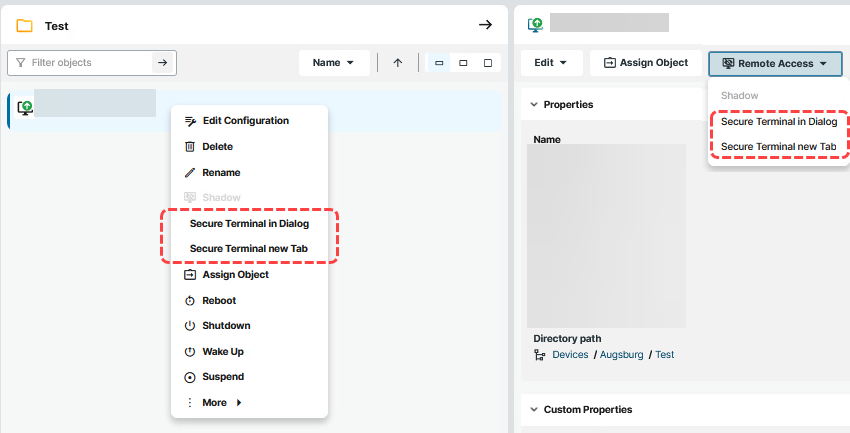
Open the device actions either from the Remote Access action button or by right-clicking the device in the list.
-
Select one of the following options:
-
-
Secure Terminal in Dialog opens the session in a dialog.
-
Secure Terminal in New Tab opens the session in a new browser tab.
-
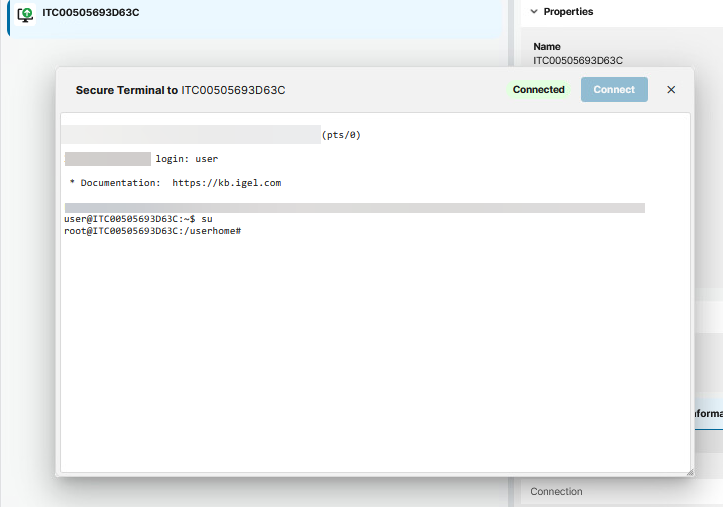
The secure terminal session opens for the selected device.
-
Wait for the connection to be established.
-
Log in as
user. To becomeroot, entersu.
Work with Multiple Secure Terminal Sessions
To work with multiple devices simultaneously, repeat the procedure for each device. Open each session in a separate dialog or browser tab.
Close the Secure Terminal Session
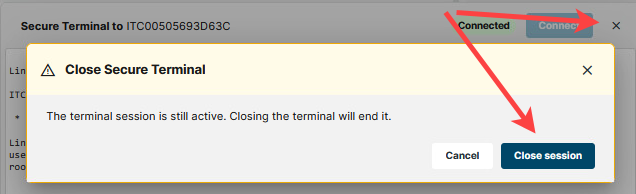
→ Close the dialog and confirm that you want to close the session, or close the browser tab.
Troubleshooting
If the Secure Terminal is unavailable, check the following possible causes:
-
Secure Terminal is disabled: Enable the feature globally under Devices > Settings > Remote Access, or enable System > Remote Access > Secure Terminal in the device configuration.
-
Missing permission: Verify that your UMS user has the Remote access object permission for the device or its device folder.
-
Device is unavailable: Verify that the device is online and connected to the UMS.
-
Unsupported subscription: Verify that your IGEL subscription includes the Secure Terminal feature.