
This article describes how you can create a Firefox ESR session and configure it on IGEL OS.
This article is based on Firefox ESR version 140.12.0 BUILD 3.0.
Requirements
-
Firefox ESR app is imported to your IGEL UMS. For details on app import, see How to Import IGEL OS Apps from the IGEL App Portal.
How to Create a Session
This app has Quick Setup mode available...
To quickly create a Firefox session and configure the basic settings, you can use Quick Setup mode when creating a profile configuring the app. For detailed information on profile creation and Quick Setup mode, see How to Create and Assign Profiles in the IGEL UMS Web App.
→ To display all available app settings, click Advanced Setup.
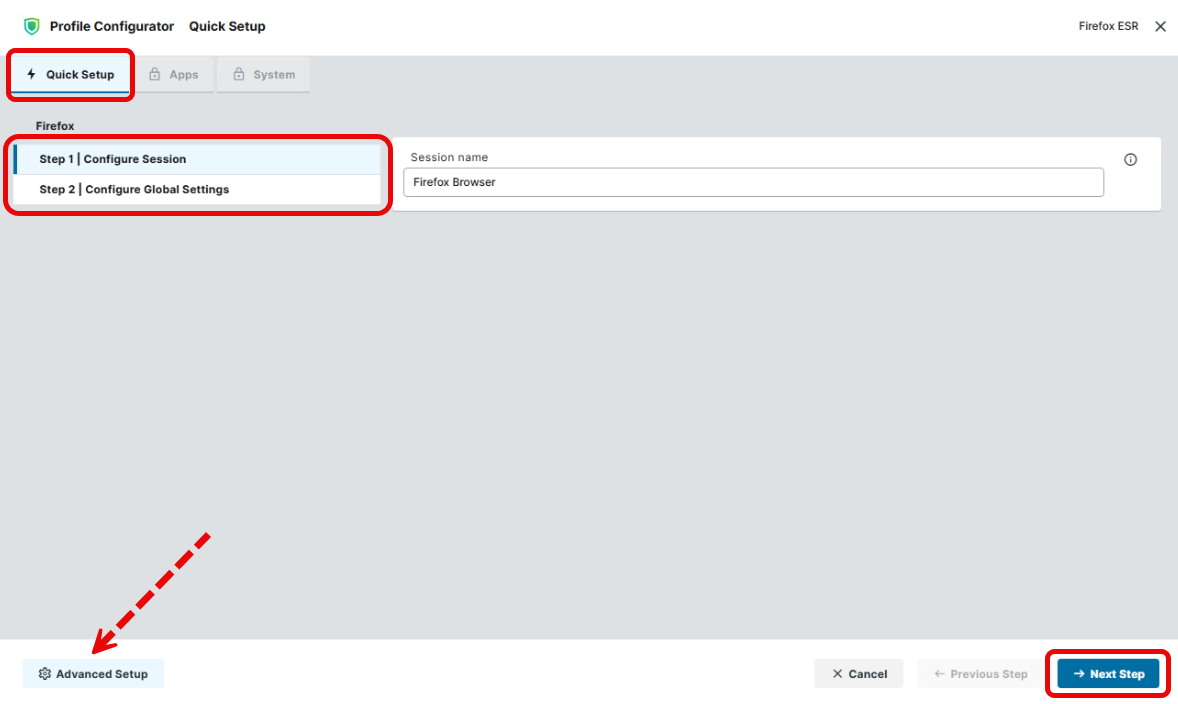
This is how you can create a Firefox ESR session via the Profile Configurator using Advanced Setup mode with all settings available for configuration:
-
In the IGEL UMS, create a profile configuring the app. For details on profile creation, see How to Create and Assign Profiles in the IGEL UMS Web App.
-
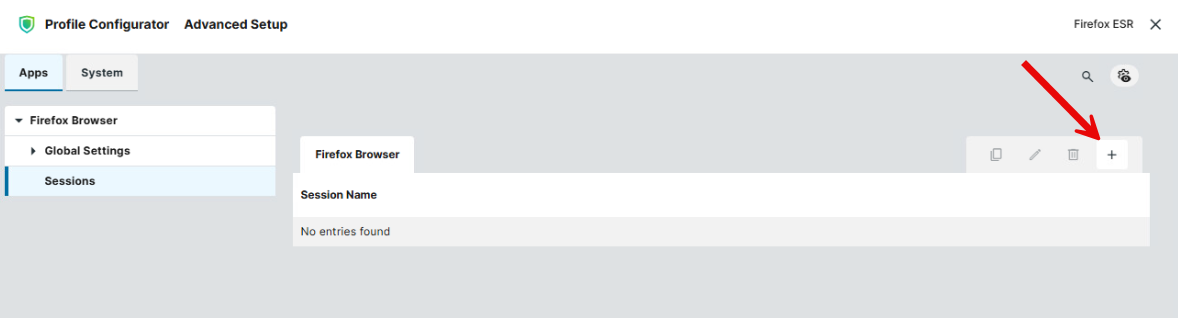
Go to Apps > Firefox Browser > Sessions and click + to add a session.
-
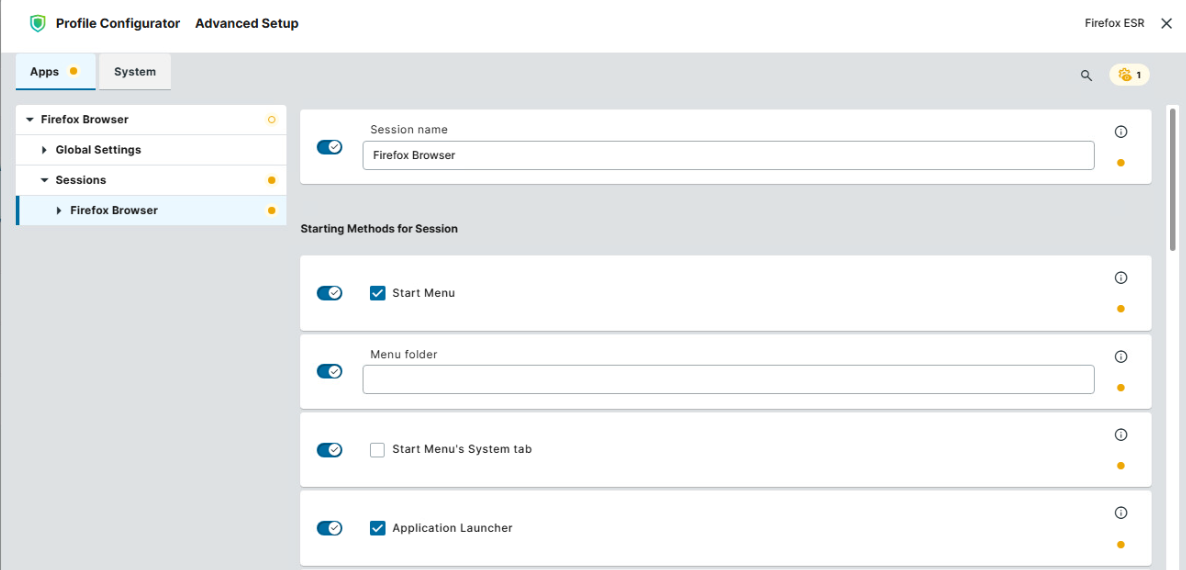
Configure the starting methods for the created session. For details, see Starting Methods for Apps.
-
Edit the settings according to your needs. The parameters are described below.
-
Save the profile and assign it to the required devices. For details on profile assignment, see How to Create and Assign Profiles in the IGEL UMS Web App.
Configuring Global Settings
-
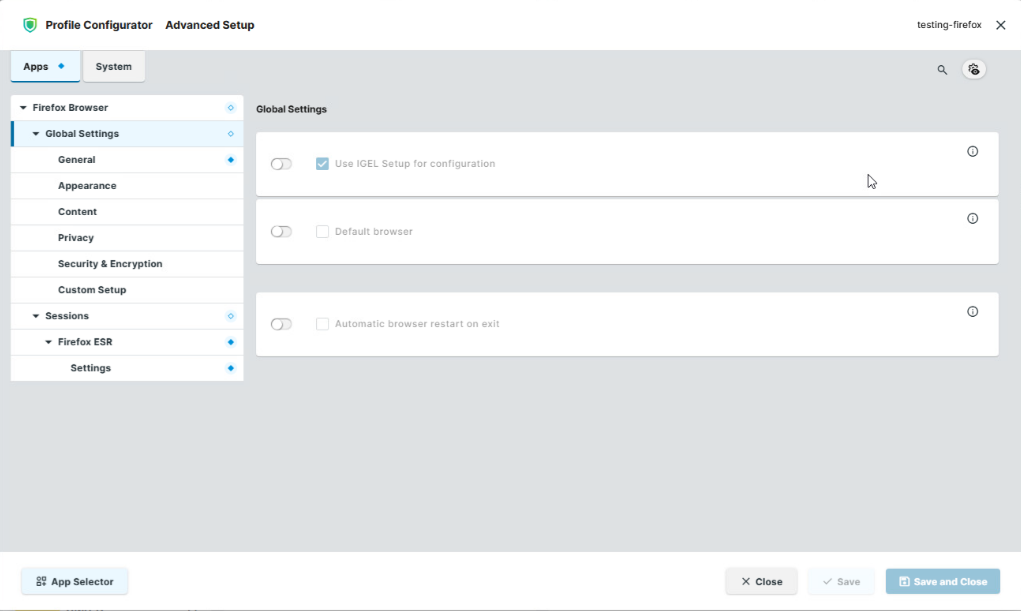
In the Profile Configurator, go to Apps > Firefox Browser > Global Settings.
-
Edit the settings according to your needs. The parameters are described below.
Use IGEL Setup for configuration
- The settings made in the IGEL Setup or the UMS configuration dialog are effective. (Default)
- The settings made in the IGEL Setup or the UMS configuration dialog will not have any effect on the behavior of Firefox.
Default browser
Importance of Setting a Default Browser Correctly
-
If several browsers are installed and no browser is set as default, the browser whose name is last in alphabetical order is the default. Example: If Chromium, Edge, Firefox, and Island are installed and no default browser is set, Island will be the default browser.
-
If several browsers are erroneously set as default, the browser from this selection whose name is last in alphabetical order will be the actual default.
- Firefox is set as the default browser.
- Firefox is not the default browser. (Default)
Automatic browser restart on exit
- Firefox is automatically restarted after all browser windows have been closed.
- Firefox is not automatically restarted after closing the last browser window. (Default)
Configuring General Settings
-
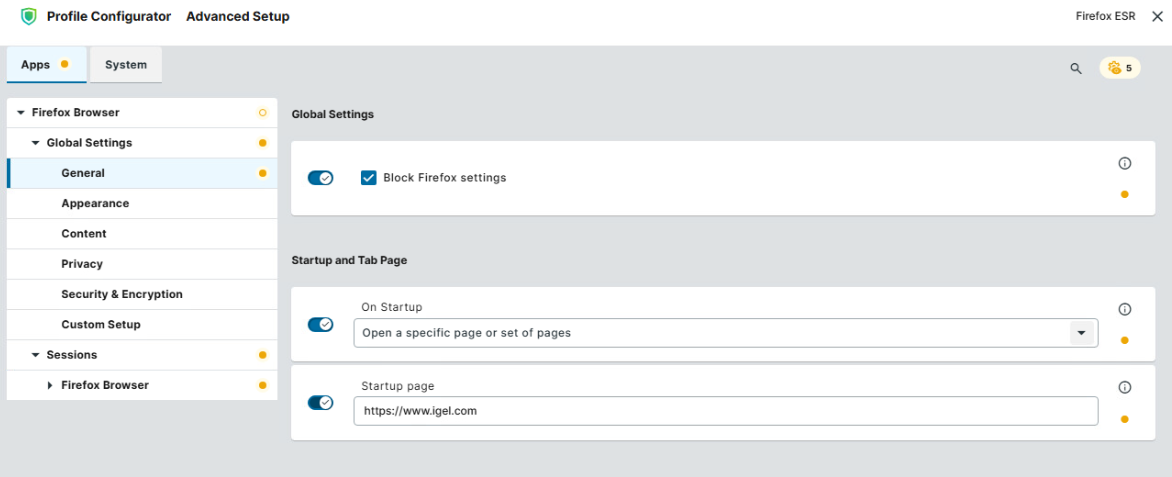
In the Profile Configurator, go to Apps > Firefox Browser > Global Settings > General.
-
Edit the settings according to your needs. The parameters are described below.
Block Firefox settings
about:preferencesare blocked, which means that users cannot change Firefox settings. (Default)- Users can access and change settings via
about:preferences.
On Startup
Specifies what is displayed on browser startup.
Possible values:
-
Start with a blank page: The browser starts with an empty tab.
-
Open a specific page or set of pages: The page or set of pages defined under Startup page is displayed. (Default)
-
Continue where you left off
Startup page
Specifies the page or set of pages to be shown when the user opens a new tab. You can specify a set of start pages by separating the URLs of the start pages with a vertical dash "|". This parameter is only shown when On Startup is set to “Open a specific page or set of pages”. (Default: https://www.igel.com)
Configuring the Browser Appearance
-
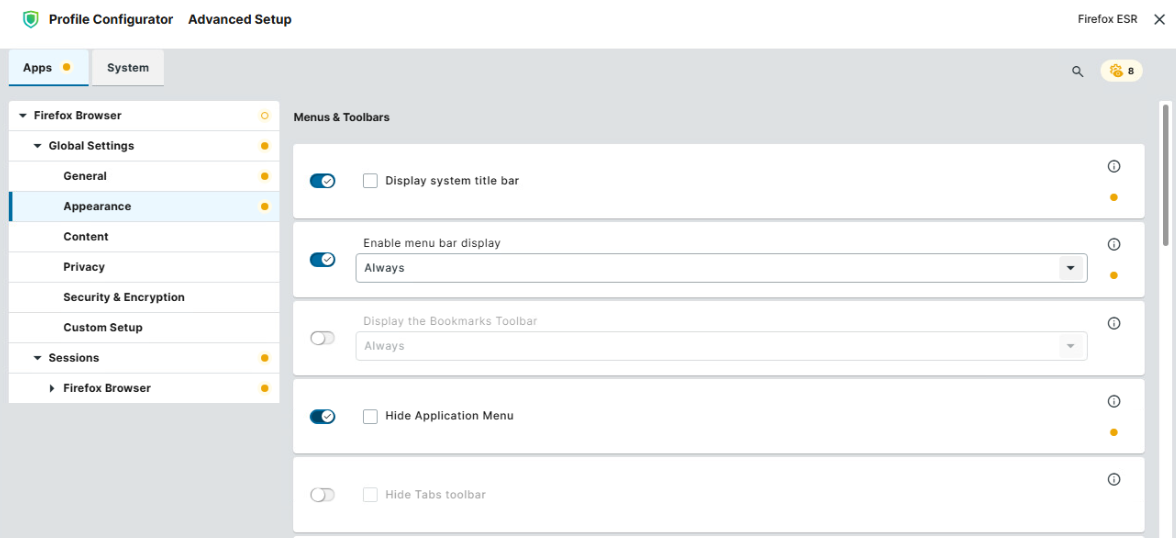
In the Profile Configurator, go to Apps > Firefox Browser > Global Settings > Appearance.
-
Edit the settings according to your needs. The parameters are described below.
Display system title bar
- The system title bar with minimize / maximize / close buttons appears above the Firefox window.
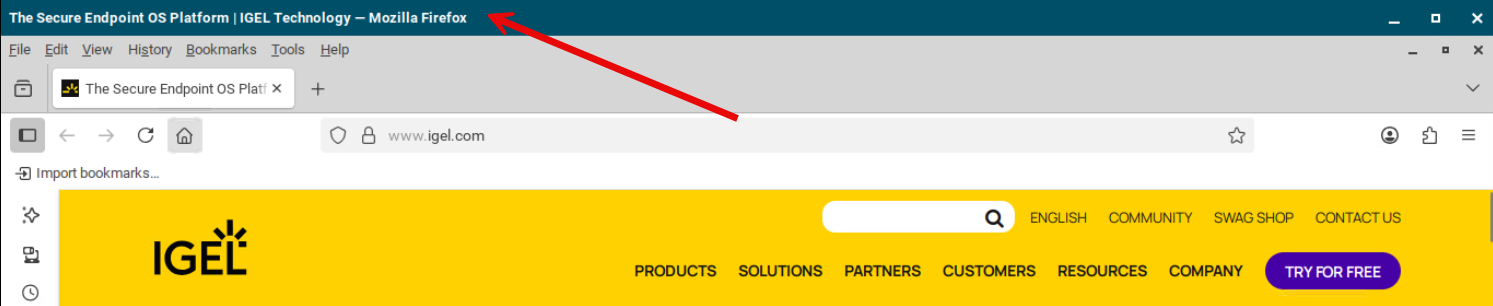
- The system title bar is hidden. (Default)
Enable menu bar display
Controls visibility of the Firefox menu bar (File, Edit, View, Bookmarks, etc.).
Possible values:
-
Always: The menu bar is always visible. (Default)
-
Never: The menu bar is hidden.
-
Default-Off: Menu bar appears temporarily when
Altis pressed.
Display the bookmarks toolbar
Controls the bookmarks toolbar visibility.
Possible values:
-
Always: The bookmarks toolbar is always visible. (Default)
-
Never: The bookmarks toolbar is hidden.
-
New tab: The bookmarks toolbar appears only on the new tab page.
Hide application menu
- The Firefox application menu button (i.e. three horizontal lines in the upper right corner) is not displayed.
- The application menu is visible. (Default)
Hide tabs toolbar
- The tabs toolbar (tab strip) is not displayed.
- The tabs toolbar is visible. (Default)
Hide navigation bar
- The navigation bar (address bar, back/forward buttons, etc.) is not displayed.
- The navigation bar is visible. (Default)
Hide homepage button
- The home button does not appear in the toolbar.
- The home button appears in the toolbar. (Default)
Hide search box
- The search box is not displayed in the navigation bar.
- The search box in the navigation bar is visible. (Default)
Hide sidebar
- The sidebar panel on the left of the Firefox window is not displayed.
- The sidebar panel on the left of the Firefox window is visible. (Default)
Enable printing
- The print function is available to the user. (Default)
- The print function is not activated in the browser.
Hide context menu
- The right-click context menu is blocked entirely.
- The context menu is available. (Default)
Hide navigation options
- Navigation-related entries (Back, Forward, Reload) are removed from the context menu.
- Navigation entries are shown. (Default)
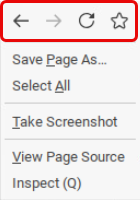
Hide bookmarks option
- The bookmark page option is removed from the context menu.
- The bookmarks option is shown. (Default)
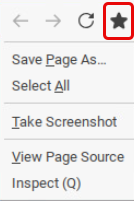
Hide "Save Page As…"
- The Save Page As option is removed from the context menu.
- The Save Page As option is available. (Default)
Hide "Select All"
- The Select All option is removed from the context menu.
- The Select All option is available. (Default)
Hide "Take Screenshot"
- The Take Screenshot option is removed from the context menu.
- The Take Screenshot option is available. (Default)
Hide search for selected text
- The option to search for highlighted text is removed from the context menu.
- The option to search for highlighted text is available. (Default)
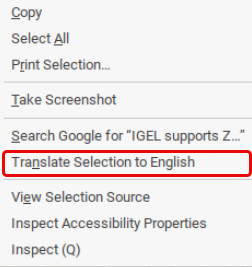
Hide translate selection
- The Translate Selection option for translating the highlighted text is removed from the context menu.
- The Translate Selection option for translating the highlighted text is available. (Default)
Hide developer tools options
- Inspect elements and other developer tools entries are removed from the context menu.
- Developer tools options are shown. (Default)
Minimum font size
Sets the minimum font size for web content displayed in the browser window. No web page text will be rendered smaller than this value.
Configuring the Content Settings
-
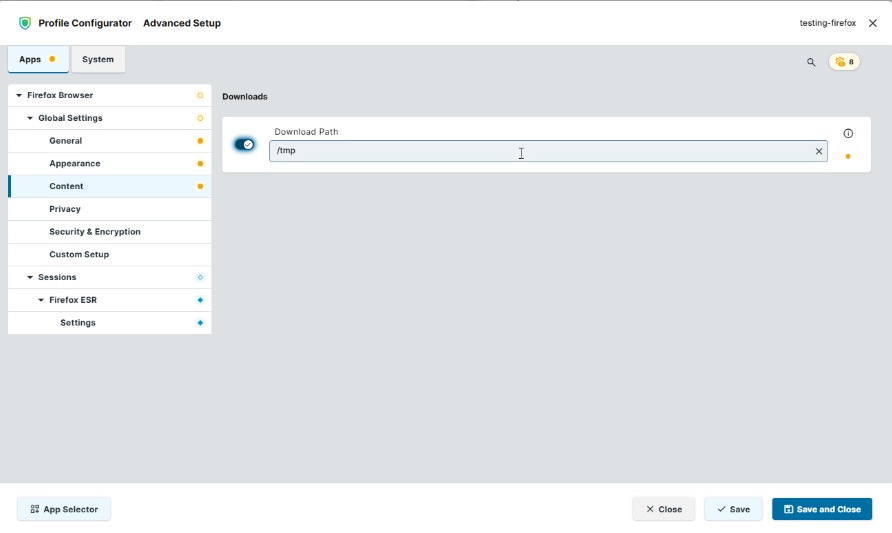
In the Profile Configurator, go to Apps > Firefox Browser > Global Settings > Content.
-
Edit the settings according to your needs. The parameters are described below.
Download Path
Defines the path where downloaded files are saved. Note that it is not recommended to use a local directory because of space limitations. (Default: /tmp)
Configuring Privacy Settings
-
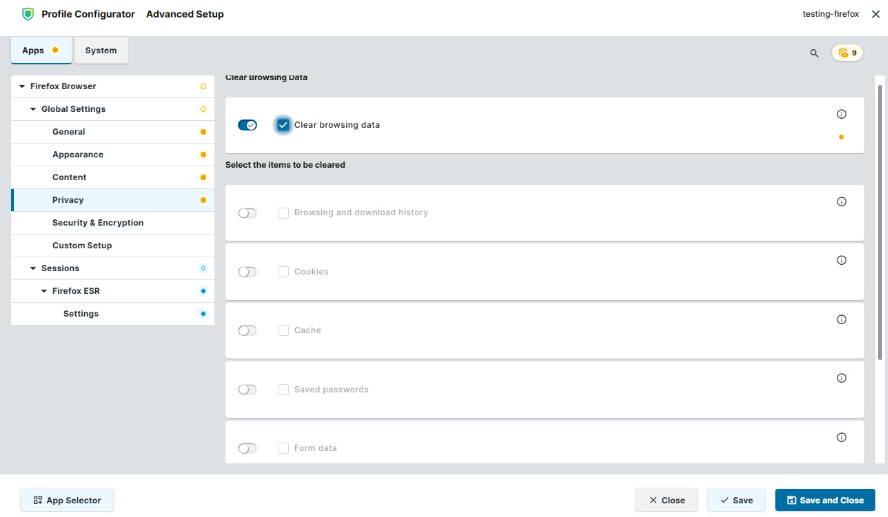
In the Profile Configurator, go to Apps > Firefox Browser > Global Settings > Privacy.
-
Edit the settings according to your needs. The parameters are described below.
Clear browsing data
- Data created during the Firefox ESR session will be deleted when Firefox ESR is closed. What data are deleted is specified in the following options.
- Data created during the Firefox ESR session will not be deleted when the browser is closed. (Default)
Browsing and Download History
This parameter is visible if Clear browsing data is enabled.
- Addresses (URLs) of visited websites and the list of downloads will be deleted when Firefox ESR is closed.
- Browsing and download history is not cleared. (Default)
Cookies
This parameter is visible if Clear browsing data is enabled.
- All cookies will be deleted when Firefox ESR is closed.
- Cookies are not cleared on exit. (Default)
Cache
This parameter is visible if Clear browsing data is enabled.
- The cache for temporarily saving web pages will be emptied when Firefox ESR is closed.
- Cache is not cleared on exit. (Default)
Saved passwords
This parameter is visible if Clear browsing data is enabled.
- Passwords saved during the browser session will be deleted when Firefox ESR is closed.
- Saved passwords persist after the session ends. (Default)
Form data
This parameter is visible if Clear browsing data is enabled.
- Saved form data and entries used to autofill will be removed.
- Form data is retained. (Default)
Site settings
This parameter is visible if Clear browsing data is enabled.
- Site permission rules and exceptions are deleted. Cookies are not affected by this setting.
- Site permission rules and exceptions are retained. (Default)
Configuring Security and Encryption Settings
-
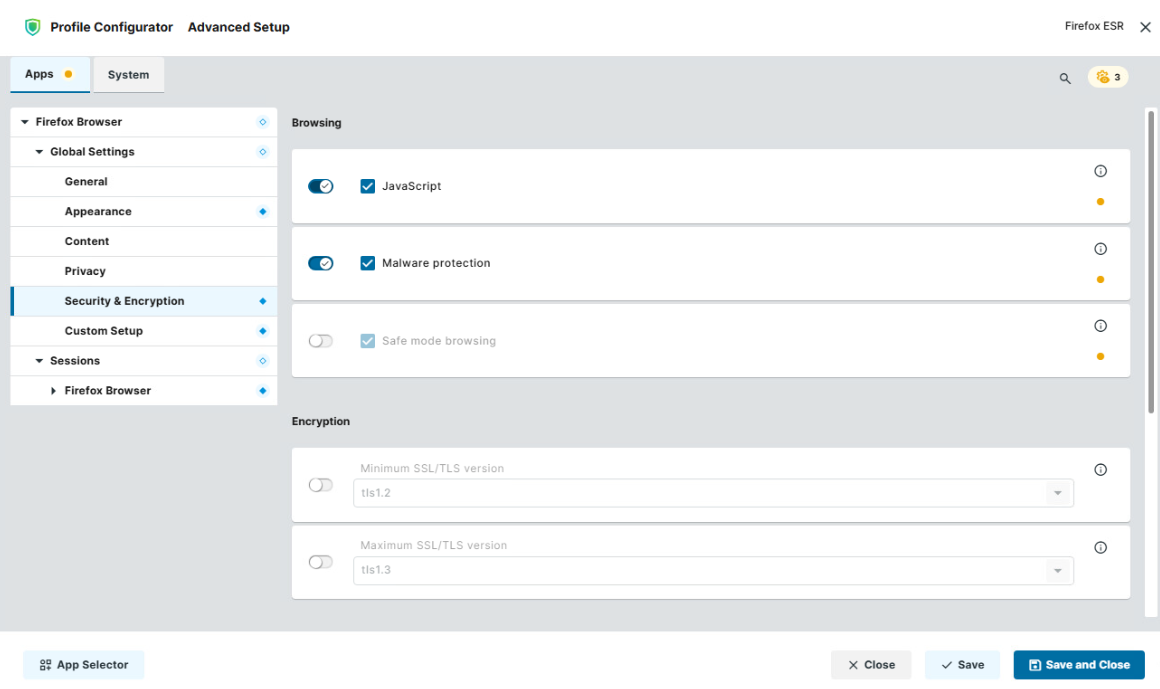
In the Profile Configurator, go to Apps > Firefox Browser > Global Settings > Security & Encryption.
-
Edit the settings according to your needs. The parameters are described below.
JavaScript
- JavaScript is executed by Firefox. (Default)
- JavaScript is not executed.
Many websites require JavaScript for full functionality.
Malware protection
- A warning is displayed when the user attempts to download known malware. (Default)
- No malware warning is shown on download.
Safe mode browsing
- The preference
browser.safebrowsing.enabledis set. (Default)
Minimum SSL/TLS version
The minimum protocol version for establishing a secure connection. Higher protocols are preferred.
Possible values:
-
TLS 1
-
TLS 1.1
-
TLS 1.2 (Default)
-
TLS 1.3
Maximum SSL/TLS version
The protocol requested during connection negotiation. If this protocol is not available, the next lowest protocol will be requested.
-
TLS 1
-
TLS 1.1
-
TLS 1.2
-
TLS 1.3 (Default)
File Access
- Firefox can access local files on the endpoint device. (Default)
- Local files cannot be accessed by Firefox (i.e. no access to menu items Save Image / Page / Link As…, Open File…, Import / Export bookmarks, etc.)
Open file types automatically after downloading
Any file whose suffix is listed here will be opened immediately after downloading. The list entries are separated by semicolons ";". (Default: application/x-ica; application/x-rdp; application/smil; application/nxs; application/x-java-jnlp-file; application/x-2xa; application/x-sapshortcut; application/x-virt-viewer)
As of Firefox ESR version 140.12.0 BUILD 3.0, image/tiff was removed from the default settings under Apps > Firefox Browser > Global Settings > Security & Encryption > Open file types automatically after downloading.
If you require this file type, add image/tiff separated by semicolon ";" from other entries under Open file types automatically after downloading.
Configuring Custom Settings
Custom Policies
You can add, edit, and remove policies for the Firefox sessions on your IGEL OS device. Please note that the custom settings always win over the IGEL Setup, i.e. if a policy is defined both here and in the Setup, but with different values, the value defined here is effective.
-
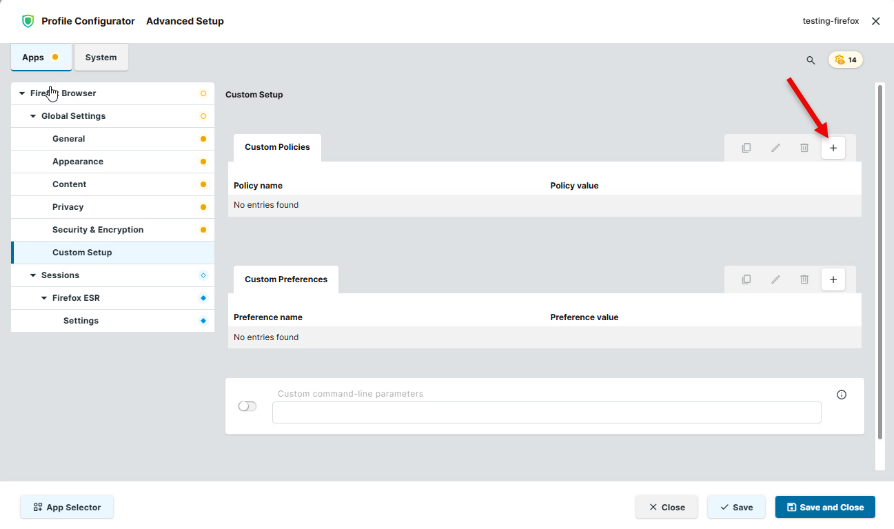
In the Profile Configurator, navigate to Apps > Firefox Browser > Global Settings > Custom Setup and click + to add a policy.
-
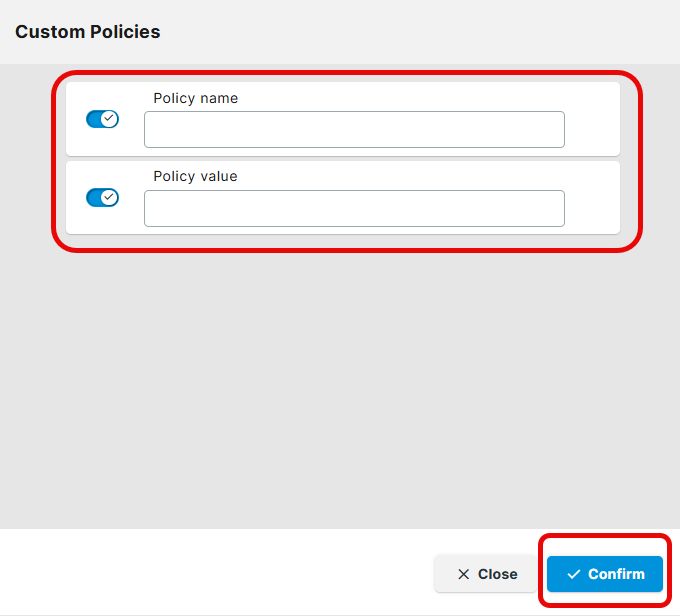
Enter the Policy name and Policy value. For available policies, see https://firefox-admin-docs.mozilla.org/reference/policies/ or https://mozilla.github.io/policy-templates/.
Keep in mind the following:-
Use the correct data type (see the right column of the relevant policy description).
-
Use the Linux examples.
-
Make sure to separate the policy name from the policy value.
-
-
Click Confirm to create the policy.
Custom Preferences
Custom preferences allow fine-grained control over Firefox behavior beyond what the standard policy list covers. You can find Firefox preferences in the Firefox browser under about:config.
-
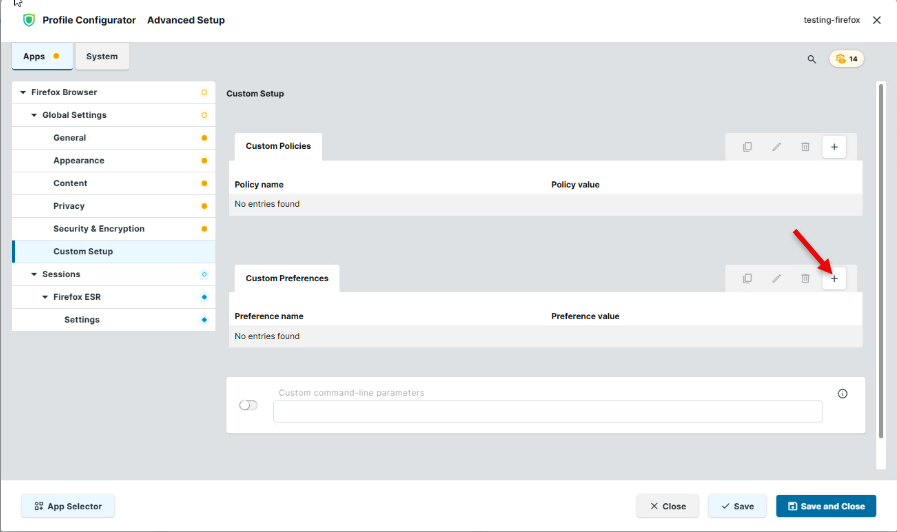
In the Profile Configurator, go to Apps > Firefox Browser > Global Settings > Custom Setup > Custom Preferences and click + to add custom preferences.
-
Enter the Preference name and Preference value.
-
Click Confirm to save the settings.
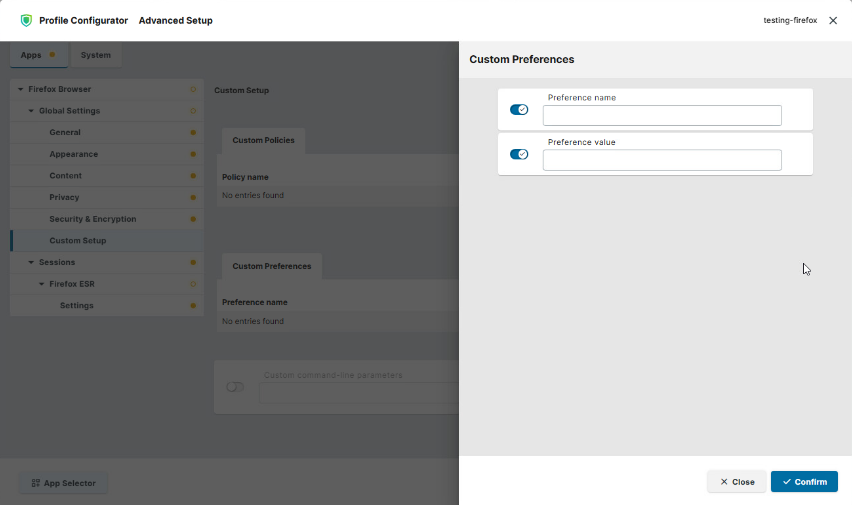
Preference name
The name of the Firefox preference to set.
Preference value
The value to assign to the preference. The data type must match what Firefox expects for that preference.
Custom Command-line Parameters
If you want to configure the Firefox behavior without changing settings inside the browser user interface, you can use custom command-line parameters. Custom command-line parameters allow you to customize the startup of Firefox and override default behavior or enable specific modes, profiles, debugging, automation, etc. For more information, see e.g. https://wiki.mozilla.org/Firefox/CommandLineOptions.
-
In the Profile Configurator, go to Apps > Firefox Browser > Global Settings > Custom Setup.
-
Specify the command under Custom command-line parameters.
Example:--kiosk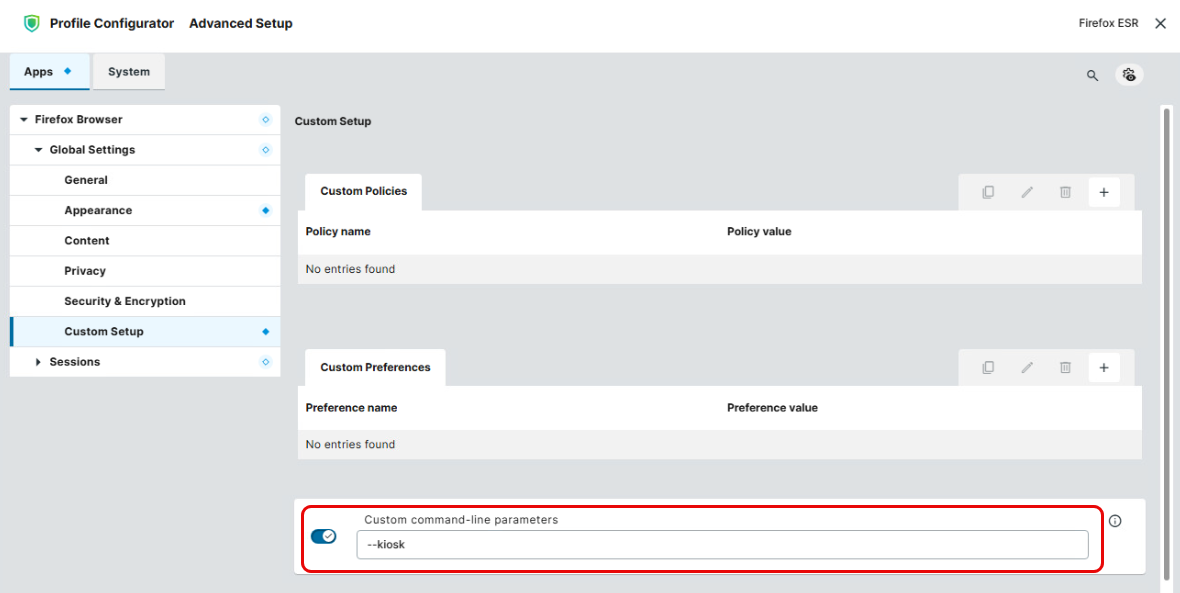
Configuring the Settings for an Individual Session
-
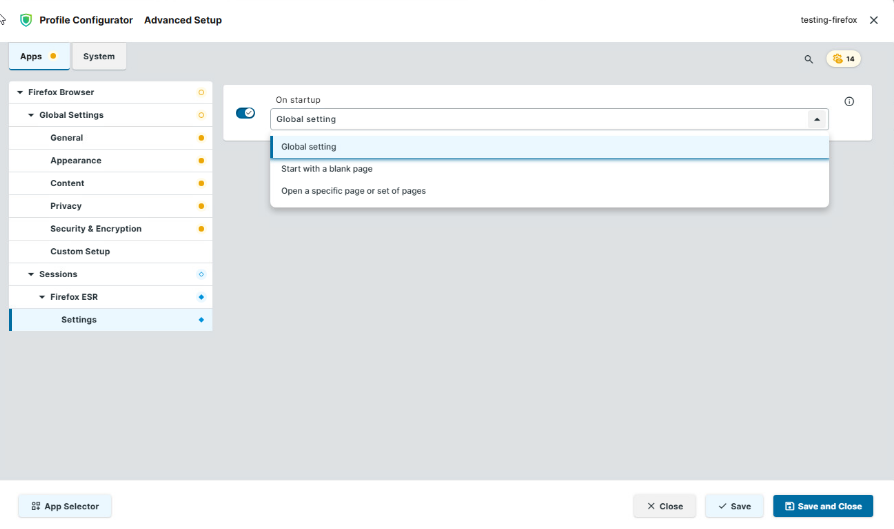
In the Profile Configurator, go to Apps > Firefox Browser > Sessions > [session name] > Settings.
-
Edit the settings according to your needs. The parameters are described below.
On startup
Specifies what is displayed on browser startup.
-
Global setting: The global setting for browser startup is used. (Default)
-
Start with a blank page
-
Open a specific page or set of pages: The page or set of pages defined under Global homepage is shown.
Global homepage
Specifies the page or set of pages to be shown when the user opens a new tab. This parameter is only shown when On startup is set to “Open a specific page or set of pages”. You can specify a set of start pages by separating the URLs of the start pages with a vertical dash "|". (Default: "https://www.igel.com")