
The IGEL Advanced Device Redirection apps support the integration of endpoint devices with on-premises or cloud-hosted desktops in virtual workplace setups. You can use the app in configurations with:
-
IGEL AVD (Azure Virtual Desktop)
-
Citrix Workspace App
-
Omnissa Horizon Client
-
IGEL Remote Desktop (RDP) App
Starting from Version 1.3.0 BUILD 1.0, IGEL ADR Plugins supports the IGEL RDP app.
IGEL ADR Serialport is not supported with IGEL Windows 365 (Cloud PC).
Requirements
To use the IGEL Advanced Device Redirection Serialport app, the following app must be installed and configured as well:
License Required
To use the IGEL Advanced Device Redirection apps, you need to have an IGEL Advanced Device Redirection License applied to the OS 12 device. For details, see IGEL Advanced Device Redirection Add-On License.
When IGEL Advanced Device Redirection apps are installed without the license, a license warning message is shown on the device.
Server Component Required
To use the IGEL Advanced Device Redirection apps, you need to have a server component in place. You can install the component both on Linux and Windows:
-
Linux Server Component - Request the component here.
-
Windows Server Component - Download the component here.
The server component does not require a separate license. During installation, you can select any license option, including Use a demo license. During a session, the full version is activated automatically when the server recognizes the IGEL Advanced Device Redirection License on the IGEL OS device.
Possible Conflicts
The IGEL Advanced Device Redirection Serialport application conflicts with the FabulaTech Serial Port for Remote Desktop application. You cannot use both applications at the same time.
How to Configure Serialport Redirection
-
Import the IGEL Advanced Device Redirection Serialport app to the IGEL UMS Web App. For details, see How to Import IGEL OS Apps from the IGEL App Portal.
-
Create a profile for the app in the IGEL UMS Web App. For details on profile configuration, see Create an OS 12 Profile via Apps.
-
In the profile configurator, go to Apps > IGEL Advanced Device Redirection Serial Port > Settings.
-
Change the settings as required and assign the profile and the app to the IGEL OS 12 devices according to your app distribution workflow.
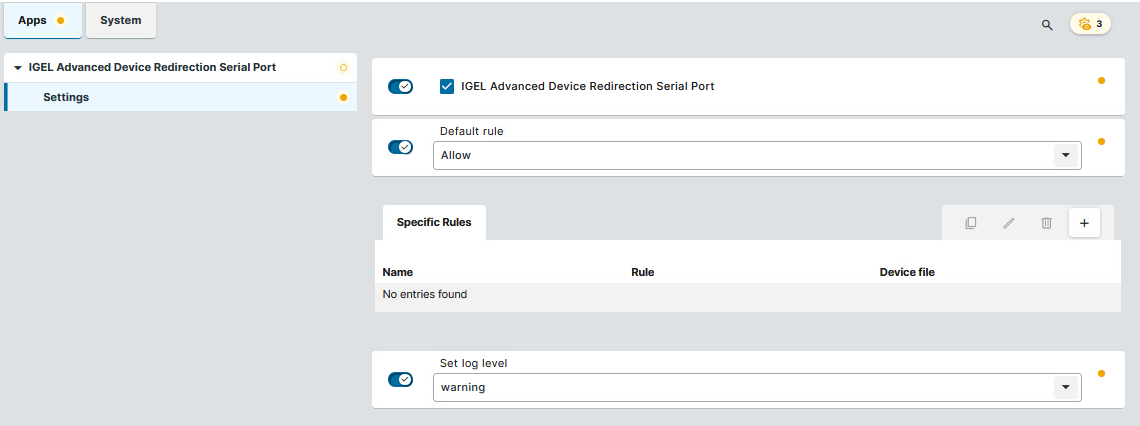
IGEL Advanced Device Redirection Serial Port
- IGEL Advanced Device Redirection Serial Port is enabled for the sessions that are enabled in the IGEL Advanced Device Redirection Plugins app. (Default)
Default rule
This rule will apply if no special rule was configured.
-
Deny: Devices are only redirected if they have Allow rules configured under Specific Rules. (Default)
-
Allow: Devices are always redirected unless they have Deny rules configured under Specific Rules.
To secure your endpoint, it is generally recommended to set Default rule to Deny and to configure Allow rules only for the required serial ports.
Specific Rules
Specific rules apply to specific devices only. Specific rules override Default rule configurations. This way, you can generally deny redirection and allow only for specific devices. You can also generally allow redirection but deny for specific devices.
-
Click
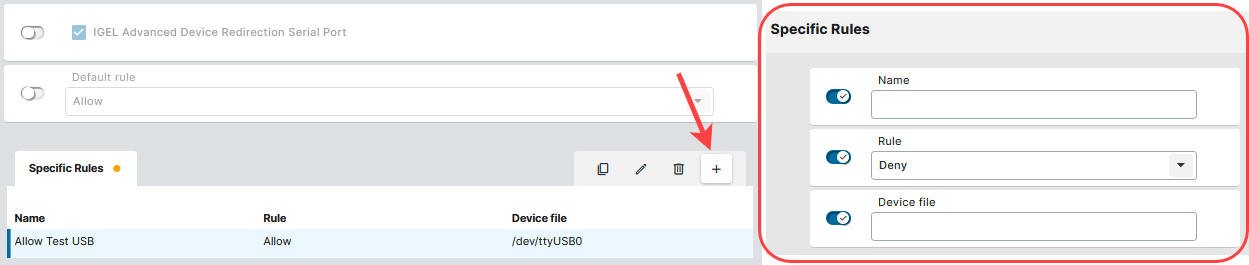
Click for Specific Rules configuration options ...
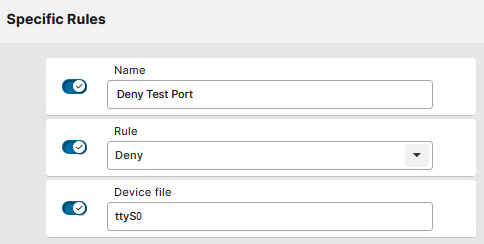
Name
The name of the rule.
Rule
-
Deny: Devices configured under Device file are never redirected. They are specifically denied, regardless of the global configuration under Default rule. (Default)
-
Allow: Devices configured under Device file are always redirected. They are specifically allowed, regardless of the global configuration under Default rule.
Device file
A device file is the representation of a local serial port. Provide the device file without path.
For example, use ttyUSB0 or ttyS0 . Do not use /dev/ttyUSB0 or /dev/ttyS0.
To manage the rules, you can:
-
Click
-
Click
-
Click
Set log level
Defines the degree of detail written into the log file.
Possible options:
-
Debug
-
Info
-
Warning (Default)
-
Error
-
None