

Using Conky app, you can monitor your IGEL OS devices. The Conky system monitor displays current system data such as uptime, CPU frequency, disk storage, RAM usage, and process-specific data.
This article is based on Conky version 1.18.3 BUILD 4.0.
Requirements
-
Conky app is imported to your UMS. For details on app import, see How to Import IGEL OS Apps from the IGEL App Portal.
How to Create and Use a Conky Session
-
In the IGEL UMS, create a profile configuring Conky app. For details on profile creation, see How to Create and Assign Profiles in the IGEL UMS Web App.
-
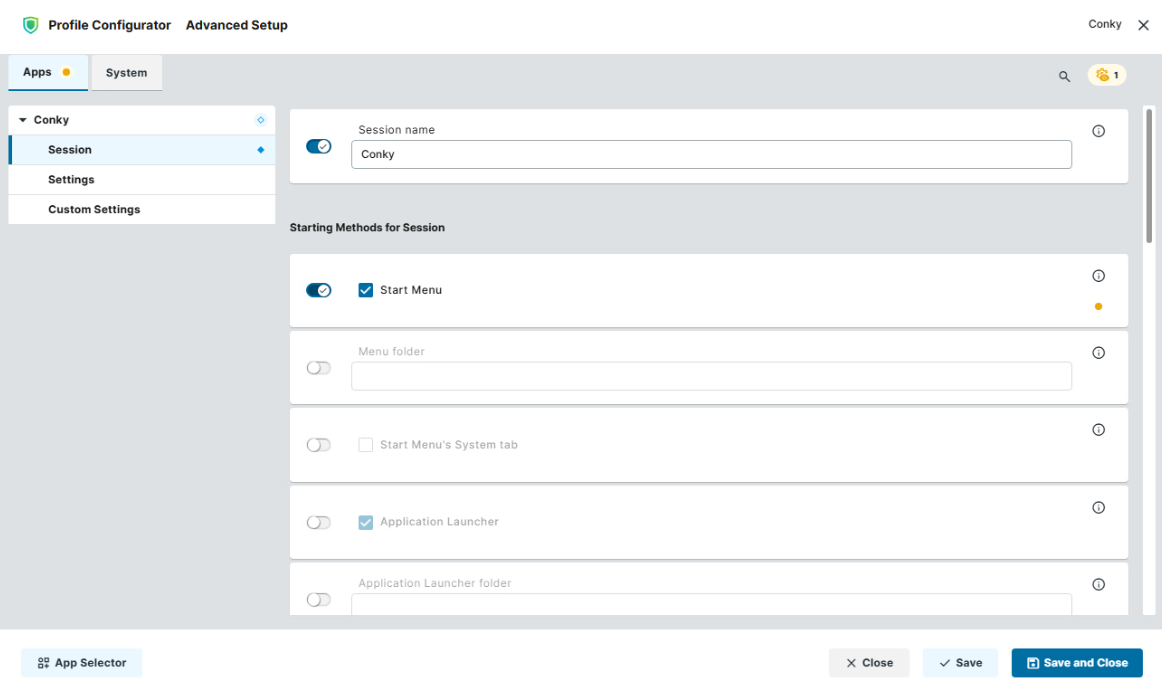
In the Profile Configurator, go to Apps > Conky > Sessions.
-
Configure the starting methods for the session. The starting methods parameters are described under Starting Methods for Apps.
-
Configure the settings described below according to your needs.
-
Save the settings and assign the profile to required devices / device directories. For details on profile assignment, see How to Create and Assign Profiles in the IGEL UMS Web App.
-
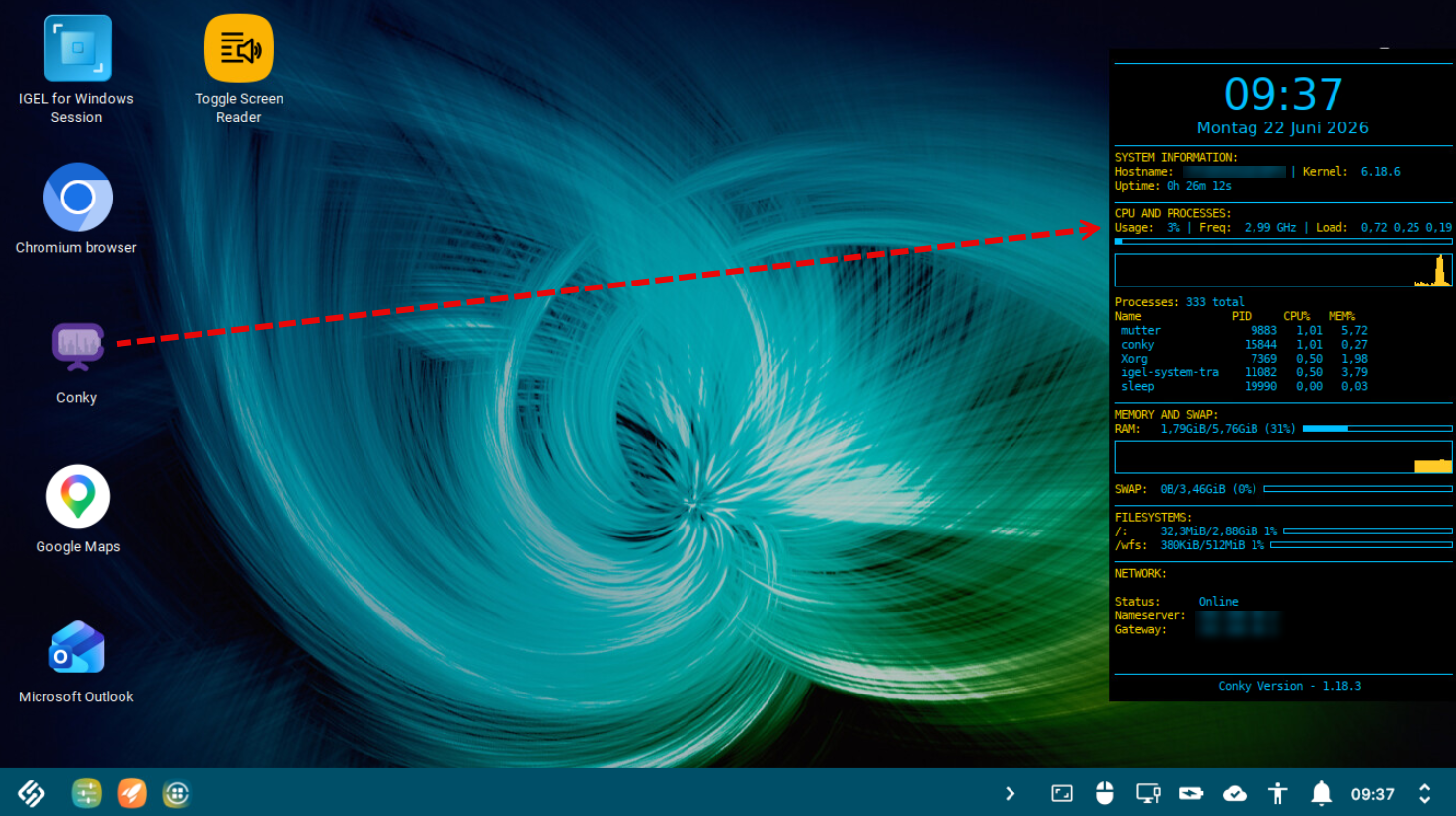
After the device reboot, click the Conky icon to start Conky.
The start icons also function as stop icons.
Configuring Conky Settings
-
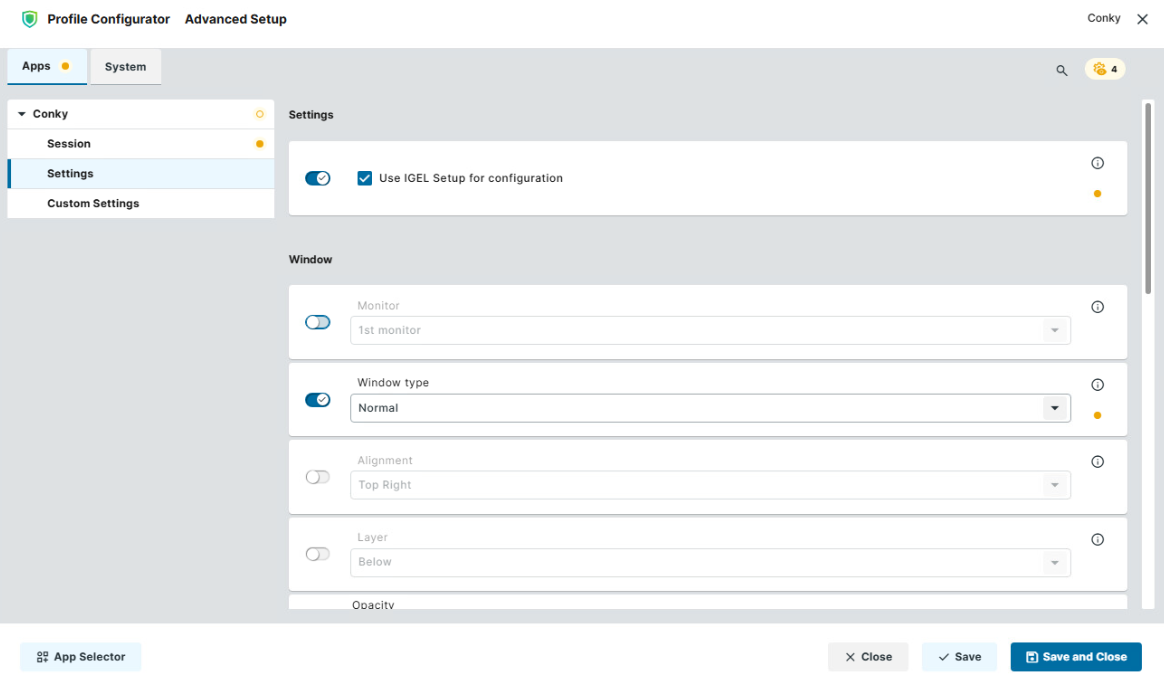
In the Profile Configurator, go to Apps > Conky > Settings.
-
Edit the settings according to your needs. The parameters are described below.
Use IGEL Setup for configuration
- The settings made in the IGEL Setup or the UMS configuration dialog will be effective. (Default)
- The settings made in the IGEL Setup or the UMS configuration dialog will not have any effect on the behavior of Conky.
The configuration under Apps > Conky > Custom Settings is always effective, regardless of whether Use IGEL Setup for configuration is activated or not.
Monitor
Monitor on which the Conky system monitor is to be displayed. (Default: 1st monitor)
Window type
Possible options:
-
Normal (Default): The Conky window layout and behavior can be further specified by the following parameters:
-
Layer
-
Decorations
-
Show in the taskbar
-
Borders
-
-
Desktop: No window decorations; always visible on the desktop; no appearance in the pager or taskbar; sticky across all workspaces. The parameters Decorations and Show in taskbar are not effective.
-
Dock: Behavior as documented under https://linux.die.net/man/1/conky. The parameters Decorations and Show in taskbar are not effective.
-
Panel: The window reserves space along a desktop edge, just like panels and taskbars, preventing maximized windows from overlapping them. The parameters Decorations and Show in taskbar are not effective.
-
Override: The window is not under the control of the window manager. The parameters Decorations and Show in taskbar are not effective.
Alignment
Defines where the Conky window is placed on the screen. (Default: Top Right)
Layer
Defines whether the Conky window is displayed above or below other application windows.
Possible options:
-
Below: The Conky window is always below other application windows. (Default)
-
Above: The Conky window is always above other application windows.
-
None: The Conky window is above or below other application windows, depending on the focus.
Opacity
Defines the opacity for the Conky window background as of IGEL OS Base System 12.8.0 or higher. If the value is set to 0, the Conky window background is completely transparent; if the value is set to 255, there is no transparency.
Borders
- Borders around the Conky window are shown.
- Borders around the Conky window are not shown. (Default)
Decorations
- Borders around the Conky window and a title bar are displayed.
- Borders around the Conky window and a title bar are not shown. (Default)
Show in taskbar
- The Conky icon is shown on the taskbar.

- The Conky icon is not shown on the taskbar. (Default)
Offset horizontal
Defines the horizontal offset in pixels from the position that is defined by Alignment. (Default: 10)
Offset vertical
Defines the vertical offset in pixels from the position that is defined by Alignment. (Default: 60)
Default color
Defines the font color for Conky. (Default: #00bfff)
Font type
Defines the font type for Conky. (Default: Monospace)
Font size
Defines the font size for Conky. (Default: 8)
Configuring Custom Settings
You can customize Conky in full.
Custom Config
For details on configuration options for Conky, see https://linux.die.net/man/1/conky , section "Configuration Settings".
To add a custom configuration option:
-
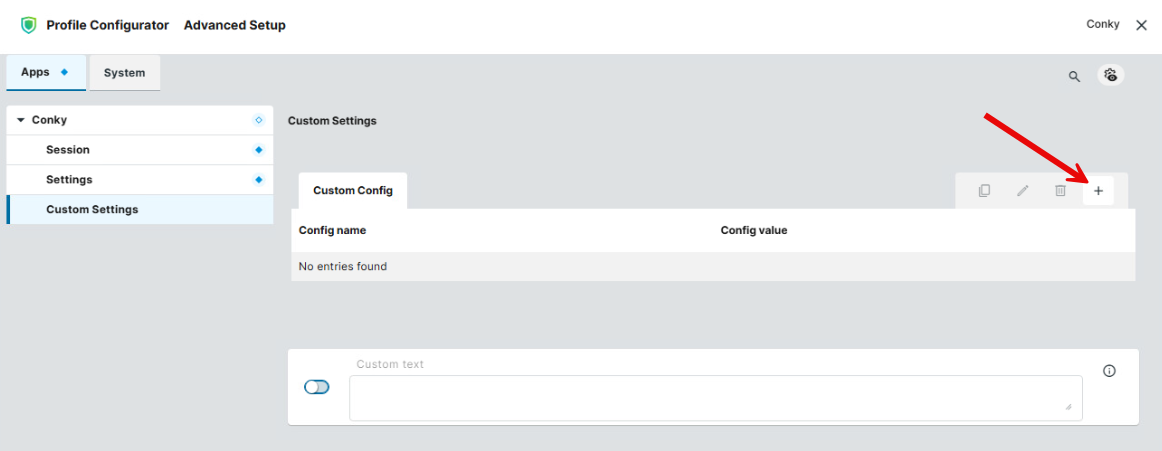
In the Profile Configurator, go to Apps > Conky > Custom Settings and click +.
-
Enter the name and the value of the option.
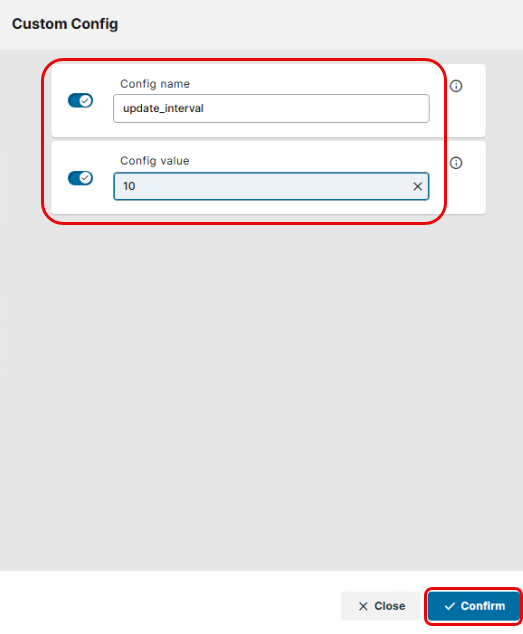
-
Click Confirm and save the changes.
If Conky is already running, you can see the effect immediately.
Custom Text
In this area, you can define the complete text body of Conky. You can find the relevant details under https://linux.die.net/man/1/conky , section "OBJECTS/VARIABLES". The configuration is stored at /etc/conky/conky.conf
To add or edit the custom text:
-
In the Profile Configurator, go to Apps > Conky > Custom Settings.
-
Under Custom Text, enter your configuration text.

-
Save the changes.
If Conky is already running, you can see the effect immediately.