

You can use the Virtual Background and Blurring for Webcam app to add background blur or a static background image to video calls in IGEL OS 12, even in Unified Communication apps that do not support this natively.
This article describes how to configure the Virtual Background and Blurring for Webcam app in IGEL OS 12.
Prerequisites
-
The Virtual Background and Blurring for Webcam app is imported to your IGEL UMS. For details on app import, see How to Import IGEL OS Apps from the IGEL App Portal.
Configuring the Virtual Background and Blurring for Webcam
Global Settings
-
In the IGEL UMS Web App, create a profile for configuring the app. For details on profile creation, see How to Create and Assign Profiles in the IGEL UMS Web App.
-
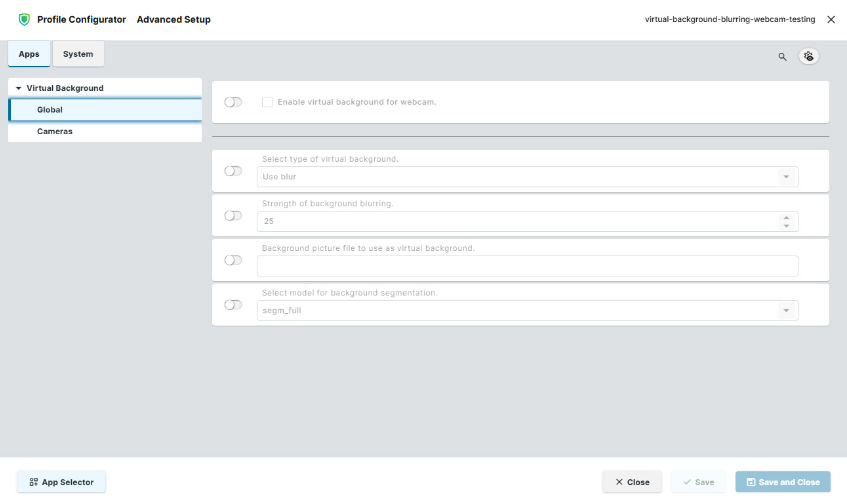
In the profile configurator, go to Apps > Virtual Background > Global.
-
Edit the settings according to your needs. The following parameters are available:
Enable virtual background for webcam
- Enables the virtual background feature. A virtual webcam is created, and the app applies the configured background effect to the video stream before passing it to the Unified Communication client.
- The virtual background is disabled. (Default)
Select type of virtual background
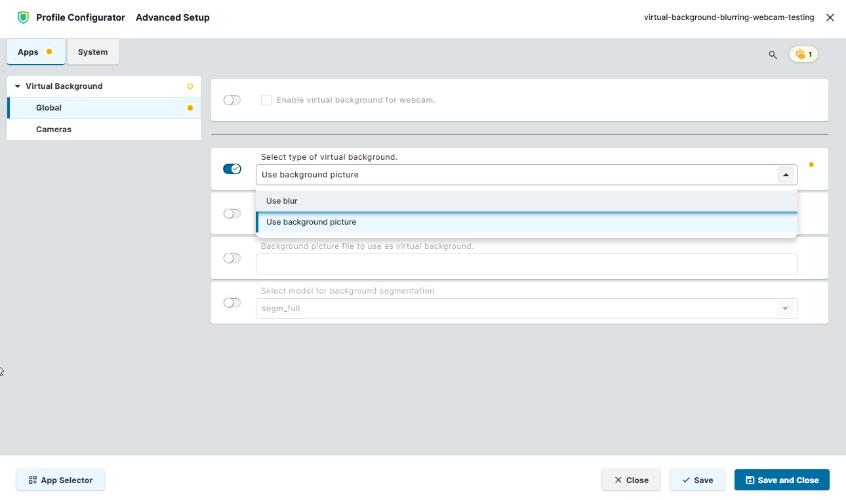
Defines whether the background is blurred or replaced with a static image.
Possible values:
-
Use blur: The app blurs the background behind the person. (Default)
-
Use background picture: The app replaces the background with a static image. Specify the image file under Background picture file to use as virtual background.
Strength of background blurring
Sets the intensity of the blur effect. Only applies when Select type of virtual background is set to Use blur.
Range: 1 (minimal blurring) ... 100 (maximal blurring). (Default: 25)
Background picture file to use as virtual background
Path to the image file used as the replacement background. Only applies when Select type of virtual background is set to Use background picture.
Select model for background segmentation
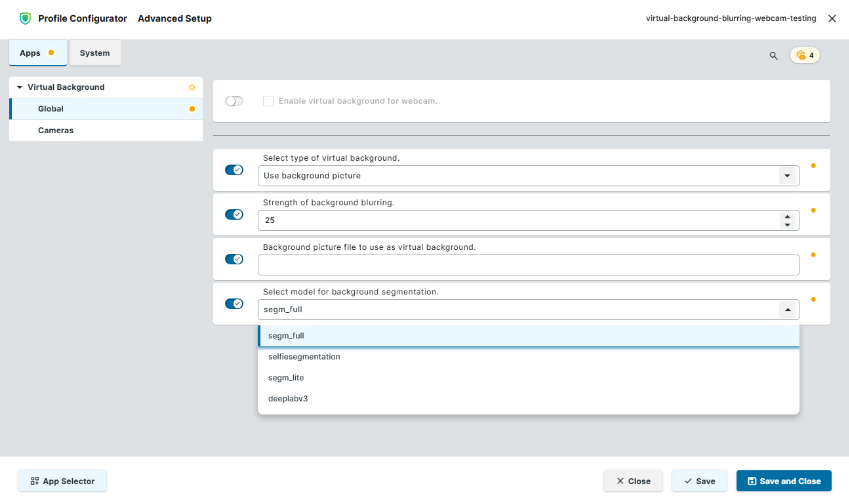
The AI model that detects and separates the person from the background. Different models offer different trade-offs between accuracy and performance.
Possible values:
-
segm_full: Full segmentation model with the highest accuracy. (Default)
-
selfiesegmentation: Optimized for portrait/selfie scenarios.
-
segm_lite: A lighter version of the full model, with reduced resource usage.
-
deeplabv3: An alternative segmentation model.
Camera Settings
Here you can define which physical webcam is used as the input source for the virtual webcam. You can add and prioritize multiple cameras.
-
In the profile configurator, go to Apps > Virtual Background > Cameras.
-
Click the + sign to add a camera entry.
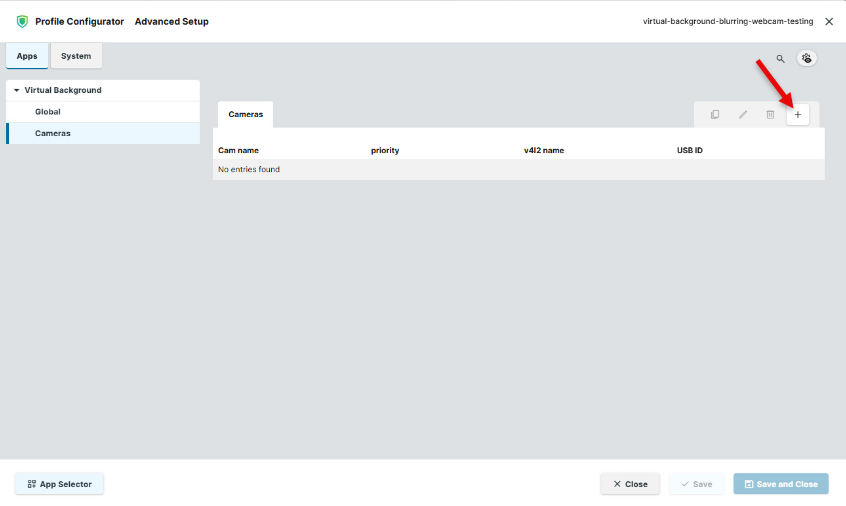
The following fields are available when adding a camera entry:
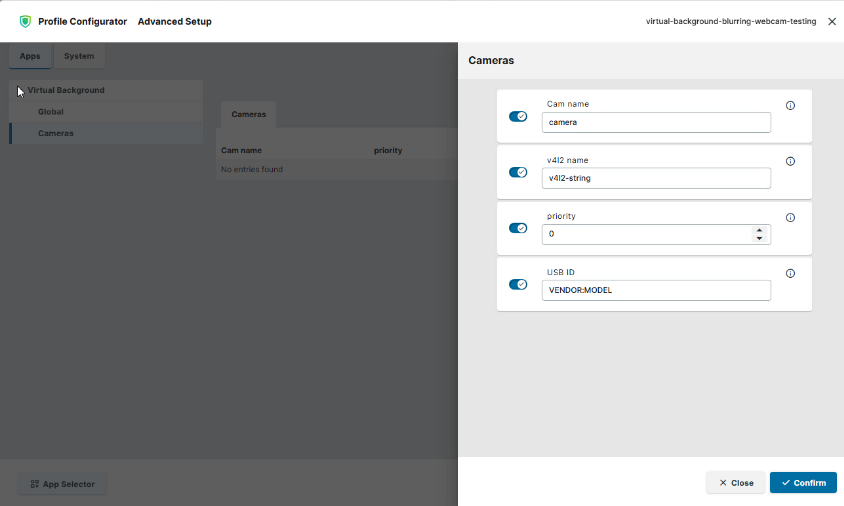
Cam name
A descriptive name to identify the camera entry within the configuration. (Default: camera)
v4l2 name
The Video4Linux2 (v4l2) device name of the webcam to use. To retrieve the v4l2 name of a connected webcam, run the command v4l2-ctl --list-devices on the endpoint. (Default: v4l2-string)
priority
The priority of this camera entry relative to others in the list. Lower numbers indicate higher priority. If the camera with the highest priority is not available, the camera with the second highest priority is used as a fallback. (Default: 0)
USB ID
The USB vendor and product ID of the webcam, in the format <VENDOR>:<MODEL>. (Default: VENDOR:MODEL)
To retrieve this information, run the command lsusb on the endpoint and note the ID string after the ID field.
-
Example: if the output of
lsusbshowsBus 001 Device 006: ID 045e:0810 Microsoft Corp. LifeCam HD-3000, the string to enter is045e:0810.
Distributing the App
→ Save the profile and assign it to the required devices. For details on profile assignment, see How to Create and Assign Profiles in the IGEL UMS Web App.