

IBM i Access Client is an emulation of the IBM-5250 terminal in Java and supports numerous encodings. This article describes how you can create and configure an IBM i Access Client session on IGEL OS.
For more information, see the vendor’s documentation IBM i Access - Client Solutions.
This article is based on IBM i Access Client version 1.1.9.0 BUILD 3.0.
Requirements
-
IBM i Access Client app is imported to your IGEL UMS. For details on app import, see How to Import IGEL OS Apps from the IGEL App Portal.
-
An IBM i user account
Dependencies
The following apps will automatically be installed together with IBM i Access Client app:
-
Java Runtime Environment 17
-
Compatibility layer for 12.0.x apps
How to Create an IBM i Access Client Session on IGEL OS
-
In the UMS Web App, create a profile configuring the app. For details on profile creation, see How to Create and Assign Profiles in the IGEL UMS Web App.
-
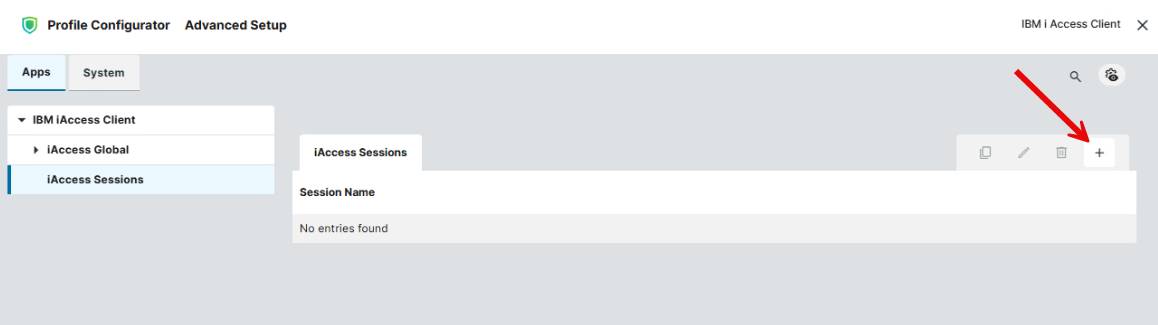
Under Apps > IBM iAccess Client > iAccess Sessions, click +.
-
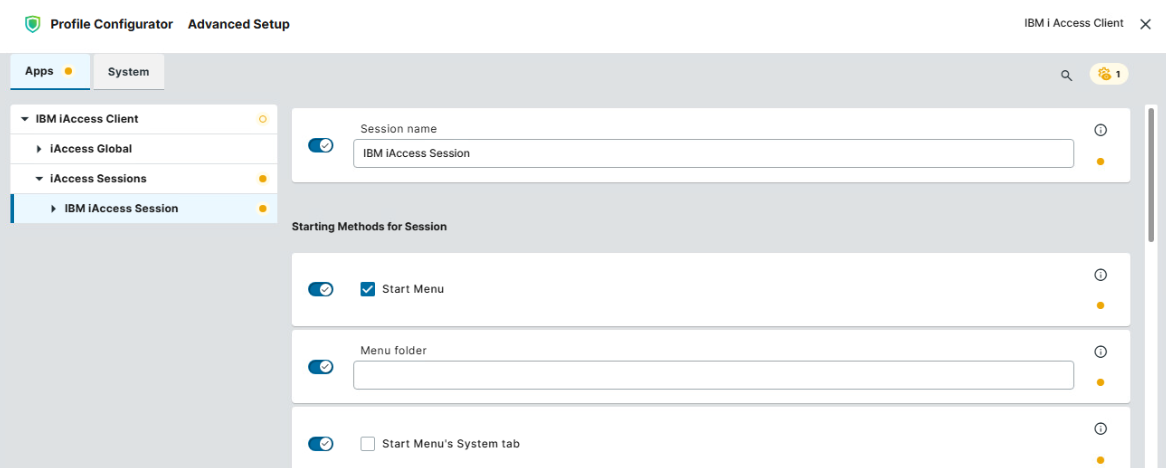
Configure the starting methods for the created session. For details, see Starting Methods for Apps.
-
Under Apps > IBM iAccess Client > iAccess Sessions > [session name] > Connection, configure at least Destination Address. The client can retrieve further logon information interactively.
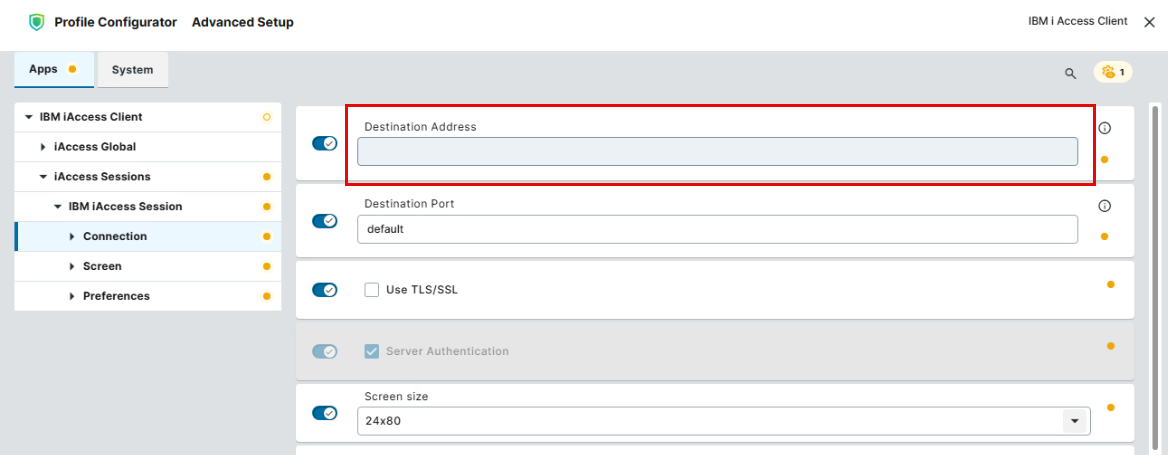
Destination Address
DNS name or IP address of the IBM i server
-
Configure the bellow settings according to your needs. Check especially the other Connection settings - Destination Port, Use TLS/SSL, Server Authentication, and Workstation ID.
-
Save the settings and assign the profile to the required devices. For details on profile assignment, see How to Create and Assign Profiles in the IGEL UMS Web App.
Under Help > Information Center in the IBM i Access Client menu, you can read the help provided by the manufacturer in your browser.
Configuring Connection Settings for the Session
-
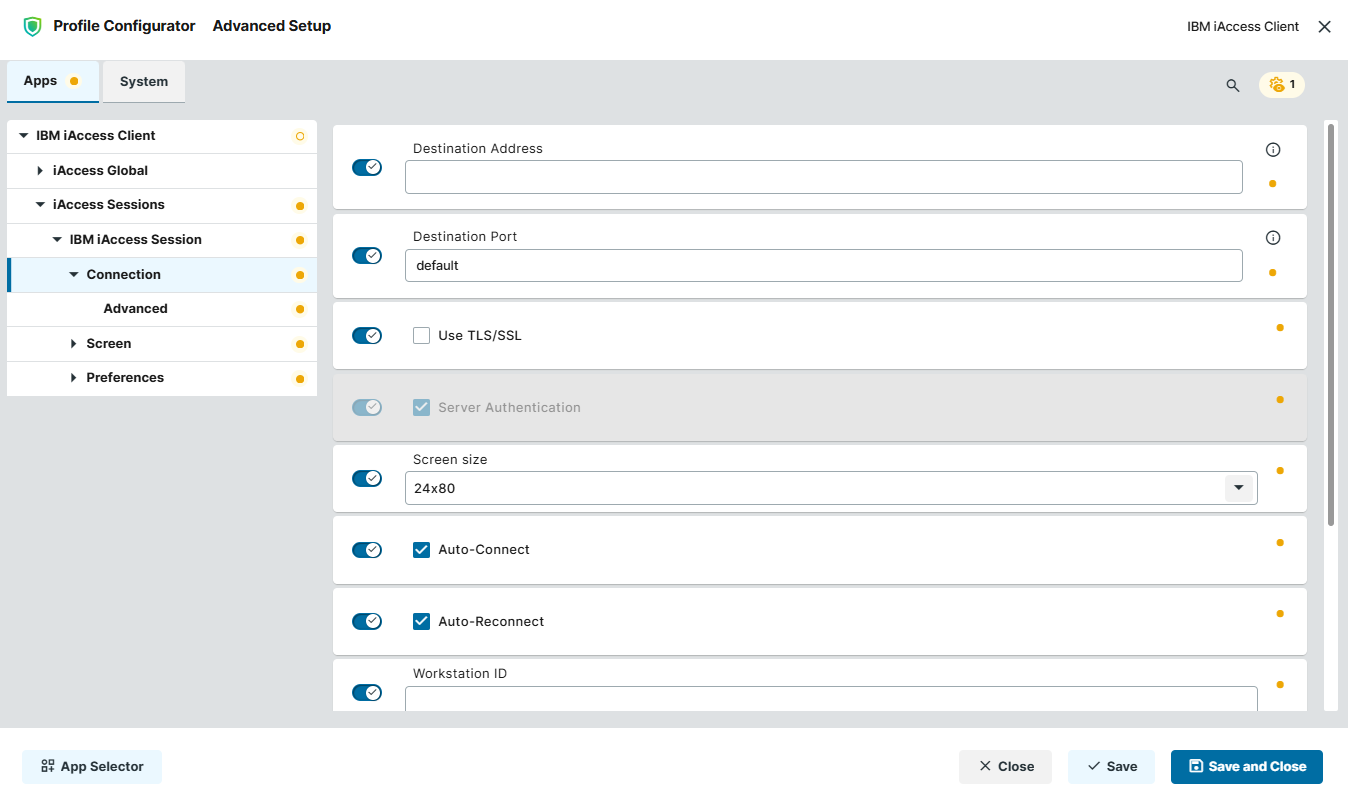
In the Profile Configurator, go to Apps > IBM iAccess Client > iAccess Sessions > [session name] > Connection.
-
Edit the settings according to your needs. The parameters are described below.
Destination Address
DNS name or IP address of the IBM i server
Destination Port
IBM i server port used in your environment. If you leave Destination Port set to default while Use TLS/SSL is enabled, port 992 is used. With Use TLS/SSL disabled, port 23 is used. However, you are free to enter a custom port number.
Use TLS/SSL
- IBM i Access Client uses TLS/SSL to encrypt the connection to the IBM i server.
- TLS/SSL is not used. (Default)
Server Authentication
Defines if the client validates the authenticity of the server when connecting.
- The client requires the server to authenticate itself. (Default)
To perform server authentication, the endpoint device must have the CA certificate that is associated with the server certificate. IBM iAccess certificates for server authentication and encryption can be distributed as files using the Universal Management Suite (UMS), see Upload and Assign Files in the IGEL UMS Web App, IBM iAccess certificate as a file type under Classification.
- The client connects to the server without server authentication.
Screen Size
Specifies the number of lines and columns displayed in the IBM 5250 terminal session.
Possible values:
-
24x80 (Default): 24 lines and 80 columns.
-
27x132: 27 lines and 132 columns.
Auto-Connect
- Automatically connect to the server on client startup. (Default)
Auto-Reconnect
- Automatically make a reconnect attempt if the server connection is lost. (Default)
Workstation ID
Name of the client that is presented to the server. This name must be unique. For more information, go to Help > Information Center in your iAccess client.
Enable Unicode Data Stream
Activate this setting to display and enter Unicode characters in Unicode-capable 5250 fields.
- Unicode Data Stream is enabled.
- Unicode Data Stream is disabled. (Default)
Enable DBCS in Unicode Fields
Specifies whether Unicode fields can display double-byte character set (DBCS) characters when the session uses a single-byte host code page. This setting can be configured if Enable Unicode Data Stream is activated.
- DBCS is enabled in Unicode fields.
- DBCS is disabled in Unicode fields. (Default)
Host Code Page
Specifies the code page that the session uses to convert characters between the IBM i host and the client. Select the code page that matches the language and character set used by the host application.
Possible values:
-
1140 United States Euro (Default)
-
1141 Germany Euro
-
1141 Austria Euro
-
...
Configuring Advanced Connection Settings for the Session
-
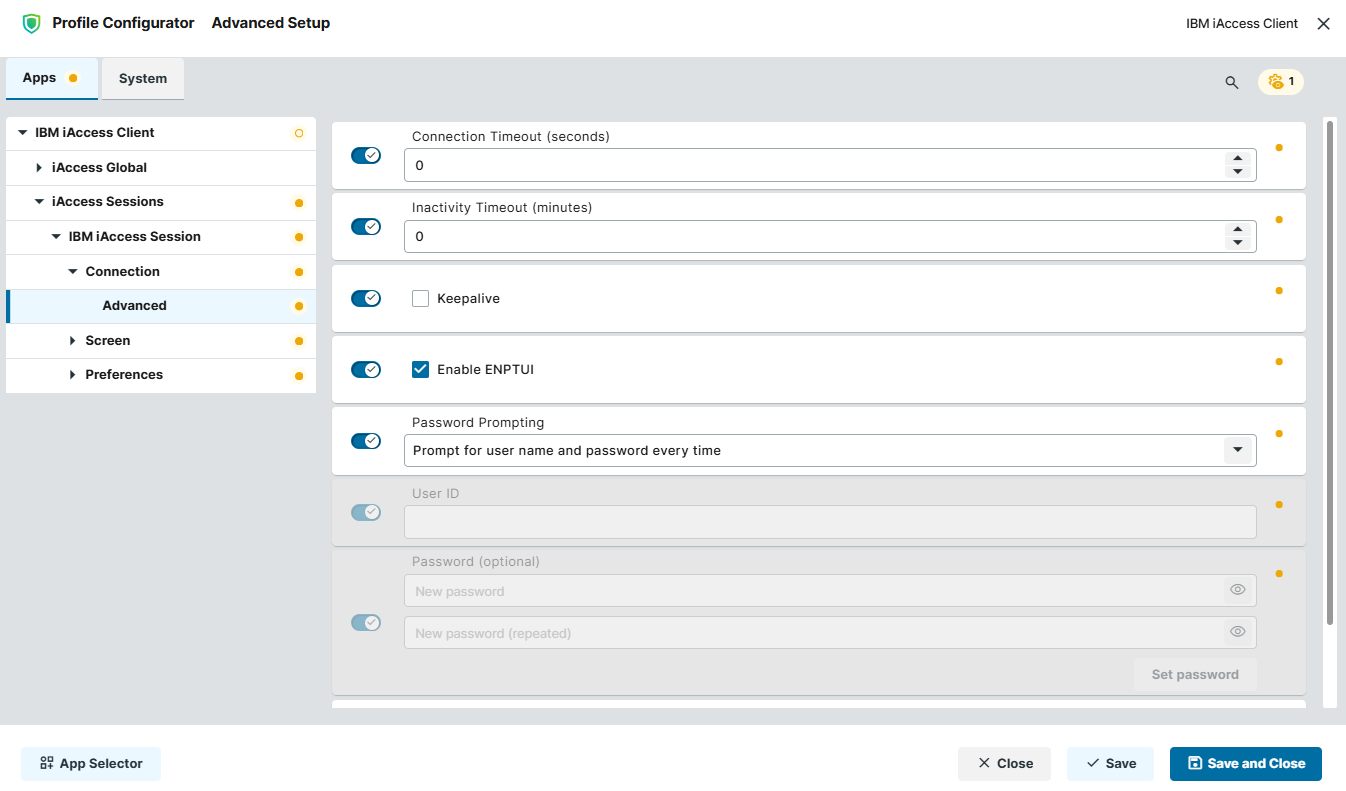
In the Profile Configurator, go to Apps > IBM iAccess Client > iAccess Sessions > [session name] > Connection > Advanced.
-
Edit the settings according to your needs. The parameters are described below.
Connection Timeout (seconds)
Specifies how long the client attempts to establish a connection. (Default: 0 meaning no timeout)
Inactivity Timeout (minutes)
Specifies how long the session can remain inactive before the client terminates the connection. The session will not automatically reconnect after timing out, even if Auto-Reconnect is activated. (Default: 0 meaning no timeout).
Keepalive
Specifies whether the client sends Telnet keep-alive traffic for the session.
- Keep-alive is enabled.
- Keep-alive is disabled. (Default)
Enable ENPTUI
- Enhanced Non-Programmable Terminal User Interface support (ENPTUI) is enabled. ENPTUI allows compatible 5250 applications to display enhanced interface elements defined in the 5250 data stream. (Default)
Password Prompting
Specifies how the client obtains credentials for the IBM i system.
Possible values:
-
Use default user name to prompt once for each system: The credentials preconfigured in the fields User ID and Password (optional) are used.
-
Prompt for user name and password every time (Default)
-
Use Kerberos authentication: The credentials from the Active Directory login are used; only available if the user has logged in to the IGEL OS device via Active Directory. For more information, see Active Directory/Kerberos - Enable Login in IGEL OS 12.
User ID
The user ID to be used when Password Prompting is set to “Use default user name to prompt once for each system”.
Password (optional)
The password to be used when Password Prompting is set to "Use default user name to prompt once for each system". Click Set Password to save the changes.
Bypass sign-on
Specifies whether the client attempts to authenticate without displaying the IBM i sign-on screen. The IBM i system must permit bypass sign-on.
- The logon to the system is bypassed.
- The IBM i sign-on screen is displayed. (Default)
Configuring Screen Settings for the Session
-
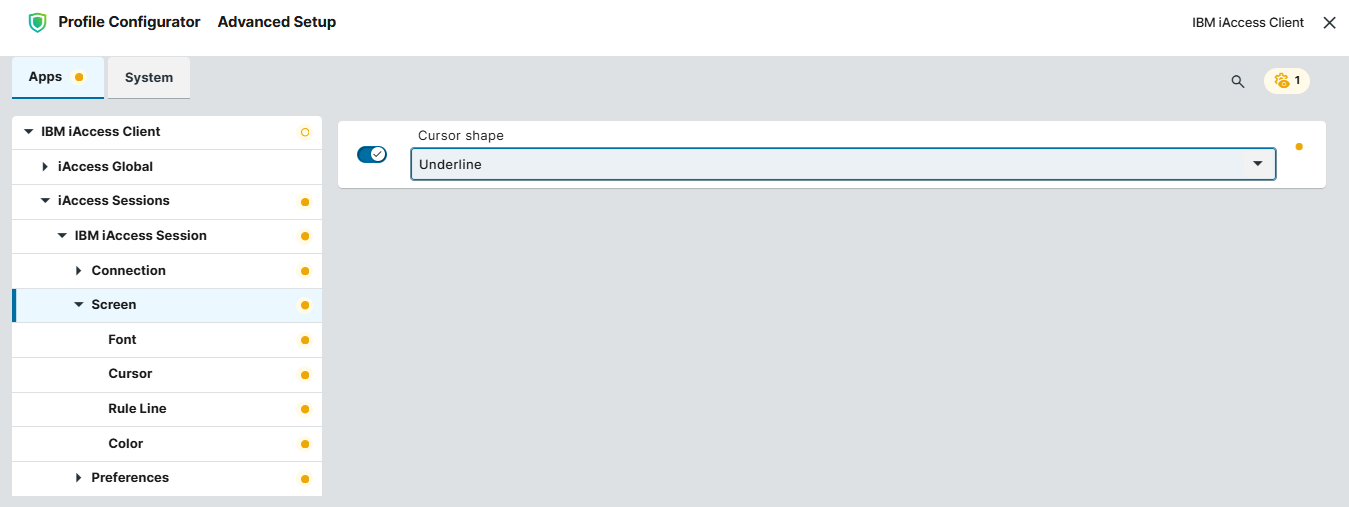
In the Profile Configurator, go to Apps > IBM iAccess Client > iAccess Sessions > [session name] > Screen.
-
Edit the settings according to your needs. The parameters are described below.
Cursor Shape
Specifies the appearance of the cursor in the IBM i Access terminal session.
Possible values:
-
Underline (Default)
-
Block
Configuring Font Settings for the Session
-
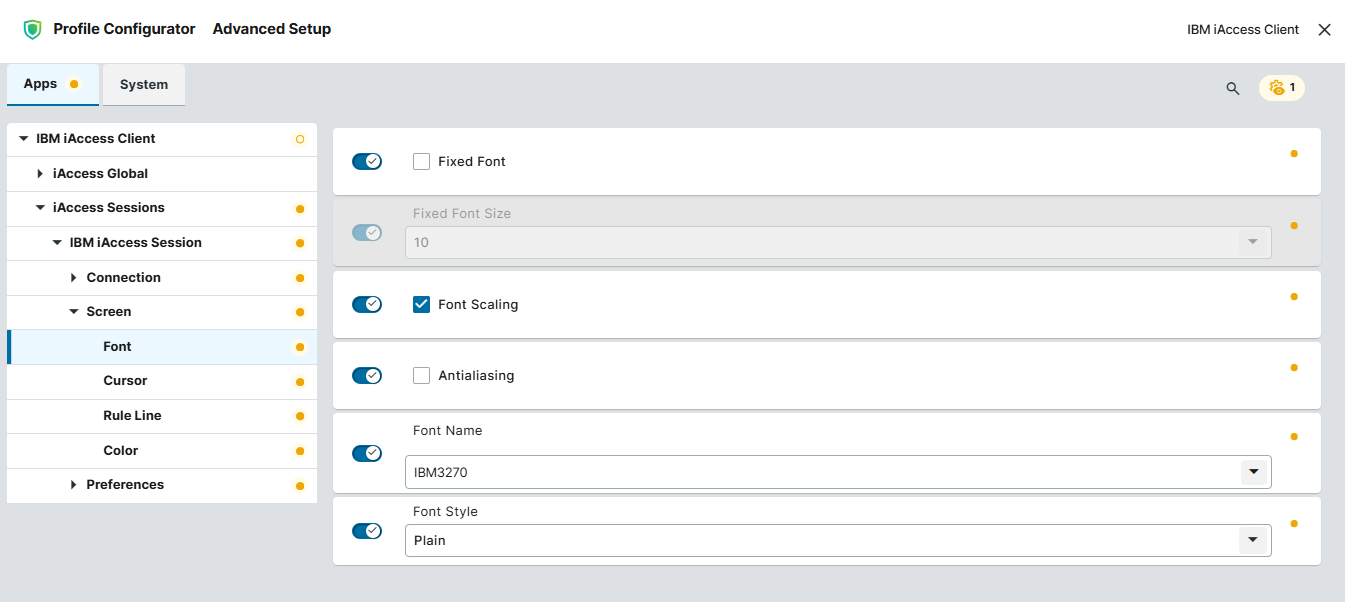
In the Profile Configurator, go to Apps > IBM iAccess Client > iAccess Sessions > [session name] > Screen > Font.
-
Edit the settings according to your needs. The parameters are described below.
Fixed Font
Specifies whether the terminal uses a fixed font size.
- The font size configured under Fixed Font Size will be used. Resizing the session window does not change the font size.
- The font size will be adjusted automatically. (Default)
Fixed Font Size
Specifies the font size used when Fixed Font is enabled. (Default: 10)
Font Scaling
- The client scales the font horizontally and vertically to fit the session window. (Default)
- Original proportions of the font will be preserved.
Antialiasing
- The client smooths out the edges of displayed characters.
- Antialiasing is disabled. (Default)
Font Name
Possible values:
-
IBM3270 (Default)
-
Monospaced
-
Courier 10 Pitch
-
DejaVu Sans Mono
-
…
-
Ubuntu Mono
Font Style
Possible values:
-
Plain (Default)
-
Bold
-
Italic
Configuring Cursor Settings for the Session
-
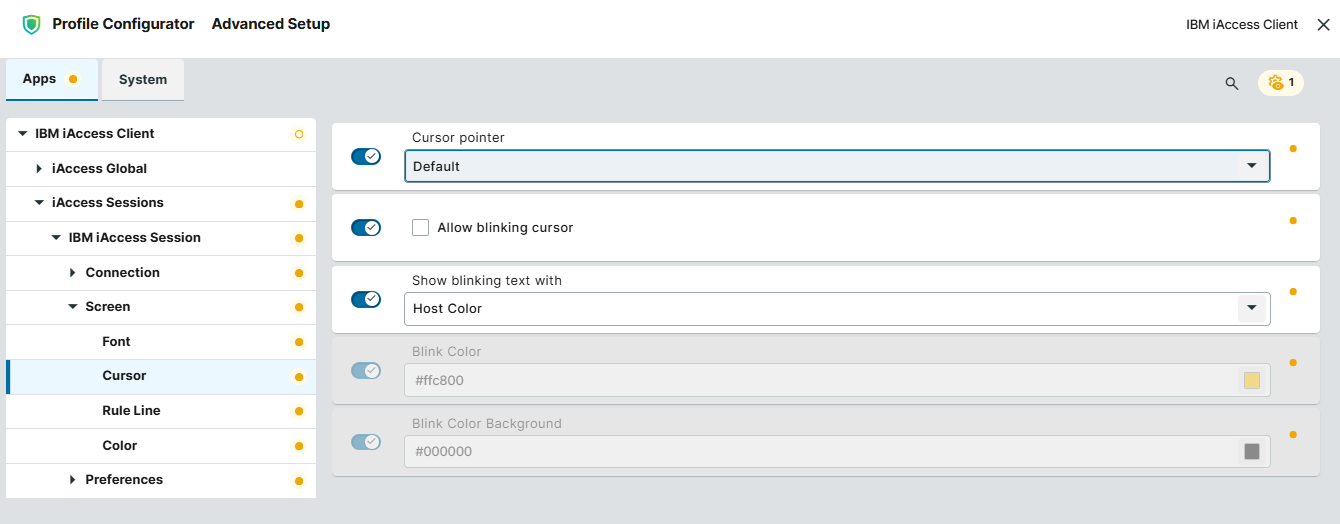
In the Profile Configurator, go to Apps > IBM iAccess Client > iAccess Sessions > [session name] > Screen > Cursor.
-
Edit the settings according to your needs. The parameters are described below.
Cursor Pointer
Specifies the appearance of the mouse pointer over the terminal screen.
Possible values:
-
Default (Default): The system pointer will be used.
-
Crosshair: A crosshair pointer will be used.
Allow blinking cursor
- The cursor continuously flashes which allows the user to quickly locate the typing position on the terminal.
- The cursor remains steady. (Default)
Show blinking text with
Specifies how the client displays text that has the host-defined blink attribute (e.g. error messages or alerts).
Possible values:
-
Blinking Text: Displays the text with a blinking effect.
-
Host Color (Default): Displays the text using the color defined by the host.
-
Mapped color: Displays the text using the configured Blink Color and Blink Color Background.
Blink Color
Specifies the foreground color used for host-defined blinking text when Mapped color is selected under Show blinking text with.
Blink Color Background
Specifies the background color used for host-defined blinking text when Mapped color is selected under Show blinking text with.
Configuring Rule Line for the Session
-
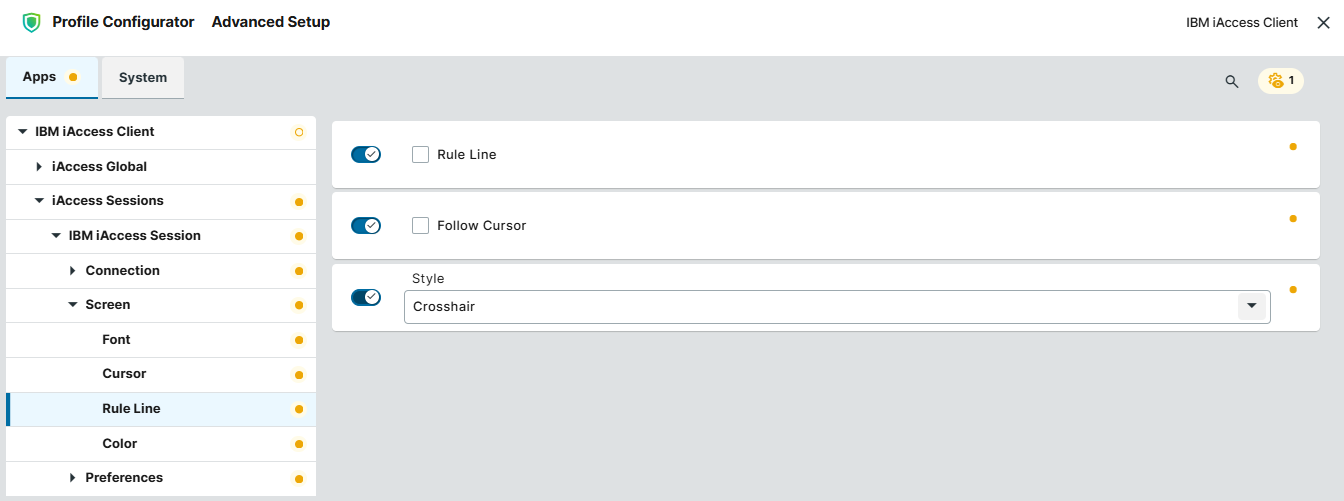
In the Profile Configurator, go to Apps > IBM iAccess Client > iAccess Sessions > [session name] > Screen > Rule Line.
-
Edit the settings according to your needs. The parameters are described below.
Rule Line
Specifies whether visual guide lines are displayed in the terminal session to help identify a row, column, or screen position.
- Rule line is activated.
- Rule line is disabled. (Default)
Follow Cursor
- The rule line will move with the text-entry cursor.
- The rule line will not move with the text-entry cursor. (Default)
Style
Specifies the rule line orientation.
Possible values:
-
Crosshair (Default): Displays horizontal and vertical lines.
-
Vertical
-
Horizontal
Configuring Color Settings for the Session
-
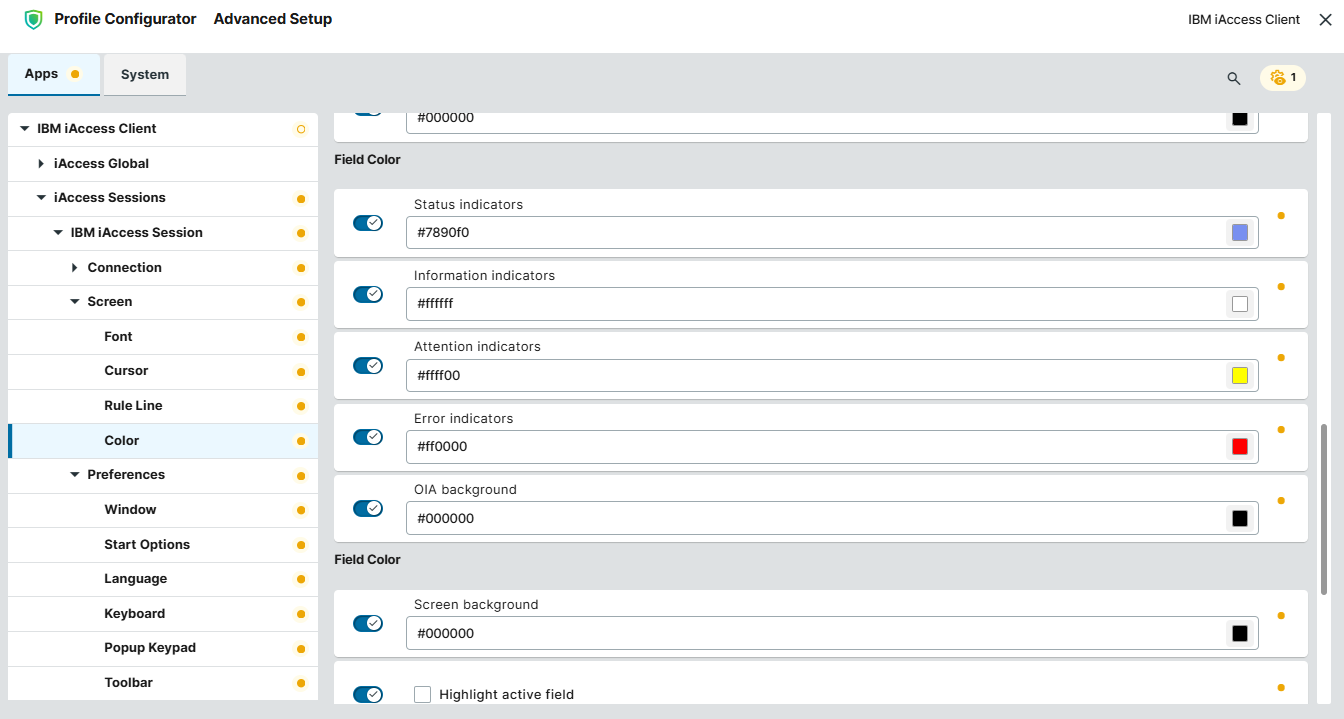
In the Profile Configurator, go to Apps > IBM iAccess Client > iAccess Sessions > [session name] > Screen > Color.
-
Edit the settings according to your needs. The parameters are described below.
Field Color: Choose respective colors.
OIA Color: Select a suitable color for the respective indicators.
-
Status Indicators
-
Information Indicators
-
Attention Indicators
-
Error Indicators
-
OIA Background
Screen Background: Choose a color.
This color overrides all Field Color Background colors which are set to black.
Highlight active field
- Active field is highlighted.
- Active field is not highlighted. (Default)
Active field: Choose a color.
Active Field Background: Choose a color
Crosshair Ruler Color: Choose a color
Column Separator: Choose a color
Configuring Session’s Preferences
-
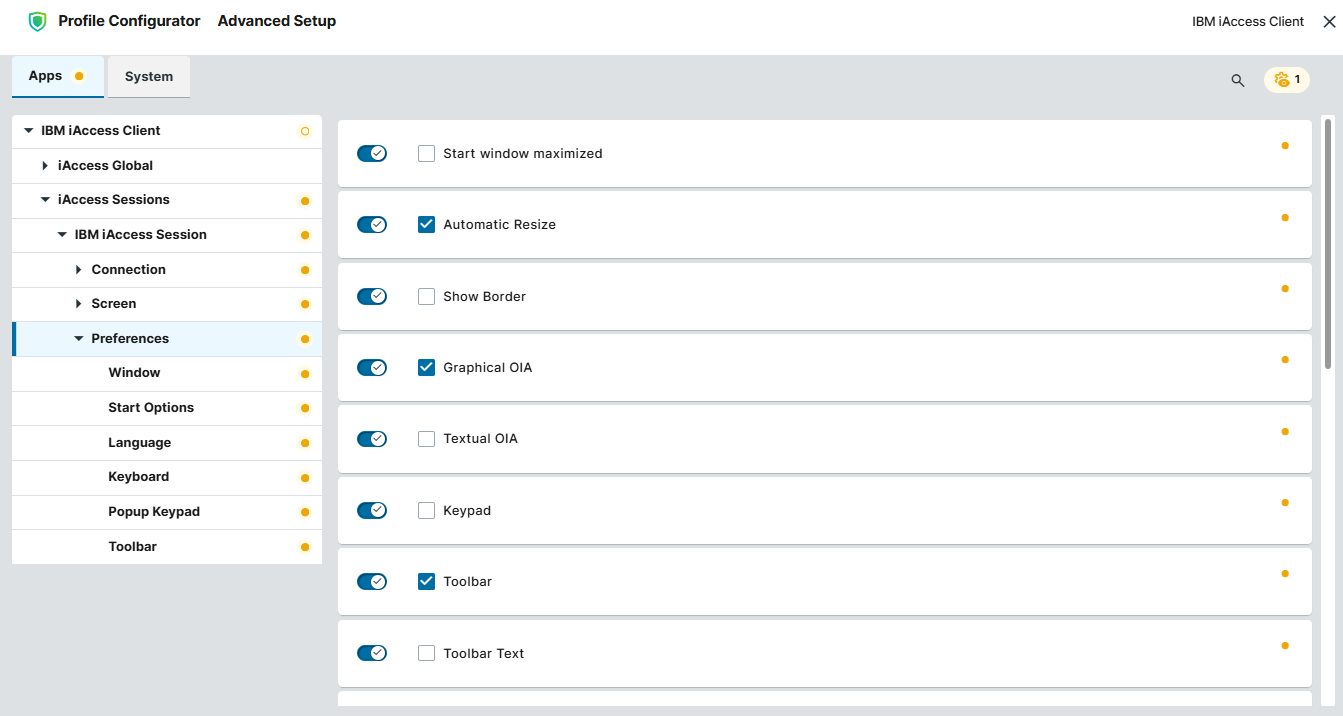
In the Profile Configurator, go to Apps > IBM iAccess Client > iAccess Sessions > [session name] > Preferences.
-
Edit the settings according to your needs. The parameters are described below.
Start window maximized
- The session window opens at its maximum size.
- The session window does not open at its maximum size. (Default)
Automatic Resize
- Automatic window resizing is enabled. (Default)
- Automatic window resizing is disabled.
Show Border
- An additional border frames the terminal display.
- No additional border is added. (Default)
Graphical OIA
- The Graphical OIA (Graphical Operator Information Area) is displayed. The OIA shows session, connection, keyboard information, etc. (Default)
- The Graphical OIA (Graphical Operator Information Area) is hidden.
Textual OIA
- The Textual OIA (Textual Operator Information Area) is displayed.
- The Textual OIA (Textual Operator Information Area) is hidden. (Default)
Keypad
- The on-screen keypad is displayed.
- The on-screen keypad is hidden. (Default)
Toolbar
- The toolbar containing session commands is displayed. (Default)
- The toolbar is hidden.
Toolbar Text
- Textual items are added to the toolbar icons.
- No textual items are added to the toolbar icons. (Default)
Status Bar
- The status bar is displayed in the session window. (Default)
- The status bar is hidden.
Macro Manager
- The Macro Manager toolbar, i.e. toolbar for recording, managing, and running macros, is displayed.
- The Macro Manager toolbar is hidden. (Default)
Right Mouse Button Popup Keypad
- Right-clicking will bring up the the popup keypad.
- Right-clicking will bring up the default context menu. (Default)
Scratch Pad
- The Scratch Pad (integrated basic text editor) is displayed.
- The Scratch Pad (integrated basic text editor) is hidden. (Default)
'Save' in Scratch Pad
- The Save button in the Scratch Pad is active. (Default)
- The Save button in the Scratch Pad is inactive.
Quick Connect
- The Quick Connect toolbar is displayed.
- The Quick Connect toolbar is hidden. (Default)
Search Text
- The area for searching text in the terminal session is displayed.
- The Search Text area is hidden. (Default)
Screen History
- The area for reviewing previously displayed host screens is displayed.
- The Screen History area is hidden. (Default)
History Screen Type Simple (Text)
- The History Screen will be displayed black and white.
- The History Screen will have the default terminal (green screen) look and feel. (Default)
Menu Bar
- The main application menu bar is displayed. (Default)
- The main application menu bar is hidden.
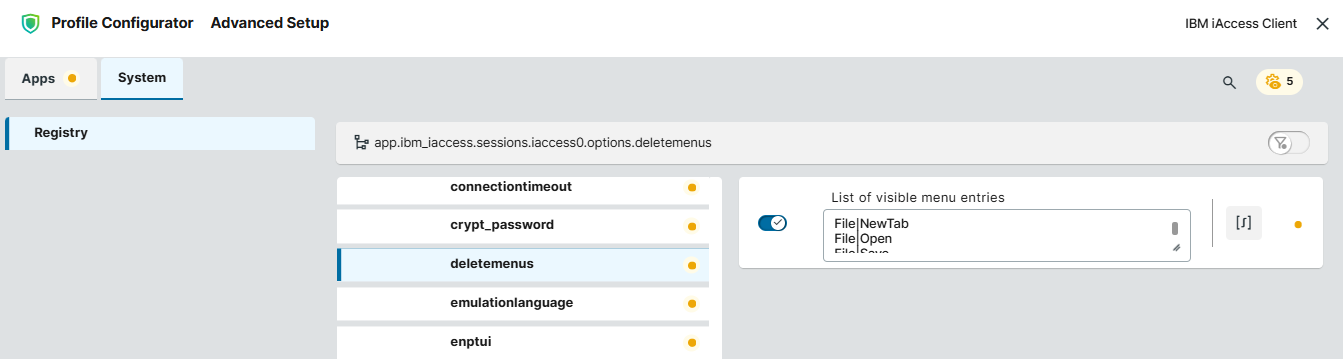
To edit the visible menu entries for IBM i Access, use the following registry key under System > Registry: app.ibm_iaccess.sessions.iaccess%.options.deletemenus
Configuring Window Settings
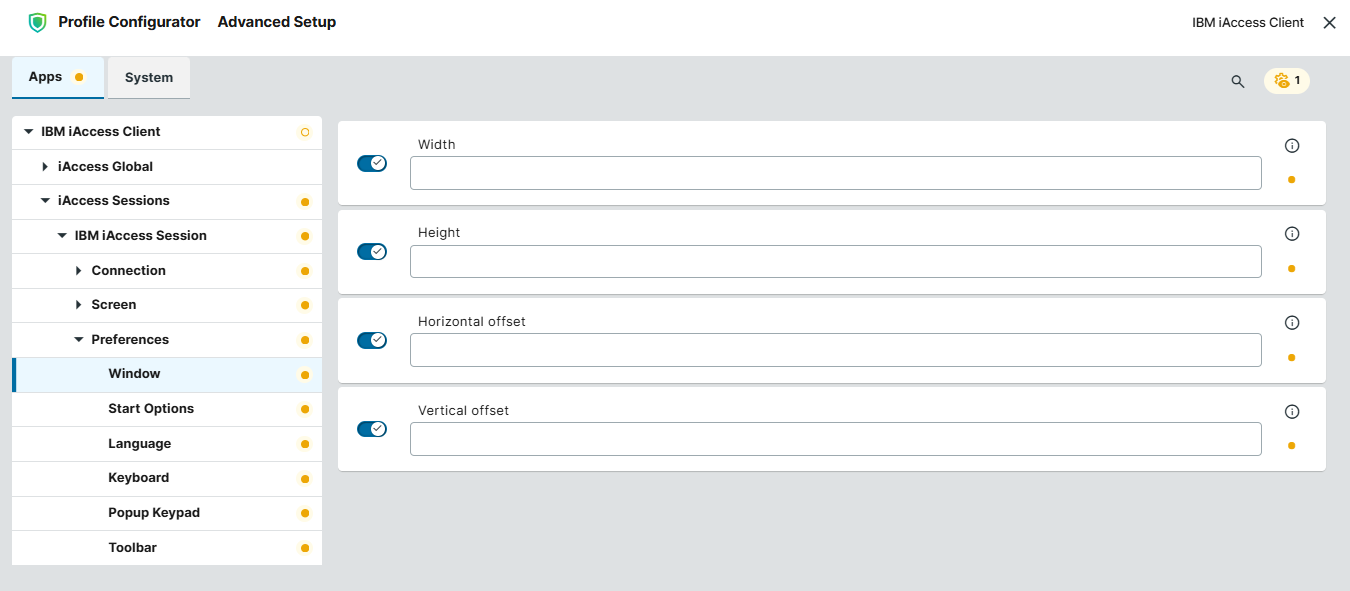
Here you can define how the IBM i Access Client window is positioned and sized by default on start. If you leave the fields empty, the window will be positioned and sized automatically.
-
In the Profile Configurator, go to Apps > IBM iAccess Client > iAccess Sessions > [session name] > Preferences > Window.
-
Edit the settings according to your needs. The parameters are described below.
Width
Width of the window
Height
Height of the window
Horizontal offset
Horizontal offset of the window
Vertical offset
Vertical offset of the window
Configuring Start Options
-
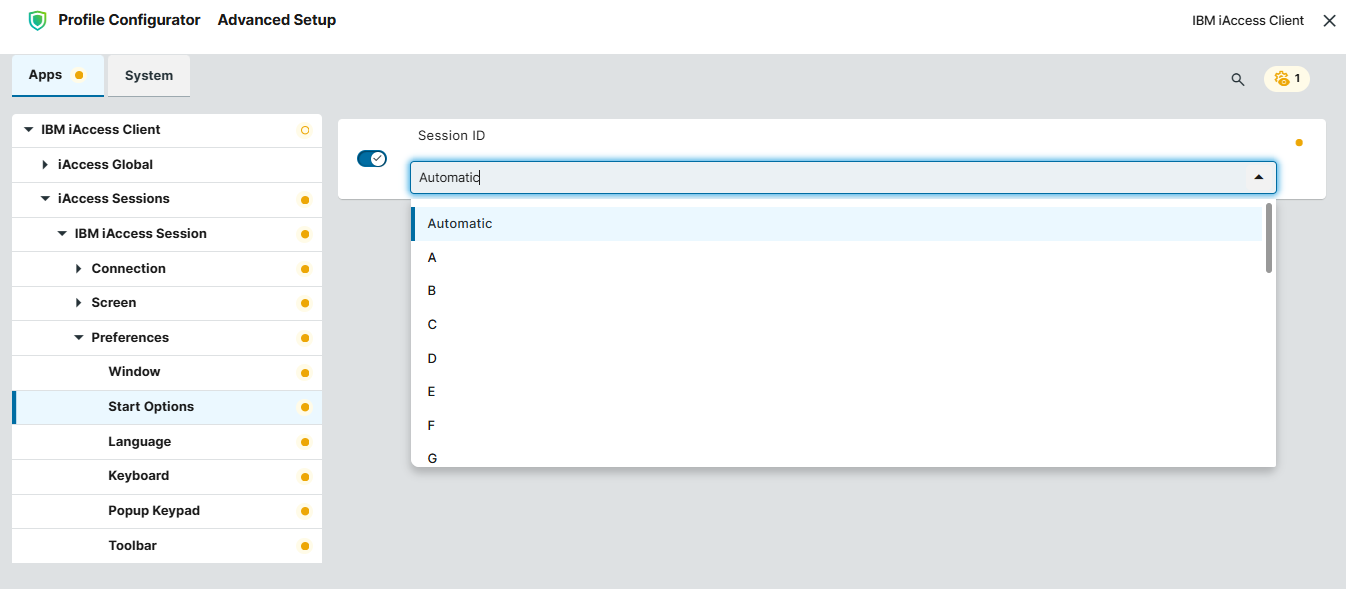
In the Profile Configurator, go to Apps > IBM iAccess Client > iAccess Sessions > [session name] > Preferences > Start Options.
-
Edit the settings according to your needs. The parameters are described below.
Session ID
Specifies the letter that uniquely identifies the emulator session within the IBM i Access Client. The ID appears as the session short name in the Operator Information Area (OIA) and can be used by macros to reference a specific session.
Possible values:
-
Automatic (Default): Assigns an available letter automatically.
-
A-Z: Assigns the selected letter to the session.
Configuring Language Settings for the Session
-
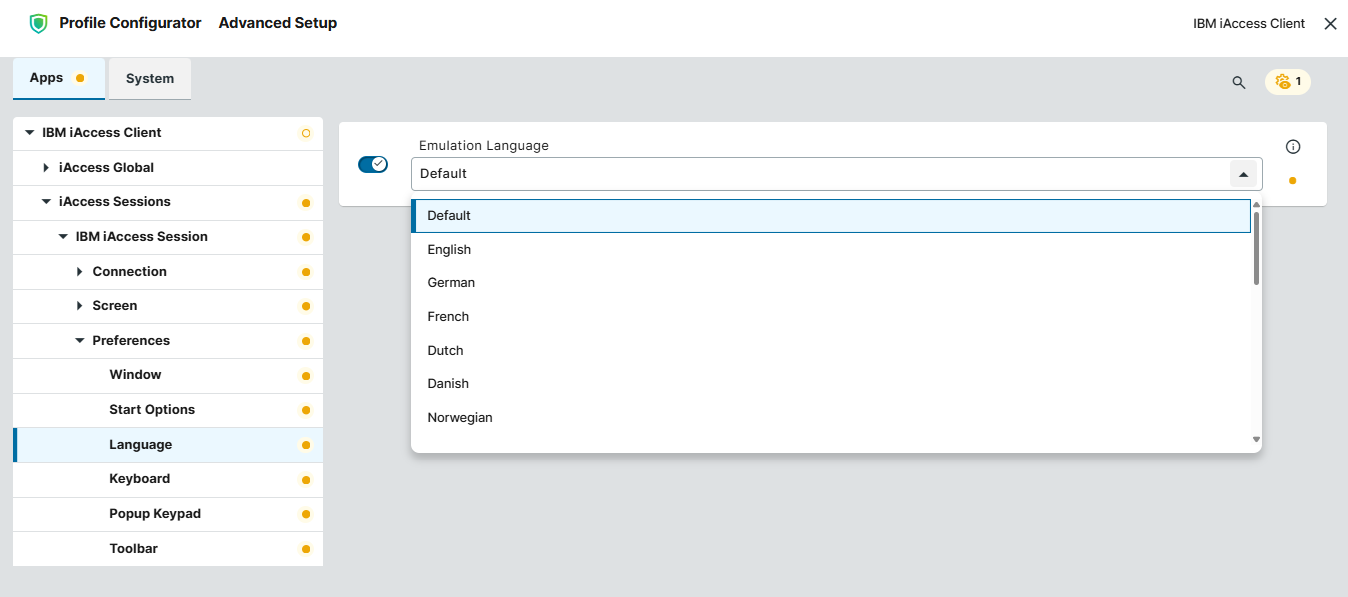
In the Profile Configurator, go to Apps > IBM iAccess Client > iAccess Sessions > [session name] > Preferences > Language.
-
Edit the settings according to your needs. The parameters are described below.
Emulation Language
Sets the language of the emulator interface for the session.
Possible values:
-
Default (Default): The language set under User Interface > Language will be used. See Language Settings in IGEL OS 12.
-
[Various languages]
Configuring Keyboard Settings for the Session
-
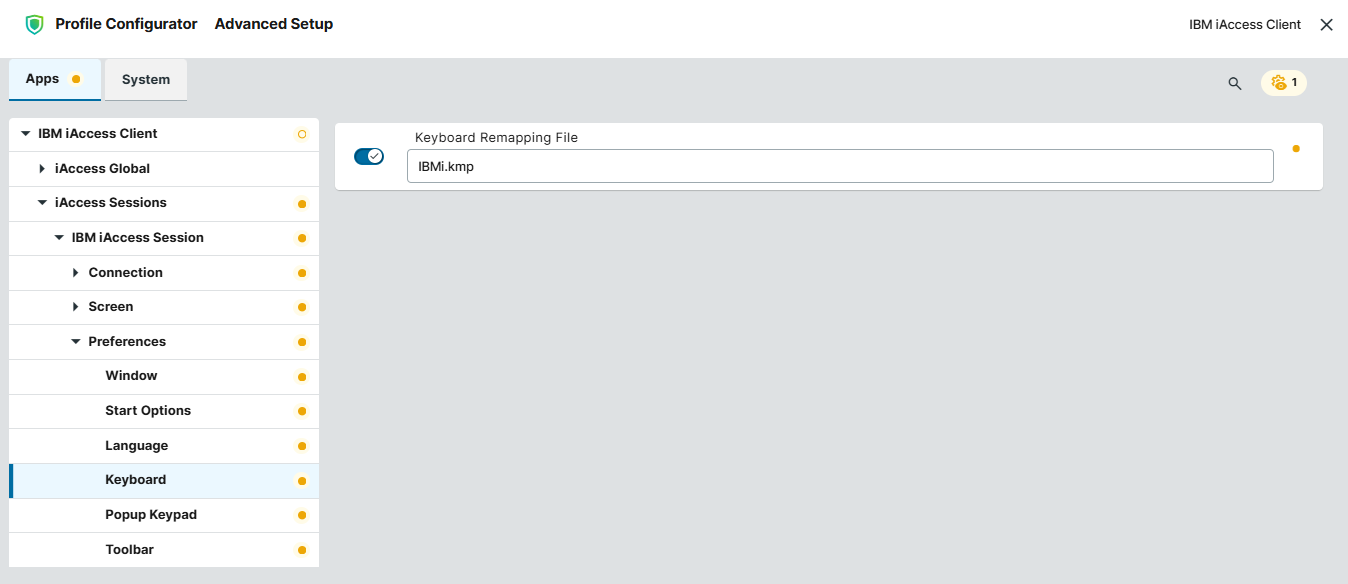
In the Profile Configurator, go to Apps > IBM iAccess Client > iAccess Sessions > [session name] > Preferences > Keyboard.
-
Edit the settings according to your needs. The parameters are described below.
Keyboard Remapping File
Specifies the .kmp file that defines how keyboard keys and key combinations are assigned to 5250 emulator functions. Enter the file name here. (Default: IBMi.kmp)
The directory /userhome/IBM/iAccesClient/Emulator is used by default.
Configuring Popup Keypad Settings for the Session
-
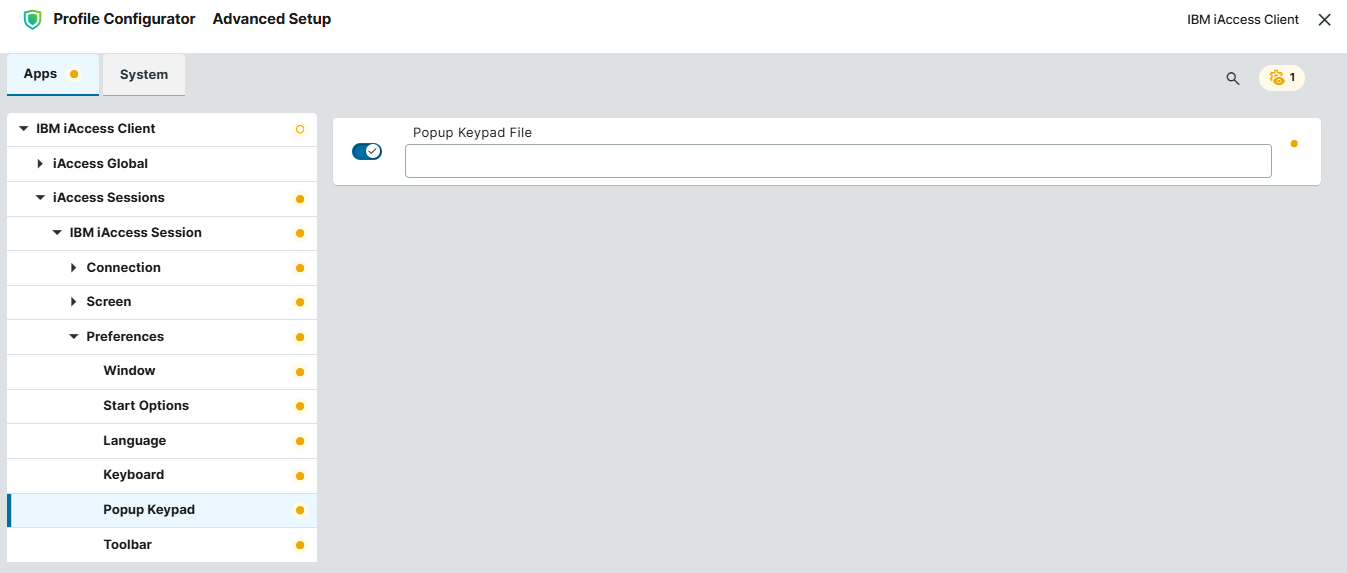
In the Profile Configurator, go to Apps > IBM iAccess Client > iAccess Sessions > [session name] > Preferences > Popup Keypad.
-
Edit the settings according to your needs. The parameters are described below.
Popup Keypad File
Specifies the .pmp file that defines the popup keypad for the session, including its buttons, assigned functions, layout, and colors. Enter the file name here.
The directory /userhome/IBM/iAccesClient/Emulator is used by default.
Configuring Toolbar for the Session
-
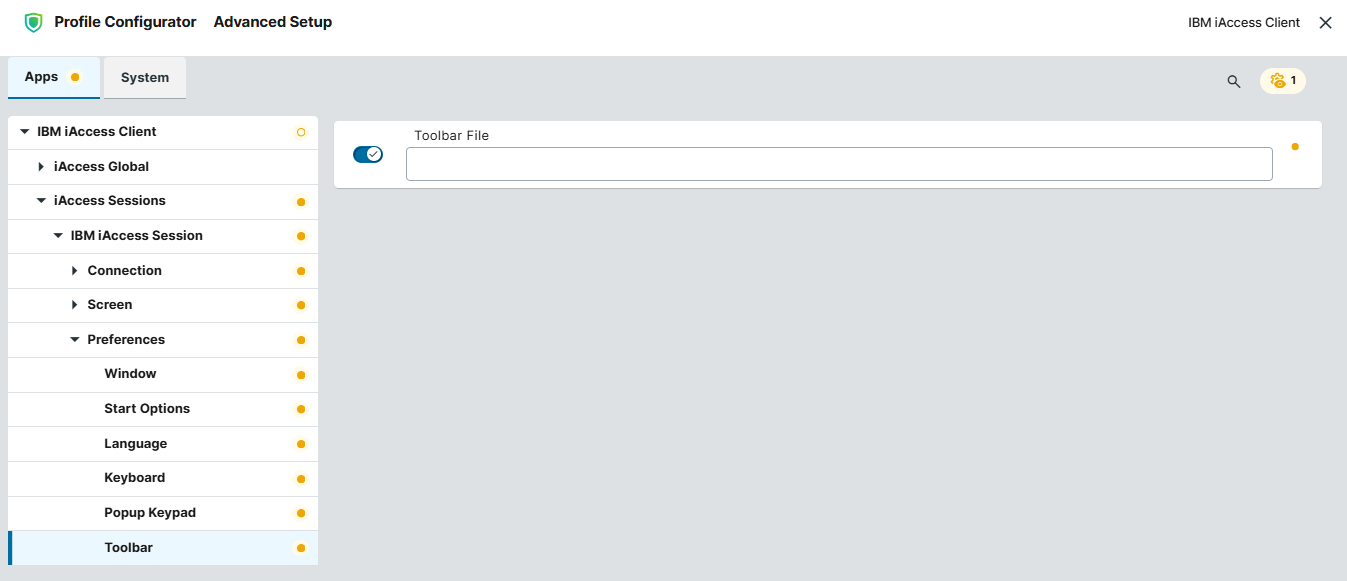
In the Profile Configurator, go to Apps > IBM iAccess Client > iAccess Sessions > [session name] > Preferences > Toolbar.
-
Edit the settings according to your needs. The parameters are described below.
Toolbar File
Specifies the .bar file that defines the session toolbar, including its buttons, icons, labels, order, and assigned actions. Enter the file name here.
The directory /userhome/IBM/iAccesClient/Emulator is used by default.
Configuring Global Tab Setup for IBM i Access Client
-
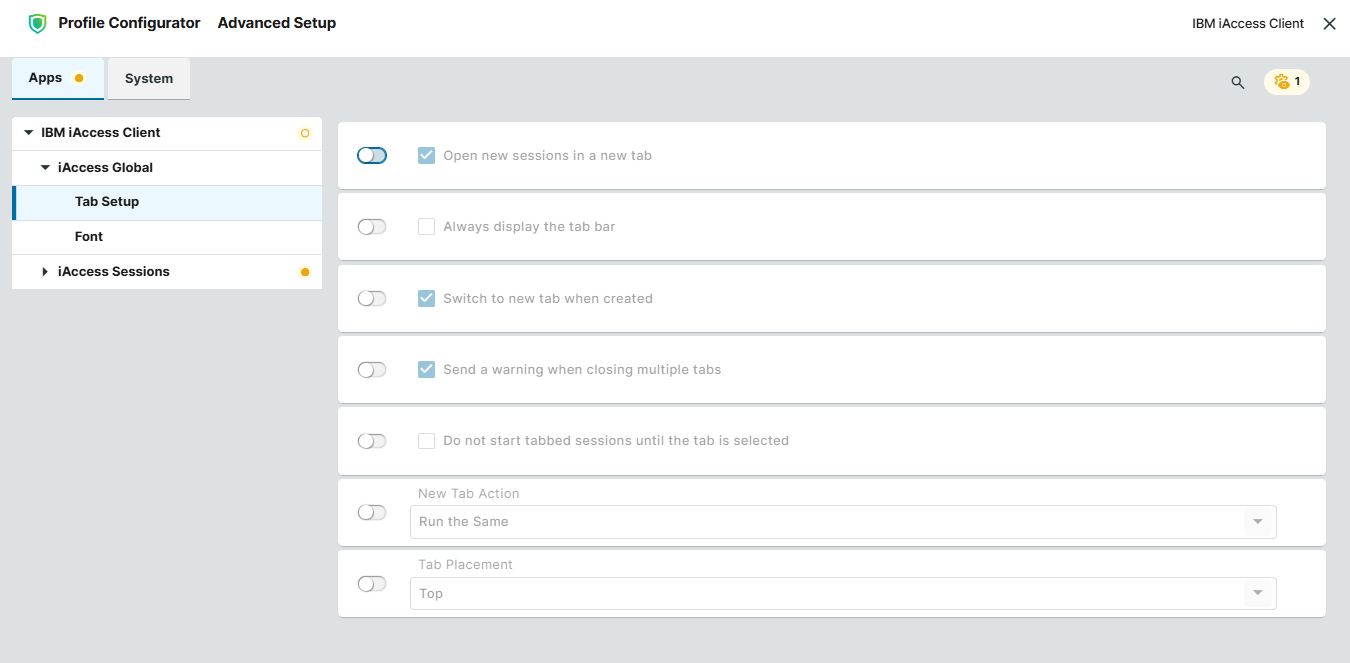
In the Profile Configurator, go to Apps > IBM iAccess Client > iAccess Global > Tab Setup.
-
Edit the settings according to your needs. The parameters are described below.
Open new sessions in a new tab
- A new session will be opened in a new tab. (Default)
- A new session will be opened in a new window.
Always display the tab bar
- The tab bar will always be displayed.
- The tab bar will not be displayed. (Default)
Switch to new tab when created
- A newly created tab will become an active tab. (Default)
- The current tab remains active.
Send a warning when closing multiple tabs
- A confirmation message is sent before multiple tabs are closed. (Default)
- Multiple tabs are closed without warning.
Do not start tabbed sessions until the tab is selected
- Delays starting each tabbed session until the user selects its tab.
- All tabbed sessions start immediately. (Default)
New Tab Action
Specifies what happens when the user creates a tab.
Possible values:
-
Disable and hide
-
Run the same (Default)
-
Run other...
Tab Placement
Specifies the edge of the session window where the tab bar appears.
-
Top (Default)
-
Bottom
-
Left
-
Right
Configuring Global Font Settings for IBM i Access Client
-
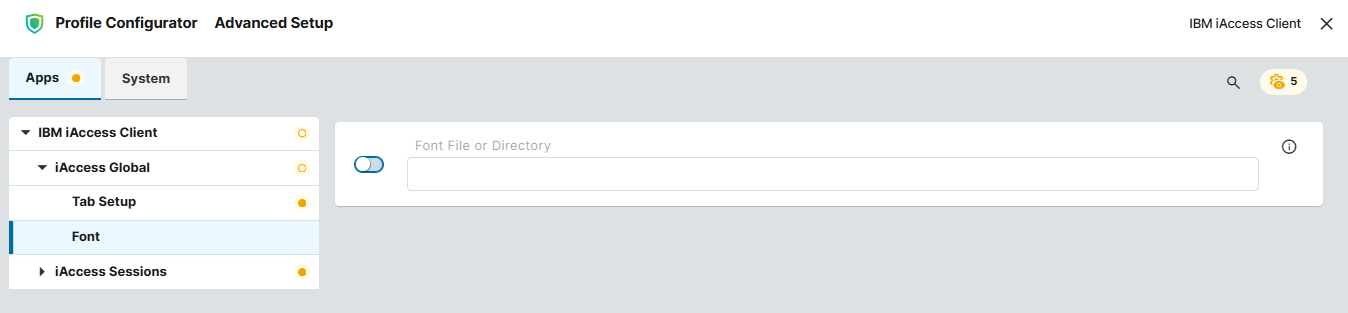
In the Profile Configurator, go to Apps > IBM iAccess Client > iAccess Global > Font.
-
Edit the settings according to your needs. The parameters are described below.
Font File or Directory
Specifies the path to an additional font file or a directory containing fonts that IBM i Access can use in terminal sessions. Enter the full path to the font file or the font directory.