

The Zoom Desktop app for IGEL OS brings communication and collaboration features such as team chat, phone, whiteboard, meetings, and contacts together in a single application. It also provides access to more than 1,500 native integrations and apps.
This article describes how to create and configure a Zoom Desktop Client session on IGEL OS using an IGEL UMS profile.
This article is based on Zoom Desktop Client version 7.1.5.4332 BUILD 1.0.
Requirements
-
Zoom Desktop Client app is imported to your IGEL UMS. For details on app import, see How to Import IGEL OS Apps from the IGEL App Portal.
-
Ensure that the endpoint meets the system and bandwidth requirements for the Zoom Desktop Client. For example, Zoom specifies requirements for the processor, memory, graphics capabilities, and available bandwidth. For information on the system requirements, see Zoom system requirements: Windows, macOS, Linux.
How to Configure the Zoom Desktop Client App on IGEL OS
-
In the IGEL UMS Web App, create a profile configuring the app. For details on profile creation, see How to Create and Assign Profiles in the IGEL UMS Web App.
-
In the Profile Configurator, go to Apps > Zoom > Settings and configure the following settings according to your needs:
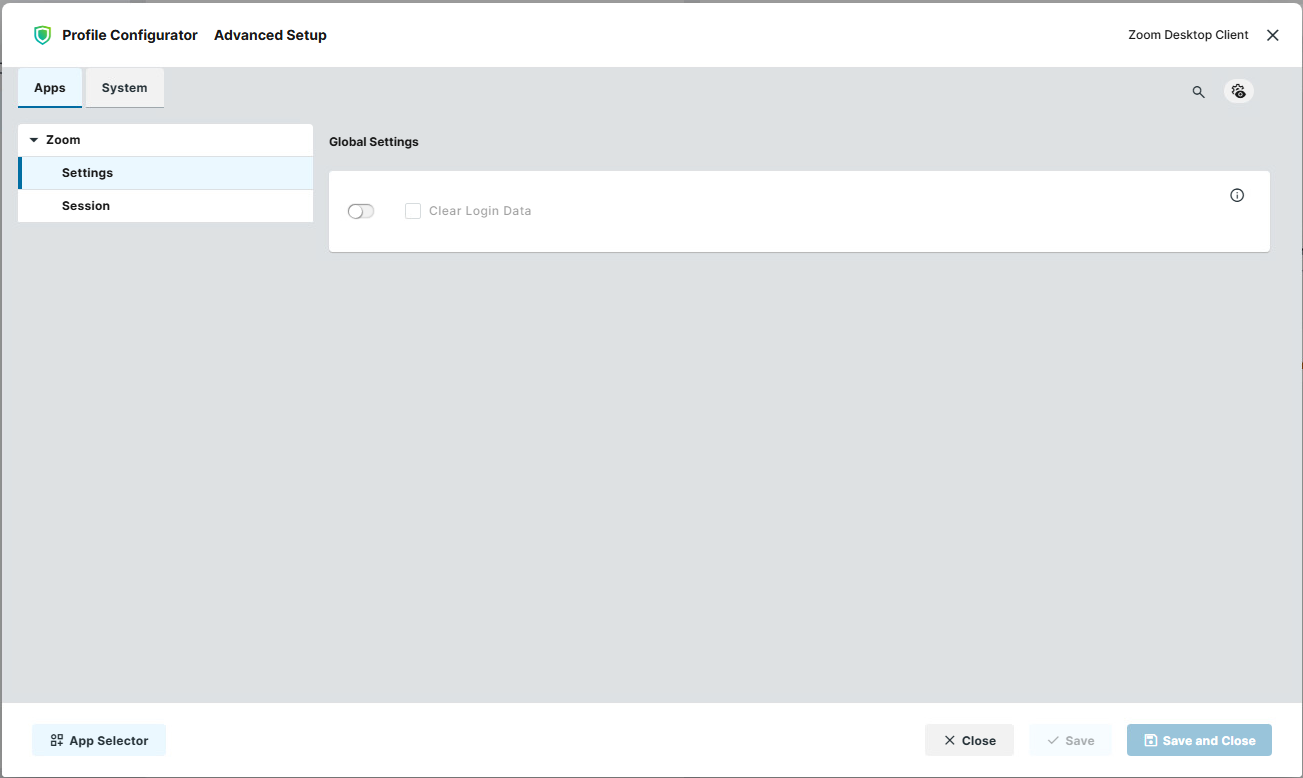
Clear Login Data
- The Zoom login data are cleared when Zoom is closed, the user logs out of the system, or the system is shut down.
- The Zoom login data are retained. (Default)
-
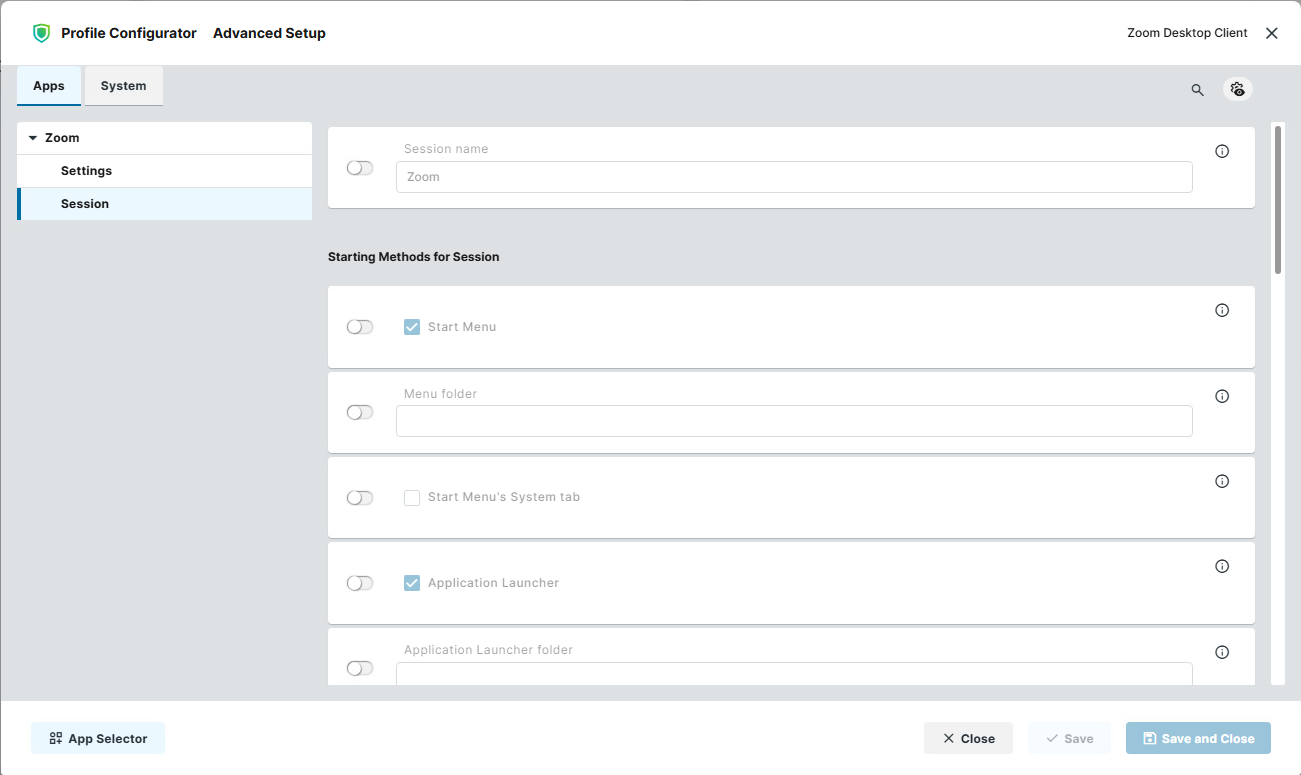
Go to Apps > Zoom > Session and define the starting methods for the session. The starting methods parameters are described under Starting Methods for Apps.
-
Save the settings.
-
Assign the configured profile to the required devices / device directories.