
The ACME Client enables IGEL OS 12 devices to request and renew client certificates automatically through the Automatic Certificate Management Environment (ACME) protocol. This article describes how to deploy the CA certificate, configure an ACME certificate request, verify the result, and troubleshoot certificate enrollment.
The IGEL ACME Client supports the http-01 challenge. Other ACME challenge types are not supported.
How the ACME Client Works
The ACME Client performs the following tasks:
-
Registers an account with the configured ACME server.
-
Requests a certificate for one or more configured device names.
-
Stores the certificate and private key on the device.
-
Checks the certificate expiration date at a configured interval.
-
Requests a renewed certificate during the configured renewal period.
-
Supports External Account Binding (EAB) with ACME Client 1.0.0+3 or later.
For each certificate instance, the client stores the generated files in:
/wfs/acme_certificates/<directory>/
For the default instance and directory, the files are:
/wfs/acme_certificates/default/client.cert
/wfs/acme_certificates/default/client.key
Protect the private key from unauthorized access. Do not copy private keys to logs, documentation, or unsecured storage.
Prerequisites
-
Configure an ACME server that supports the
http-01challenge. -
Create DNS records for the names requested by each device.
-
Obtain the ACME directory URL.
-
Obtain the CA root certificate if the ACME server certificate is not trusted by default.
-
For EAB, use ACME Client 1.0.0+3 or later and obtain the EAB key identifier and HMAC key from the ACME server administrator.
Deploy the CA Root Certificate
If the ACME server uses a private CA, upload the CA root certificate to the UMS and assign it to the target devices. For details, see Upload and Assign Files in the IGEL UMS Web App.
Store the certificate in a protected location such as:
/wfs/ca-certs/acme-root-ca.crt
Ensure that the ACME Client can read the file. The path configured under CA Bundle must match the deployed file path.
Install and Configure the ACME Client
-
Import the ACME Client from the IGEL App Portal and assign the required version to the IGEL OS devices. For instructions, see How to Import IGEL OS Apps from the IGEL App Portal.
-
Create an IGEL OS 12 profile for the ACME Client.
-
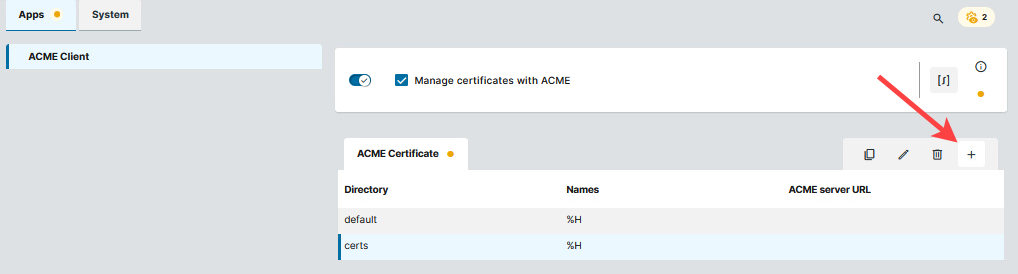
Enable Manage certificates with ACME.
-
Edit the ACME Certificate under the
defaultdirectory.
Instance 0, with the directory default, is available by default. Use this instance for most configurations. Add another instance by clicking the + icon only when the device requires a separate certificate, for example, during a transition to a different ACME server.
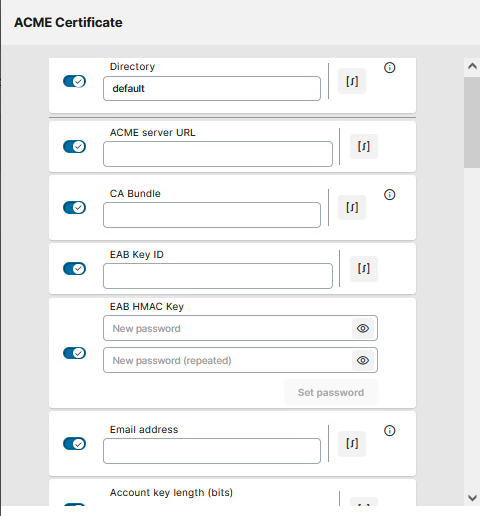
The following table provides an overview of the ACME Client configuration parameters:
|
Parameter |
Description |
Default value |
Example |
Registry key |
|---|---|---|---|---|
|
Manage certificates with ACME |
Activates or deactivates certificate management with ACME. |
Disabled |
Enabled |
|
|
Directory |
Specifies the subdirectory of |
|
|
|
|
Names |
Specifies the space-separated names for which the certificate is requested. |
|
|
|
|
Account key length (bits) |
Specifies the length of the key used for the ACME account. Available values: |
|
|
|
|
ACME server URL |
Specifies the URL of the ACME directory on the ACME server. |
Empty |
|
|
|
CA Bundle |
Specifies the CA bundle used to verify the ACME server certificate. |
Empty |
|
|
|
Email address |
Specifies the email address used when creating the account on the ACME server. |
Empty |
|
|
|
Key length (bits) |
Specifies the type and length of the private key for which the certificate is requested. Values without the |
|
|
|
|
Certificate expiry check interval (days) |
Specifies the number of days between certificate expiration checks. |
|
|
|
|
Certificate renewal period (days) |
Specifies how many days before the certificate expiration the ACME Client starts attempting to renew the certificate. |
|
|
|
|
Debug level |
Specifies the debug level used by |
|
|
|
-
Use the following parameters to configure additional CSR attributes:
|
Parameter |
Description |
Default value |
Example |
Registry key |
|---|---|---|---|---|
|
Organizational unit |
Adds an Organizational Unit (OU) attribute to the CSR. Whether the attribute is accepted and included in the certificate depends on the ACME CA. |
Empty |
|
|
|
Country |
Adds a Country (C) attribute to the CSR. Whether the attribute is accepted and included in the certificate depends on the ACME CA. |
Empty |
|
|
|
State |
Adds a State or Province (ST) attribute to the CSR. Whether the attribute is accepted and included in the certificate depends on the ACME CA. |
Empty |
|
|
|
Locality |
Adds a Locality (L) attribute to the CSR. Whether the attribute is accepted and included in the certificate depends on the ACME CA. |
Empty |
|
|
|
Organization |
Adds an Organization (O) attribute to the CSR. Whether the attribute is accepted and included in the certificate depends on the ACME CA. |
Empty |
|
|
|
Name separator |
Specifies a separator for multiple values in State, Locality, Organization, and Organizational Unit. The values are added as multiple single-valued Relative Distinguished Names (RDNs). The parameter is only available as a registry key. |
Empty |
|
|
|
SubjectAltName Suffix (+K) |
Specifies whether a suffix is automatically added to the corresponding SAN. Available options include |
Not Applicable |
|
|
|
Type of SubjectAltName (+K) |
Specifies the type of an additional SAN. Up to four additional SANs can be configured ( |
Not Applicable |
|
|
|
SubjectAltName (+K) |
Specifies the value of the additional SAN. Up to four entries can be configured ( |
Empty |
|
|
-
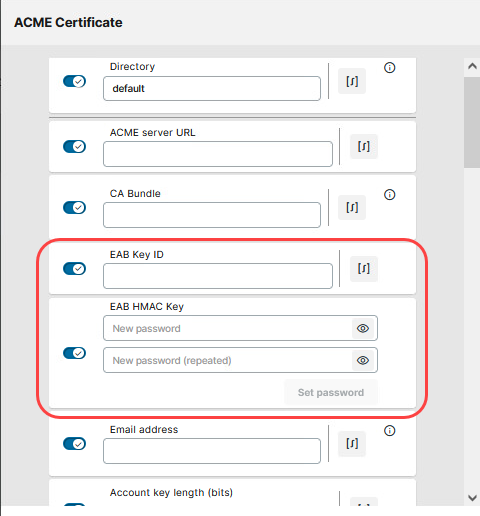
If the ACME server requires External Account Binding (EAB), configure the following:
|
Parameter |
Description |
Default Value |
Example |
Registry Key |
|---|---|---|---|---|
|
EAB Key ID |
Specifies the key identifier supplied by the ACME server administrator. |
Empty |
|
|
|
EAB HMAC Key |
Specifies the HMAC key supplied by the ACME server administrator. The value is stored as a protected password. |
Empty |
Not Applicable |
|
-
Save the profile and assign it to the target devices.
-
Restart the devices or apply the configuration according to your normal UMS workflow.
Example: Using an ACME Certificate for Network Authentication
Depending on your ACME Client configuration, the resulting client.cert and client.key files can be used for EAP-TLS and EAP-PEAP/TLS authentication over Ethernet or Wi-Fi. The following example shows how to use an ACME-generated certificate for EAP-TLS authentication.
Assume that Directory in the ACME Client configuration is set to default. The ACME Client stores the generated certificate and private key in:
-
Client certificate:
/wfs/acme_certificates/default/client.cert -
Private key:
/wfs/acme_certificates/default/client.key
To use these files for EAP-TLS, configure the authentication settings under one of the following:
-
Network > Wireless > Wi-Fi Network
-
Network > LAN Interfaces > [Interface] > Authentication
Configure the following settings:
|
Parameter |
Configuration |
|---|---|
|
EAP Type |
Select TLS. |
|
Validate Server Certificate / CA Root Certificate |
Configure the CA root certificate required to verify the RADIUS server's certificate. |
|
Manage certificates with SCEP (NDES) |
Disable. |
|
Client Certificate |
Enter |
|
Private Key |
Enter |
|
Identity |
Leave empty. The identity is automatically derived from the subject of the client certificate. |
|
Private Key Password |
Leave empty. |
Verify the Certificate
Check that the following files exist:
/wfs/acme_certificates/<directory>/client.cert
/wfs/acme_certificates/<directory>/client.key
To inspect the certificate, run:
openssl x509 -noout -text -in /wfs/acme_certificates/<directory>/client.cert
Verify the subject, subject alternative names, issuer, and validity period.
Troubleshoot Certificate Enrollment
To monitor ACME Client messages, run:
journalctl -f | grep acme
If no certificate is created, check:
-
The ACME Client is enabled.
-
The ACME directory URL is complete and correct.
-
DNS resolves each requested name correctly.
-
The device and ACME server can communicate.
-
The CA Bundle path and file permissions are correct.
-
The ACME server supports
http-01. -
The configured EAB credentials are valid when EAB is required.
-
The output directory name contains only supported characters.