
CrowdStrike Falcon Sensor app adds CrowdStrike endpoint telemetry and security monitoring to IGEL OS devices. It provides continuous real-time threat detection and prevention. For more information about CrowdStrike Falcon Platform and Falcon Sensor as its part, see https://www.crowdstrike.com/ and https://www.igel.com/blog/crowdstrike-falcon-igel-os-endpoint-security/.
Use IGEL Universal Management Suite (UMS) to deploy, configure and update your CrowdStrike Falcon Sensor.
This article is based on CrowdStrike Falcon Sensor version 8.10.0-19402 BUILD 1.0.
Requirements
-
IGEL OS Base System 12.8.3 LTS or higher. Earlier versions do not have BPF Type Format (BTF) support required by Falcon Sensor.
-
IGEL OS Base System 12.10.0 PR1 or higher. Earlier versions do not have BPF Type Format (BTF) support required by Falcon Sensor.
-
CrowdStrike Falcon Sensor app is imported to your IGEL UMS. For details on app import, see How to Import IGEL OS Apps from the IGEL App Portal.
-
A valid CrowdStrike Falcon subscription and access to a configured CrowdStrike Falcon environment
-
CrowdStrike Customer ID (CID) including its checksum to associate IGEL OS devices with the company’s Falcon tenant
How to Configure the CrowdStrike Falcon Sensor App on IGEL OS
-
In the IGEL UMS, create a profile configuring the app. For details on profile creation, see How to Create and Assign Profiles in the IGEL UMS Web App.
-
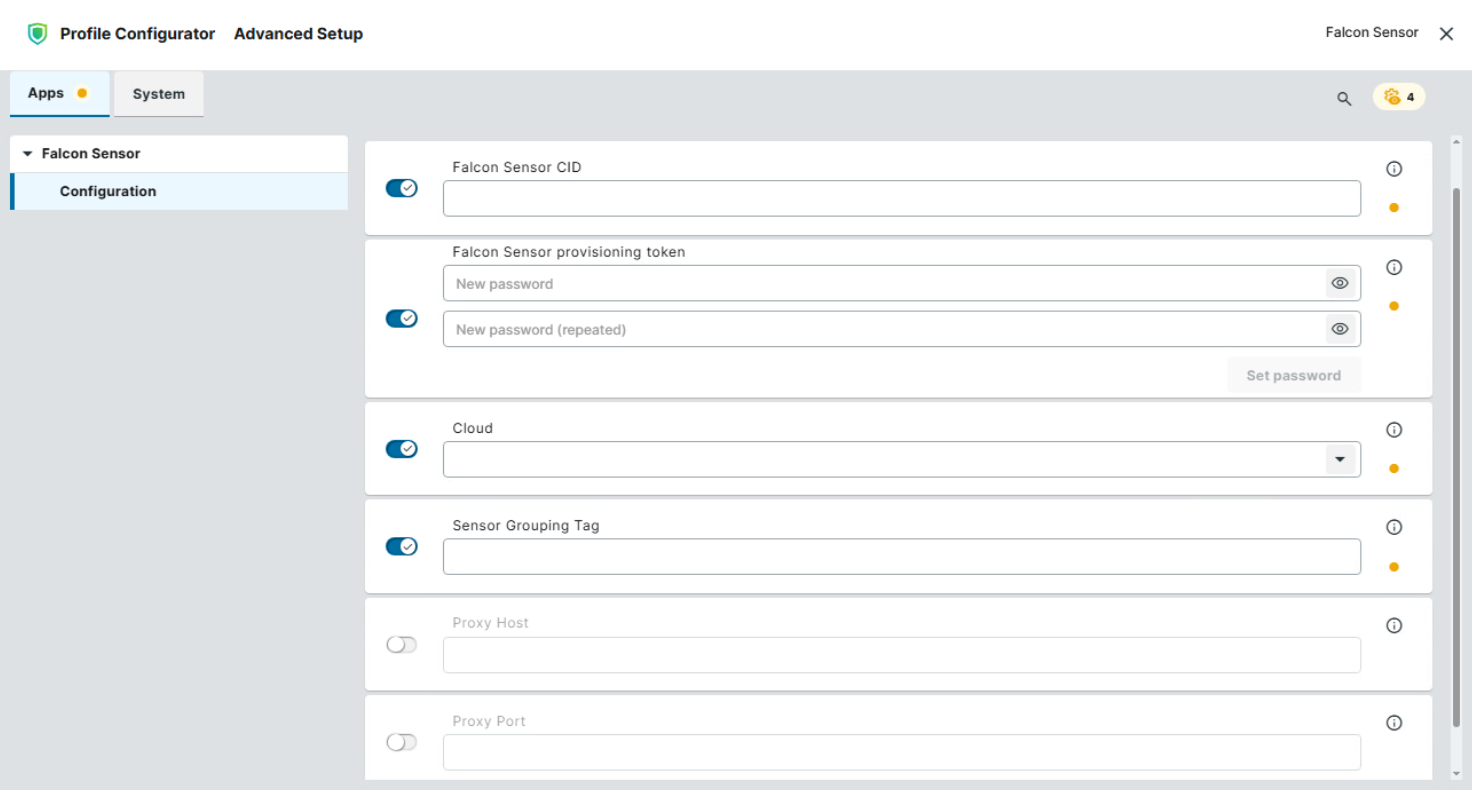
In the Profile Configurator, go to Apps > Falcon Sensor > Configuration.
-
Configure the settings described below.
-
Save the profile and assign it to the required devices / device directories. For details on profile assignment, see How to Create and Assign Profiles in the IGEL UMS Web App.
-
Restart the required IGEL OS devices.
Initial registration can take several minutes. -
Open the CrowdStrike Falcon Console and verify that the required IGEL OS devices appear and report current activity.
Falcon Sensor CID
Specify here the CrowdStrike Customer ID (CID), including its checksum. The service cannot start without a valid CID. A valid ID consists of a 32-character hexadecimal string followed by a hyphen and a 2-digit checksum, e.g. 1234567890ABCDEF1234567890ABCDEF-12.
You can find your CID in the Falcon Console, see https://www.crowdstrike.com/tech-hub/endpoint-security/installing-falcon-sensor-for-linux/ for details.
Falcon Sensor provisioning token
Specify here the installation token if installation tokens are enabled for your CID. Installation tokens prevent unauthorized hosts from being added to your CID.
→ Click Set password to save the installation token.
Cloud
Select the region associated with the Falcon tenant. Only one region can be selected.
Sensor grouping tag
If required, specify here tags used to group or filter devices in CrowdStrike Falcon Console. Separate multiple tags with commas.
Proxy host
If required, specify here the hostname or IP address of the proxy used to reach the CrowdStrike cloud.
Proxy port
Specify here the port on which the proxy service is available.
If the CrowdStrike Falcon Sensor service does not start, check the following logs:
/var/log/falcond.log
/var/log/falcon-sensor.log
/var/log/falcon-libbpf.log
/var/log/falconctl.log