

The NX NoMachine app enables IGEL OS users to establish remote desktop connections to computers using NX technology. It provides remote access and control capabilities, allowing users to access and operate remote desktops.
This article describes the available configuration options for the NX NoMachine app.
This article is based on NX NoMachine version 8.14.2-4 BUILD 2.0.
How to Create an NX NoMachine Session on IGEL OS
-
In the IGEL UMS, create a profile configuring the app. For details on profile creation, see How to Create and Assign Profiles in the IGEL UMS Web App.
-
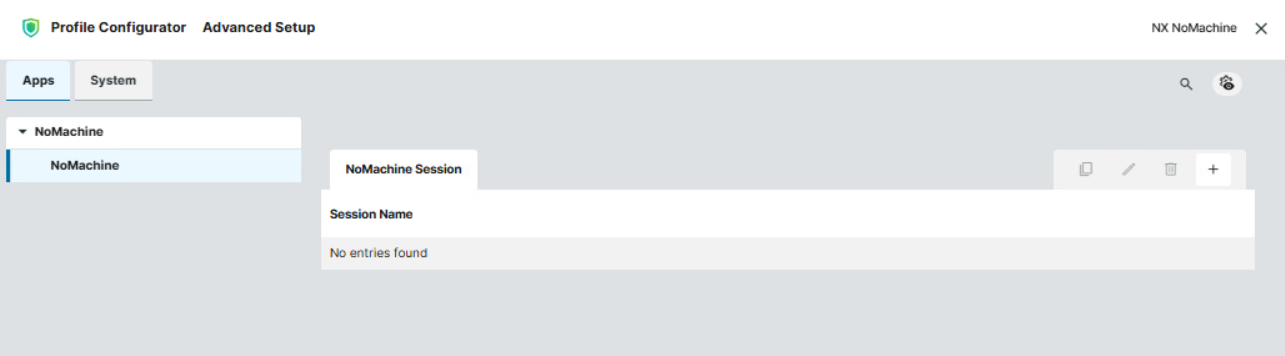
In the Profile Configurator, go to Apps > NoMachine > NoMachine Session.
-
Click

-
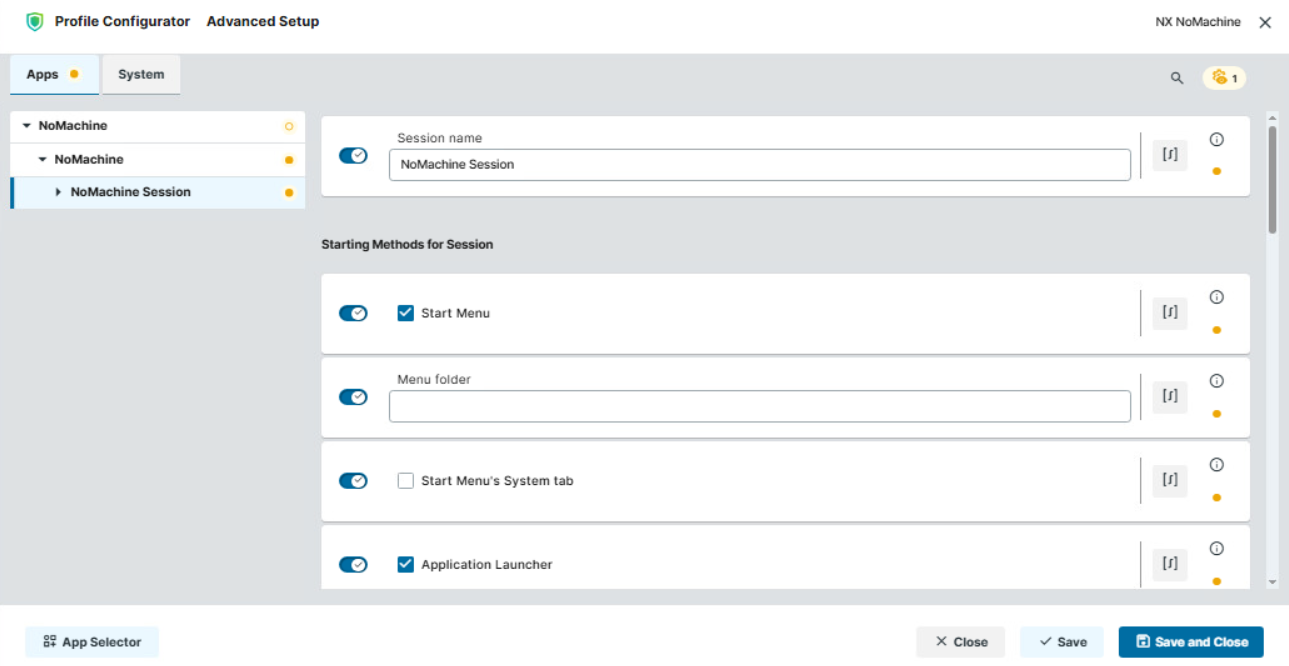
Define the starting methods for the session. The starting method parameters are described under Starting Methods for Apps.
-
Configure the session according to your needs; for details, see below.
-
Save the settings.
-
Assign the profile to the required devices.
Configuring the Connection
-
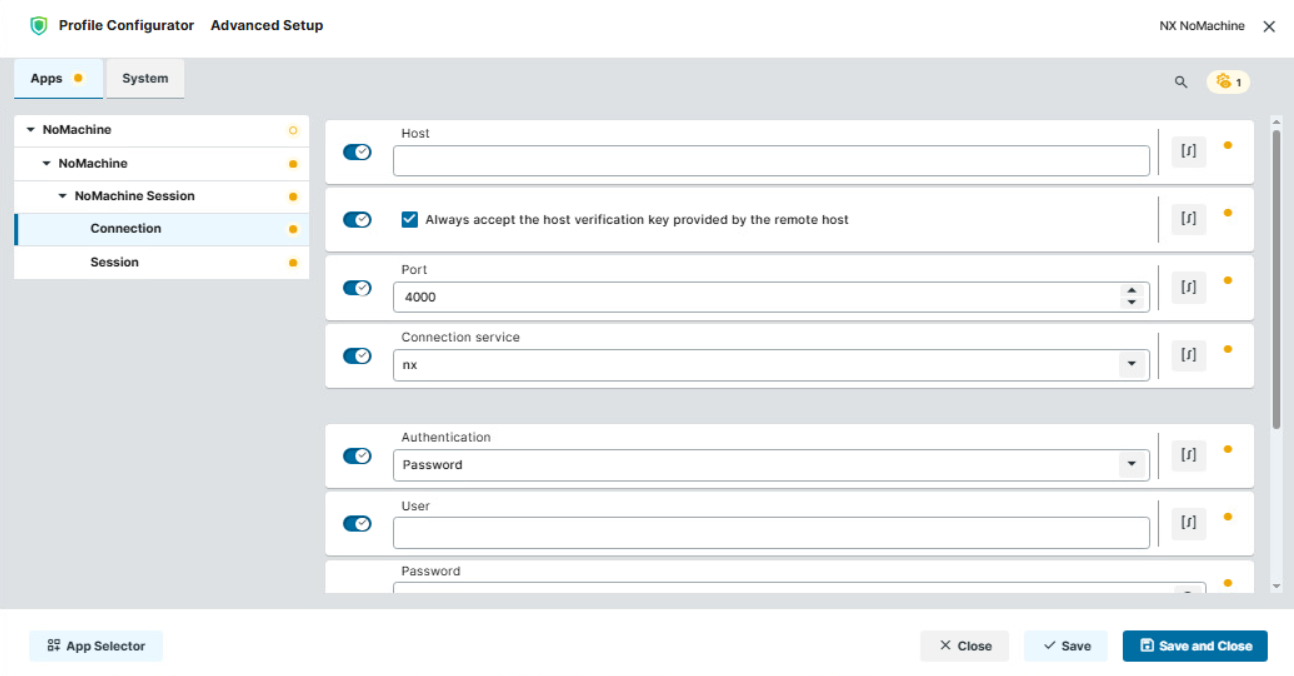
In the Profile Configurator, go to Apps > NoMachine > NoMachine > [Session Name] > Connection.
-
Edit the settings according to your needs. The parameters are described in the following.
Host
Host name or IP address of the NX NoMachine server.
Always accept the host verification key provided by the remote host
- The host verification key provided by the remote server is automatically accepted. (Default)
Port
Port for connecting to the NX NoMachine server. (Default: 4000)
Connection service
Protocol for connecting to the NX NoMachine server.
Possible values:
-
nx (Default)
-
ssh
Authentication
Authentication method used to connect to the NX NoMachine server.
Possible values:
-
Password (Default): Authenticates the user with a password.
-
Private key: Authenticates the user with a private key.
User
Username used to authenticate with the NoMachine NX server.
Password
Password used to authenticate with the NoMachine NX server.
Private key
Private key used to authenticate with the NoMachine NX server.
Configuring the Session
-
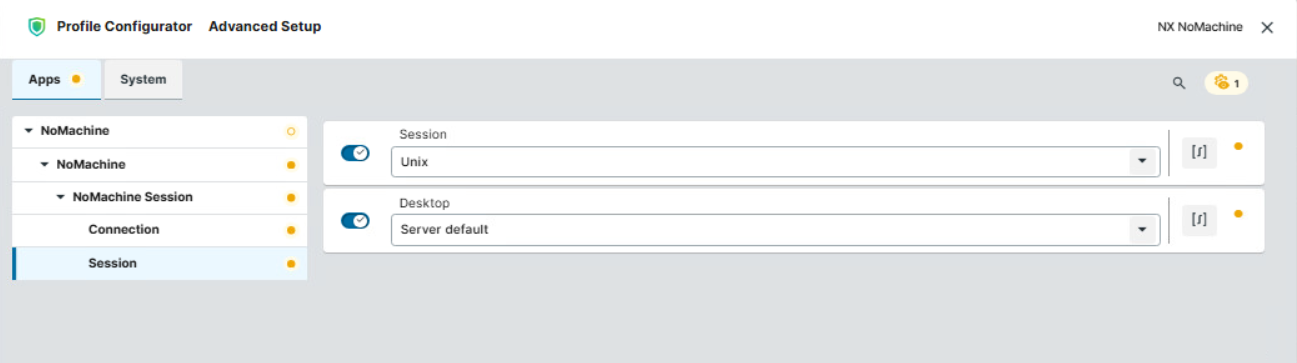
In the Profile Configurator, go to Apps > NoMachine > NoMachine > [Session Name] > Session.
-
Edit the settings according to your needs. The parameters are described in the following.
Session
Type of session to establish with the NX NoMachine server.
Possible values:
-
Unix: The NX server connects to a Linux/Unix desktop. (Default)
-
VNC: The NX server runs a VNC viewer to connect to a VNC server.
-
Windows: The NX server runs an RDP client to connect to a Windows remote desktop.
Desktop
Desktop environment to launch when connecting to the NX NoMachine server.
Possible values:
-
Server default (Default): Uses the default desktop environment configured on the server.
-
KDE: Launches the KDE desktop environment.
-
Gnome: Launches the GNOME desktop environment.
-
XDM: Launches the XDM display manager.
-
Custom: Uses a custom desktop environment or window manager.
Settings Available When Desktop Is Set to Custom
The following settings are available if Custom is selected under Desktop.
Application
Specifies which application or command is executed when the session starts.
Possible values:
-
Run the console (Default): Launches the default terminal application, for example, Xfce Terminal.
-
Run the default X client script on the server: Executes the default X client script configured on the server, for example,
/home/user/startxfce.sh. -
Run the following command: Executes a specified command to start an application or window manager, for example,
startxfce.
Commandline
Command to execute when Run the following command is selected under Application.