

The ThinLinc app for IGEL OS allows users to connect to remote Linux desktops and applications hosted on a central server. This provides a consistent and secure working environment, regardless of the user's device or location. For more information about ThinLinc, see How to Get Started | ThinLinc by Cendio.
This article provides guidance on configuring the ThinLinc app on IGEL OS.
This article is based on ThinLinc version 4.20.0-4284 BUILD 2.0.
Requirements
-
ThinLinc app is imported to your IGEL UMS. For details on app import, see How to Import IGEL OS Apps from the IGEL App Portal.
How to Create a ThinLinc Session on IGEL OS
-
In the IGEL UMS Web App, create a profile and configure the app. For details on profile creation, see How to Create and Assign Profiles in the IGEL UMS Web App.
-
In the Profile Configurator, go to Apps > ThinLinc > ThinLinc Sessions.
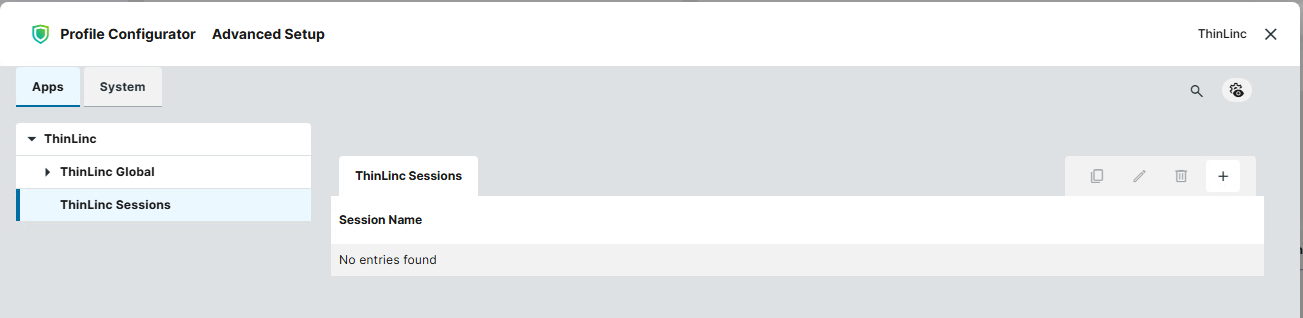
-
Click

-
Define the starting methods for the session. The starting methods parameters are described under Starting Methods for Apps.
-
For session-specific settings, see Configuring ThinLinc Session-Specific Settings on IGEL OS below.
-
For global settings, see Configuring Global Settings for ThinLinc Sessions on IGEL OS below.
-
Save the settings.
-
Assign the profile to the required devices.
Configuring Global Settings for ThinLinc Sessions on IGEL OS
Configuring the Server Settings
-
In the Profile Configurator, go to Apps > ThinLinc > ThinLinc Global > Server.
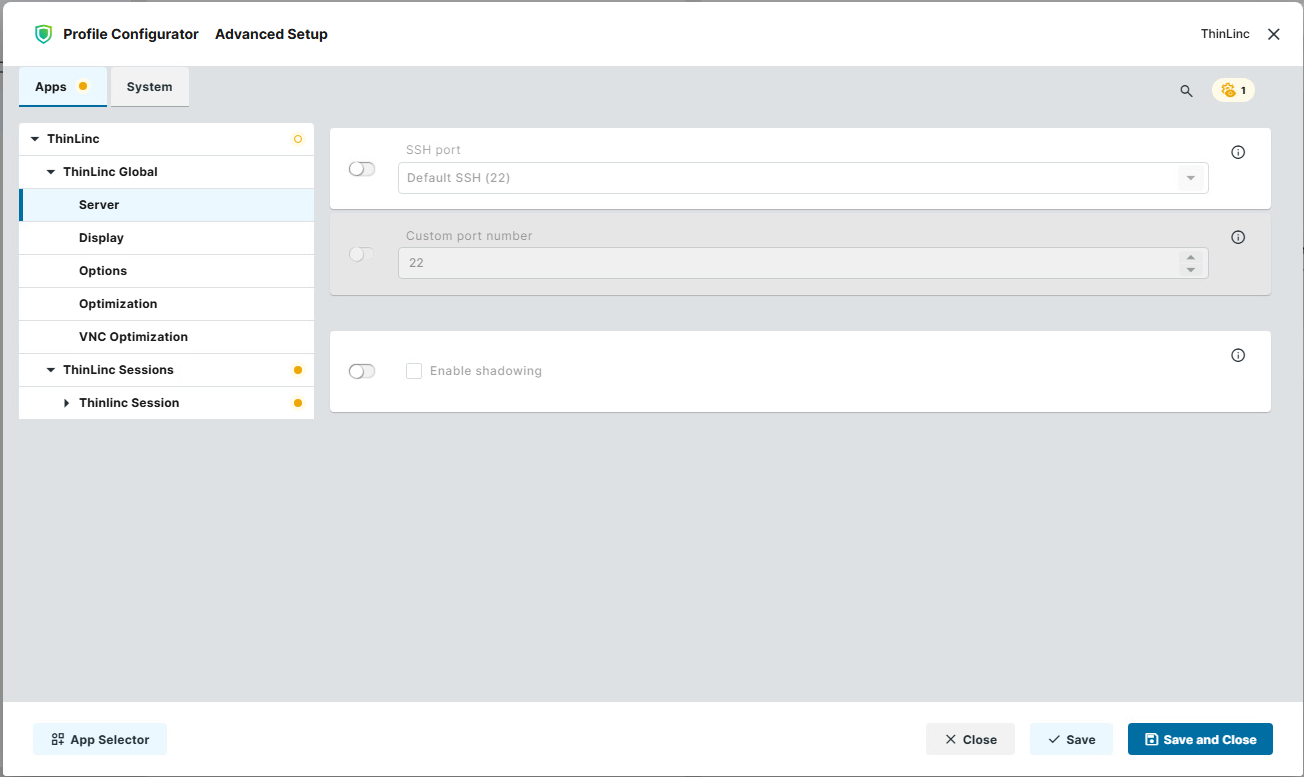
-
Edit the settings according to your needs. The parameters are described below.
SSH port
Specifies the server port used to establish the SSH connection.
Possible options:
-
Default SSH (22): Uses the standard SSH port 22.
-
HTTP (80): Uses port 80.
-
Custom: Uses the port specified under Custom port number.
Custom port number
Specifies the port number on which the ThinLinc server listens. This setting is available when SSH port is set to Custom.
Possible values: 0 - X.
Enable shadowing
- The session can be remotely monitored by shadowing via VNC.
- The session cannot be remotely monitored by shadowing. (Default)
Configuring the Display Settings
-
In the Profile Configurator, go to Apps > ThinLinc > ThinLinc Global > Display.
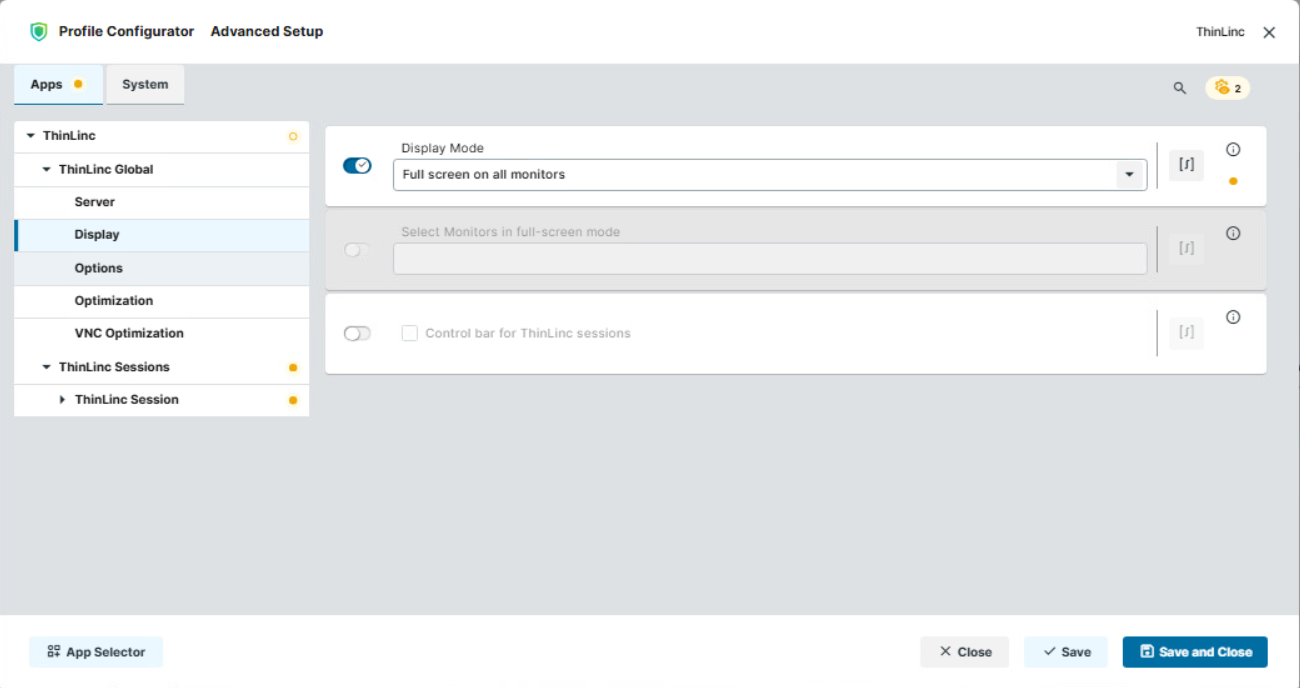
-
Edit the settings according to your needs. The parameters are described below.
Display Mode
Specifies how the ThinLinc session is displayed.
Possible options:
-
Full screen on all monitors: Displays the session in full-screen mode on all monitors.
-
Full screen on selected monitor(s): Displays the session in full-screen mode on the monitors specified under Select Monitors.
-
Windowed: Displays the session in a window.
Select Monitors in full-screen mode
Only available when Display Mode is set to Full screen on selected monitor(s).
Specifies the monitors on which the ThinLinc session is displayed.
Enter the monitor numbers as a comma-separated list, for example: 1,2,3,4 or 3,4.
Control bar for ThinLinc sessions
Specifies whether the control bar is available for ThinLinc sessions in full-screen mode.
- The control bar is available and can be used to minimize or quit the ThinLinc session.
- The control bar is not available. (Default)
Configuring the Options
-
In the Profile Configurator, go to Apps > ThinLinc > ThinLinc Global > Options.
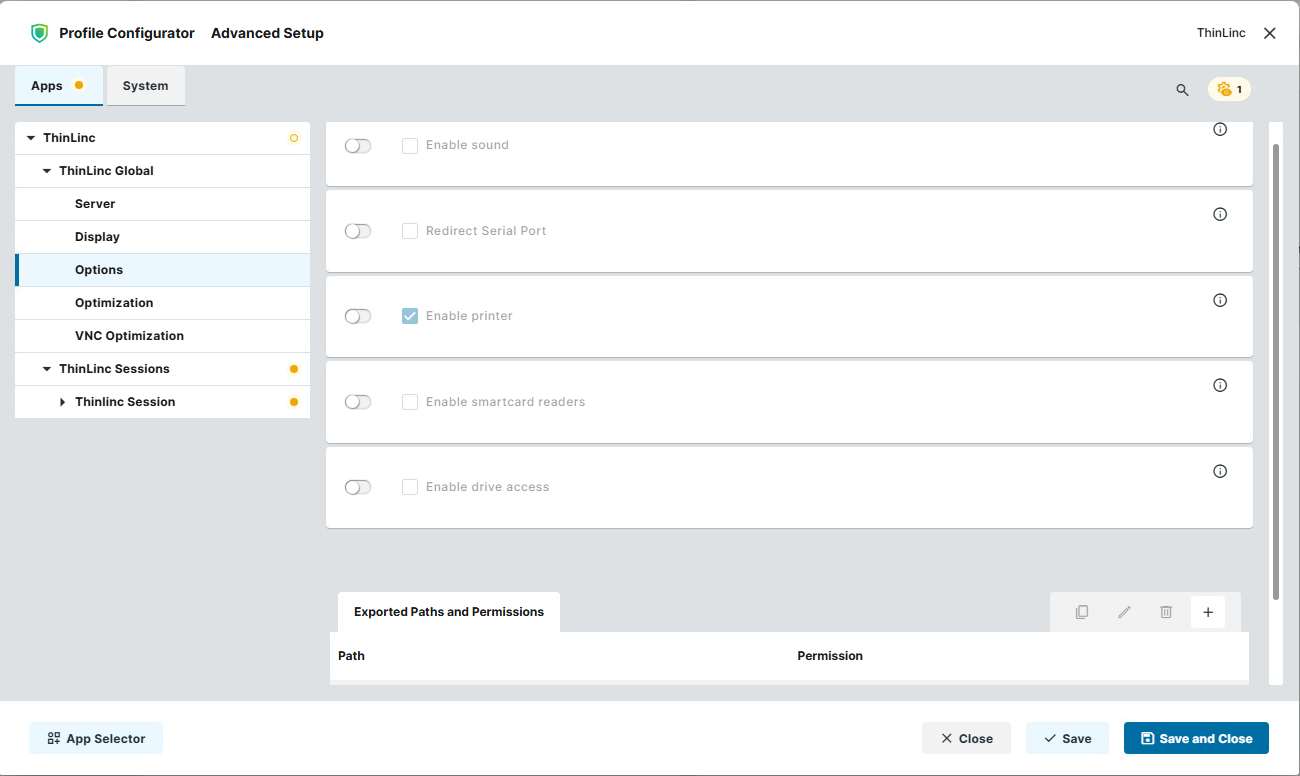
-
Edit the settings according to your needs. The parameters are described below.
Enable sound
- Sound from the remote session is forwarded to the client.
- Sound is not forwarded to the client. (Default)
Redirect Serial Port
- Local serial ports are exported to the server.
- Local serial ports are not exported to the server. (Default)
Enable printer
- Local printers are exported to the server. (Default)
- Local printers are not exported to the server.
Enable smartcard readers
- Local smartcard readers are exported to the server.
- Local smartcard readers are not exported to the server. (Default)
Enable drive access
- Local files can be exported to the server.
- Local files cannot be exported to the server. (Default)
Exported Paths and Permissions
Specifies the local directories that are shared with the server and their access permissions.
-
Path: Specifies the local directory to share with the server.
-
Permission: Specifies the server-side access permissions for the shared local directory. Possible Options:
-
Read only: The server can read files in the shared local directory but cannot modify them.
-
Read/Write: The server can read and modify files in the shared local directory.
-
Disabled: Access to the shared local directory is disabled.
-
Configuring the Optimization Settings
-
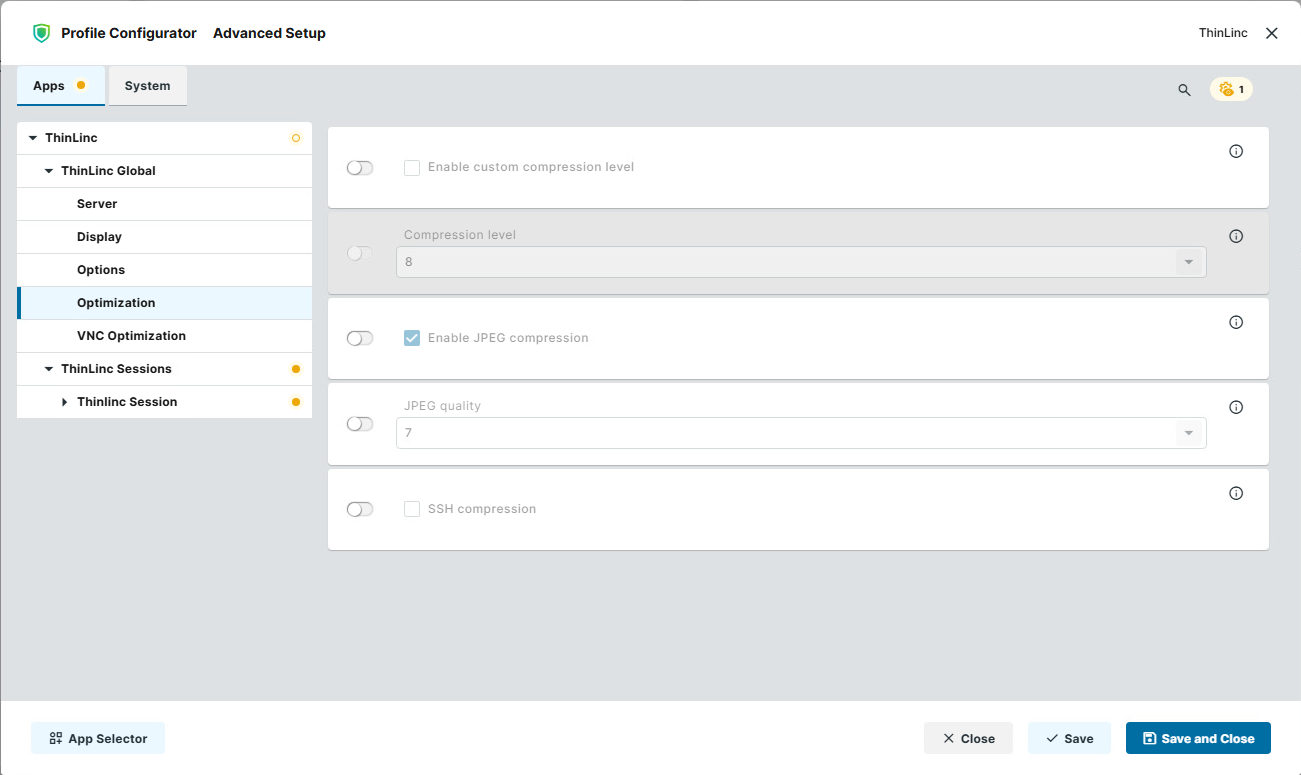
In the Profile Configurator, go to Apps > ThinLinc > ThinLinc Global > Optimization.
-
Edit the settings according to your needs. The parameters are described below.
Enable custom compression level
- Automatic detection of the compression level is disabled. The compression level can be configured manually under Compression level.
- The compression level is determined automatically. (Default)
Compression level
Specifies the compression level for the ThinLinc connection. This setting is available when Enable custom compression level is enabled.
Possible values: 1 = Fastest compression with lower compression efficiency - 9 = Best compression with higher computing power requirements.
A higher compression level reduces bandwidth usage but requires more computing power.
Enable JPEG compression
- JPEG compression is enabled. This reduces image quality and bandwidth usage. (Default)
- JPEG compression is disabled.
JPEG quality
Defines the image quality.
Possible values: 1: Lowest image quality and lower bandwidth usage - 9: Highest image quality and higher bandwidth usage.
Higher image quality requires more bandwidth.
SSH compression
- SSH internal compression is enabled.
- SSH internal compression is disabled. (Default)
Configuring the VNC Optimization Settings
-
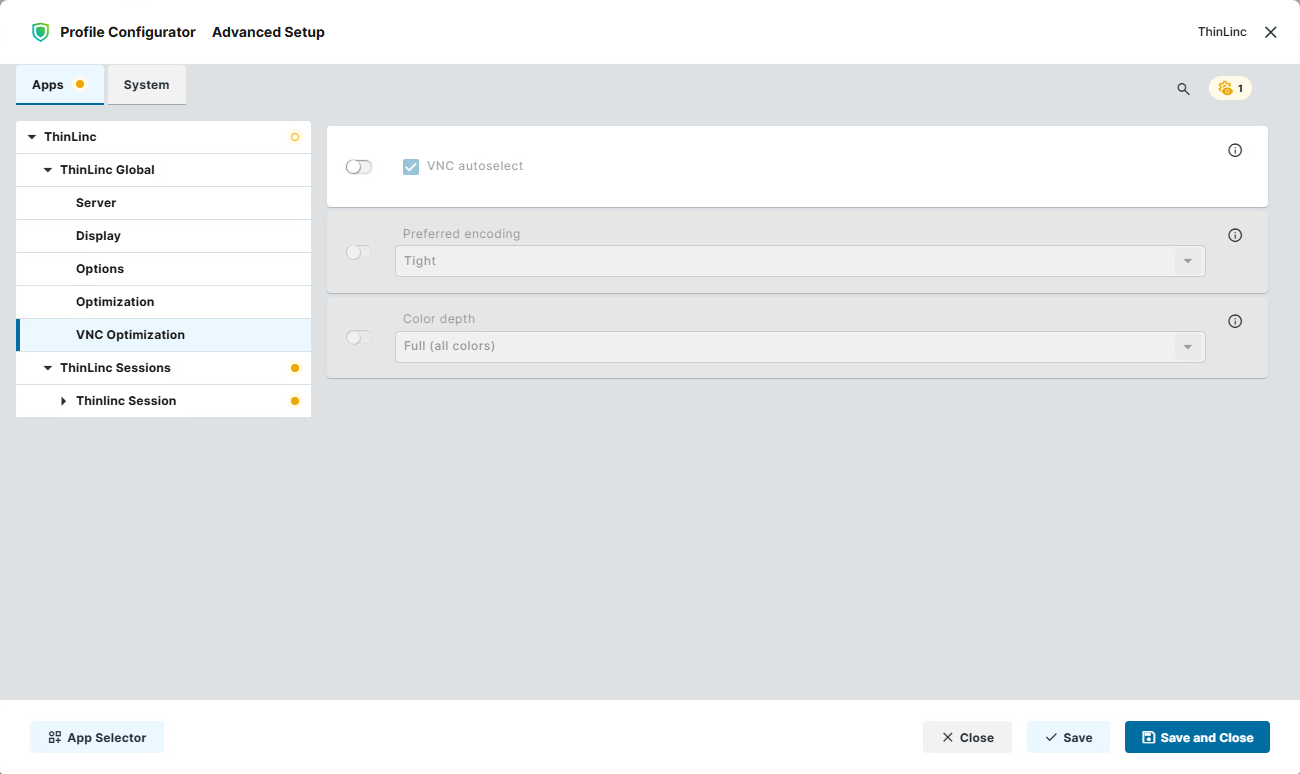
In the Profile Configurator, go to Apps > ThinLinc > ThinLinc Global > VNC Optimization.
-
Edit the settings according to your needs. The parameters are described below.
VNC autoselect
- The VNC encoding and color depth are selected automatically. (Default)
- The VNC encoding and color depth can be configured manually under Preferred encoding and Color depth.
Preferred encoding
Specifies the encoding used for the VNC connection (This setting is available when VNC autoselect is unchecked).
Possible options:
-
Tight
-
ZRLE
-
Hextile
-
Raw
Color depth
Specifies the number of colors used for the session (This setting is available when VNC autoselect is unchecked).
Possible options:
-
Full (all colors)
-
Medium (265 colors)
-
Low (64 colors)
-
Very low (8 colors)
Configuring ThinLinc Session-Specific Settings on IGEL OS
Configuring the Session’s Server Settings
-
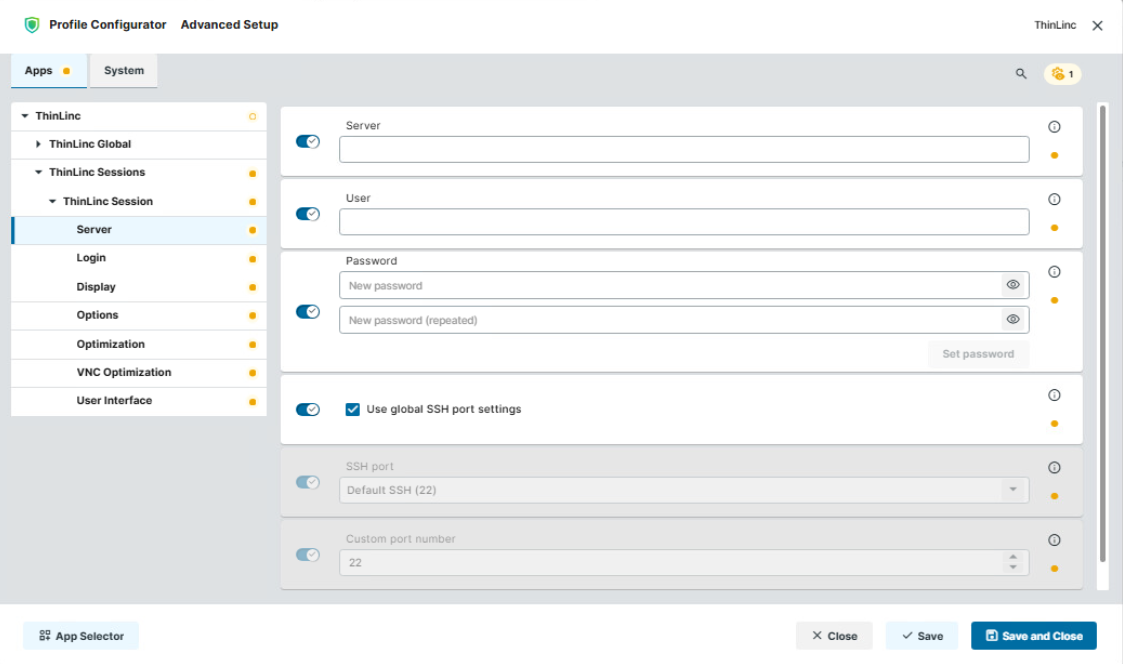
In the Profile Configurator, go to Apps > ThinLinc > ThinLinc Sessions > [session name] > Server.
-
Edit the settings according to your needs. The parameters are described below.
Server
Enter the IP address or name of the ThinLinc server.
User
Enter the user ID of the ThinLinc user.
Password
Enter the password for the ThinLinc user. If left blank, the password is requested when the session is started.
Use global SSH port settings
- Uses the SSH port setting from the global ThinLinc configuration. (Default)
SSH port
Select the server port used to establish the SSH connection. This setting is available only when Use global SSH port settings is unchecked.
Possible values:
-
Default SSH (22) (Default)
-
HTTP (80)
-
Custom
Custom port number
Enter the port number on which the ThinLinc server listens. This setting is available only when SSH port is set to Custom. Default: 22
Configuring the Session’s Login Settings
-
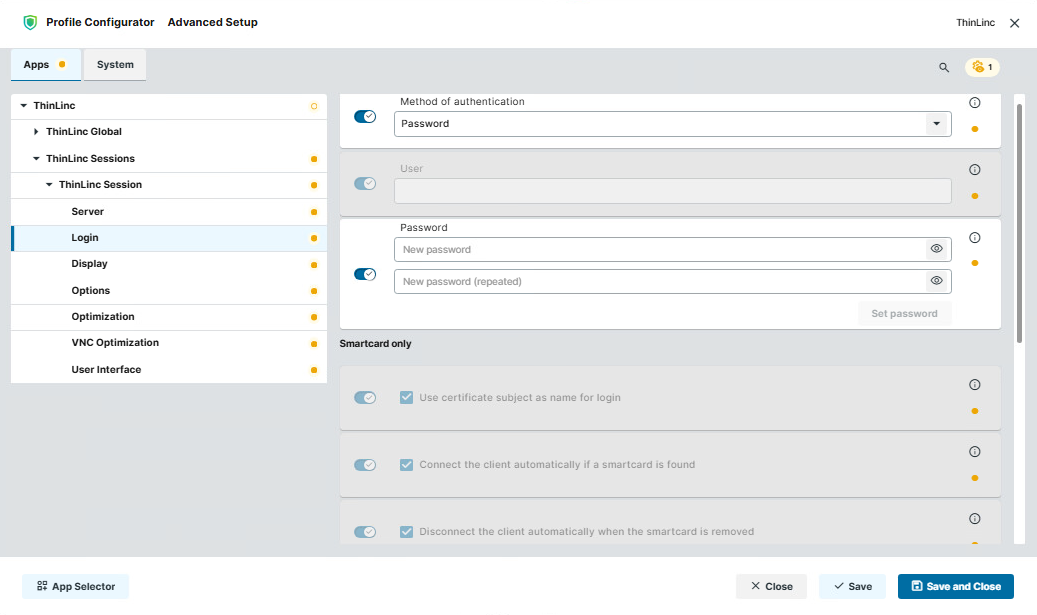
In the Profile Configurator, go to Apps > ThinLinc > ThinLinc Sessions > [session name] > Login.
-
Edit the settings according to your needs. The parameters are described below.
Method of authentication
Select the authentication method used to log in to the ThinLinc server.
Possible values:
-
Password (Default)
-
Public Key
-
Smartcard
-
Kerberos
User
Specifies the user ID of the ThinLinc user.
This setting is available only when Method of authentication is set to Smartcard and Use certificate subject as name for login is unchecked.
Password
Enter the password for the ThinLinc user. If left blank, the password is requested when the session is started. This setting is available only when Method of authentication is set to Password.
Smartcard only
Use certificate subject as name for login
- The user name for the ThinLinc session is taken from the subject information in the smartcard certificate. (Default)
Connect the client automatically if a smartcard is found
- Inserting or detecting a smartcard automatically initiates the connection. This requires the smartcard certificate subject to be used as the user name. (Default)
Disconnect the client automatically when the smartcard is removed
- Removing the smartcard terminates the active ThinLinc connection automatically. (Default)
Allow transmission of the smartcard's passphrase for logging in
- The smartcard passphrase can be sent from the client system for authentication.
If this option is checked, the smartcard passphrase leaves the client system. Cendio discourages enabling this option.
- The smartcard passphrase remains on the client system and is not transmitted for authentication. (Default)
Smartcard filter
Specifies a filter for selecting smartcards. The filter uses a pipe-separated format as defined by ThinLinc.
Configuring the Session’s Display Settings
-
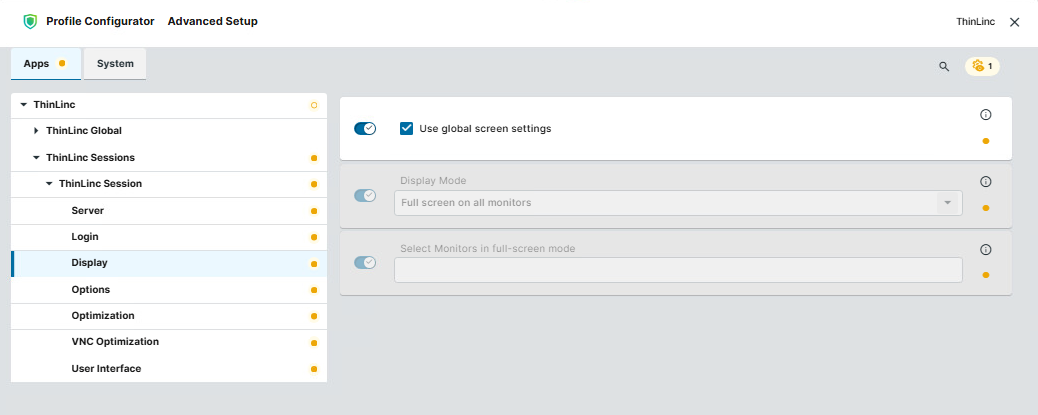
In the Profile Configurator, go to Apps > ThinLinc > ThinLinc Sessions > [session name] > Display.
-
Edit the settings according to your needs. The parameters are described below.
Use global screen settings
- Applies the display settings defined in the global ThinLinc configuration. (Default)
Display Mode
Select how the ThinLinc session is displayed on the connected monitors. This setting is available only when Use global screen settings is unchecked.
Possible values:
-
Full screen on all monitors (Default): Displays the ThinLinc session in full-screen mode across all connected monitors.
-
Windowed: Displays the ThinLinc session in a window instead of occupying the entire screen.
-
Full screen on selected monitor(s): Displays the ThinLinc session in full-screen mode on specific monitors.
Select Monitors in full-screen mode
This setting is available only when Display Mode is set to Full screen on selected monitor(s).
Enter a comma-separated list of monitor numbers to specify which monitors are used for the ThinLinc session (e.g., 1,2,3,4 or 3,4). Monitors are numbered from left to right, starting with 1, according to the system configuration. If monitors share the same horizontal position, order them from top to bottom.
Configuring the Session’s Options Settings
-
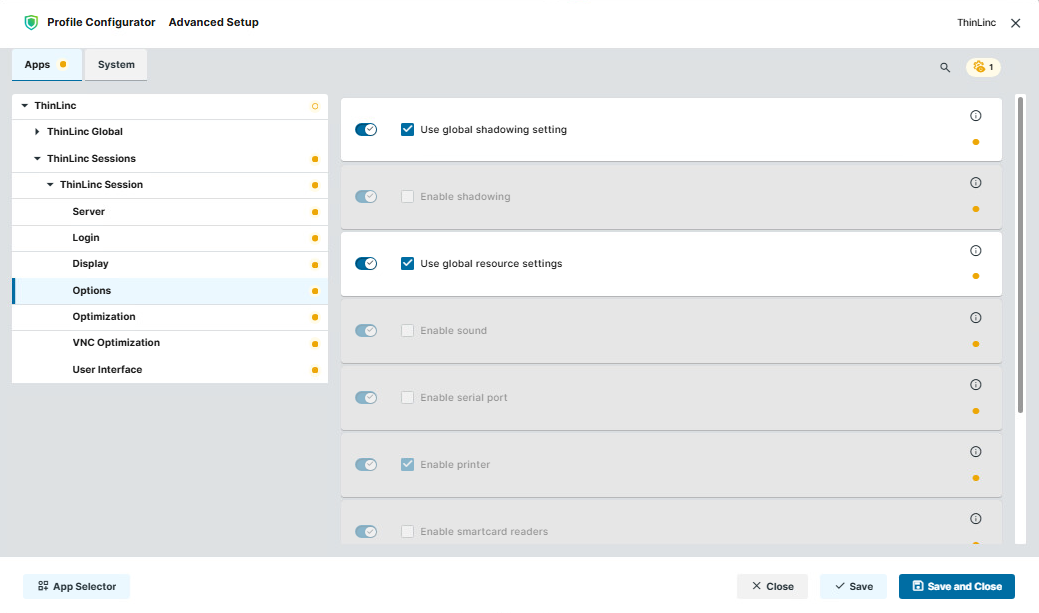
In the Profile Configurator, go to Apps > ThinLinc > ThinLinc Sessions > [session name] > Options.
-
Edit the settings according to your needs. The parameters are described below.
Use global shadowing setting
- Applies the shadowing settings defined in the global ThinLinc configuration. (Default)
Enable shadowing
This setting is available only when Use global shadowing setting is unchecked.
- Allows the ThinLinc session to be shadowed.
- Prevents other users from shadowing the ThinLinc session. (Default)
Use global resource settings
- Applies the resource settings defined in the global ThinLinc configuration. (Default)
Note: The settings Enable sound, Enable serial port, Enable printer, Enable smartcard readers, and Enable drive access are available only when Use global resource settings is unchecked.
Enable sound
- Forwards audio from the remote ThinLinc session to the local client.
- Disables audio forwarding from the remote session. (Default)
Enable serial port
- Makes local serial ports available to the ThinLinc server.
- Prevents local serial ports from being exported to the server. (Default)
Enable printer
- Makes locally configured printers available in the remote ThinLinc session. The
cups_printingpackage must be installed for this feature to work. For more information, see Configuration of CUPS Printing on IGEL OS. (Default)
Enable smartcard readers
- Makes locally connected smartcard readers available to the ThinLinc server.
- Prevents local smartcard readers from being exported to the server. (Default)
Enable drive access
- Allows the ThinLinc server to access files stored on the local client.
- Prevents local files from being exported to the server. (Default)
Options popup key
Specify the keyboard shortcut used to open the ThinLinc options menu. Default: F8
Configuring the Session’s Optimization Settings
-
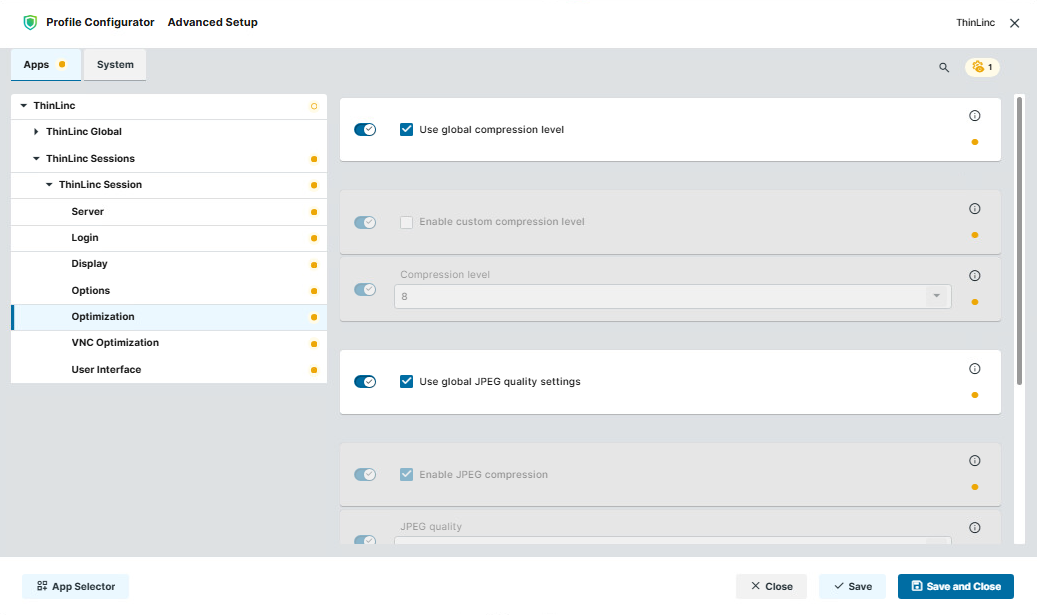
In the Profile Configurator, go to Apps > ThinLinc > ThinLinc Sessions > [session name] > Optimization.
-
Edit the settings according to your needs. The parameters are described below.
Use global compression level
- Applies the compression settings defined in the global ThinLinc configuration. (Default)
Enable custom compression level
This setting is available only when Use global compression level is unchecked.
- Disables automatic compression level detection and allows you to specify a compression level manually.
- Automatically determines the appropriate compression level. (Default)
Compression level
This setting is available only when Enable custom compression level is checked.
Specify the compression level used for the ThinLinc session. Higher compression levels reduce bandwidth consumption but require more processing power.
Possible values:
-
1–9: Compression levels ranging from fastest (1) to highest compression (9). Default:
8
Use global JPEG quality settings
- Applies the JPEG compression settings defined in the global ThinLinc configuration. (Default)
Enable JPEG compression
This setting is available only when Use global JPEG quality settings is unchecked.
- Compresses images to reduce bandwidth consumption at the expense of image quality. (Default)
JPEG quality
This setting is available only when Use global JPEG quality settings is unchecked.
Specify the image quality used for JPEG compression. Higher values improve image quality but increase bandwidth consumption.
Possible values:
-
1–9: Image quality levels ranging from lowest quality (1) to highest quality (9). Default:
7
Use global SSH connection settings
- Applies the SSH connection settings defined in the global ThinLinc configuration. (Default)
SSH compression
This setting is available only when Use global SSH connection settings is unchecked.
- Enables SSH's built-in compression to reduce the amount of data transmitted over the connection.
- Transmits data without SSH's built-in compression. (Default)
Configuring the Session’s VNC Optimization Settings
-
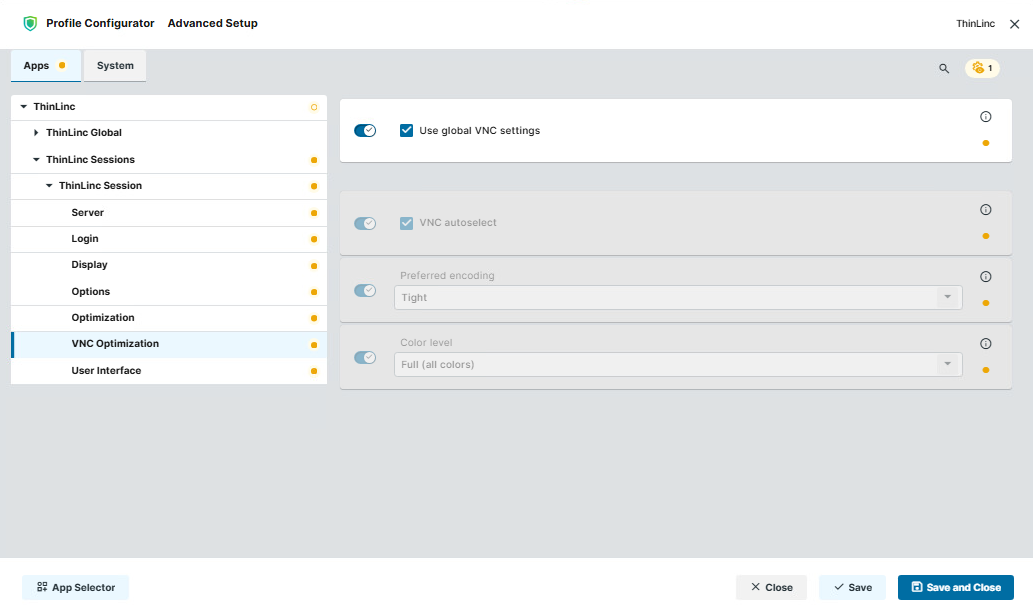
In the Profile Configurator, go to Apps > ThinLinc > ThinLinc Sessions > [session name] > VNC Optimization.
-
Edit the settings according to your needs. The parameters are described below.
Use global VNC settings
- Applies the VNC settings defined in the global ThinLinc configuration. (Default)
The settings VNC autoselect, Preferred encoding, and Color level are available only when Use global VNC settings is unchecked.
VNC autoselect
- Automatically selects the appropriate VNC encoding and color depth for the session. (Default)
Preferred encoding
Select the encoding method used to transmit graphical data over the VNC connection.
Possible values:
-
Tight (Default)
-
ZRLE
-
Hextile
-
Raw
Color level
Select the number of colors used to display the remote ThinLinc session. Lower color levels can reduce bandwidth consumption but also decrease display quality.
Possible values:
-
Full (all colors) (Default)
-
Medium (256 colors)
-
Low (64 colors)
-
Very low (8 colors)
Configuring the Session’s User Interface Settings
-
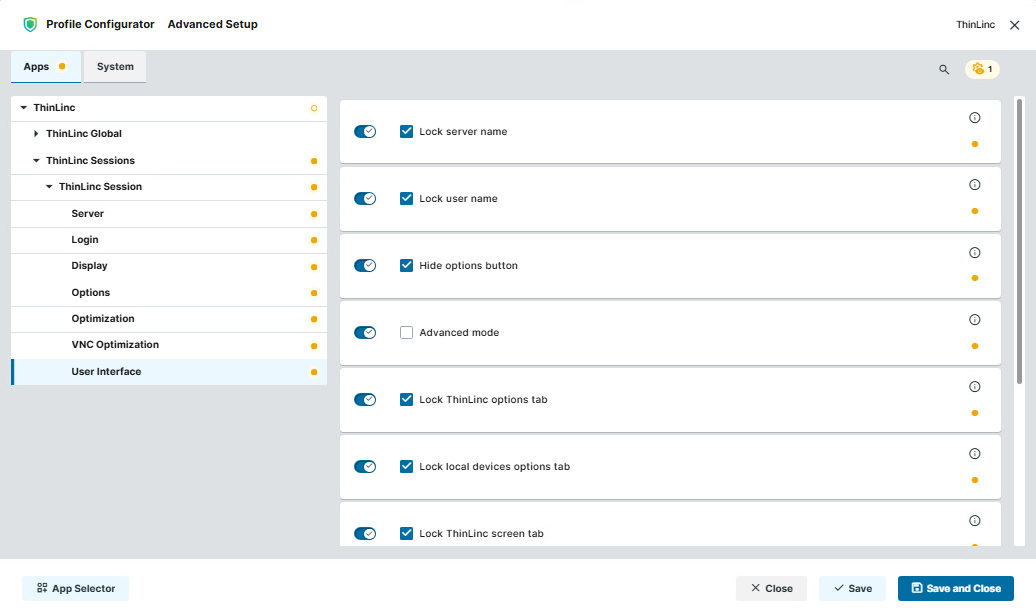
In the Profile Configurator, go to Apps > ThinLinc > ThinLinc Sessions > [session name] > User Interface.
-
Edit the settings according to your needs. The parameters are described below.
Lock server name
- Prevents users from changing the configured ThinLinc server address in the login window. (Default)
Lock user name
- Prevents users from modifying the user name in the ThinLinc login window. (Default)
Hide options button
- Hides the options button in the ThinLinc login window, preventing users from accessing the connection settings through this button. (Default)
Advanced mode
- Opens the ThinLinc client in advanced mode, providing access to additional configuration options.
- Starts the ThinLinc client in standard mode. (Default)
Lock ThinLinc options tab
- Prevents users from modifying the settings in the ThinLinc Options tab. (Default)
Lock local devices options tab
- Prevents users from modifying the local device settings in the ThinLinc client. (Default)
Lock ThinLinc screen tab
- Prevents users from changing the display settings in the ThinLinc Screen tab. (Default)
Lock ThinLinc optimization tab
- Prevents users from modifying the connection optimization settings in the ThinLinc client. (Default)
Lock security tab
- Prevents users from changing the security settings in the ThinLinc client. (Default)
Debug level
Specify the amount of diagnostic information recorded by the ThinLinc client. Higher values generate more detailed logs, which can be useful for troubleshooting connection issues.
Possible values:
-
1–5: Logging levels ranging from minimal logging (1) to the most detailed logging (5). Default:
1