
This article describes the installation of Microsoft Teams on IGEL OS 12. You can install MS Teams on IGEL OS as a standalone PWA (progressive web app). If you require SSO, it is currently necessary to install MS Teams as a generic PWA.
Avoid configuring any installed standalone PWA as generic PWA because it can lead to unwanted behavior.
Basically, a PWA is a Chromium window with a specific profile in the so-called app mode. All policies that are defined for Chromium are also valid for the PWAs, but not for a standalone MS Teams PWA.
Exception: Starting with Chromium Browser app version 144.0.7559.96 BUILD 1.0, the Clear browsing data settings under Chromium Browser > Global Settings > Privacy do not apply to PWAs.
How to Configure a Standalone Microsoft Teams Progressive Web App
A standalone MS Teams PWA runs in a standalone Chromium window and has its own Chromium Browser profile. Therefore, it can be launched separately.
The instructions are based on Microsoft Teams Progressive Web App version 1.0.1 BUILD 5.0.
Limitations
-
Each standalone PWA has its own Chromium Browser profile and therefore, the user has to log in to each PWA.
-
Single sign-on (SSO) is not supported for a standalone MS Teams PWA.
-
MS Teams is not supported by devices with limited support, see Limited Device Support for Legacy Devices and Special Use Cases with IGEL OS 12.
Requirements
-
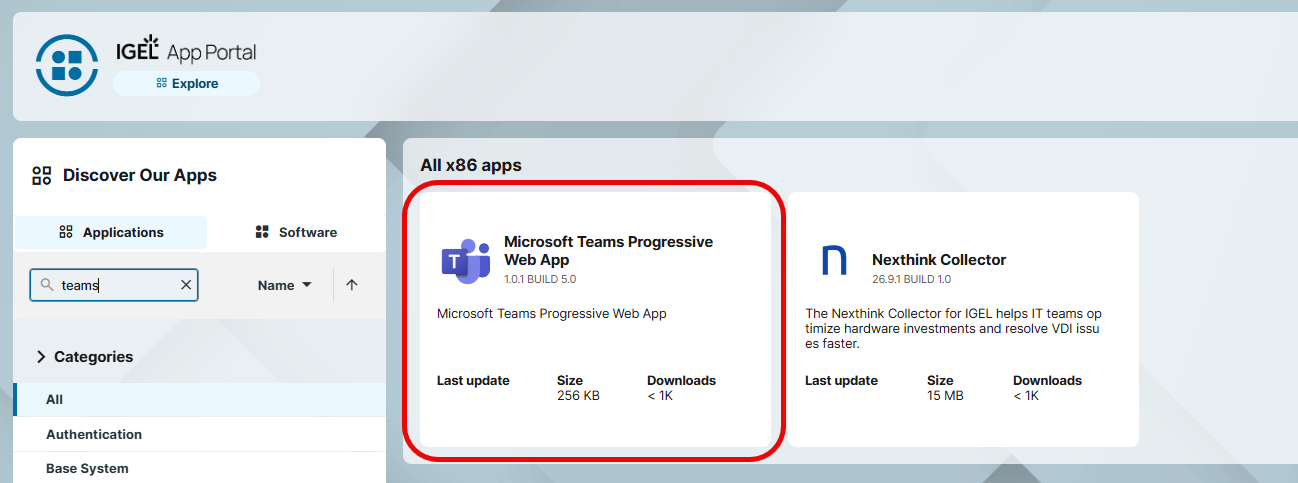
The app “Microsoft Teams Progressive Web App” is imported to your UMS. For details on app import, see How to Import IGEL OS Apps from the IGEL App Portal.
-
A valid Microsoft 365 account with access to MS Teams
Dependencies
-
If Chromium Browser has not been installed beforehand, it will automatically be installed during the app installation.
Installation and Configuration
-
In the IGEL UMS, create a profile configuring Microsoft Teams Progressive Web App. For details on profile creation, see How to Create and Assign Profiles in the IGEL UMS Web App.
-
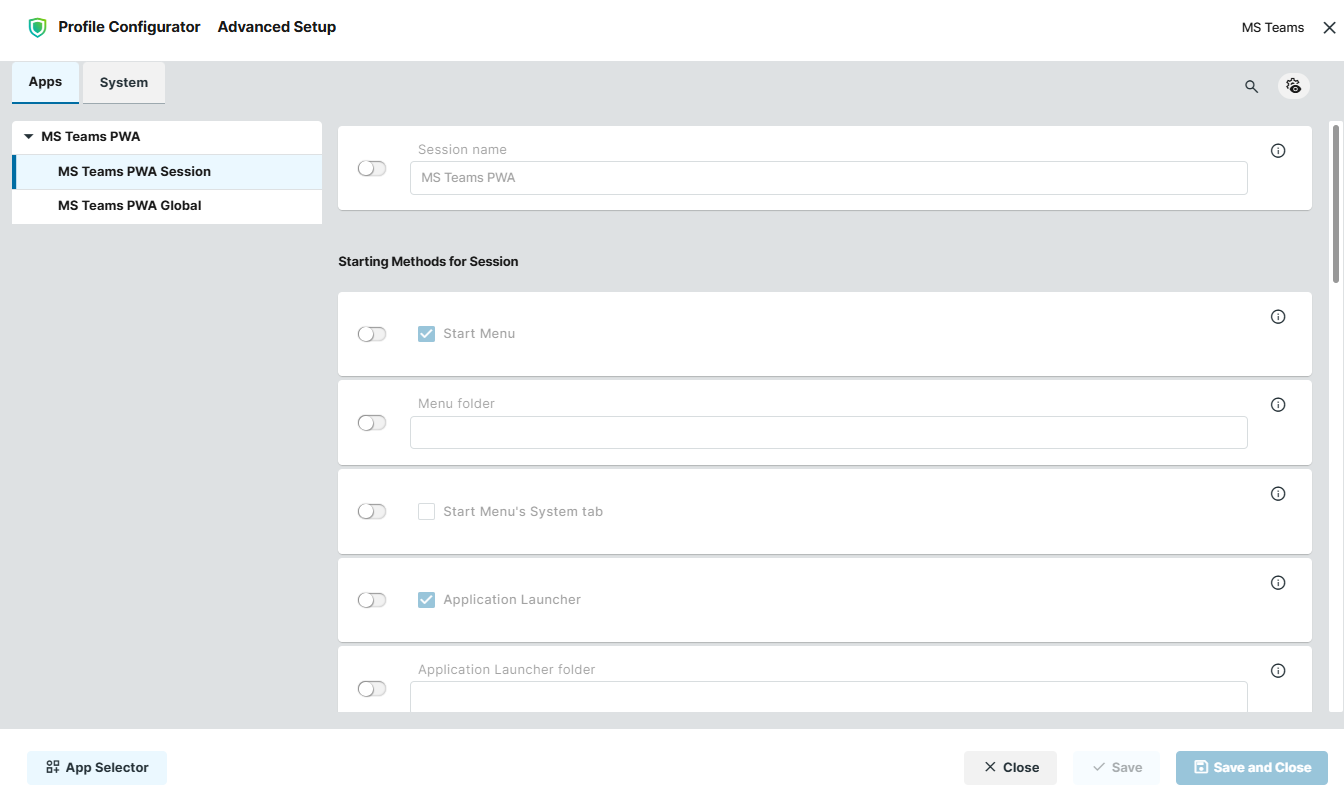
In the Profile Configurator, go to Apps > MS Teams PWA > MS Teams PWA Session and configure the starting methods for the app. The starting methods parameters are described under Starting Methods for Apps.
-
Under Apps > MS Teams PWA > MS Teams PWA Global, configure the following:
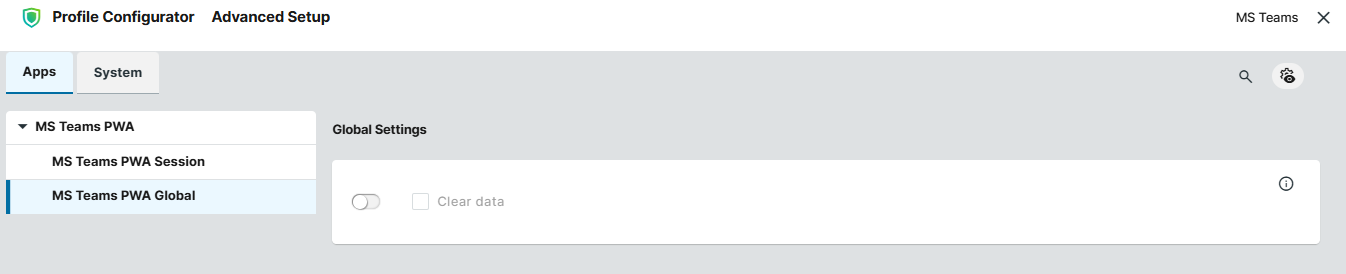
Clear dataRemoves all persistent data such as login credentials and Cookies each time the app is closed or the user logs out from the device.
-
Save the profile and assign it to the required devices / device directories. For details on profile assignment, see How to Create and Assign Profiles in the IGEL UMS Web App.
-
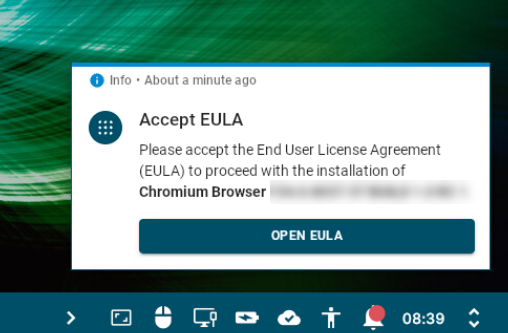
On the IGEL OS device, you may need to accept EULA for the app(s) to be downloaded.
-
After the app(s) download is complete, reboot the device.
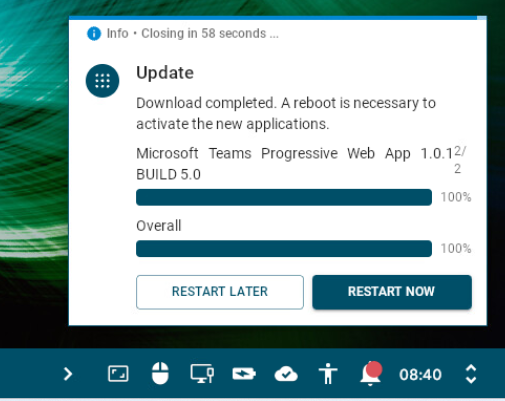
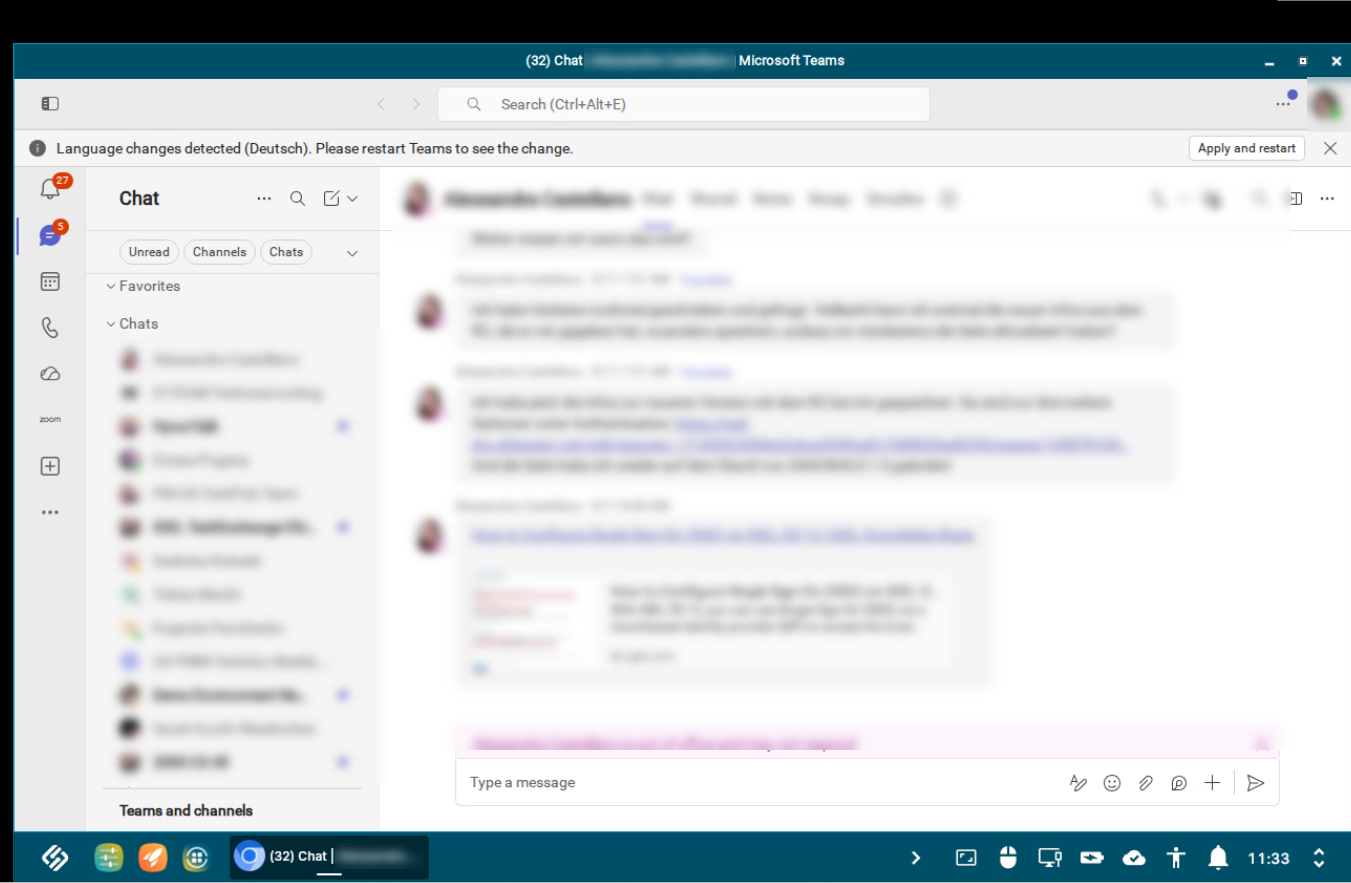
After the installation is complete, you can open the app and sign in.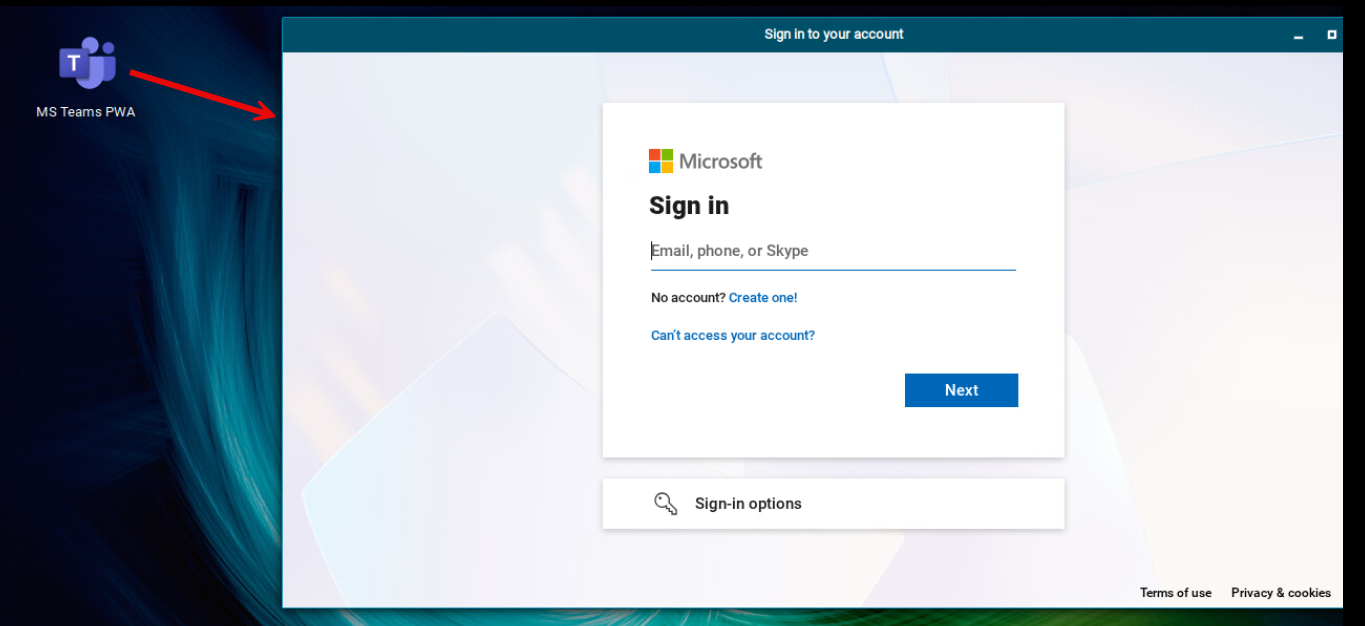
How to Configure Microsoft Teams as a Generic Progressive Web App
This is how you can install MS Teams as a generic Progressive Web App (PWA) on IGEL OS 12.
The instructions are based on Progressive Web App version 1.0.7 BUILD 2.0.
Limitations
-
If you have already apps installed as generic PWA, they will be shortly unavailable during the installation of a new generic PWA.
Requirements
-
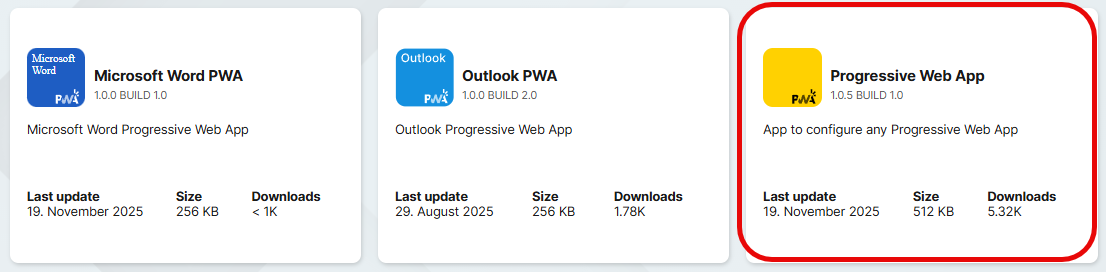
The app “Progressive Web App” is imported to your UMS. For details on app import, see How to Import IGEL OS Apps from the IGEL App Portal.
-
You know the manifest_id of your Progressive Web App. You can retrieve it by installing the PWA on any device, no matter which OS, by entering
chrome://web-app-internalsin the browser and scrolling to the entry manifest_id of the app in question. For this purpose, you can use Chrome, Chromium, Edge, or any other Chrome-based web browser; you may have to replacechromewith the actual browser name, e.g.edge://web-app-internals. Please note that Progressive Web Apps on IGEL OS always use Chromium.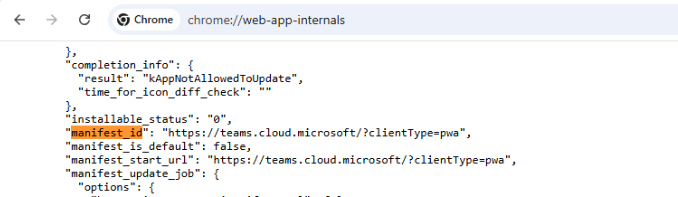
-
A valid Microsoft 365 account with access to MS Teams
Dependencies
-
If Chromium Browser has not been installed beforehand, it will automatically be installed during the app installation.
Installation and Configuration
-
In the IGEL UMS, create a profile configuring Progressive Web App. For details on profile creation, see How to Create and Assign Profiles in the IGEL UMS Web App.
-
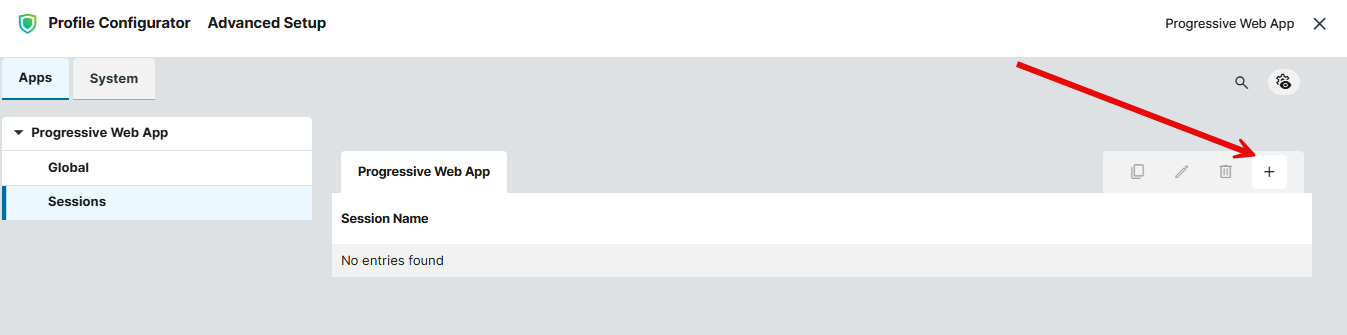
In the Profile Configurator, go to Apps > Progressive Web App > Sessions and click + to add a new session.
-
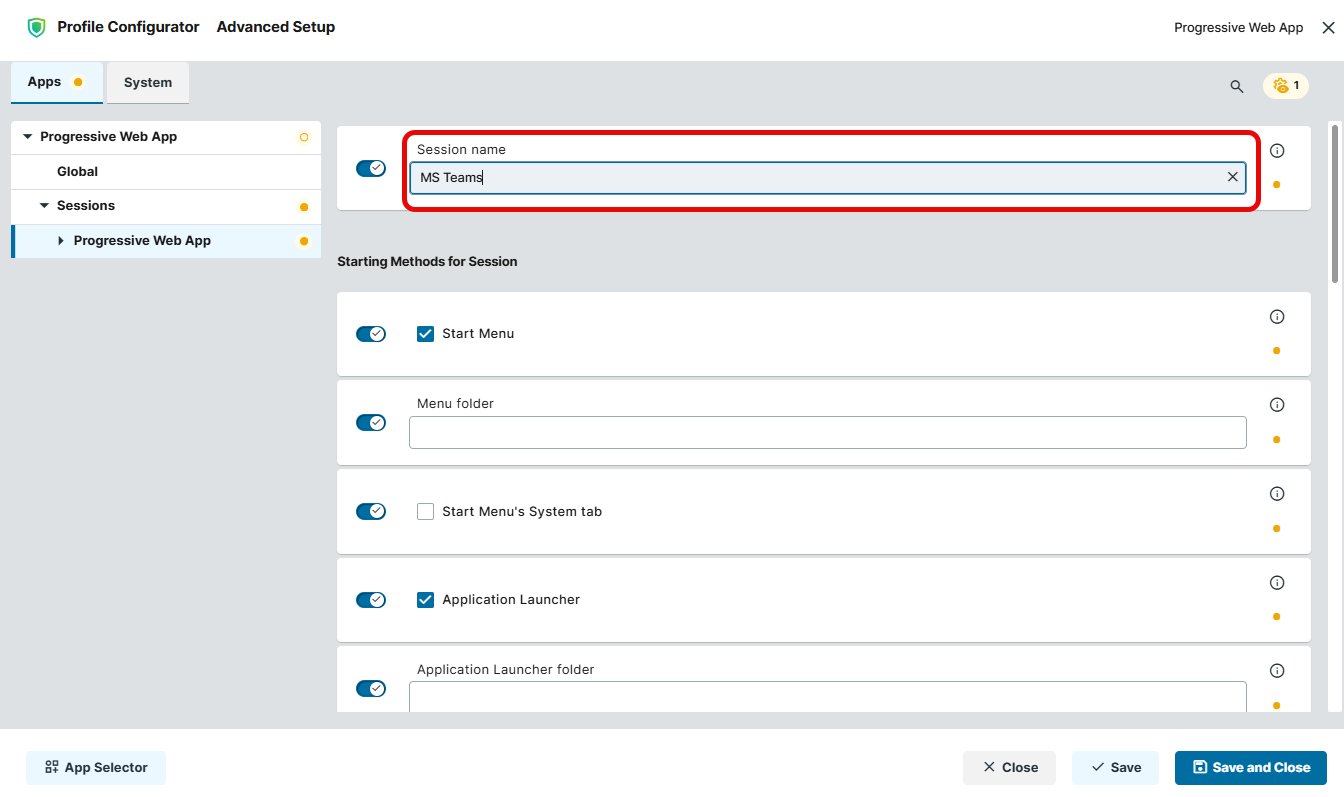
Enter a Session name, for instance, “MS Teams”.
-
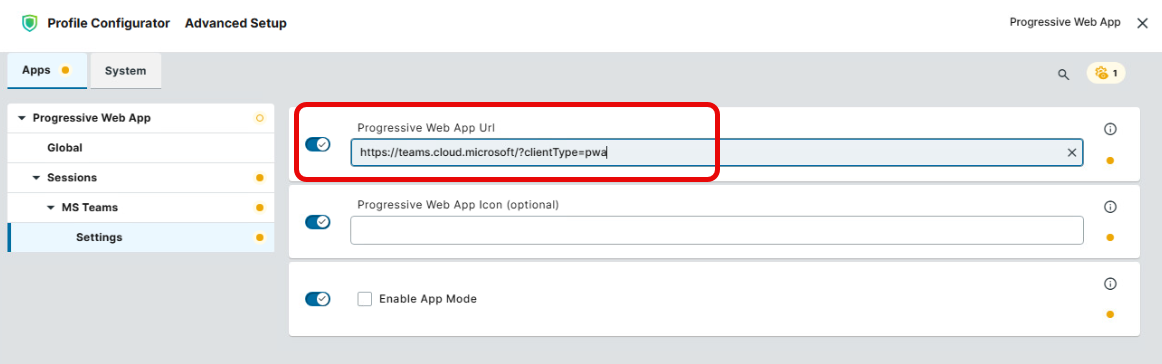
Go to Settings and enter the Progressive Web App Url. This is the manifest_id you discovered via
chrome://web-app-internals. For MS Teams, the correct value ishttps://teams.cloud.microsoft/?clientType=pwa
-
Optional: If you want to use an alternative icon, enter the path to the image file under Progressive Web App Icon (optional). This will override any auto-detected icons coming from the PWA itself.
For how to add files, see Upload and Assign Files in the IGEL UMS Web App. -
Optional: If PWA should run in a more restricted window, activate Enable App Mode. If activated, you can configure the registry key
app.pwa.sessions.pwa%.force_app_modeto restrict shortcuts and force the user to one single window. -
Optional: Go to Apps > Progressive Web App > Global and enable Clear data.

Clear data
Removes all profile-related data of Progressive Web App (e.g. login credentials, cookies) each time the app is closed or the user logs out from the device or restarts it. This will influence all apps installed as a generic PWA.
If you need to activate Clear data setting for PWA, it is recommended to enable it only after the app installation is complete (i.e. all app icons are displayed correctly, see below). Otherwise, the app icon can be displayed incorrectly even after performing the required user actions and the device reboot. This is because PWA requires user data (resulting from login, consent, accepting cookies etc.) to fully complete the installation and to correctly display the app icon.
-
Save the profile and assign it to the required devices / device directories. For details on profile assignment, see How to Create and Assign Profiles in the IGEL UMS Web App.
-
After the app download is complete, reboot the device.
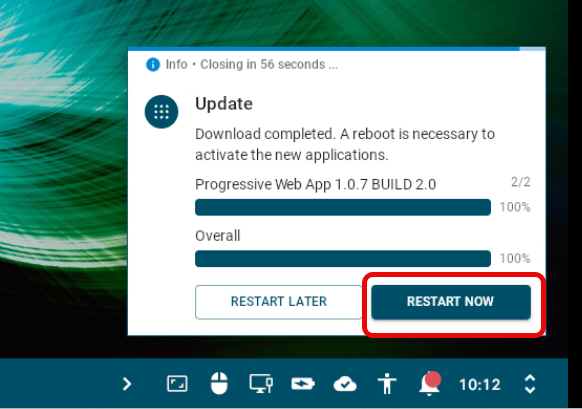
-
On the device, a message window informs the user that Progressive Web App is being installed. Note that the user has to be logged in to the device for this step.
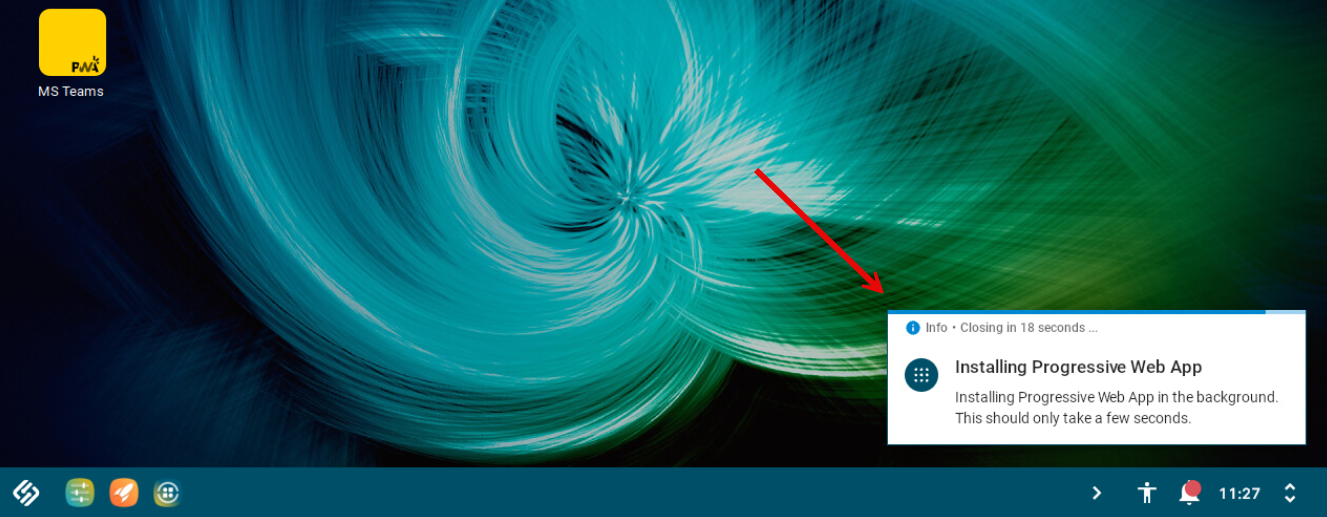
-
To complete the installation so that the app icon is displayed correctly, some user action (resolving the cookie consent dialog / accepting the terms of use / logging in) and afterwards the device restart may be required. This depends on the PWA.
-
If not all PWAs have been properly installed (e.g. required user actions have not yet been performed), the installation process of Progressive Web App will automatically start in the background after each reboot.
The installation process is finished as soon as each app icon is displayed correctly (not grey, not yellow).
-
After the installation is complete, you can open the app and sign in.
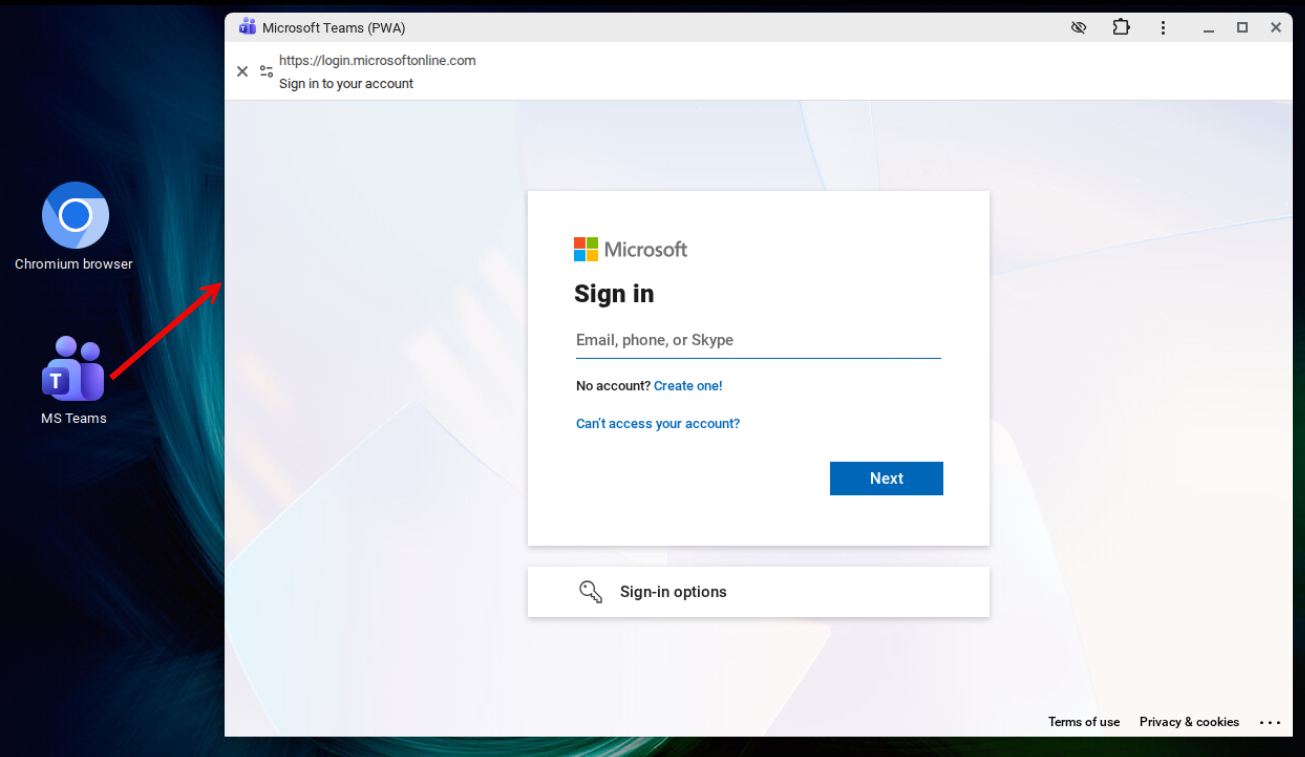
If MS Teams repeatedly returns to the sign-in page, go to Apps > Chromium Browser > Chromium Browser Global > Privacy and verify the following:
-
Enable cookies allowlist for MS Teams is enabled.
-
Cookies allowlist for MS Teams include the required domains:
[*.]microsoft.com; [*.]microsoftonline.com; [*.]teams.skype.com; [*.]teams.microsoft.com; [*.]sfbassets.com; [*.]skypeforbusiness.com
The allowlist permits the required Microsoft cookies while other third-party cookies remain blocked. For details, see Troubleshooting: Cannot Log into MS Teams in Chromium Browser or https://learn.microsoft.com/en-us/troubleshoot/microsoftteams/teams-sign-in/sign-in-loop#resolution.
For information about Chromium browser settings, see Configuration of the Chromium Browser in IGEL OS.
Troubleshooting: Reinstalling the App If Something Went Wrong
If the Progressive Web App does not work as expected, e.g. the starter icon does not appear, it is recommended to reinstall it.
To reinstall a PWA:
-
Start the PWA (or any other PWA).
-
While the PWA window is open, remove the session.
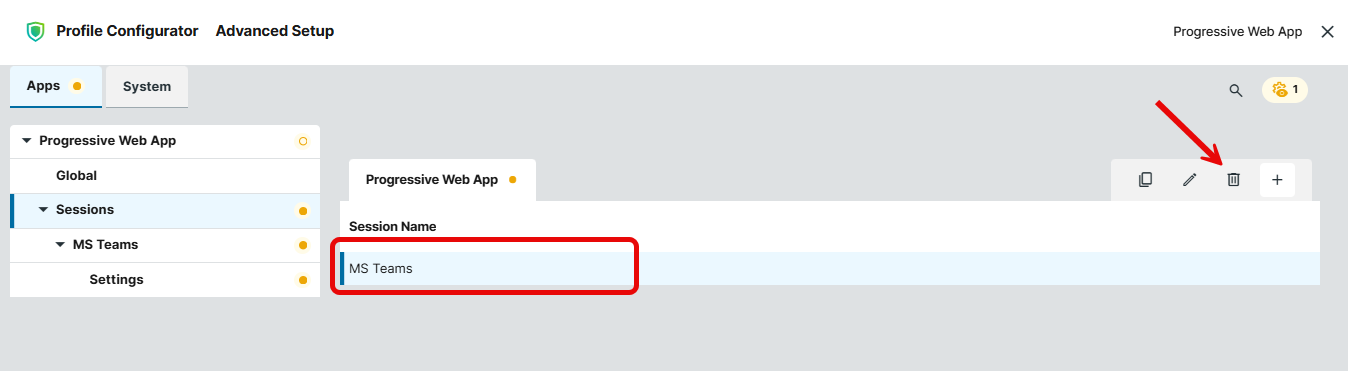
-
Wait for about 1 minute.
-
Install the PWA again as described above.