
The IGEL Remote Desktop app enables users to establish Remote Desktop Protocol (RDP) connections to local RDP environments.
This article describes the available configuration options for the IGEL Remote Desktop app and its IMH Published App sessions. For more information on the RDP sessions, see Configuration of IGEL Remote Desktop on IGEL OS.
This article is based on IGEL Remote Desktop version 1.4.0 BUILD 1.0.
Requirements
-
IGEL Remote Desktop app is imported to your IGEL UMS. For details on app import, see How to Import IGEL OS Apps from the IGEL App Portal.
How to Create an IMH Published Apps Session
-
In the IGEL UMS, create a profile configuring the app. For details on profile creation, see How to Create and Assign Profiles in the IGEL UMS Web App.
-
In the Profile Configurator, go to Apps > RDP > Published App Sessions.
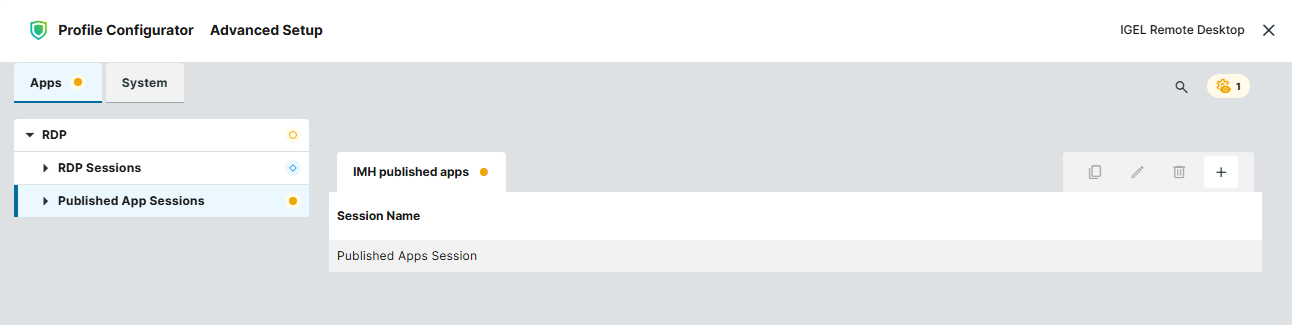
-
Click

-
Define the starting methods for the session. The starting method parameters are described under Starting Methods for Apps.
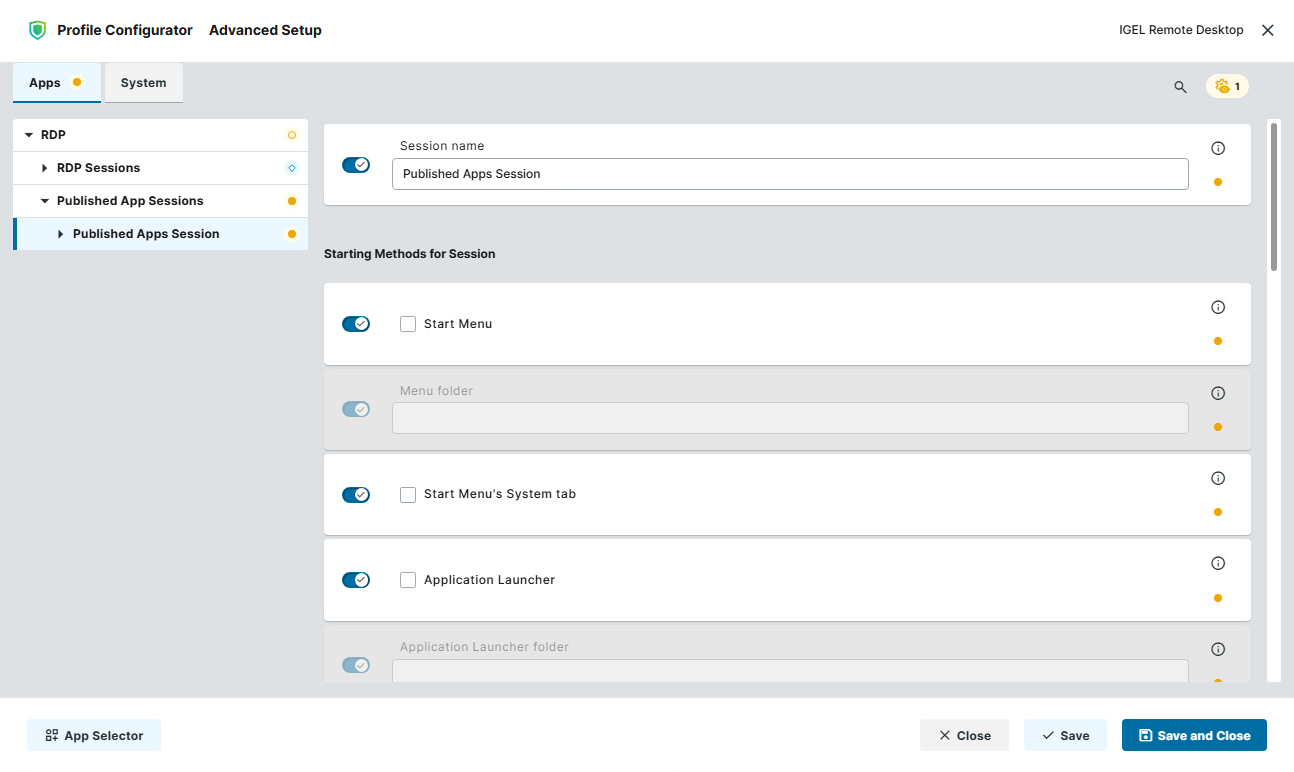
-
Configure the session as needed, see below.
-
Save the settings and assign the profile to the required devices.
Configuring the Logon Settings
-
In the Profile Configurator, go to Apps > RDP > Published App Sessions > [Session Name] > Logon.
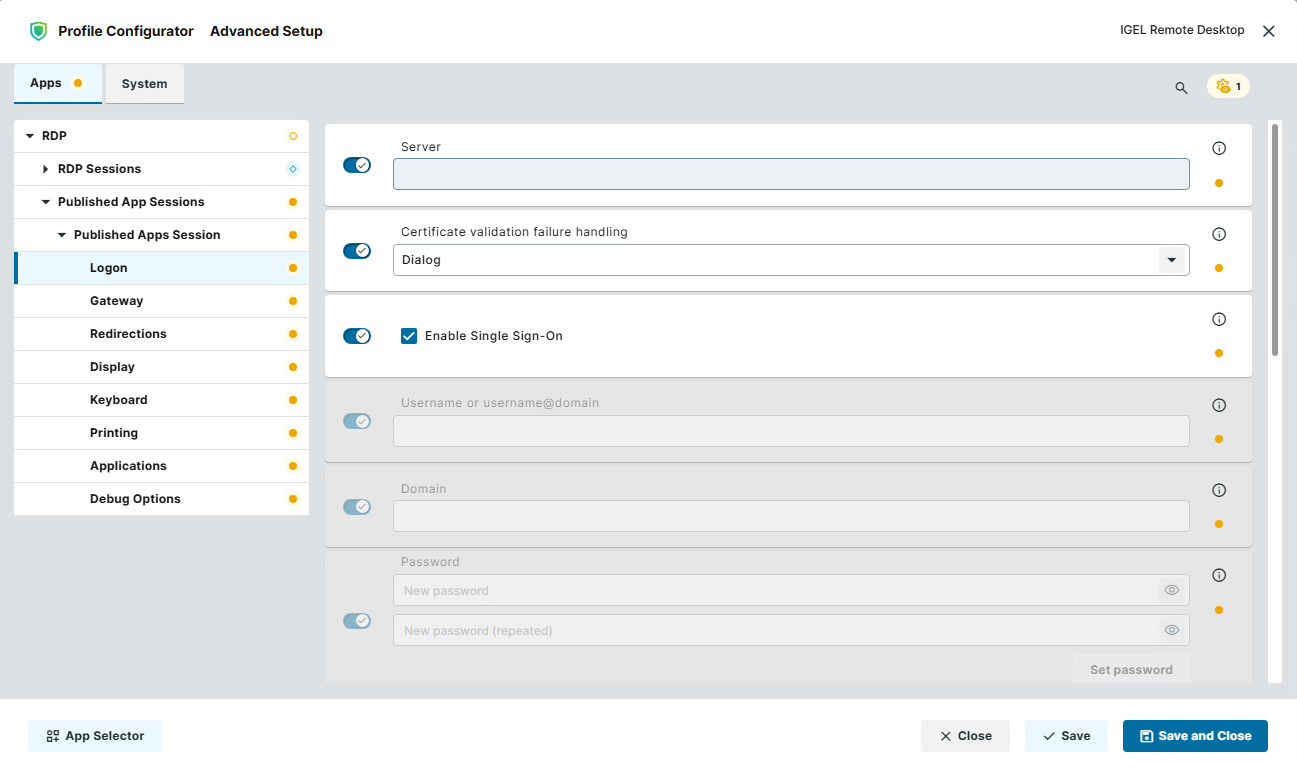
-
Edit the settings as needed. The parameters are described below.
Server
Hostname, fully qualified domain name (FQDN), or IP address of the server.
Certificate validation failure handling
Specifies how the system behaves when the server certificate cannot be successfully validated.
Possible values:
-
Dialog: A dialog is displayed when certificate validation fails. (Default)
-
Abort: The connection is aborted when certificate validation fails.
-
Ignore: The certificate validation failure is ignored.
Using Ignore allows the connection to continue even if the server certificate cannot be successfully validated.
Enable Single Sign-On
Controls whether Single Sign-On (SSO) is used for authentication. For more information, see How to Configure Single Sign-On (SSO) on IGEL OS 12.
- Single Sign-On is enabled and available credentials are used for authentication. (Default)
- Single Sign-On is disabled, and the Username or username@domain, Domain, and Password settings can be configured.
Username or username@domain or @domain
A username or a preset domain name used for automatic connection to the RDP session. This setting is available when Enable Single Sign-On is disabled.
The string after "@" is taken as a preset domain name.
Example:
user@your.domain.com: To log in, the user does not need to enter the username and the domain name.
@your.domain.com: To log in, the user only needs to enter the username. The preset domain – your.domain.com – will automatically be appended.
Overwriting the Preset Domain Name
Use the following registry key to specify whether the user should be able to overwrite the preset domain, e.g. with username@other-domain.com:
-
Allow preset domain overwrite:
sessions.rdp%.options.allow-preset-domain-overwrite
If enabled, the domain entered by the user is accepted.
If disabled (default), the domain entered by the user is replaced with the preset domain.
Domain
Specifies the Windows domain used for authentication if the domain is not already included with the username.
This setting is available when Enable Single Sign-On is disabled.
Password
Specifies the password used to authenticate the configured user. This setting is available when Enable Single Sign-On is disabled.
Enter the password in both password fields and select Set password to apply it.
If the Login Credentials Should Not Be Applied Automatically
You can use the following registry key to always prompt for a user name and password or only for a password when connecting to an RDP session:
-
Always prompt for username and password upon session host connection:
sessions.rdp%.options.always-prompt-for-session-username-and-password -
Always prompt for password upon session host connection:
sessions.rdp%.options.always-prompt-for-session-password
On the server side, you can enable the RDP group policy Always prompt for password upon connection to achieve the same result.
Login to Azure AD
- Azure AD is prepended to the username.
- Azure AD is not prepended to the username. (Default)
Use config file to specify apps
- Specify the path to a JSON configuration file containing the applications. App session configurations are created for the applications specified in the file.
The JSON file can contain entries such as:
[ { "app_display_name": "Microsoft Word", "app_rdp_name": "Word", "icon_path": "/services_rw/rdp/common/icons/word.png" }, { "app_display_name": "Microsoft Excel", "app_rdp_name": "Excel", "icon_path": "/services_rw/rdp/common/icons/excel.png" } ]
Each application entry specifies:
-
app_display_name: Display name of the application. -
app_rdp_name: RDP name of the application. -
icon_path: Path to the application's icon.
- Applications are not defined through a JSON configuration file. (Default)
Apps
Specifies the applications to make available through the Published Apps session.
Each application must use the following format: Display Name, RDP Name, Path to icon
Example: Microsoft Word, Word, /tmp/icon.png
Start following applications automatically on boot
Specifies the applications that are started automatically on boot.
Enter the Display Name of the application as configured in the Apps list. The name must match the Display Name of the application.
For example, if the application is configured as:
Microsoft Word, Word, /tmp/icon.png, enter: Microsoft Word
Collection
Specifies the name of the RDP session collection to connect to or the full routing token.
Enter the collection name or a full routing token beginning with tsv://....
Configuring the Gateway Settings
-
In the Profile Configurator, go to Apps > RDP > Published App Sessions > [Session Name] > Gateway.
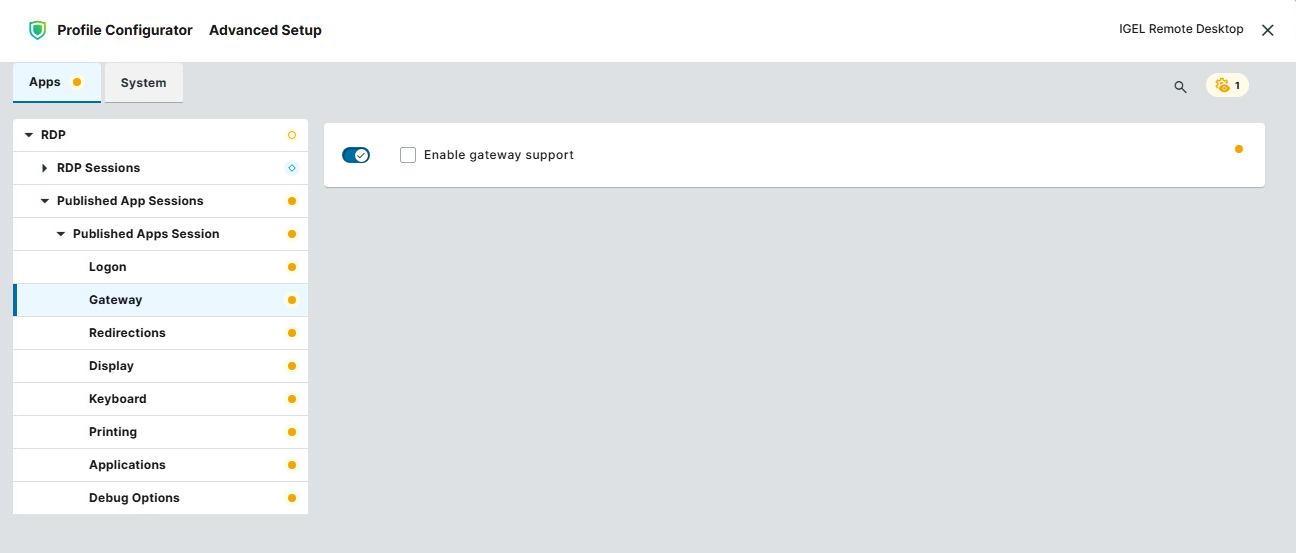
-
Edit the setting as needed. The parameter is described below.
Enable gateway support
- Gateway support is enabled for the RDP connection, and the gateway settings are available, see below.
- Gateway support is disabled. (Default)
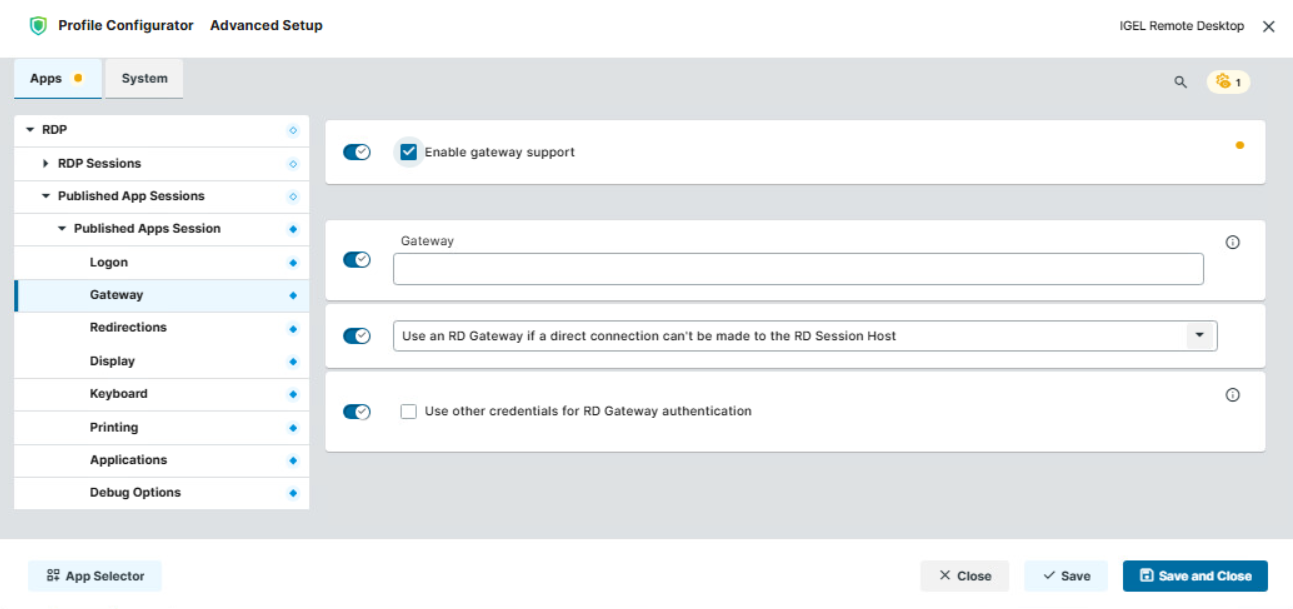
Gateway
IP address of the RD Gateway server.
RD Gateway usage
Specifies when the RD Gateway is used for the connection.
Possible values:
-
Use an RD Gateway if a direct connection can't be made to the RD Session Host: The RD Gateway is used if a direct connection to the RD Session Host cannot be established. (Default)
-
Always use an RD Gateway: The RD Gateway is always used for the connection.
-
Don't use an RD Gateway: The RD Gateway is not used for the connection.
Use other credentials for RD Gateway authentication
- Separate gateway credentials are used. Gateway User name, Gateway Domain, and Password become available, see below
- The RDP session credentials are used for RD Gateway authentication. (Default)
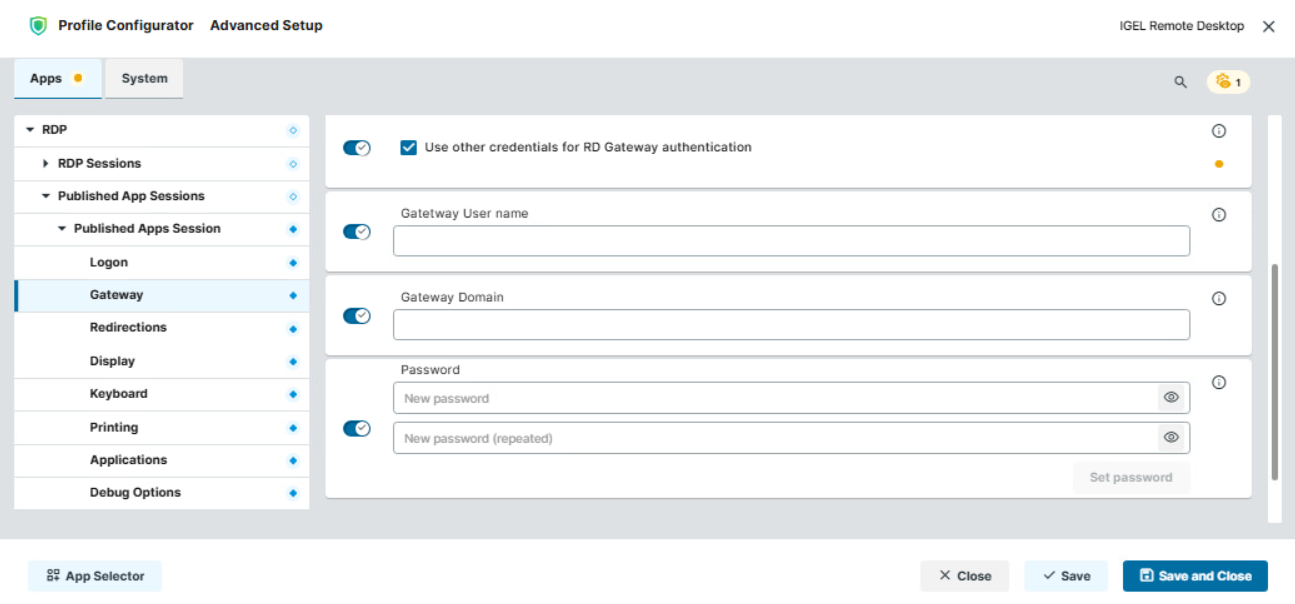
Gateway User name
User name used to authenticate to the RD Gateway.
Gateway Domain
Domain used to authenticate to the RD Gateway.
Password
Password used to authenticate to the RD Gateway. Enter the password in both fields and select Set password.
Configuring the Redirections Settings
-
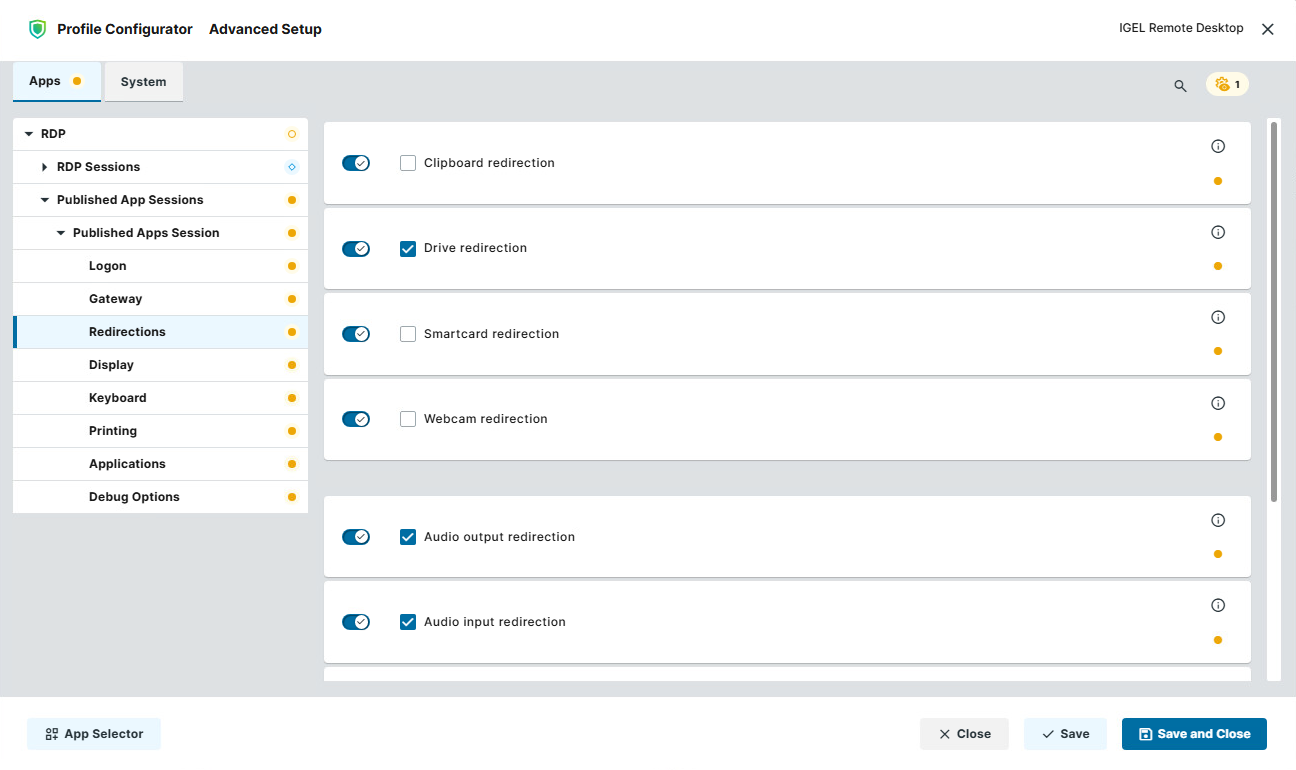
In the Profile Configurator, go to Apps > RDP > Published App Sessions > [Session Name] > Redirections.
-
Edit the settings as needed. The parameters are described below.
Clipboard redirection
- Text and images from the clipboard are shared between the RDP session and the local client.
- Text and images from the clipboard are not shared between the RDP session and the local client. (Default)
Drive redirection
- Redirection is bound to the
/mediafolder, so that locally mounted storage devices, including USB sticks, are forwarded to the RDP session. (Default)
Smartcard redirection
- Smartcards are forwarded to the RDP session.
- Smartcards are not forwarded to the RDP session. (Default)
Webcam redirection
- Local webcams can be made available within the RDP session.
- Webcam redirection is disabled. (Default)
Audio output redirection
- Audio output is redirected between the RDP session and the local client. (Default)
Audio input redirection
- Audio input (microphone) is redirected between the local client and the RDP session. (Default)
AAC Codec
- The AAC (Advanced Audio Coding) codec used for support of audio output redirection is enabled. (Default)
Serial port redirection
- Local serial ports are redirected to the RDP session.
- Serial port redirection is disabled. (Default)
Configuring the Display Settings
-
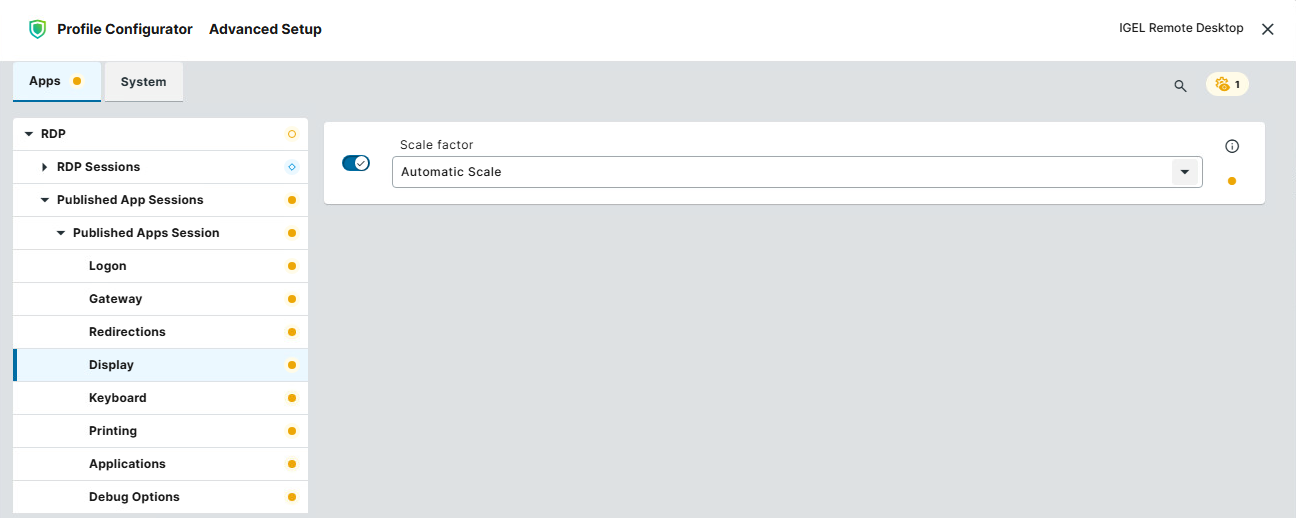
In the Profile Configurator, go to Apps > RDP > Published App Sessions > [Session Name] > Display.
-
Edit the setting as needed. The parameter is described below.
Scale factor
Specifies the desktop scaling in percent.
Possible values:
-
Automatic scale: The resolution set under User Interface > Display Settings > DPI Options > Monitor-DPI is used for the session. For details, see DPI Options. (Default)
-
Numeric details: The display is magnified by the factor given here (100-500).
Configuring the Keyboard Settings
-
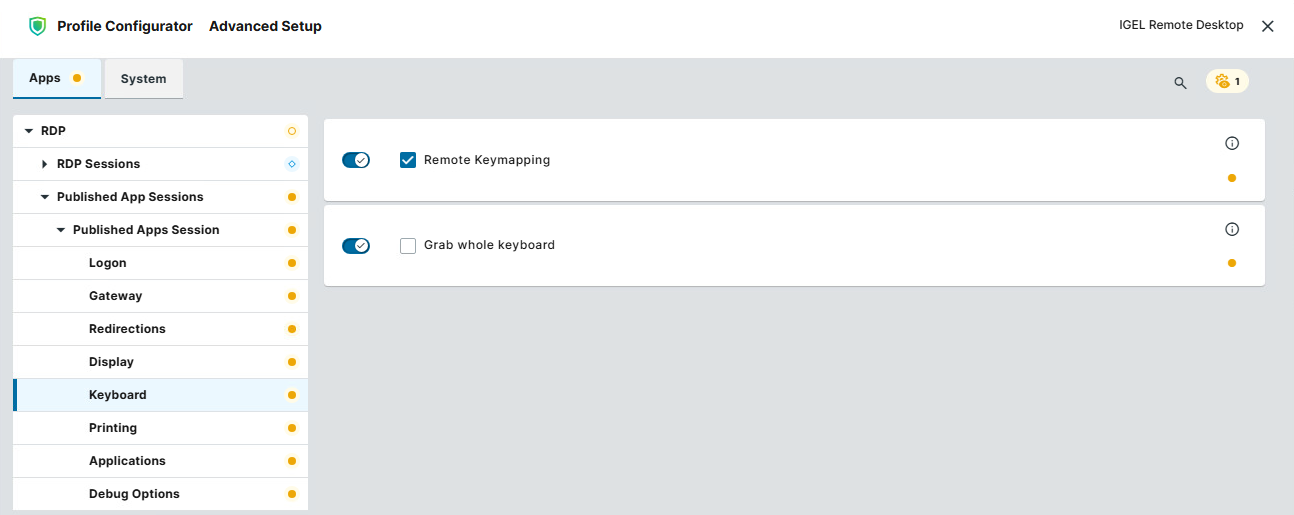
In the Profile Configurator, go to Apps > RDP > Published App Sessions > [Session Name] > Keyboard.
-
Edit the settings as needed. The parameters are described below.
Remote Keymapping
- Key events are sent as Windows scan codes instead of Unicode. This allows the remote keyboard mapping to be fully taken into account. (Default)
Enabling Remote Keymapping may be required for some input methods to work correctly.
- Remote keymapping using Windows scan codes is disabled.
Grab whole keyboard
- All local hotkeys are passed to the RDP session.
- Local hotkeys are not passed to the RDP session. (Default)
Configuring the Printing Settings
-
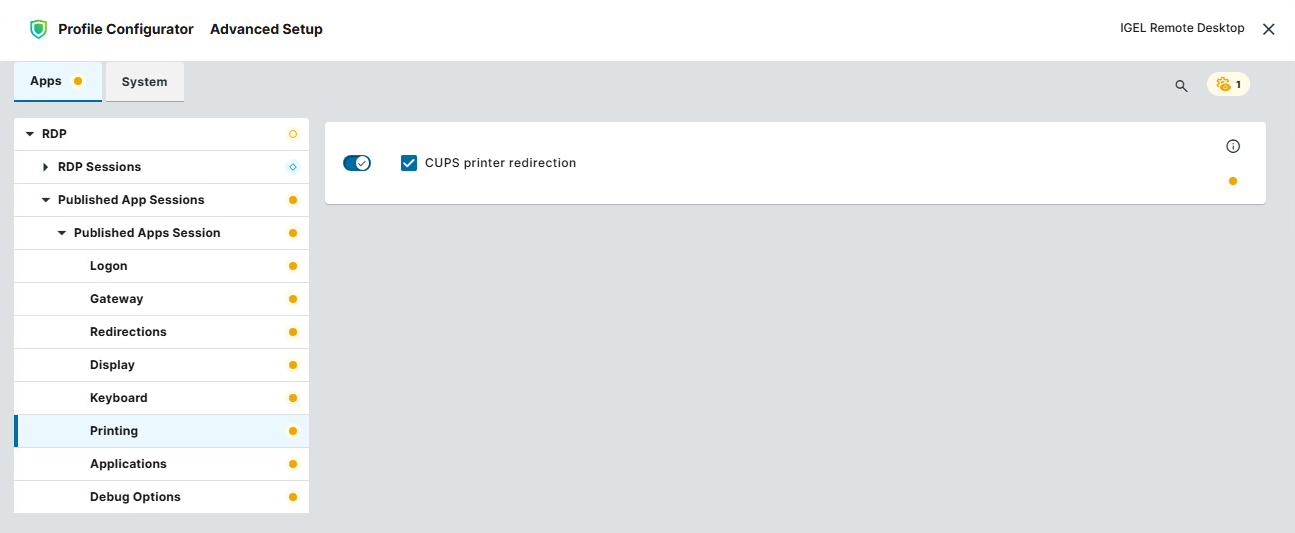
In the Profile Configurator, go to Apps > RDP > RDP Sessions > [Session Name] > Printing.
-
Edit the setting as needed. The parameter is described below.
CUPS printer redirection
- CUPS printers are redirected to the RDP session. (Default)
Configuring the Applications Settings
-
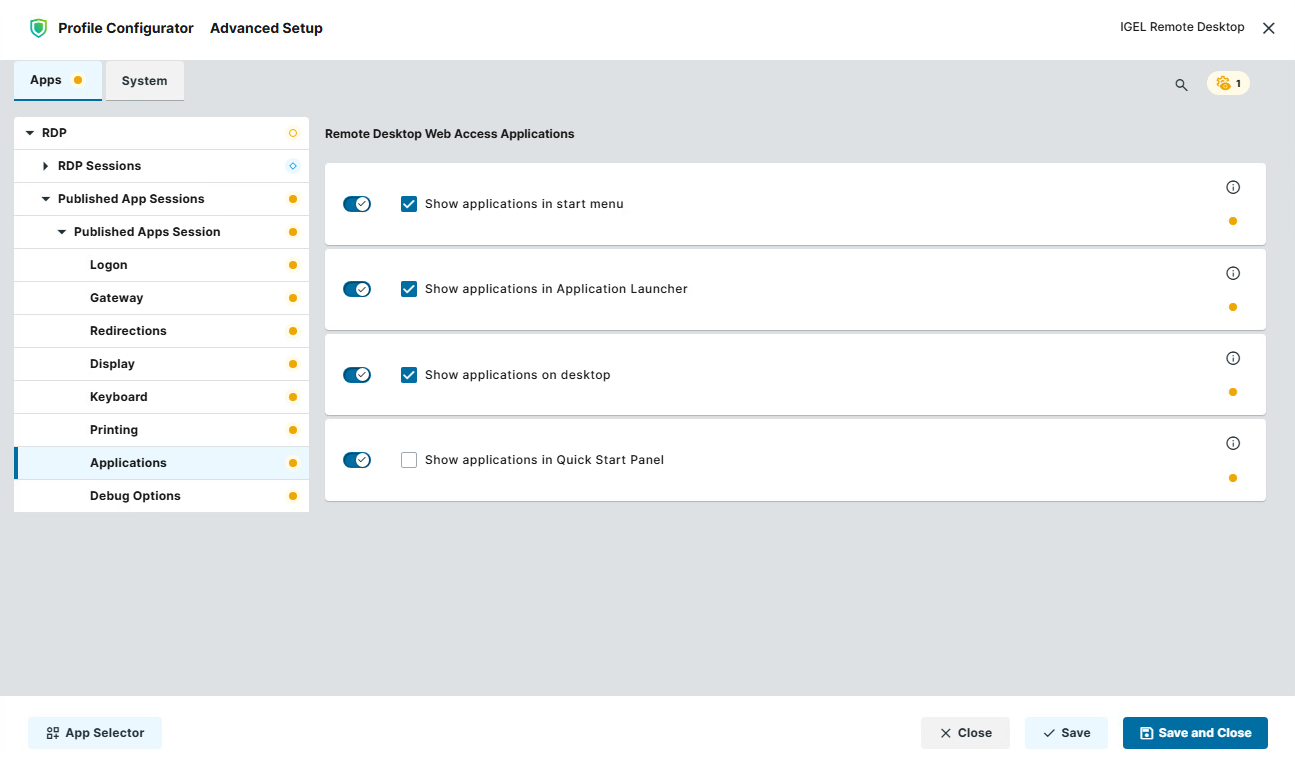
In the Profile Configurator, go to Apps > RDP > RDP Sessions > [Session Name] > Applications.
-
Edit the settings as needed. The parameters are described below.
Show applications in start menu
- RD RemoteApps appear in the start menu. (Default)
Show applications in Application Launcher
- RD RemoteApps appear in the Application Launcher. (Default)
Show applications on desktop
- RD RemoteApps appear on the desktop. (Default)
Show applications in Quick Start Panel
- Applications appear in the Quick Start area of the panel.
- Applications do not appear in the Quick Start area of the panel. (Default)
Configuring the Debug Options Settings
-
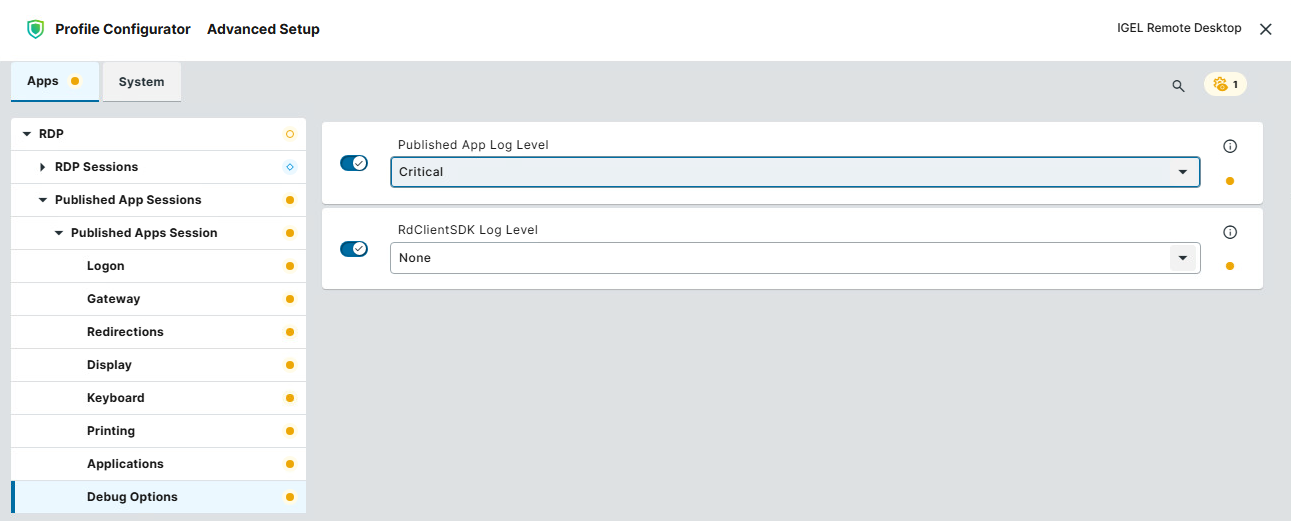
In the Profile Configurator, go to Apps > RDP > RDP Sessions > [Session Name] > Debug Options.
-
Edit the settings as needed. The parameters are described below.
Published App Log Level
Sets the log level for the IGEL RDP client used for Published Apps.
Possible values:
-
Critical (Default): Logs severe system failures that require immediate attention.
-
Error: Logs failures where something did not work as expected but the system may continue running.
-
Warning: Logs potential issues or unusual situations that are not errors yet but could cause problems.
-
Info: Logs general operational messages about normal system behavior.
-
Debug: Logs detailed information useful for troubleshooting and development.
-
Trace: Logs very fine-grained, step-by-step details of program execution for deep debugging.
RdClientSDK Log Level
Sets the log level for the RdClientSDK.
Possible values:
-
None (Default): No logging is recorded, or only minimal essential events are captured.
-
Low: Logs only basic, high-level information such as major events and errors.
-
Medium: Includes more detailed operational data useful for general troubleshooting.
-
High: Captures extensive, verbose details (including debug-level data) for in-depth diagnostics.