
Jabra Xpress enables administrators to deploy device settings and firmware updates to supported Jabra USB devices. This article describes how to create a Jabra Xpress package, make it available from a web server, configure the Jabra Xpress app in IGEL OS 12, and trigger the deployment from the IGEL Universal Management Suite (UMS).
For more details on the Jabra Xpress app deployment on IGEL OS, see How to Deploy a Jabra Xpress Package on IGEL OS.
This article is based on Jabra Xpress version 8.5.11 BUILD 1.0.
Requirements
-
Jabra Xpress app is imported to your IGEL UMS. For details on app import, see How to Import IGEL OS Apps from the IGEL App Portal.
Known Issues
-
Power saving for Jabra devices requires the PulseAudio plugin and is therefore supported only with the PulseAudio backend. The plugin does not work with PipeWire.
Configuring the Xpress Settings
-
In the IGEL UMS, create a profile configuring the app. For details on profile creation, see How to Create and Assign Profiles in the IGEL UMS Web App.
-
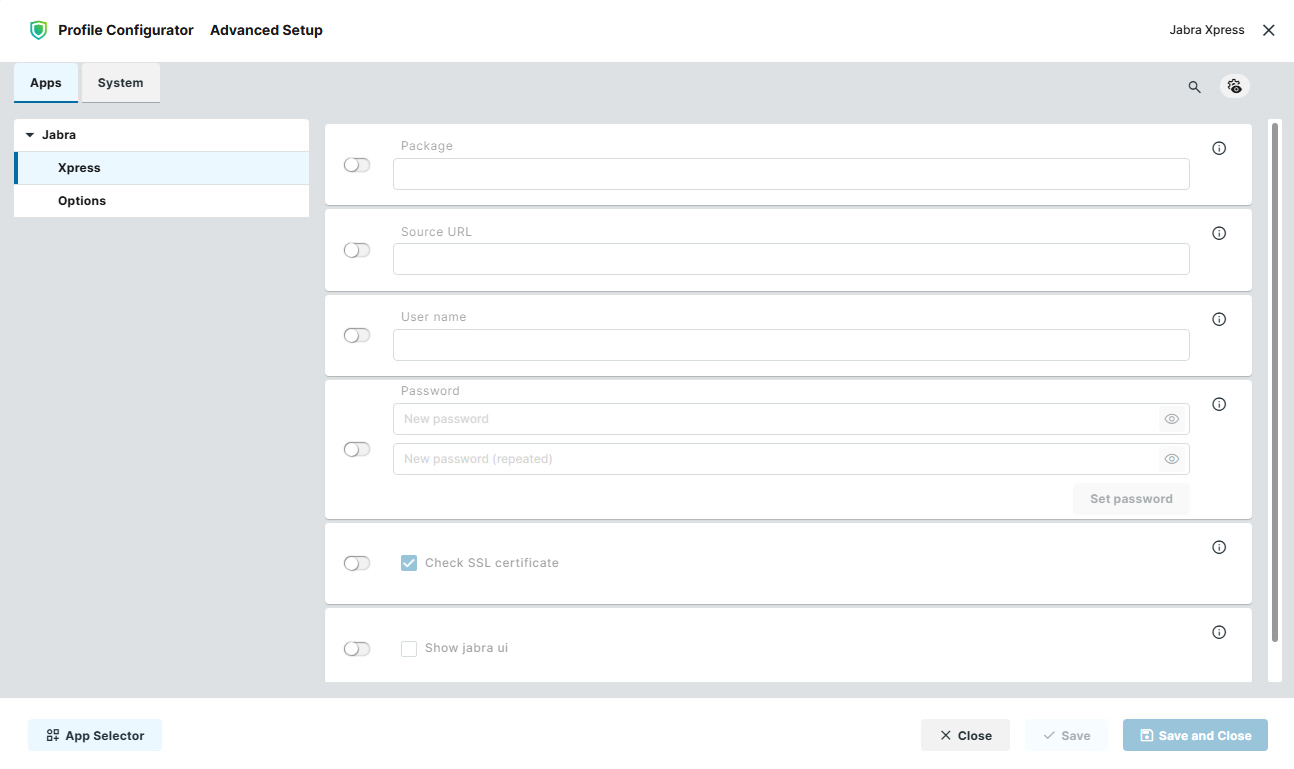
In the Profile Configurator, go to Apps > Jabra > Xpress.
-
Edit the settings as needed. The parameters are described below.
Package
File name of the Jabra Xpress package. Example: xpress_package_20190109_144111.zip.
Source URL
URL to the directory containing the Xpress package. Example: https://172.30.92.1:8443/ums_filetransfer/
As a Source URL, you can specify any server, e.g., FTP(S) or HTTP(S), where you have placed the Xpress package downloaded from the Jabra Xpress portal.
If you want to use the UMS as a source location, your Jabra ZIP archive has to be registered as a file object in the UMS Web App; see Upload and Assign Files in the IGEL UMS Web App
User name
User name for accessing the Xpress package that resides under the Source URL.
Password
Password for accessing the Xpress package that resides under the Source URL.
Check SSL certificate
Determines if the SSL certificate is checked. (Default: Enabled)
Disable SSL certificate checking if your HTTPS or FTPS server uses a self-signed certificate.
Show jabra ui
- Opens the Jabra Xpress user interface while a package update is in progress, allowing users to view the update status.
- Performs the package update in the background without opening the Jabra Xpress user interface. (Default)
Configuring the Options
-
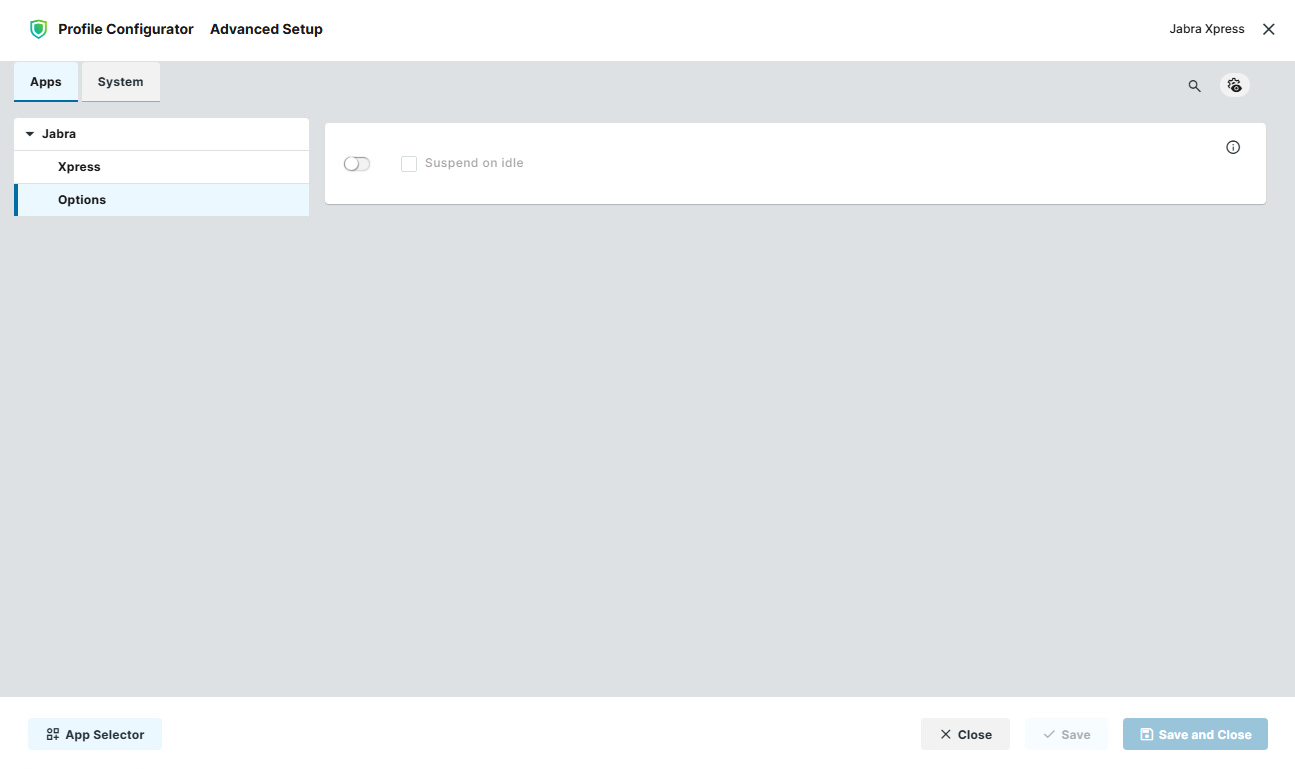
In the Profile Configurator, go to Apps > Jabra > Options.
-
Edit the settings as needed. The parameter is described below.
Suspend on idle
- Determines if the wireless Jabra USB audio device is set to the offline state after 5 seconds of idle time. (Default)
- Keeps the wireless Jabra USB audio device online and prevents it from entering the offline state after 5 seconds of idle time.