
Jabra Xpress enables administrators to deploy device settings and firmware updates to supported Jabra USB devices. This article describes how to create a Jabra Xpress package, make it available from a web server, configure the Jabra Xpress app in IGEL OS 12, and trigger the deployment from the IGEL Universal Management Suite (UMS).
For more details on the Jabra Xpress profile configuration on IGEL OS, see Configuration of Jabra Xpress on IGEL OS.
This article is based on Jabra Xpress version 8.5.11 BUILD 1.0.
Deployment of a Jabra Xpress package involves the following steps
Creating and Downloading the Jabra Xpress Package
In the Jabra Xpress portal:
-
Under Linux Thin Client, click Next.
-
Under Start Managing Your Devices, click New.
-
Select a supported Jabra device from the left column, and then click Add.
The selected device is displayed in the right column. -
Click Next.
-
Select the firmware, device settings, or both that you want to include in the package, and then click Next.
-
Accept the End User License Agreement (EULA).
-
Enter the local server URL path requested by the portal.
-
Click Download to generate and download the package.
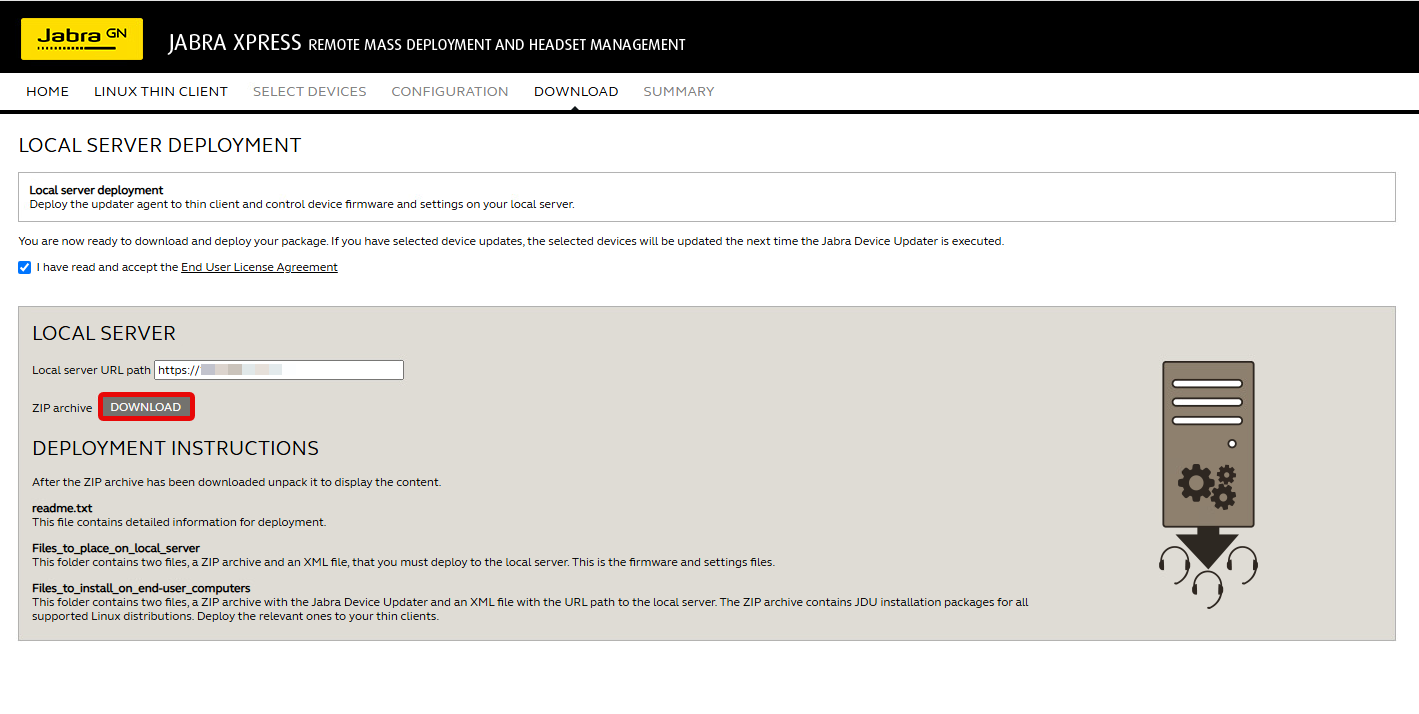
The downloaded file is a ZIP archive that contains the selected firmware and device configuration.
Making the Package Available for Download
-
Place the downloaded ZIP archive on an FTP(S) or HTTP(S) server that is accessible from the IGEL OS endpoint.
-
Verify that the ZIP archive can be accessed from the configured source location before configuring the Jabra Xpress app.
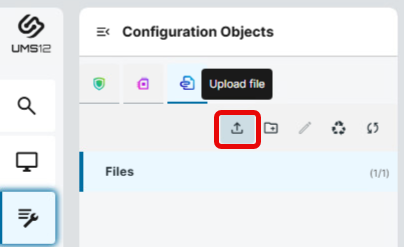
If you want to use the UMS Web App as the source location, register the ZIP archive in the UMS under Configuration > Files > Upload file.For more information on registering files in the UMS Web App, see Upload and Assign Files in the IGEL UMS Web App.
When configuring the Source URL in the Jabra Xpress app, specify only the URL of the directory containing the package. Do not append a trailing slash (/) to the URL. Otherwise, the generated download URL may contain a double slash (//), which can prevent the package from being downloaded.
Configuring the Source URL
Now configure the download location:
-
In the IGEL UMS, create a profile configuring the app. For details on profile creation, see How to Create and Assign Profiles in the IGEL UMS Web App.
-
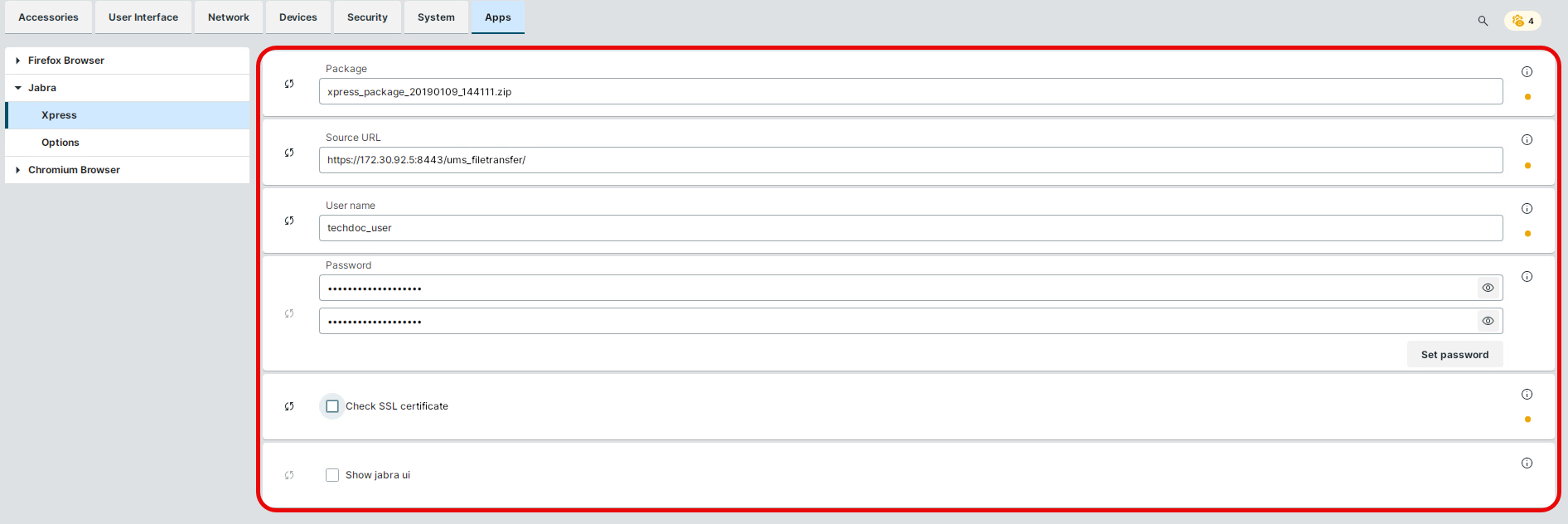
In the Profile Configurator, go to Apps > Jabra > Xpress.
-
Under Package, specify the file name of the Jabra Xpress package.
Example:xpress_package_20190109_144111.zip -
Under Source URL, specify the URL of the directory containing the Jabra Xpress package.
Example:https://172.30.92.5:8443/ums_filetransfer -
Under User name, specify the user name for accessing the Xpress package that resides under the Source URL.
-
Under Password, specify the password for accessing the Xpress package that resides under the Source URL.
-
Disable Check SSL certificate if your HTTPS or FTPS server uses a self-signed certificate.
-
If you need to configure other options, see Configuration of Jabra Xpress on IGEL OS.
-
Save the settings.
-
Assign the profile to the target devices.
Triggering the Deployment Process
Finally, you have to trigger the deployment process.
There are two possibilities:
-
Deploying the package using a specific device command
-
Deploying the package using a scheduled job
Deploying the Package Using a Specific Device Command
In the UMS Web App:
-
In the UMS Web App, go to Devices.
-
Select the target device, and click the three-dot menu (⋮) in the upper-right corner of the device details pane or the Update & Refresh button, and select Specific Device Commands.
A Specific Device Commands window opens.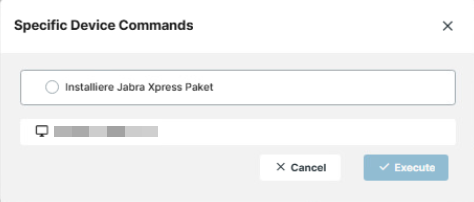
-
Select Deploy Jabra Xpress Package and click Execute.
For more information on Jobs in the UMS Web App, see How to Create and Manage Jobs in the IGEL UMS Web App.
In the UMS console:
-
In the UMS console, go to Devices.
-
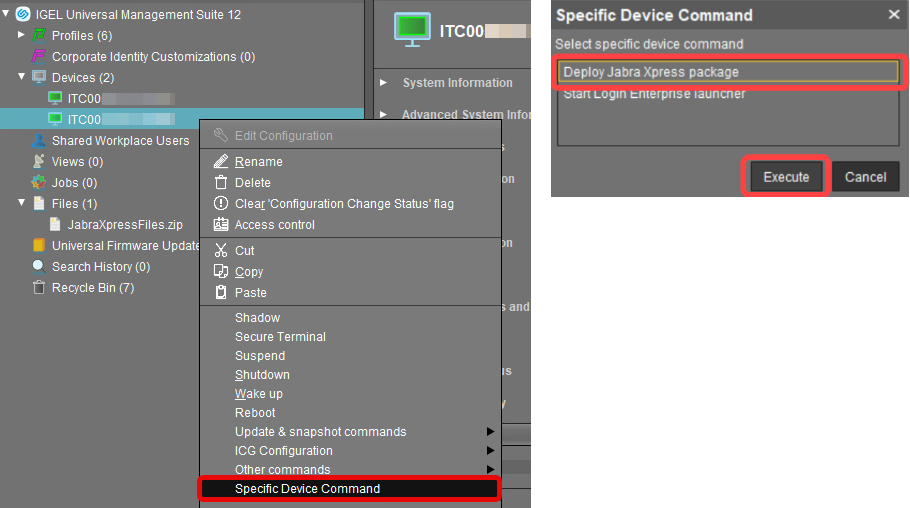
Right-click the target device and select Specific Device Command.
-
Select Deploy Jabra Xpress Package.
Deploying the Package Using a Scheduled Job
In the UMS Web App:
-
Go to Automation > Jobs > Create Job.
-
Under Job Type, enter a name for the job and select Deploy Jabra Xpress Package as the command.
-
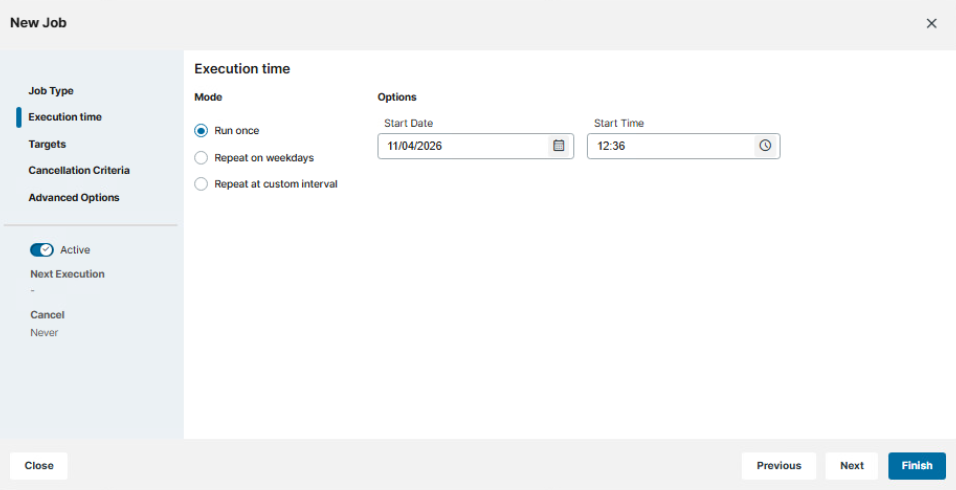
Under Execution time, select the execution mode and specify the date and time when the job should run.
-
Under Targets, select the devices on which the package should be deployed.
-
Click Finish to create the job.
For more information on Jobs in the UMS Web App, see How to Create and Manage Jobs in the IGEL UMS Web App.
In the UMS console:
-
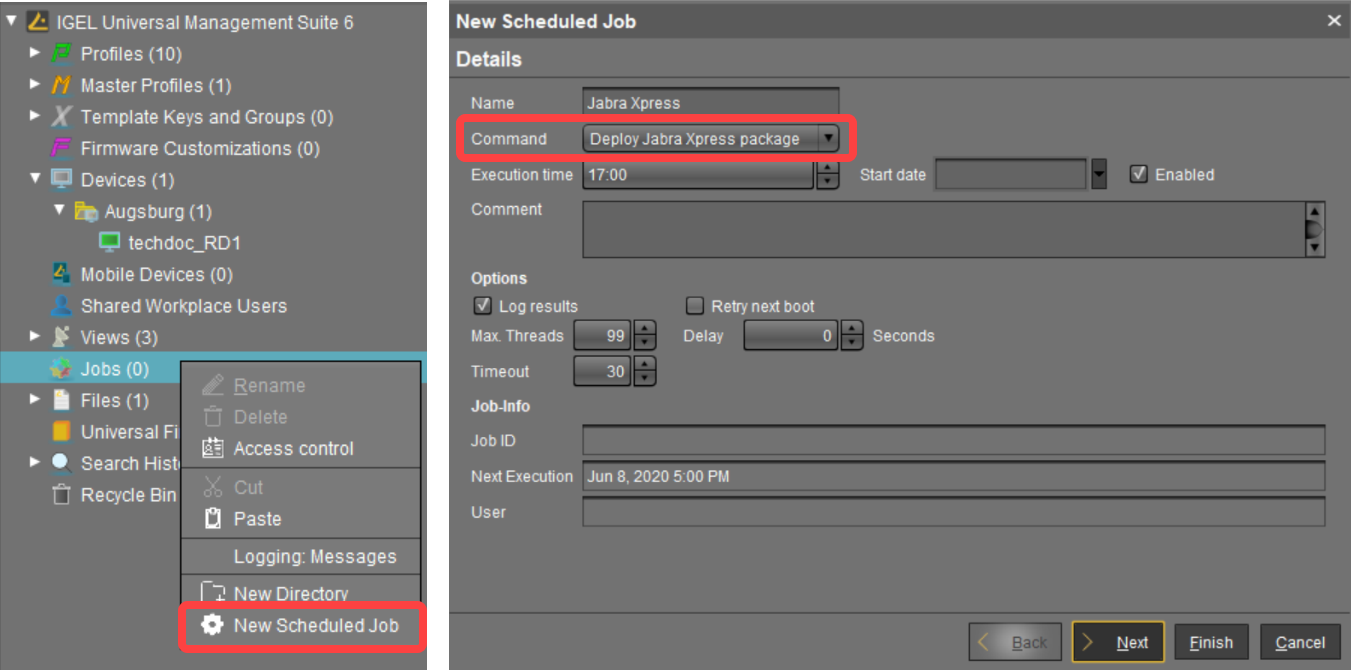
In the UMS console, go to Jobs > New Scheduled Job.
-
Select Deploy Jabra Xpress Package as the command.
-
Assign the job to the required devices.
-
Start the scheduled job.
It is not possible to reverse the deployment process, for example, to remove a deployed Jabra Xpress package from the device. To restore a previous firmware version or device configuration, create and deploy a new Jabra Xpress package containing the required firmware and settings.