
In IGEL OS, you can make a printer connected to an endpoint via a parallel or USB port available to other endpoints as a TCP/IP socket printer. The IGEL OS endpoint listens on a configurable TCP port and forwards incoming print data to the connected printer.
Note that TCP/IP printing feature differs from TCP network printer that can be configured under Apps > CUPS Printing > Printer. A TCP network printer sends print jobs from the IGEL OS endpoint to a remote printer, while the TCP/IP printing feature makes a printer physically connected to IGEL OS available to other devices.
This article explains how you can use the IGEL OS device as a TCP/IP print server for locally connected printers.
This article is based on CUPS printing app version 1.3.1 BUILD 1.0.
Requirements
-
CUPS printing app is imported into your IGEL UMS. For details on app import, see How to Import IGEL OS Apps from the IGEL App Portal.
-
The IGEL OS endpoint has a fixed IP address or a DHCP reservation.
-
The printer is connected to the IGEL OS endpoint via:
-
The first parallel printer port, represented by LPT 1.
-
The first USB printer interface, represented by USBLP 1.
-
-
The sending system has an appropriate driver for the physical printer.
-
The driver produces data in a language understood by the printer, e.g. PCL, PostScript.
-
The firewall does not block the configured TCP port.
The TCP/IP print server uses a simple socket connection without authentication or transport encryption. Permit access only from trusted networks or hosts and restrict the listening port with network firewall rules.
Configure the TCP/IP Print Server
-
In the IGEL UMS, create a profile configuring CUPS printing app. For details on profile creation, see How to Create and Assign Profiles in the IGEL UMS Web App.
-
Go to Apps > CUPS Printing > TCP/IP.
-
Select the interface to which the printer is connected.
LPT 1: A printer is connected via the first parallel port
USBLP 1: A printer is connected via the first USB port.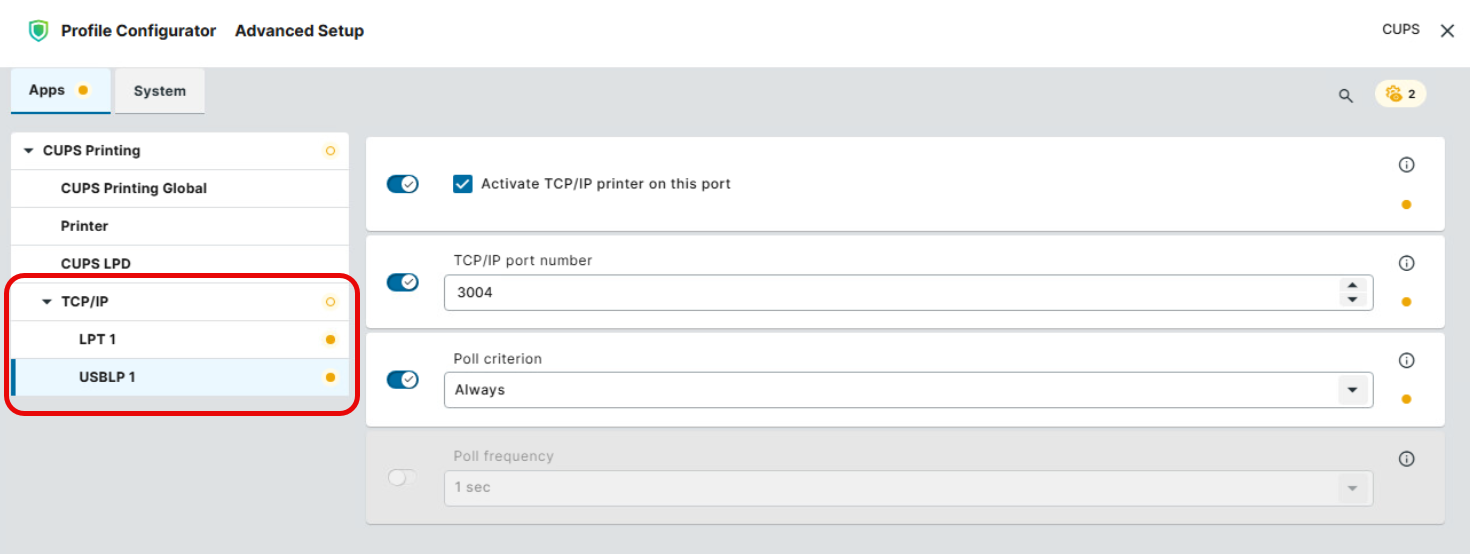
-
Enable Activate TCP/IP printer on this port.
-
Under TCP/IP port number, specify the port on which the IGEL OS endpoint listens for print jobs. (Default for LPT 1:
3003; default for USBLP 1:3004).
-
Adjust the following settings only if required by the environment:
|
Poll Criterion |
Specifies how the interfaces are mapped. Possible values:
|
|
Poll Frequency |
Amount of time between status queries. This setting is available if Poll Criterion is set to Online. (Default: |
-
Save the profile and assign it to the required IGEL OS endpoint.
Configure the Client System
Configure the printer as a TCP/IP raw socket printer on the system that sends print jobs, e.g. Windows client:
-
Add a printer manually.
-
Create a Standard TCP/IP Port.
-
Enter the IP address of the IGEL OS endpoint.
-
Select Raw as the protocol.
-
Enter the same port number that you configured for the IGEL OS endpoint.
-
Select the correct driver for the physical printer.
-
Save the configuration.