
LPD (Line Printer Daemon) printers are used by the BSD printing system and are also supported by Windows servers. You can configure an IGEL OS device as an LPD print server. Other endpoints can then send print jobs to CUPS printers connected to the device configured as an LPD print server.
This article is based on CUPS printing app version 1.3.1 BUILD 1.0.
Requirements
-
CUPS printing app is imported to your IGEL UMS. For details on app import, see How to Import IGEL OS Apps from the IGEL App Portal.
-
The device has a fixed IP address or a DHCP reservation.
-
Your firewall permits incoming LPD connections on TCP port
515.
LPD is a legacy printing protocol. It does not provide modern authentication or transport encryption. Therefore, it is recommended to allow access only from trusted networks or hosts.
Configure and Share the CUPS Printer
-
In the IGEL UMS, create a profile for the CUPS Printing app. For details on profile creation, see How to Create and Assign Profiles in the IGEL UMS Web App.
-
Add and configure a printer as described under Configuration of CUPS Printing on IGEL OS.
-
Enable Share printer.
-
Under Apps > CUPS Printing > CUPS Printing Global > Network or host for sharing local printers, enter the network or hosts that require access.
-
Save the profile and assign it to the required IGEL OS device.
-
Print a local test page to verify that the CUPS printer works before enabling the LPD service.
Enable the LPD Print Server
-
Open the existing profile for the CUPS Printing app or create a new one.
-
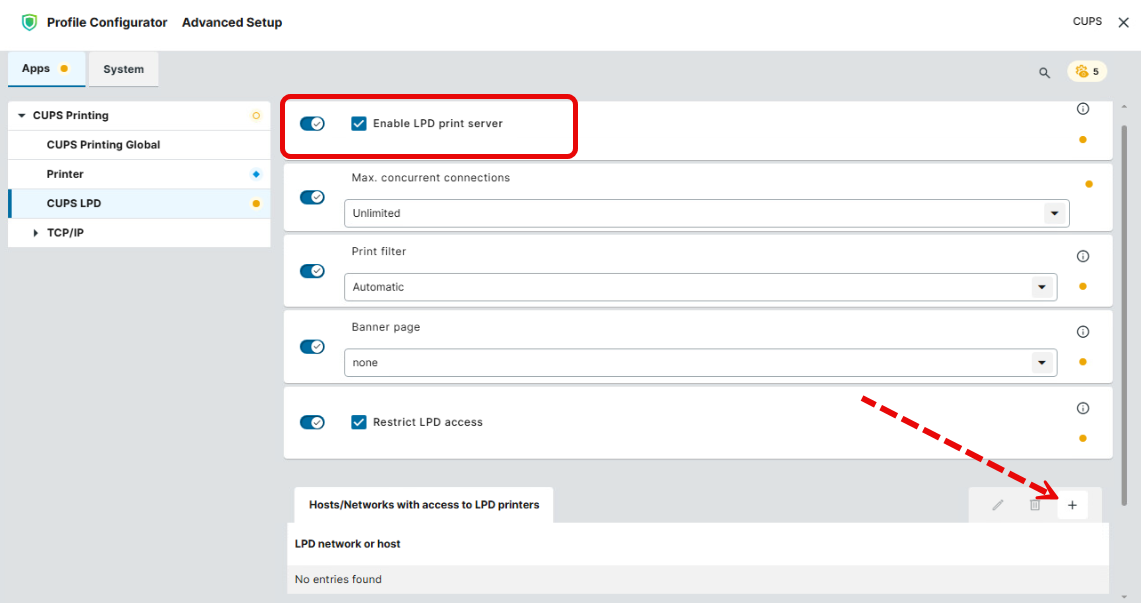
Under Apps > CUPS Printing > CUPS LPD, activate Enable LPD print server.
-
Configure the below settings as required.
-
Save the profile and apply the changes to the IGEL OS device.
Enable LPD Print Server
- Local printers are provided in the network as LPD printers. The IGEL OS endpoint is made the LPD print server. The CUPS printers defined under Apps > CUPS Printing > Printer can be addressed under their printer name as a queue name via the LPD protocol.
- The IGEL OS endpoint is not the LPD print server. (Default)
Max. concurrent connections
Limits the number of print jobs that can be accepted at the same time. (Default: Unlimited)
Print filter
Possible values:
-
Automatic (Default): Attempts to automatically recognize whether or not the print data need to be prepared by the local printer driver.
-
Raw: The print data are always forwarded unchanged to the printer.
Banner page
Specifies the banner page type to be printed. (Default: none, which means no banner page will be printed)
Restrict LPD Access
- You can specify the networks or hosts from which print jobs can be accepted. Click + to add a network or a host to the list.
- Print jobs are accepted from all networks and hosts. (Default)
If you want to print from a Windows device to the printer shared on an IGEL OS device…
On the Windows client, you need to specify
-
the hostname or IP address of the IGEL OS device running the LPD print server as the name or address of the server providing LPD
-
the printer name configured under Apps > CUPS Printing > Printer > Printer name as a print queue name
-
the appropriate printer manufacturer, printer model and driver
Note: If you are using a Standard TCP/IP port in LPR mode, you may need to activate the LPR Byte Counting Enabled option.