
IPP Printer Sharing uses the Internet Printing Protocol (IPP) to let endpoint devices send print jobs across a network without the necessity to install proprietary drivers. On IGEL OS, you can configure IPP printer sharing, so that an IGEL OS device acts as a print server: clients submit print jobs to the IGEL OS device, which forwards the jobs to the configured printer connected to this IGEL OS device.
IPP printer sharing is different from configuring an IPP network printer:
-
With an IPP network printer configurable under Apps > CUPS Printing > Printer > [printer name] > Printer port, the IGEL OS device sends print jobs to another print server or printer.
-
With IPP printer sharing configurable under Apps > CUPS Printing > CUPS Printing Global > Network or host for sharing local printers, other devices send print jobs to a printer queue hosted on the IGEL OS device.
To configure IPP Printer Sharing and share a local printer in the network:
-
In the IGEL UMS, create a profile configuring CUPS printing app or edit the existing one.
-
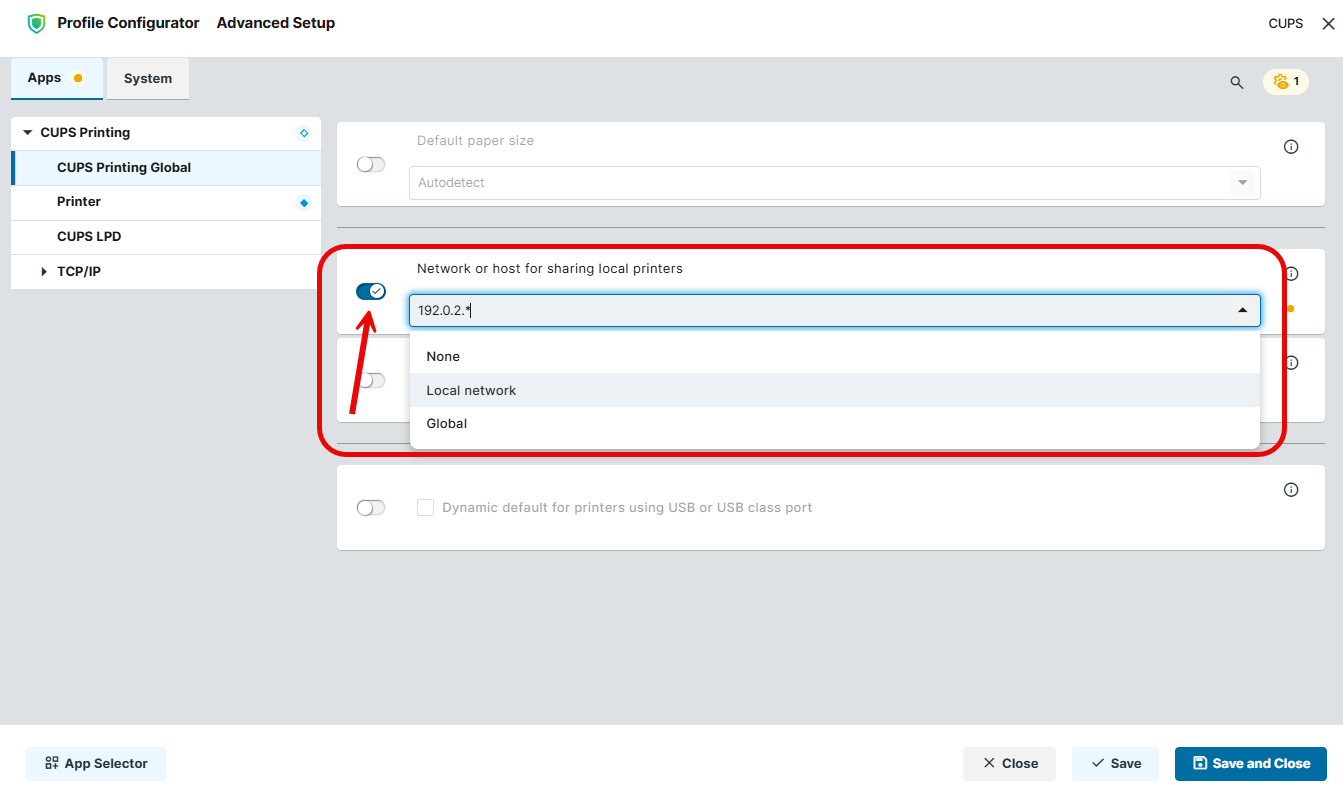
In the Profile Configurator, go to Apps > CUPS Printing > CUPS Printing Global.
-
Under Network or host for sharing local printers, specify the network or host from which access to the printer is possible.
Possible values:-
None (Default): Access to the printer via the network is disabled.
-
Local network: Allows printing on the local device from the local network.
-
Global: Allows printing on the local device from the global network.
-
[Custom value]: You can delete a selected value and specify a custom value in the form
192.0.2.*or192.0.2.0/24or*.domain.comor192.0.2.1orhost.domain.com.
-
-
Under Apps > CUPS Printing > Printer > [printer name], activate Share printer.
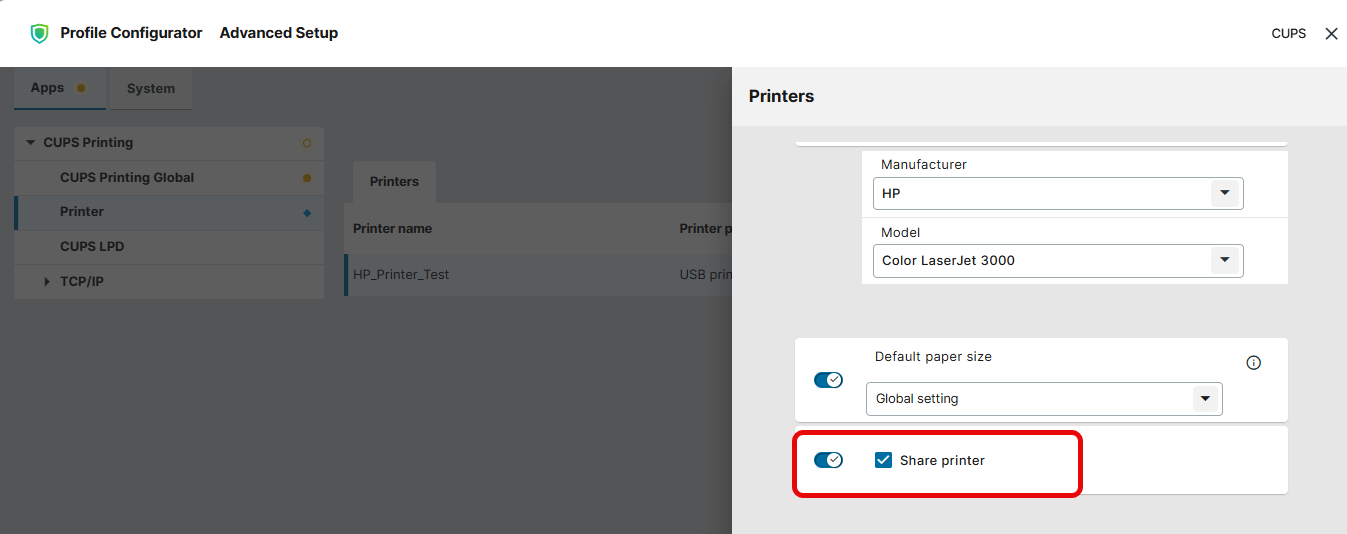
The configured printer becomes available as a network IPP printer. The configured CUPS printer queue becomes available to other devices on the permitted network.
If the printer should be available as a network LPD printer, additional configuration is required: Go to Apps > CUPS Printing > CUPS LPD and make the settings as described under How to Configure an IGEL OS Endpoint as an LPD Print Server.