If you are planning a complex directory structure, you do not need to set it up in a step-by-step manner in the UMS Console. Instead, you can create a .csv file (e.g. with a spreadsheet program) in which you determine the directory structure and then import the structure from this list.
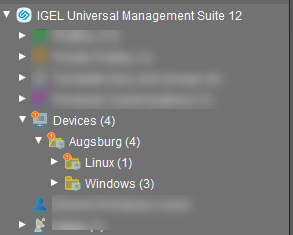
The tree structure shown above is based on the following file:
Devices; Augsburg; Linux
Devices; Augsburg; Windows
To import a directory structure from a .csv file, proceed as follows:
-
Select System > Import > Import Directories from the main menu.
The Import Directories window will appear. -
Click Open File in order to load a
csvfile.In the first column, you must specify one of the default master directories. In this way, you can also import directory structures for profiles, tasks, views or files. -
Click Import Directories in order to create the directory structure.
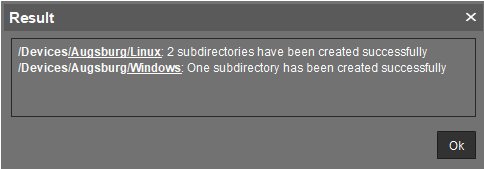
A window showing the result of the import will appear. Any newly created directories will be underlined.