
In order to update a file version once it is deployed to a device, you will want to utilize the Update File Version option in the IGEL Universal Management Suite (UMS).
To update the file version on your existing devices:
-
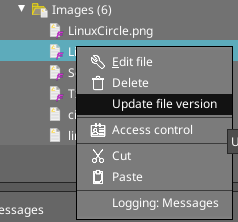
Right-click the file object in UMS.
-
Select the Update file version option.
-
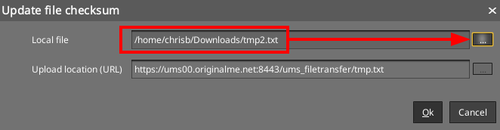
In the Update file checksum dialog, click the "..." (three dots) button to launch a file browser, and select the new file.
-
Click OK to upload and replace the file in the ums_filetransfter directory.
-
Send updated device settings, or reboot devices to have the file sent to the devices and replace the original file on the device.